
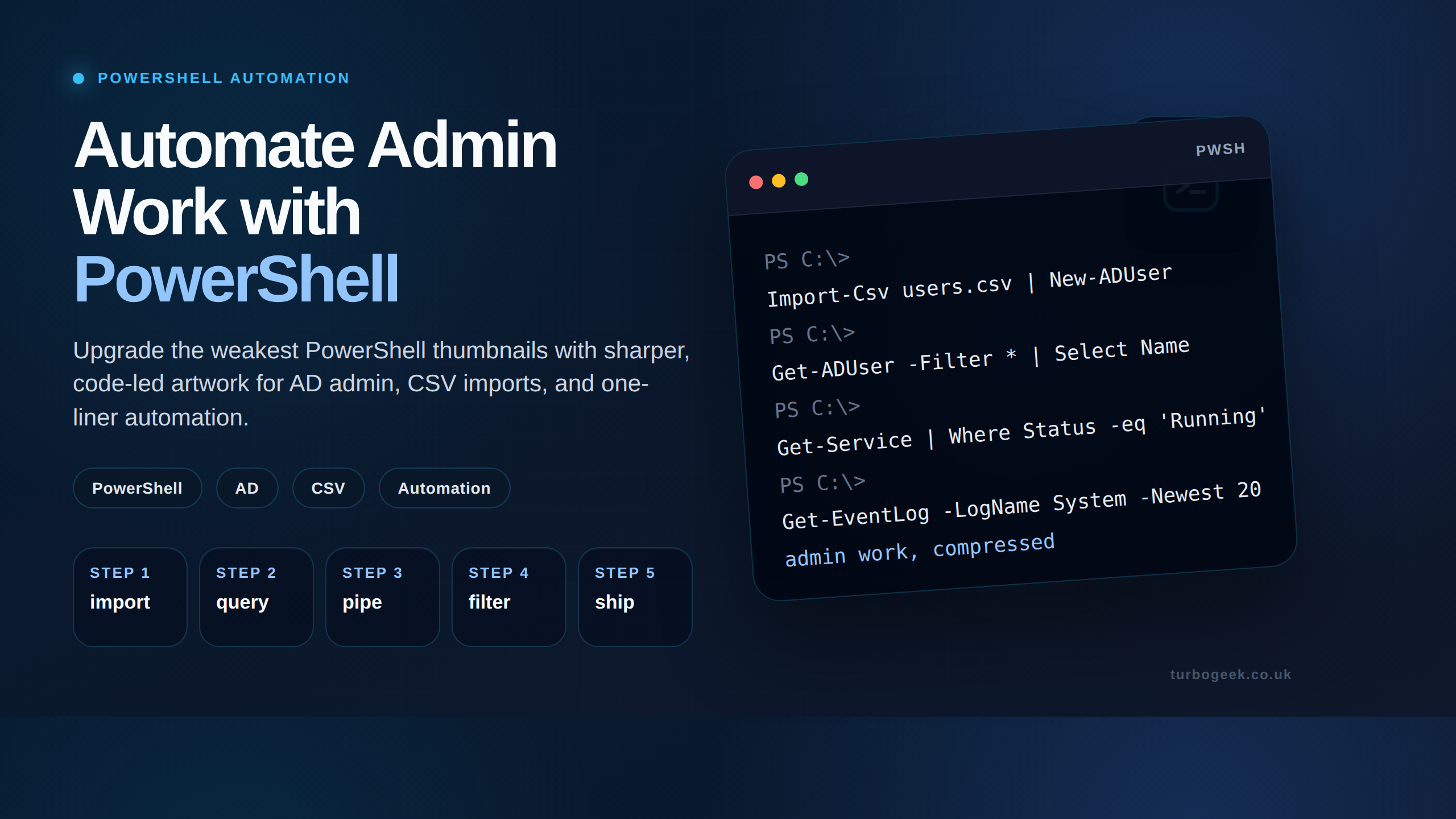
Quick Answer
- Prepare a CSV file with headers:
Name,SamAccountName,Password,OU - Import Active Directory module:
Import-Module ActiveDirectory - Read the CSV:
$users = Import-Csv "users.csv" - Loop and create each user:
foreach ($u in $users) { New-ADUser -Name $u.Name -SamAccountName $u.SamAccountName -AccountPassword (ConvertTo-SecureString $u.Password -AsPlainText -Force) -Enabled $true } - Verify the created accounts:
Get-ADUser -Filter * | Select Name,SamAccountName
Bulk user provisioning is one of the most common reasons Windows administrators turn to Active Directory PowerShell. If HR, a project team, or a migration workstream hands you a spreadsheet of new starters, you do not want to create those accounts one by one in the GUI.
This guide shows how to use PowerShell and CSV input to create multiple Active Directory users safely and repeatably. If you want a broader AD PowerShell overview first, read the main Active Directory PowerShell one-liners hub. If you only want a fast command reference, use the AD PowerShell cheat sheet.
When should you use CSV-based user provisioning?
- When you need to create dozens or hundreds of accounts from a standard onboarding sheet.
- When managers or HR can provide structured data ahead of time.
- When you need consistent OU placement, UPN patterns, and logging.
- When you want an idempotent workflow that skips users that already exist.
Prerequisites
- A domain-joined Windows host with RSAT or the AD DS tools installed.
- The
ActiveDirectoryPowerShell module. - Permissions to create users in the target OUs.
- A controlled CSV template with agreed field names.
Import-Module ActiveDirectory
Get-Module ActiveDirectory -ListAvailable
Step 1: Define the CSV structure
Your CSV should contain the key identity and placement fields needed to create each account. Keep the layout consistent and quote distinguished names because they contain commas.
FirstName,LastName,DisplayName,SamAccountName,UserPrincipalName,Password,OrganizationalUnitPath,Enabled
John,Doe,John Doe,jdoe,[email protected],TempP@ssw0rd!23,"OU=Users,OU=London,DC=contoso,DC=com",TRUE
Jane,Smith,Jane Smith,jsmith,[email protected],TempP@ssw0rd!23,"OU=Users,OU=London,DC=contoso,DC=com",TRUE
Important: storing passwords in CSV is acceptable for a lab or tightly controlled onboarding process, but in production you should prefer pre-generated passwords from a secure workflow or a handoff from a password vault process.
Step 2: Validate your target OUs
Before you run any creation script, check that the OU paths in your CSV are correct. A typo in a distinguished name is one of the quickest ways to break a bulk import job.
Get-ADOrganizationalUnit -Filter * | Select-Object Name,DistinguishedNameIt is also worth opening the CSV in a spreadsheet tool and checking for blank rows, duplicate usernames, and malformed UPNs before you even touch PowerShell.
Step 3: Use a safer PowerShell script
The script below imports the CSV, checks whether the OU exists, skips users that are already present, converts the password to a secure string, and logs the result for each row.
Import-Module ActiveDirectory

$CsvPath = 'C:\Temp\NewUsers.csv'
$LogPath = 'C:\Temp\NewUsers-Results.csv'
$Results = @()

$Users = Import-Csv -Path $CsvPath

foreach ($User in $Users) {
    $Result = [ordered]@{
        SamAccountName = $User.SamAccountName
        UserPrincipalName = $User.UserPrincipalName
        OU = $User.OrganizationalUnitPath
        Status = 'Pending'
        Detail = ''
    }

    if ([string]::IsNullOrWhiteSpace($User.FirstName) -or
        [string]::IsNullOrWhiteSpace($User.LastName) -or
        [string]::IsNullOrWhiteSpace($User.SamAccountName) -or
        [string]::IsNullOrWhiteSpace($User.UserPrincipalName) -or
        [string]::IsNullOrWhiteSpace($User.OrganizationalUnitPath)) {
        $Result.Status = 'Skipped'
        $Result.Detail = 'Missing required field'
        $Results += [pscustomobject]$Result
        continue
    }

    $OU = Get-ADOrganizationalUnit -LDAPFilter "(distinguishedName=$($User.OrganizationalUnitPath))" -ErrorAction SilentlyContinue
    if (-not $OU) {
        $Result.Status = 'Skipped'
        $Result.Detail = 'Target OU not found'
        $Results += [pscustomobject]$Result
        continue
    }

    $Existing = Get-ADUser -Filter "SamAccountName -eq '$($User.SamAccountName)'" -ErrorAction SilentlyContinue
    if ($Existing) {
        $Result.Status = 'Skipped'
        $Result.Detail = 'User already exists'
        $Results += [pscustomobject]$Result
        continue
    }

    $Enabled = $false
    if ($User.Enabled -match '^(true|1|yes)$') {
        $Enabled = $true
    }

    $SecurePassword = ConvertTo-SecureString $User.Password -AsPlainText -Force

    New-ADUser \
        -Name $User.DisplayName \
        -GivenName $User.FirstName \
        -Surname $User.LastName \
        -SamAccountName $User.SamAccountName \
        -UserPrincipalName $User.UserPrincipalName \
        -Path $User.OrganizationalUnitPath \
        -AccountPassword $SecurePassword \
        -Enabled $Enabled

    $Result.Status = 'Created'
    $Result.Detail = 'User created successfully'
    $Results += [pscustomobject]$Result
}

$Results | Export-Csv -Path $LogPath -NoTypeInformation
Step 4: Test before production
Do not point this script at your live onboarding OU first. Start with a small test CSV in a non-production OU, confirm the usernames and UPNs look correct, then scale up.
- Test with 2 to 3 records first.
- Use a dedicated lab OU if possible.
- Review the output log after every run.
- Confirm the accounts appear in the expected OU and can be enabled correctly.
Step 5: Handle common bulk-user creation issues
Duplicate usernames
If your CSV contains a duplicate SamAccountName, the script should skip or flag it rather than creating a conflicting account.
Bad OU paths
Distinguished names that are not quoted correctly or contain typos will cause users to fail creation. Validate them early.
Weak password handling
A CSV full of plaintext passwords is operationally easy but risky. If you need a safer flow, generate passwords separately and deliver them through a controlled handoff process.
Re-running the job
Idempotent logic matters. If you re-run the script after part of the batch succeeds, it should skip existing users and only process new or failed rows.
Step 6: Validate the created accounts
Get-ADUser -Filter * -SearchBase 'OU=Users,OU=London,DC=contoso,DC=com' | Select-Object Name,SamAccountName,UserPrincipalName
Get-ADUser -Identity 'jdoe' -Properties Enabled,DistinguishedName | Select-Object Name,Enabled,DistinguishedName
Use these checks to confirm the users landed in the right location and are enabled or disabled as expected.
Where this guide fits in the AD PowerShell cluster
- Active Directory PowerShell One-Liners: User, Group and Computer Admin is the hub for everyday AD admin commands.
- Active Directory PowerShell Cheat Sheet is the fast copy-and-paste reference page.
Related TurboGeek guides
- Active Directory PowerShell One-Liners: User, Group and Computer Admin
- Active Directory PowerShell Cheat Sheet
Leave a Reply