

Safe Mode is one of the most useful Windows recovery tools because it starts the operating system with a minimal set of drivers and services. If your PC crashes, hangs, or behaves strangely in normal mode, booting into Safe Mode helps you isolate whether the issue is caused by a third-party app, driver, startup task, or malware.
This is the main TurboGeek entry page for Windows 11 and Windows 10. If you need older systems, use our Windows 7 and 8.1 Safe Mode guide instead.
When should you use Safe Mode?
- Your PC crashes after a recent driver or software install.
- Windows boots to a black screen or an unstable desktop.
- You need to remove malware, faulty drivers, or bad startup items.
- You want to run tools like System Restore, SFC, or DISM in a cleaner environment.
Choose the right next step
- What to Do in Windows Safe Mode for Troubleshooting
- Windows Safe Mode Options Explained
- How to Exit Safe Mode in Windows 11/10
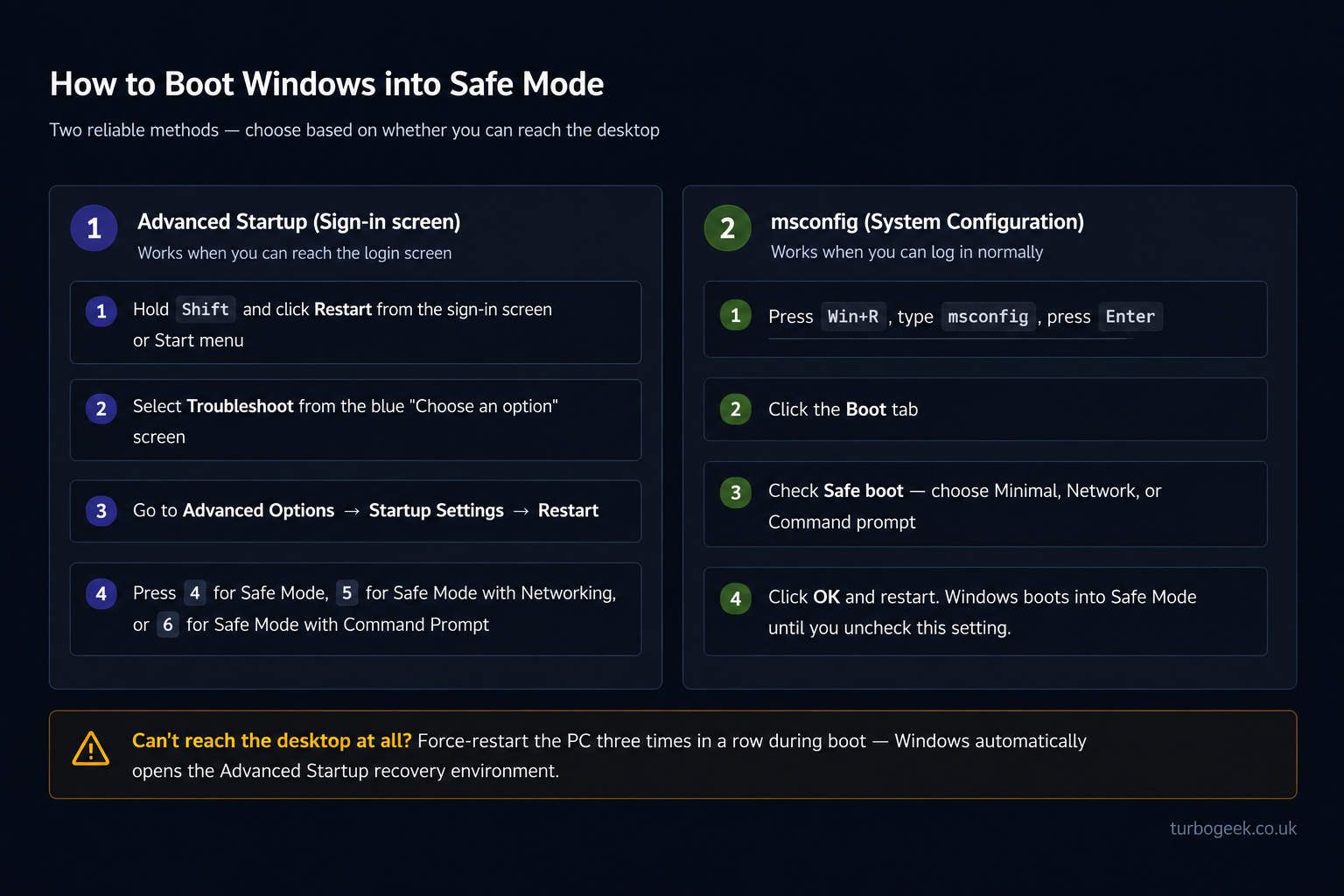
Method 1: Use Advanced Startup from the sign-in screen or desktop
If you can reach the sign-in screen or desktop, this is the cleanest way to enter Safe Mode without permanently forcing Safe Boot in msconfig.
- Click the Power icon.
- Hold Shift and click Restart.
- When the blue recovery screen appears, select Troubleshoot > Advanced options > Startup Settings > Restart.
- After the PC restarts again, press 4 or F4 for standard Safe Mode.
- Press 5 or F5 if you need Safe Mode with Networking.
Method 2: Use msconfig if you can log in normally
If you are already signed into Windows and want to force the next boot into Safe Mode:
- Press Windows + R.
- Type
msconfigand press Enter. - Open the Boot tab.
- Check Safe boot and leave Minimal selected for standard Safe Mode.
- Click Apply, then OK, then restart the PC.
Important: if you use this method, remember to turn Safe Boot off later or Windows may keep restarting into Safe Mode. If that happens, use our exit Safe Mode guide.
What if Windows will not boot to the desktop?
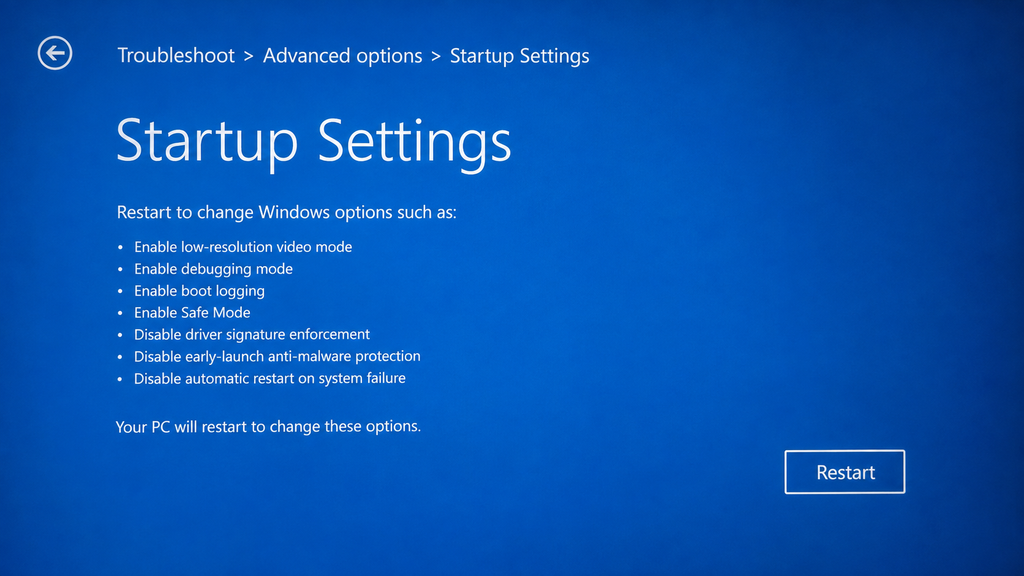
If you cannot reach the desktop, use the Shift + Restart method from the sign-in screen. If Windows repeatedly fails to boot, it may automatically drop you into the Windows Recovery Environment. From there, follow the same path:
Troubleshoot > Advanced options > Startup Settings > Restart
What should you do after you are in Safe Mode?
Booting into Safe Mode is only the first step. Once you are in, move to the next guide that matches your intent:
- Use Safe Mode for troubleshooting
- Choose the right Safe Mode option
- Return to normal mode when you finish
Leave a Reply