
TL;DR
- This guide uses Docker’s official APT repository and
docker-cepackages; do not mix them with Ubuntu’sdocker.iopackage set. - Add the GPG key, add the repo, then
apt install docker-ce docker-ce-cli containerd.io docker-buildx-plugin docker-compose-plugin. - Docker group access is optional and grants root-equivalent control; add only trusted administrators.
- Verify with
docker run hello-world; if it pulls and runs, you’re done.
What is installing Docker on Ubuntu?
Docker packages applications and their dependencies into images. This guide installs Docker Engine from Docker’s official APT repository on Ubuntu; package availability and supported architectures depend on the Ubuntu release.
The official package is docker-ce (Docker Community Edition). The matching docker-compose-plugin provides Compose as a Docker subcommand (docker compose, no hyphen) — replacing the old standalone docker-compose binary.
Prerequisites
- A supported Ubuntu release: Docker currently lists 22.04 LTS, 24.04 LTS and 26.04 LTS. Check the official requirements before installing.
sudoaccess on the target machine.- Network access to
download.docker.comfor the APT repo and image registry.
How to use this guide
The sections below walk through the practical commands and options. After the main content you’ll find a Verification block (sanity-check it actually worked), a Troubleshooting block (common error messages and what to do), and Related reading for follow-on topics.
The commands below cover a native Ubuntu Docker Engine installation. Docker Desktop and rootless Docker use different service and socket arrangements.
Documentation checked on 8 September 2026. The companion permission guide includes an isolated Linux socket test; these installation steps were checked against Docker documentation, not a new end-to-end Ubuntu installation test.
Key Takeaways
- Official Repository is Best: Use Docker’s official
aptrepository for the package set in this guide. Review and test available updates before applying them. - Process Overview: The installation involves updating your system, adding Docker’s GPG key for security, adding the official repository, and then installing the Docker packages.
- Post-Installation Steps: Verify the installation with
hello-world. Choose sudo, trusted Docker group membership or a separate rootless setup according to your access requirements. - Complete Package: The installation includes Docker Engine, the Docker CLI,
containerd, and plugins for Docker Buildx and Docker Compose, providing a full container management toolkit.
Understanding the Docker Architecture
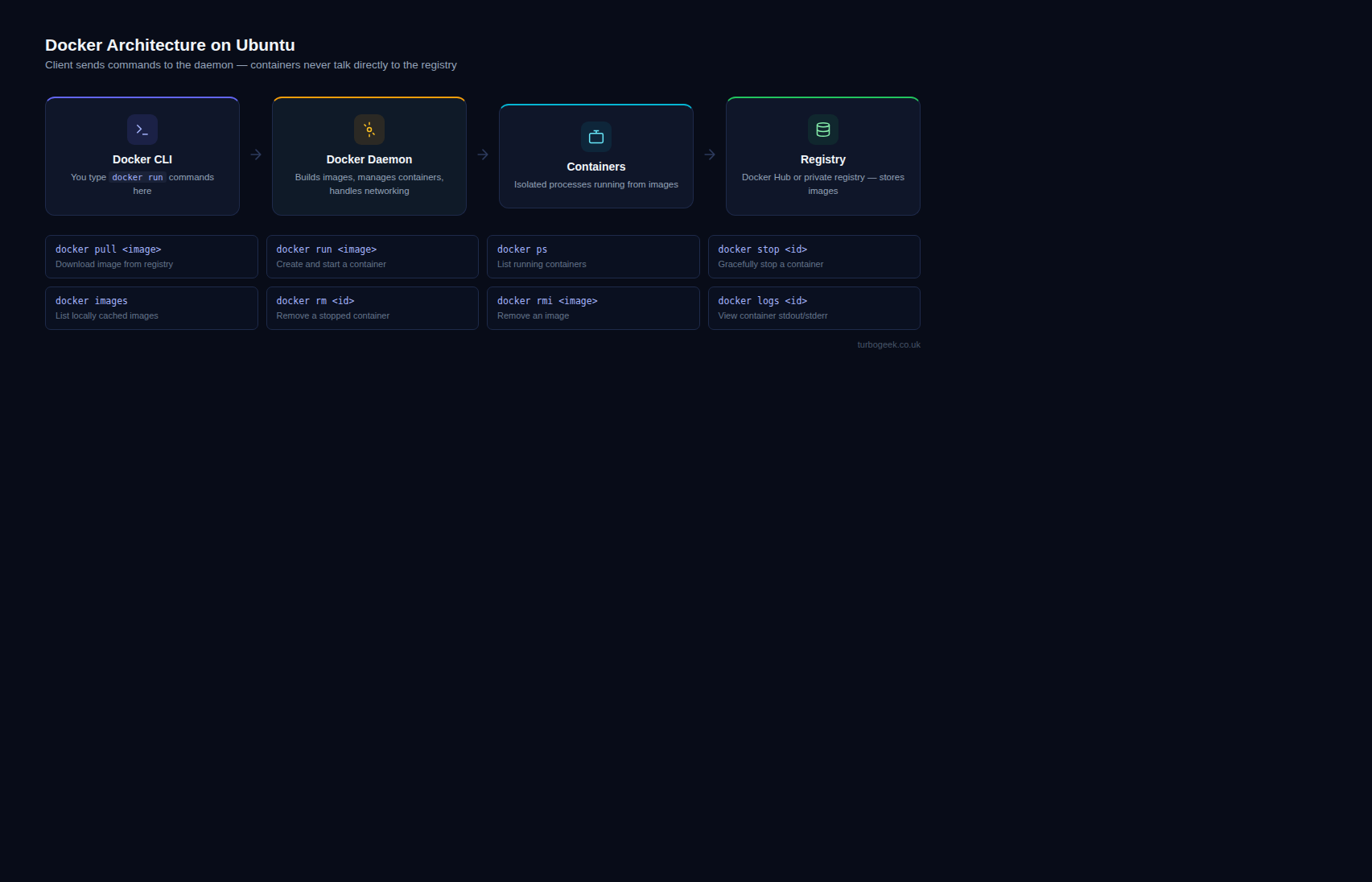
Before we touch the terminal, it is vital to understand what you are actually installing. Unlike legacy virtualization, Docker utilizes the host’s kernel but separates the runtime environment.
A stack consists of three primary layers:
- Docker CLI: The user interface for interacting with the daemon.
- Docker Engine (dockerd): The persistent background process that manages containers.
- Containerd: The industry-standard container runtime that manages the entire container lifecycle (push/pull, execution, storage).
Docker Engine vs. Docker Desktop
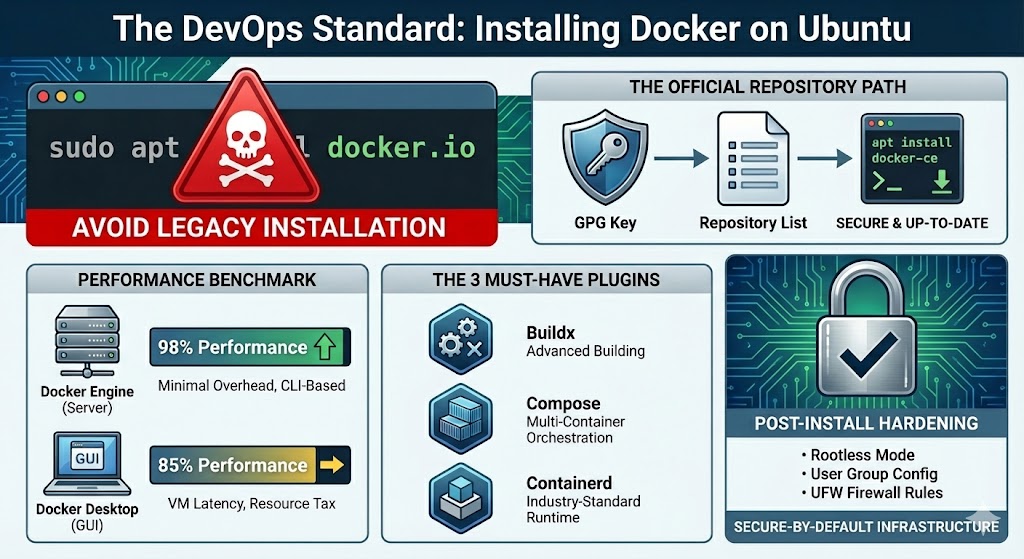
- Docker Engine: High performance, CLI-based, minimal overhead. Ideal for servers.
- Docker Desktop: GUI-driven, includes Kubernetes, but runs a lightweight VM (which introduces latency). Ideal for local development on macOS/Windows/Ubuntu.
Prerequisites: System Validation
We recommend a minimum of 2GB RAM and 20GB Disk Space for a stable Docker host. To check your current kernel and architecture:
uname -aUse an architecture and release listed in Docker’s Ubuntu requirements. Storage defaults depend on installation history: fresh Engine 29 installations use the containerd image store; upgraded installations can retain classic drivers.
How Do You Install Docker on Ubuntu?
Use one package source consistently. Before replacing an existing installation, inventory running services and backups, then follow Docker’s conflicting-package guidance for docker.io, standalone Compose, containerd and runc. Removing or changing runtime packages can interrupt workloads; do not run an uninstall list blindly on an active host.
Step 1: Why Should You Prepare Your System for Installation?
Before adding new software, it’s a best practice to prepare your system. This involves updating your local package index to ensure you have the latest information about available software.
- First, open your terminal and refresh your package list:
sudo apt-get update- Next, install the necessary prerequisite packages:
sudo apt-get install ca-certificates curl gnupgStep 2: How Do You Add Docker’s Official GPG Key?
A GPG (GNU Privacy Guard) key is used to sign software packages, and adding Docker’s key allows your system to verify that the Docker packages you download are authentic and have not been tampered with. This is a critical security step.
- Create a dedicated directory for GPG keys:
sudo install -m 0755 -d /etc/apt/keyrings- Download Docker’s official GPG key and save it in the new directory:
curl -fsSL https://download.docker.com/linux/ubuntu/gpg | sudo gpg --dearmor -o /etc/apt/keyrings/docker.gpg- Modify the key’s permissions to make it readable by all users:
sudo chmod a+r /etc/apt/keyrings/docker.gpgStep 3: How Do You Set Up the Docker Repository?
With the GPG key in place, you can now safely add the official Docker repository to your system’s sources. This tells the apt package manager where to find the Docker Engine installation files. The following command automatically detects your Ubuntu version and sets up the correct repository.
echo \
  "deb [arch=$(dpkg --print-architecture) signed-by=/etc/apt/keyrings/docker.gpg] https://download.docker.com/linux/ubuntu \
  $(. /etc/os-release && echo "$VERSION_CODENAME") stable" | \
sudo tee /etc/apt/sources.list.d/docker.list > /dev/nullStep 4: What Packages Do You Need to Install?
Now that your system is configured to use the Docker repository, you can proceed with the installation. You’ll update your package list one more time to include the packages from the newly added Docker repo and then install Docker Engine itself.
- Update the package list again to include the Docker packages:
sudo apt-get update- Install Docker Engine, CLI,
containerd, and the Buildx and Compose plugins:
sudo apt-get install docker-ce docker-ce-cli containerd.io docker-buildx-plugin docker-compose-pluginVerify both plugins with docker buildx version and docker compose version. The Compose subcommand is separate from the old standalone docker-compose executable.
Step 5: How Can You Run Docker Without sudo?
A rootful Docker daemon exposes a Unix socket normally accessible to root and the docker group. Joining that group grants root-equivalent control of the host. Add only a trusted administrator who needs that access; rootless Docker is a separate alternative, not the same permission change.
- Add your current user to the
dockergroup:
sudo usermod -aG docker $USER- Important: For this change to take effect, you must log out of your current session and log back in, or restart your system.
Step 6: How Do You Verify the Installation is Working?
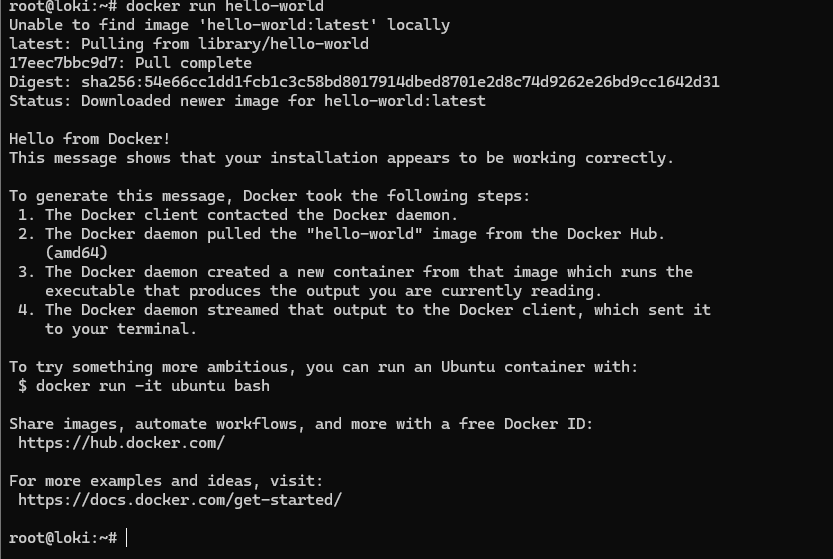
The final step is to confirm that Docker Engine is installed and running correctly. The standard way to do this is by running the lightweight hello-world container. This image is designed specifically to test Docker installations.
Run the following command in your terminal:
docker run hello-worldIf your installation is successful, Docker will download the image and run the container. You will see a confirmation message in your terminal that begins with “Hello from Docker!” This confirms that your setup is complete and ready for you to start building and running containers.
Step 7 – Post-Install Hardening & UX Optimization
For non-root command invocation, distinguish root-equivalent Docker group access from a daemon genuinely running in rootless mode. Neither should be enabled without reviewing the intended access boundary.
Enabling Non-Root Access
- Check the group first with
getent group docker; the package normally creates it. - Add user:
sudo usermod -aG docker $USER - Apply changes:
newgrp docker
Securing the Docker Socket
The Docker socket (/var/run/docker.sock) is a major security vector. Based on industry standards, we recommend limiting access:
- For remote access, use Docker’s documented SSH transport or authenticated TLS. SSH agent forwarding is not required simply to use a Docker SSH context.
- Implement UFW (Uncomplicated Firewall) rules carefully, as Docker bypasses UFW by default.
Advanced Configuration: Resource Constraints
Set workload-appropriate memory and CPU limits, leaving capacity for the host and other services. These flags bound the container’s resources; they do not guarantee the host cannot fail.
Implementation:
For Example, if I want to allocate my NGINX container 1gb RAM and 1.5 vCPU I would run this command:
docker run -d --name production-app --memory="1g" --cpus="1.5" nginxWhat Are the Next Steps After Installing Docker?
Congratulations, you have a fully functional Docker environment! Your journey is just beginning. You can now explore pulling more complex application images from Docker Hub, such as a web server, or start writing your own Dockerfiles to containerize your applications.
For example, try running an NGINX web server with a single command:
docker run --name some-nginx -p 127.0.0.1:8080:80 -d nginxYou can now visit http://localhost:8080 in your browser and see the NGINX welcome page.
How Do You Keep Docker Engine Updated on Ubuntu?
Short Answer: Refresh APT metadata, review candidate versions and apply upgrades during an agreed maintenance window. Adding the repository does not automatically install updates.
Update Docker packages:
sudo apt-get update
sudo apt-get install --only-upgrade docker-ce docker-ce-cli containerd.io docker-buildx-plugin docker-compose-pluginYou can also check the installed version:
docker versionAfter an upgrade, verify the client and server versions, plugin versions and application health. Keep a tested rollback and data-recovery plan.
Common Issues & How to Fix Them
Docker command not found?
- Fix: Run which docker command. If no reply you may need to install it, simply follow this procedure.
which docker
Permission denied when running docker?
- Fix: You likely forgot to re-login after joining the docker group. Restart your session.
hello-world image fails to download?
- Fix: Check your network or corporate proxy settings.
Cannot connect to Docker daemon.
- Fix: Check the selected context and endpoint first. For the intended local rootful service, inspect
systemctl status dockerand its logs; do not assume the cause is containerd.
Repository “Noble” does not have a Release file.
- Fix: Confirm the actual Ubuntu codename, repository URL, key and supported-release list. Noble is supported. Do not substitute another Ubuntu release to bypass a repository error; correct the source configuration for this host.
DNS Resolution failing inside containers.
- Fix: Compare host and container DNS, the selected Docker network and any VPN or corporate resolver requirements. Do not replace an organisation’s DNS with a public resolver before checking internal-name resolution and policy.
Verification
Sanity-check the change actually worked:
docker version— confirms client and server connectivity.docker compose versionanddocker buildx version— confirm the installed plugins.docker run --rm hello-world— pulls and runs a tiny test image, confirming pull + execute path works.
Troubleshooting
permission denied while trying to connect to the Docker daemon socket — Check the socket, active groups and context before granting access. Follow the Docker permission-denied diagnostic guide to distinguish group membership, stale sessions, rootless service and CLI configuration errors.
docker-compose: command not found — v2 is invoked as docker compose (no hyphen). The standalone v1 binary is no longer installed by default.
Image pull fails behind a corporate proxy — Configure proxy in /etc/systemd/system/docker.service.d/http-proxy.conf; full template in the Docker docs.
Authoritative sources
References: Docker — official Ubuntu install, Docker Compose v2 install.
Leave a Reply