

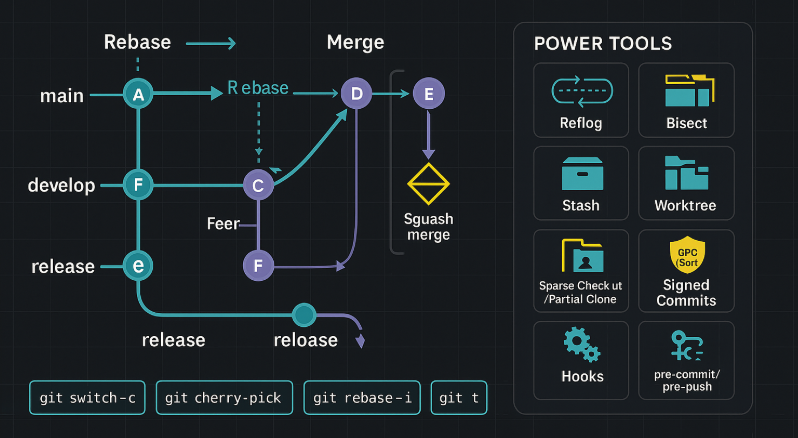
Introduction to Advanced Git Features
Git is far more than just a version control system—it’s the backbone of modern software collaboration. Whether you’re managing microservices, automating CI/CD pipelines, or contributing to open source, mastering advanced Git features transforms you from a casual user into a DevOps powerhouse.
This guide dives deep into the commands, workflows, and hidden features that help teams manage complex repositories, recover lost work, and maintain a clean, readable project history.
15 Advanced Git Features at a Glance
- git reflog — recover lost commits from Git’s internal log of all HEAD movements
- git stash — temporarily shelve uncommitted changes and switch context without committing
- git bisect — binary-search commit history to find exactly which commit introduced a bug
- git cherry-pick — apply a single commit from another branch without merging the whole branch
- git rebase -i — interactively squash, reorder, or drop commits before pushing
- git worktree — check out multiple branches in separate directories simultaneously
- git submodules — embed one repository inside another for shared libraries
- git hooks — run custom scripts automatically on commit, push, or merge events
Understanding Git’s Core Architecture
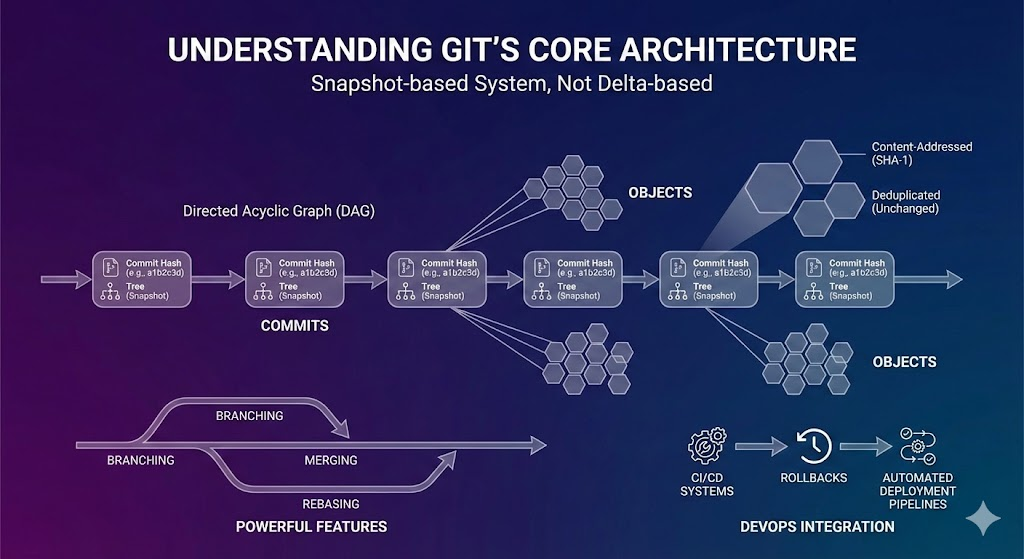
At its core, Git is a snapshot-based system rather than a delta-based tracker. Every commit points to a tree (snapshot) of the project state; objects are content-addressed and deduplicated, so unchanged files aren’t duplicated. Pointers connect commits in a Directed Acyclic Graph (DAG).
This architecture enables powerful features like branching, merging, and rebasing with minimal overhead. For DevOps teams, this structure allows seamless integration across CI/CD systems, rollbacks, and automated deployment pipelines.
Advanced Branching Strategies
Using git switch and git restore
The git switch and git restore commands simplify operations previously done with git checkout. For example:
# **Create and switch to a new branch**
git switch -c feature/login-ui

# **Switch to an existing branch**
git switch feature/login-ui

# **Unstage a file (keep working changes)**
git restore --staged main.py

# **Discard working-tree changes to a file**
git restore main.pyNote: git switch feature/login-ui switches to an existing branch. To create and switch, use git switch -c feature/login-ui.
This improves readability and prevents accidental branch or file changes.
Managing Feature Branches Efficiently
Use a feature branch workflow to isolate new features:
feature/<ticket-id>-<feature-name>
Example: feature/123-user-authentication.This naming pattern keeps branches organized and easily traceable.
Working with Long-Lived Branches
Branches like main, develop, and release (if your workflow uses them—trunk-based teams may keep only main) are typically maintained permanently. Teams merge features into develop, then release to main after QA approval
Advanced Merging Techniques
The Power of git rebase
Rebasing rewrites commit history to keep it linear.
Instead of this:
A---B---C (main)
     \
      D---E (feature)
You get:
A---B---C---D'---E' (feature)
This results in a cleaner, more understandable history.
Caution: don’t rebase commits that others have already pulled (avoid rewriting published history). Use git push --force-with-lease if you must update a remote after a rebase.
Using git cherry-pick for Selective Commits
git cherry-pick allows you to apply specific commits from one branch to another—ideal for backporting bug fixes.
git cherry-pick 1a2b3c4Note: cherry-picking can duplicate changes if the original branch is later merged; watch for conflicts.
The Magic of git merge --squash
Combine multiple commits into one before merging. This keeps your main branch history tidy and easy to read.
git merge --squash feature/123-user-authentication
git commit -m "feat(auth): add authentication flow"Squash merges don’t create a merge commit or preserve parentage—great for tidy history, but the ancestry will not reflect a true merge.
Commit History Management and Cleanup
git commit --amend
Need to fix a commit message or add forgotten changes? Simply run:
git commit --amendUse on unpublished commits; avoid amending commits others have pulled
This replaces the previous commit without cluttering your history.
git rebase -i (Interactive Rebase)
Interactive rebasing lets you reorder, squash, or edit commits for a refined commit log:
git rebase -i HEAD~5Using git reflog to Recover Lost Commits
Accidentally deleted a branch? Use:
git reflogIt records local Git actions—entries expire per gc.reflogExpire*; recovery is local to your clone.
Git Hooks: Automate Your Workflow
Automation is one of the most underrated advanced Git features. Git hooks are scripts that automatically run when certain Git events occur, such as committing or pushing code. They’re stored in the .git/hooks/ directory of your repository. You can centralize hook scripts via core.hooksPath to share them across repos.
Common Hook Examples (pre-commit, pre-push)
pre-commit: Runs before you make a commit. Ideal for linting, formatting, or running unit tests automatically.
#!/bin/sh
npm run lint
npm testpre-push: Executes before pushing to a remote. You can block pushes if tests fail, ensuring broken code never reaches production.
Using Husky or Lefthook for Hook Management
Instead of managing scripts manually, developers use tools like Husky or Lefthook.
These tools allow centralized hook management and integration with CI/CD workflows ——remember client-side hooks don’t enforce policy on the server; pair with CI or server-side hooks.
Working with Remotes and Collaboration
Managing multiple remotes efficiently is vital in DevOps pipelines and open-source collaboration.
git remote prune and git fetch --prune
When collaborators delete branches from the remote, your local repo may still show outdated references.
Clean them up with:
# **Fetch and prune tracking refs in one step**
git fetch --prune

# **Prune stale tracking refs for a specific remote (no fetch)**
git remote prune originUse git branch -vv to review local branches and prune safely.
Handling Forks and Upstream Syncs
If you’re working on a forked repository:
git remote add upstream https://github.com/original/repo.git
git fetch upstream
# **Rebase (linear history) or merge (preserve history)**
git rebase upstream/main # or: git merge upstream/mainRebase keeps your fork tidy; merge preserves the original history.
Debugging and Exploring Commits
git bisect for Locating Bugs
git bisect is an incredibly powerful command that uses binary search to pinpoint which commit introduced a bug.
Example:
git bisect start
git bisect bad HEAD
git bisect good v1.0.0
# **Automate checks**
# git bisect run ./run-tests.shGit will check out commits between these points until it identifies the bad one — a lifesaver in large projects.
git blame for Tracking Code Changes
When investigating a line of code:
git blame main.pyIt tells you who made each change and when. Perfect for audits, code reviews, and debugging regressions.
Stashing and Work-in-Progress Management
Developers often switch contexts mid-task. Instead of committing incomplete work, use Git’s stash feature.
git stash push, git stash pop, and git stash apply
git stash push -m "WIP: new API integration"– saves your changes without committing.git stash pop– re-applies and removes the stash entry.git stash apply– reapplies without removing, useful for reusing stashed changes.
You can view all stashes with:
git stash push -m "WIP: new API integration"          # saves your changes
git stash list                                         # view all stashes
git stash pop                                          # reapplies and removes
git stash apply                                        # reapplies without removing
# **Common options**
# git stash push --include-untracked
# git stash push --staged
If pop conflicts, the stash entry remains—resolve, then drop it.
This workflow is ideal for DevOps engineers juggling multiple hotfixes or deployments.
Advanced Diff and Log Commands
git log --graph and git log --oneline
Visualize your branch structure:
git log --oneline --graph --allThis shows a compact, tree-style view — great for understanding merges at a glance.
git diff --cached, git show, and Custom Aliases
git diff --cachedshows staged changes.git show <commit>inspects a specific commit’s details.- Aliases make these commands faster.
Example in.gitconfig:[alias] lg = log --oneline --graph --decorate --all st = status -sb co = checkout
Custom aliases can drastically speed up everyday Git operations.
Aliases make these faster. Example .gitconfig:
[alias]
  co = switch
  lg = log --oneline --graph --decorate --all
  st = status -sb
  undo = reset --soft HEAD~1   # keeps changes staged; use revert if already pushed
  cleanup = fetch --prune
Git Submodules and Monorepos
Adding and Updating Submodules
When your project depends on another repository:
git submodule add https://github.com/lib/project.git libs/project
git submodule update --init --recursive # **after cloning**To update:
git submodule update --remoteSubmodules pin a specific commit of the dependency and often put you in a detached HEAD inside the submodule—be deliberate when committing there
Using git sparse-checkout for Large Repos
For massive monorepos, clone only what you need:
# **Combine partial clone with sparse checkout for speed**
git clone --filter=blob:none --sparse https://github.com/org/huge-repo.git
cd huge-repo
git sparse-checkout init --cone
git sparse-checkout set src/utilsThis reduces clone time and keeps workspaces lightweight, a must-have for DevOps pipelines.
Git Configuration and Aliases for Power Users
Setting Up Useful Git Aliases
Developers can save hours weekly by defining shortcuts. Examples:
| Alias | Command | Description |
|---|---|---|
git co | checkout | Switch branches |
git lg | log --graph --oneline --decorate --all | Visual log |
git undo | reset --soft HEAD~1 | Undo last commit |
git cleanup | fetch --prune | Remove stale branches |
Aliases make Git faster and more natural to use.
Configuring .gitconfig for Global Productivity
Enhance your global Git experience:
[color]
  ui = auto
[core]
  editor = code --wait
[help]
  autocorrect = 10   # **slightly longer delay; prevents accidental execution**
[commit]
gpgsign = trueConsider help.autocorrect=prompt on newer Git for safer behavior.
You can even auto-correct minor command typos — a small but mighty productivity boost.
Integrating Git with DevOps Tools
Modern CI/CD systems like Jenkins, GitHub Actions, and GitLab CI thrive on Git events.
- Jenkins uses webhooks to trigger builds on every push.
- GitHub Actions allows YAML-based workflows responding to pull requests or tag pushes.
- GitLab pipelines automate testing and deployment right from merge requests.
Example GitHub Actions YAML:
on:
  push:
    branches: [ main ]
jobs:
  build:
    runs-on: ubuntu-latest
    steps:
      - uses: actions/checkout@v4
      - run: npm ci
      - run: npm test
Pair client-side hooks with CI checks to enforce policy centrally.
Integrating Git into your DevOps ecosystem ensures code is tested, reviewed, and deployed automatically — reducing human error.
Security: Ensuring Commit and Release Integrity
Signed Commits and Tags
Use signed commits:
git config commit.gpgsign true
git commit -S -m "Signed commit"
Modern alternative (SSH signing):
git config gpg.format ssh
git config user.signingkey ~/.ssh/id_ed25519.pub
git tag -s v1.2.3 -m "Release 1.2.3"
git push --tagsUse provider verification (e.g., GitHub’s verification) and consider Sigstore for supply-chain workflows.
Extra Power Tools for Pros
git worktreefor multi-branch workflows:git worktree add ../repo-hotfix hotfix/issue-123git range-diffto review a rebase’s effects:git range-diff origin/main...feature- Safer force pushes:
git push --force-with-lease
FAQs About Advanced Git Features
Q1: What’s the difference between merge and rebase?
A merge combines histories, while a rebase copies commits onto a new base to produce a linear history. Use rebase for local cleanup; use merge to preserve history; use squash when individual commits aren’t useful.
Q2: Can I recover deleted branches or commits?
Yes! Use git reflog to view and recover lost commits. Remember: reflog is local and entries expire.
Q3: How can I undo a bad merge?
Use:
git revert -m 1 <merge_commit_hash>
to reverse a merge safely without losing history.
Q4: What are Git hooks used for?
Hooks automate actions like linting, testing, or notifications before/after Git events. Share them with core.hooksPath or a tool like Husky/Lefthook; enforce centrally via CI.
Q5: What’s the best way to handle large repositories?
Use partial clone with sparse checkout:
git clone --filter=blob:none --sparse <url>
It reduces local disk usage and improves performance.
Q6: How do I ensure secure Git commits?
Use GPG- or SSH-signed commits and signed tags for integrity and authenticity in enterprise environments.
Conclusion
Mastering advanced Git features is more than a technical skill — it’s a strategic advantage. Developers and DevOps professionals who leverage Git hooks, interactive rebases, and automation tools unlock higher efficiency, cleaner codebases, and more reliable pipelines.
Git evolves continuously, and staying ahead of the curve means embracing these advanced techniques to collaborate smarter, not harder.
You’ve just covered 15+ of the most powerful Git capabilities that can elevate your workflow from good to exceptional.
If you’re serious about mastering Git, explore the official Git Documentation — it’s the ultimate source for deep dives.
Leave a Reply