
Creating a custom Message of the Day (Linux MOTD) screen on Linux involves modifying certain files and configurations. We’ll use the /etc/update-motd.d/ directory to add scripts that fetch and display relevant information.
TL;DR
- Use
/etc/motdfor a static message and/etc/update-motd.d/for generated login output. - Make custom scripts executable, quick to run, and safe for every SSH login.
- Test with
run-parts /etc/update-motd.d/before opening a new login session.
Source check – May 10, 2026: Ubuntu’s update-motd man page documents
/etc/update-motd.d, and the Linux-PAM pam_motd manual documents the MOTD locations read after successful login.
| Topic | When | Command or path |
|---|---|---|
| Static MOTD | Simple text banner | /etc/motd |
| Dynamic MOTD | Ubuntu/Debian login scripts | /etc/update-motd.d/ |
| Preview output | Before logging out | run-parts /etc/update-motd.d/ |
Start here: If you are new to Linux administration, begin with the Linux start-here guide. If your MOTD is meant to show operational status, pair it with practical checks such as Linux disk cleanup.
Key Takeaways
- What is a MOTD? The “Message of the Day” (MOTD) is the welcome screen shown when a user logs into a Linux terminal.
- Dynamic vs. Static: Modern Linux systems (like Ubuntu) use the
/etc/update-motd.d/directory to run scripts and build a dynamic MOTD on every login, showing real-time system stats. - How to Customize: You can create your own executable scripts (e.g.,
10-custom-info) inside this directory to display any information you want, from CPU usage to logged-in users. - Easy Alternative: For a quick, colorful, and detailed MOTD, you can install a packaged system-info tool such as
fastfetchorneofetch, then call it from a short login script.
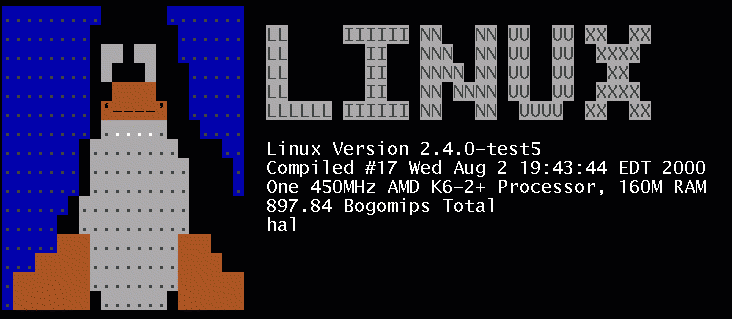
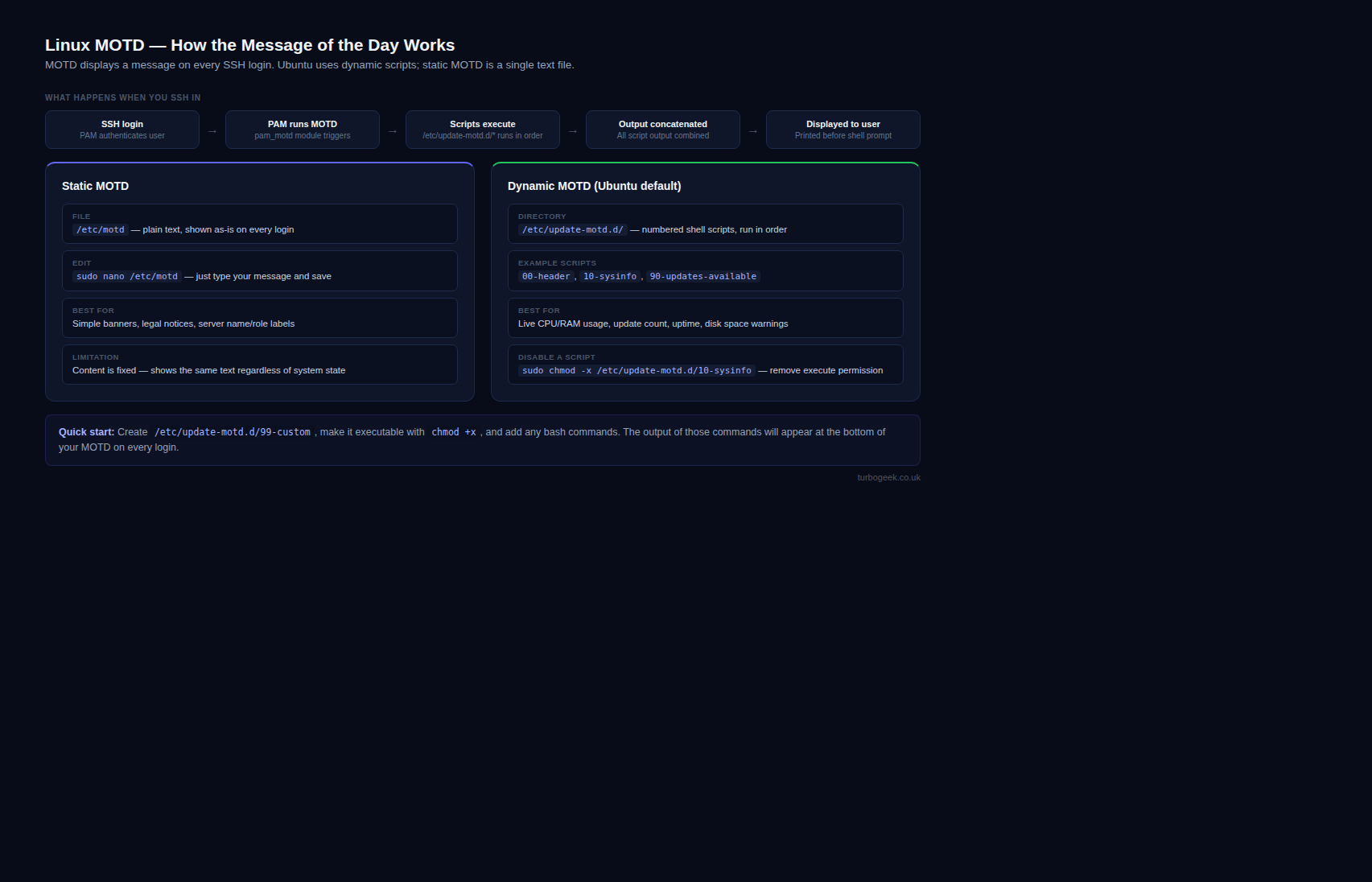
What is the Linux MOTD?
The Linux MOTD, or Message of the Day, is a customizable message that appears when a user logs in via a terminal (like an SSH session or local console).
Historically, this was a simple static text file (/etc/motd). Today, however, most modern distributions use a dynamic system. This system runs a series of small scripts upon login to generate a new MOTD every time, allowing it to display real-time system information like server load, disk usage, and logged-in users.
Creating a Custom Linux MOTD: Enhanced Guide
Understanding MOTD:
The Message of the Day (MOTD) is a brief message displayed to users when they log into a Linux system. It can contain welcome messages, system information, announcements, or even artistic ASCII banners.
Prerequisites:
- A Linux system (examples use Debian/Ubuntu).
- Access to a terminal.
- Permissions to run commands with
sudo. - A command-line text editor like
nano.
Step 1: Access the Terminal and Check MOTD is installed
Open a terminal on your Linux system.
sudo apt update
sudo apt install update-motdWhile most Linux systems have MOTD enabled by default, this command ensures it’s installed and up-to-date. The update-motd package is crucial for generating dynamic MOTDs.
Step 2: Backup Existing Linux MOTD and Update Scripts (Optional)
Backup the existing MOTD file and update scripts:
The Message of the Day (MOTD) in Linux is typically stored in the “/etc/motd” file. In some versions of Ubuntu and Debian, it’s located in “/etc/update-motd.d”.
sudo cp -r /etc/update-motd.d "/etc/update-motd.d_backup_$(date +%F)"Step 3: Create Custom Linux MOTD Scripts
Scripts in /etc/update-motd.d are executed in alphanumeric order. The number prefix on your script determines its position in the MOTD. We will create a script named 10-custom-info to have it appear early.
sudo nano /etc/update-motd.d/10-custom-infoAdd the following content to the script:
#!/bin/bash
#
# /etc/update-motd.d/10-custom-info
# This script displays custom system information

# Gather System Information
WHO=$(who | awk '{print $1}' | sort | uniq | tr '\n' ' ')
CPU=$(top -bn1 | grep "Cpu(s)" | sed "s/.*, *\([0-9.]*\)%* id.*/\1/" | awk '{print 100 - $1}')
DISK=$(df -h / | awk 'NR==2 {print $5}')
RAM=$(free -m | awk 'NR==2 {printf "%.1f%%", $3/$2*100}')
UPTIME=$(uptime -p)

# Display Welcome Message
echo "Welcome to $(hostname)!"
echo "============================="

# Display Dynamic Information
echo "  System Uptime: $UPTIME"
echo "  Logged in users: $WHO"
echo "  CPU Usage: $CPU%"
echo "  Disk Usage (/): $DISK"
echo "  RAM Usage: $RAM"
echo ""This script:
- Gathers user logins (
who), CPU usage (top), disk usage (df), and RAM usage (free). - Displays a welcome message.
- Presents the gathered information in a readable format.
- Customize: Feel free to modify the welcome message, add more system details (e.g., uptime, IP address), or incorporate ASCII art.
Save the script and make it executable:
sudo chmod +x /etc/update-motd.d/10-custom-infoNeed inspiration? Check out this MOTD Creator.
Step 4: Understanding How It Works
You do not need to edit the /etc/motd file itself. The pam_motd system service automatically runs all executable scripts within the /etc/update-motd.d/ directory upon user login. It concatenates the output of these scripts to form the final message.
Step 5: Test Your New MOTD
To see the result, you can either log out and log back in, or open a new SSH session to the server.
To test the output of your scripts without logging out, you can manually run them using the run-parts command:
sudo run-parts /etc/update-motd.d/This will print the full, generated MOTD to your current terminal.
Alternative: Using neofetch for a Graphical MOTD
For a more visually appealing and detailed summary with less manual scripting, you can use a tool like neofetch.
Note (2024): The
neofetchproject was archived in April 2024 and is no longer actively maintained. It still works and remains available in most distribution repositories, but for a supported alternative considerfastfetch(sudo apt install fastfetch), which is actively developed and faster.
- Install neofetch:
# For Debian/Ubuntu
sudo apt install neofetch
# For Fedora/CentOS/RHEL
sudo dnf install neofetch- Create a MOTD script for neofetch: Disable other MOTD scripts if you wish, or simply give this one a high-priority number like
99-neofetch.
sudo nano /etc/update-motd.d/99-neofetch- Add the following content:
#!/bin/bash
#
# /etc/update-motd.d/99-neofetch
#
neofetch- Make it executable:
sudo chmod +x /etc/update-motd.d/99-neofetchNow, upon login, the colorful neofetch output will be displayed as part of your MOTD.
Try this Killer MOTD screen
#!/bin/bash

# ==========================================
# Stunning MOTD with Advanced Information
# ==========================================

# User Information
USER=$(whoami)
FULLNAME=$(getent passwd "$USER" | cut -d: -f5 | cut -d, -f1)
LAST_LOGIN=$(last -n 1 $USER | head -n 1 | awk '{ print $5, $6, $7 }')
SHELL=$(getent passwd "$USER" | cut -d: -f7)

# System Information
HOSTNAME=$(hostname)
UPTIME=$(uptime -p)
LOAD=$(uptime | awk '{print $8,$9,$10}' | sed 's/,//g')
IP_ADDRESS=$(ip addr show | grep -oP 'inet \K[\d.]+' | head -n 1)

# Disk Usage
DISK_ROOT=$(df -h / | tail -1 | awk '{print $5}')
DISK_OVERVIEW=$(df -h | awk '{print $1, $5}' | tail -n +2)

# Recent Logins
RECENT_LOGINS=$(last -n 5 | awk '{print $1, $3, $5, $6, $7}')

# Recent Commands
LAST_COMMANDS=$(history | tail -n 5 | awk '{print $2, $3, $4, $5, $6, $7}')

# Last Shutdown/Reboot
LAST_SHUTDOWN=$(last -x shutdown | head -n 1 | awk '{ print $5, $6, $7, $8 }')

# ==========================================
# MOTD Display (with Formatting)
# ==========================================

echo "  _   _      _ _        __        __         _     "
echo " | | | | ___| | | ___   \ \      / /__  _ __| | __ "
echo " | |_| |/ _ \ | |/ _ \   \ \ /\ / / _ \| '__| |/ / "
echo " |  _  |  __/ | | (_) |   \ V  V / (_) | |  |   <  "
echo " |_| |_|\___|_|_|\___/     \_/\_/ \___/|_|  |_|\_\ "
echo ""

echo -e "\e[1;34mWelcome back, $FULLNAME!\e[0m"
echo -e "\e[1;34mYou last logged in on $LAST_LOGIN from $IP_ADDRESS.\e[0m"
echo ""

echo -e "\e[1;32mSystem Information:\e[0m"
echo "   Hostname: $HOSTNAME"
echo "   Uptime: $UPTIME"
echo "   Load Average: $LOAD"
echo ""

echo -e "\e[1;33mDisk Usage:\e[0m"
echo "   Root (/): $DISK_ROOT"
for line in $DISK_OVERVIEW; do echo "   $line"; done
echo ""

echo -e "\e[1;35mRecent Logins:\e[0m"
for line in $RECENT_LOGINS; do echo "   $line"; done
echo ""

echo -e "\e[1;36mYour Recent Commands:\e[0m"
for line in $LAST_COMMANDS; do echo "   $line"; done
echo ""

if [ ! -z "$LAST_SHUTDOWN" ]; then
    echo -e "\e[1;31mLast Shutdown:\e[0m $LAST_SHUTDOWN"
    echo ""
fiAlternatives to MOTD
One of my favorite alternatives to MOTD is a cool tool called neofetch
Installation:
Neofetch is usually available in most package managers:
- Debian/Ubuntu/Mint:
sudo apt install neofetch - Fedora/CentOS/RHEL:
sudo dnf install neofetch - Arch Linux/Manjaro:
sudo pacman -S neofetch - macOS (Homebrew):
brew install neofetch
Usage:
- Basic: Just type
neofetchin your terminal, and it will display the default information. - Customization: Neofetch is highly customizable:
- Configuration File: Create a
~/.config/neofetch/config.conffile to change settings like logo, colors, info displayed, etc. - Command-Line Options: Use flags like
--ascii_distroto change the ASCII logo or--source imageto use a custom image.
- Configuration File: Create a
Example Configuration (in config.conf)
# Use image instead of ASCII logo
image_source="wall" # Use your wallpaper
# image_source="ascii" # Use custom ASCII art
# image_source="'/path/to/your/image.png'"

# Information to display
print_info="distro title kernel uptime packages shell resolution de wm theme icons terminal cpu gpu memory"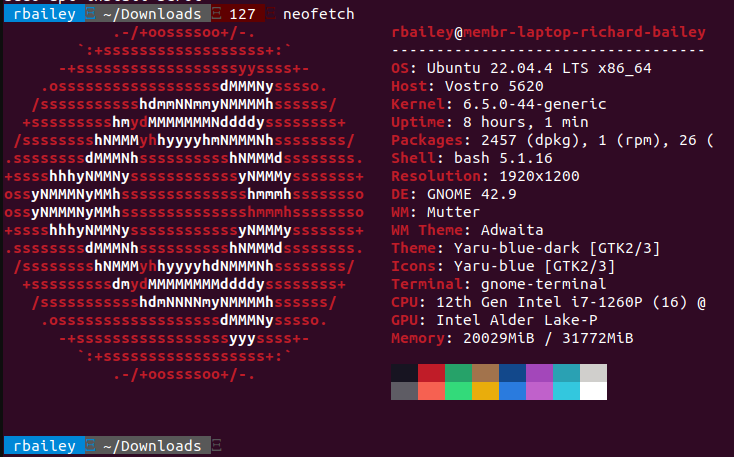
What’s the Difference Between Static and Dynamic MOTDs?
This is a common point of confusion. Here’s the simple breakdown:
- Static MOTD (
/etc/motd)- What it is: A single, plain text file.
- How it works: The system prints the exact contents of this file on login.
- Pros: Simple, predictable, and works on any Linux/Unix system.
- Cons: It’s “dumb.” It cannot show system status, and the message is the same every single time until you manually edit the file.
- Dynamic MOTD (
/etc/update-motd.d/)- What it is: A directory full of executable scripts.
- How it works: The system runs these scripts on login and displays their output as the MOTD.
- Pros: Powerful and flexible. Can show real-time CPU load, RAM usage, pending updates, and any other information you can write a script for.
- Cons: Slightly more complex to set up; specific to distributions that use the
pam_motdmodule (like Ubuntu, Debian).
Pro-Tip: On systems that use the dynamic method, the
/etc/motdfile is usually empty. If you put text in it, it will typically be displayed before the dynamic scripts are run.Conclusion
Customizing your Linux MOTD is a simple yet powerful way to make a system your own and get critical information the moment you log in. Whether you write a simple script to show disk usage, go all-out with an advanced display, or use a tool like
neofetch, you now have the tools to replace that blank terminal prompt with a truly useful welcome screen.Now that you’ve mastered your MOTD, why not optimize your system further? Explore our How to clear Disk Space on Linux Procedure
Q&A
Q1: What is Linux MOTD and why is it important?
A1: The Linux MOTD, or Message of the Day, is a customizable screen that users see when they log into a Linux system. It serves as a welcoming message and can convey important information, updates, or announcements. Customizing the MOTD allows system administrators to provide users with relevant details at login.
Q2: How can I create a custom MOTD in Linux?
A2: Creating a custom MOTD involves editing the MOTD file or using scripts in the /etc/update-motd.d/ directory. To make the login experience unique, you can add personalized messages, ASCII art, and even dynamic system information. Check out our detailed guide for step-by-step instructions.
Q3: Can I include dynamic system information in my Linux MOTD?
A3: Absolutely! You can enhance your MOTD by adding dynamic details like who is currently logged on, CPU usage, disk space, and RAM statistics. Utilizing scripts in the /etc/update-motd.d/ directory allows you to fetch and display real-time information for users.
Thats it, hope you have fun writing your own custom MOTD. Like our Linux Procedures? Check out more here.
Leave a Reply