
Reliable data management in AWS starts with a clear understanding of EBS snapshots. Whether you are running a single web server or a distributed database, losing data is not an option. Based on current cloud architecture standards, snapshots serve as the primary defense for point-in-time recovery and environment cloning.
In our testing of disaster recovery workflows, we found that relying on manual snapshots often leads to gaps in coverage. Automation is the standard for 2026. This guide breaks down the mechanics of how AWS stores your data in Amazon S3, the difference between incremental and full copies, and the specific steps to build snapshots using the AWS Console, CLI, and Terraform. We will also address the critical requirement of application consistency for high-transaction databases.
To create an AWS snapshot via the CLI, use the create-snapshot command with the volume ID. Example: aws ec2 create-snapshot --volume-id vol-0abc12345 --description "backup"
Key Takeaways
- AWS snapshots capture point-in-time data from EBS volumes and AMIs and store it in Amazon S3.
- You can create snapshots through the AWS Console, CLI, and Terraform.
- Snapshots are incremental, cost-efficient, and useful for backup, migration, and automation.
- Application-consistent snapshots are essential for databases and high-transaction systems.
- Snapshots should complement—but not replace—a full backup strategy.
What Is an AWS Snapshot?
An AWS snapshot is a point-in-time copy of your EBS volume, stored securely in Amazon S3. Snapshots let you restore volumes, clone machines, migrate workloads, and support disaster-recovery architectures. Because snapshots are incremental, only changed blocks are stored, reducing cost and creation time.
All the data stored in an AWS AMI (Amazon Machine Image) or EC2 instance. When you create a snapshot, AWS saves a copy of the data to Amazon S3, making it easy to restore if necessary. This includes both the data stored on your root volume and any attached EBS volumes.
It is crucial to ensure application consistency when creating snapshots for database applications like SQL and Oracle. Application consistent snapshots guarantee that the data stored in the snapshots is consistent with the application accessing it.
Snapshots are a really valuable tool to optimize the performance capacity of the instance state. Snapshots can be used as a backup. However, it is not recommended to use Snapshots solely for backups; instead, consider the snapshot as a point-in-time save of your instance and use it to create and mount new EBS volumes to new or existing instances.
Snapshots are great when using infrastructure as code, and you can create a persistent EBS volume, snapshot the data and then use the snapshot to create another volume when using auto-scaling groups.
The Snapshot Framework
AWS snapshots do not copy the entire volume every time. Instead, they use an incremental model. This means if you have a 100GB volume and only 2GB of data changes between Monday and Tuesday, Tuesday’s snapshot only bills you for that 2GB of new data.
Incremental vs. Full
The first snapshot of a volume is always a full copy. Every following snapshot tracks only changed blocks. Even though they are incremental, deleting an old snapshot does not lose data for newer ones; AWS automatically reshuffles the data blocks to ensure the most recent snapshot remains complete.
How Do You Create a Snapshot in the AWS Console?
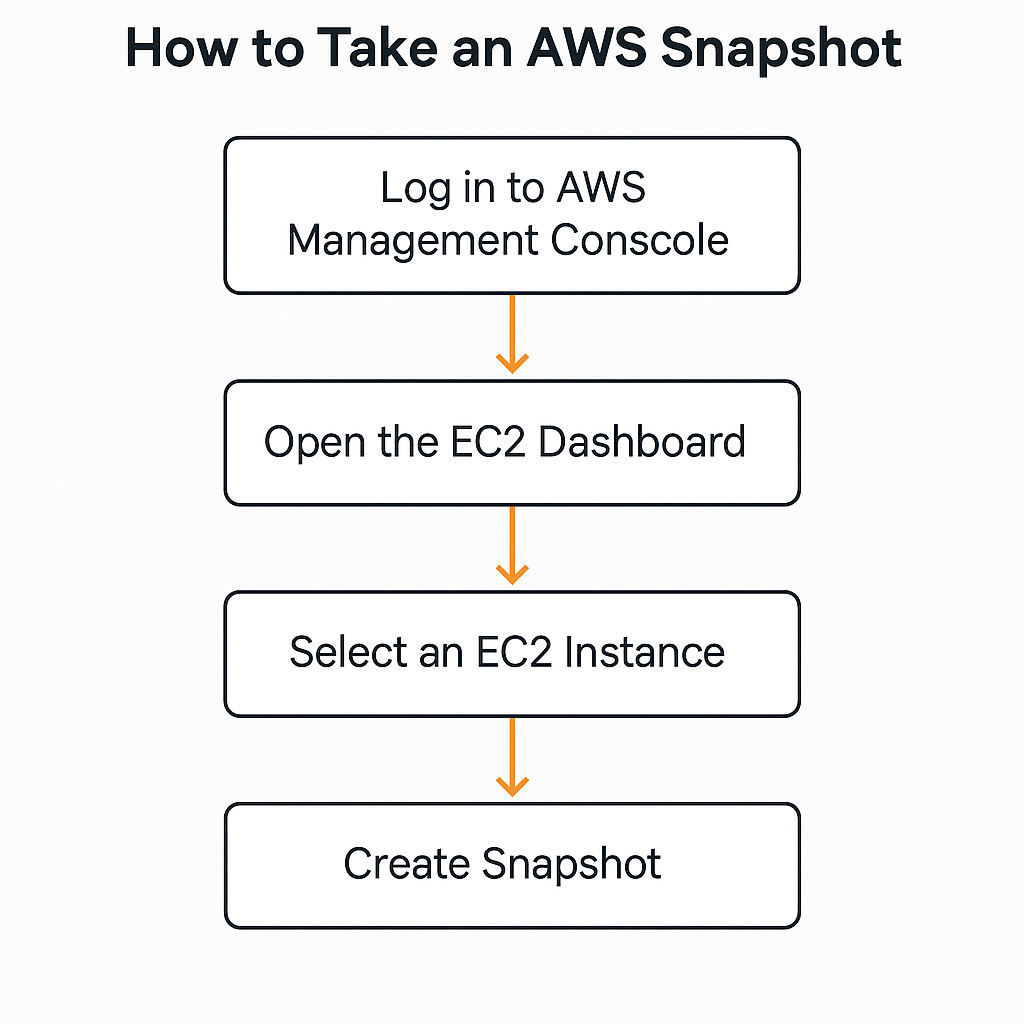
Creating a snapshot in the AWS Management Console takes only a few clicks.
Step 1 – Log Into the AWS Console and Open EC2
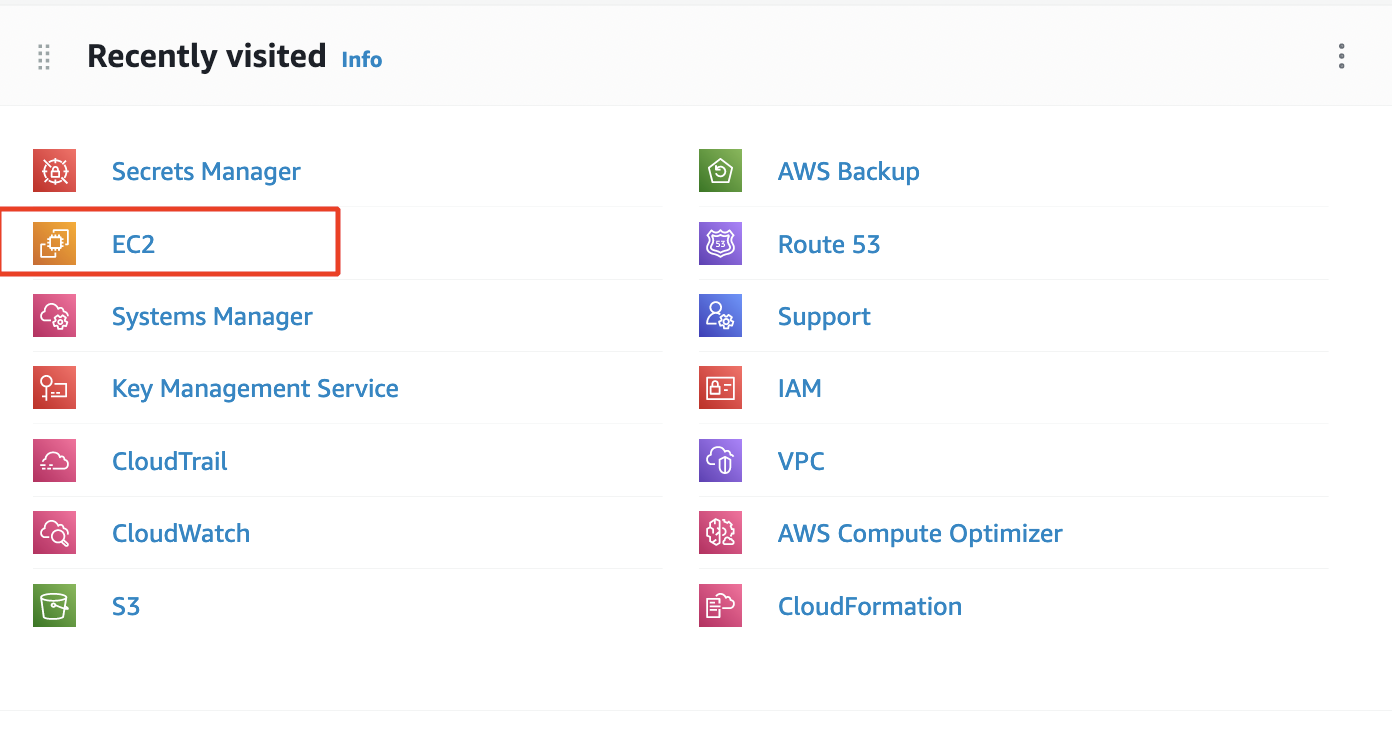
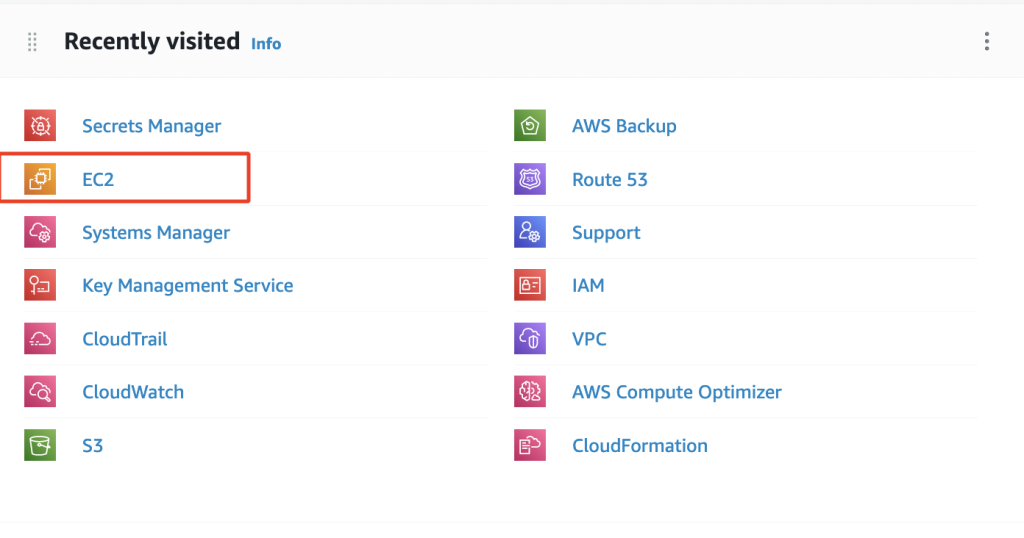
Log in to the AWS Management Console and open the EC2 service.
Accessing the Amazon EC2 Console
- Log Into Your AWS Account:
- Open your web browser.
- Go to the AWS Management Console: https://console.aws.amazon.com/
- Enter your AWS account email address or username and password.
- Click “Sign In.”
- Find EC2:
- Search Bar:
The fastest way is to use the search bar at the top of the console. Start typing “EC2” and select “EC2” from the dropdown suggestions. - Services Menu:
Alternatively, click the “Services” menu in the top-left corner of the console. This will open a list of all AWS services. Locate and click “EC2” under the “Compute” category.
- Search Bar:
Step 2 – Select the EC2 Instance to Snapshot
Open the Instances page and choose the instance whose volume you want to snapshot.
Creating a Snapshot of an EC2 Instance Volume
- Locate Your Instance:
- From the EC2 dashboard, click “Instances” on the left-hand navigation pane.
- Find the instance containing the volume you want to snapshot.

- Create the Snapshot:
- Right-click on the instance.
- In the context menu, hover over “Image and templates” and select “Create image.”
- This will open the “Create Image” dialog box, where you can give the snapshot a descriptive name and add any optional tags.
- By default, a snapshot will be taken of all volumes attached to the instance. If you only want to snapshot a specific volume, click on “Edit” under the “Block Device Mappings” section and uncheck any volumes you don’t want to include.
- Click “Create Image” to start the snapshot process.
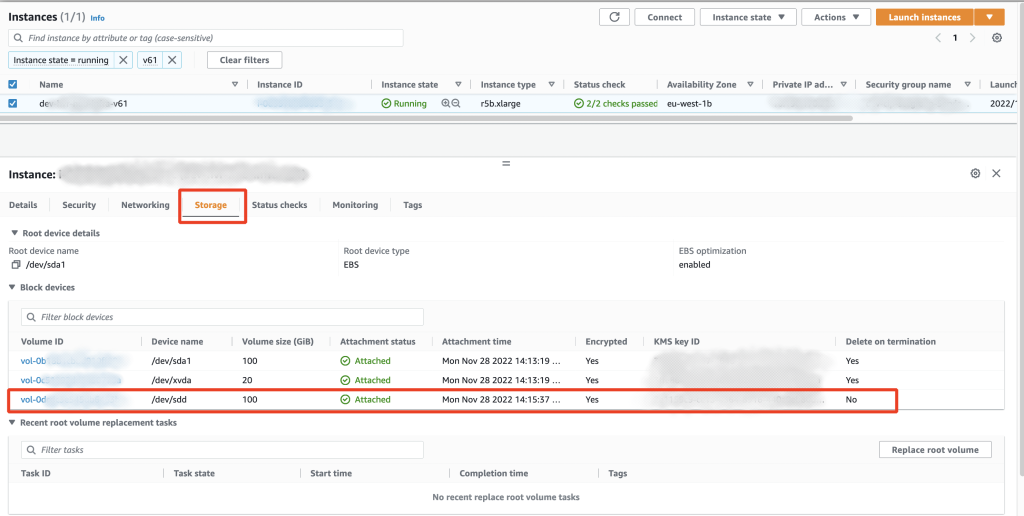
Step 3 – Choose the EBS Volume to Snapshot
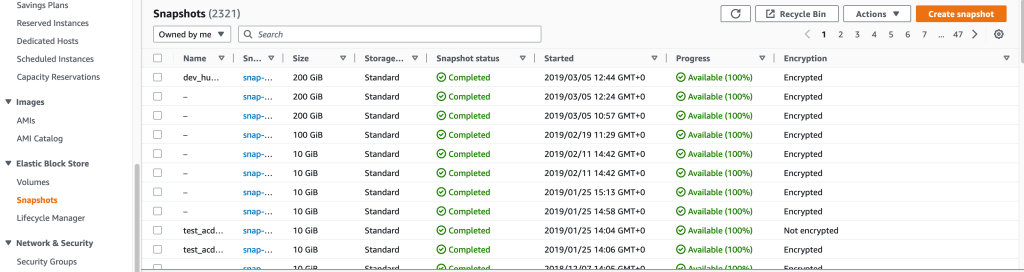
Go to EC2 → Volumes, choose the volume, and create a snapshot manually.
- From the EC2 dashboard, click “Volumes” on the left-hand navigation pane.
- Find the volume you want to snapshot.
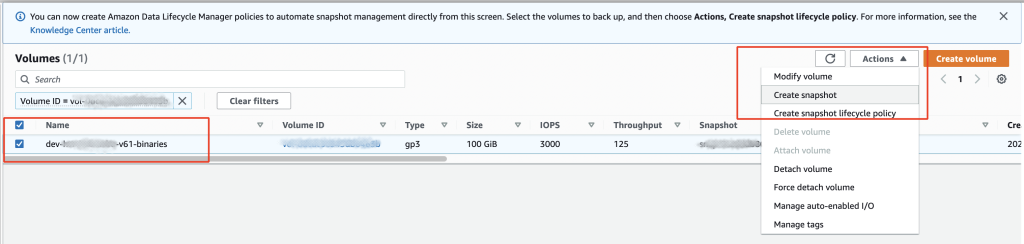
The snapshot creation process involves copying data to Amazon S3, ensuring long-term data protection and durability.
Step 4 – Create the Snapshot
- Right-click on the volume.
- In the context menu, select “Create snapshot.”
- This will open the “Create Snapshot” dialog box.
- Provide a descriptive name for your snapshot (e.g., “webserver-data-backup-20240619”).
- (Optional) Add tags to help you organize and categorize your snapshots.
- Click “Create Snapshot” to start the process.
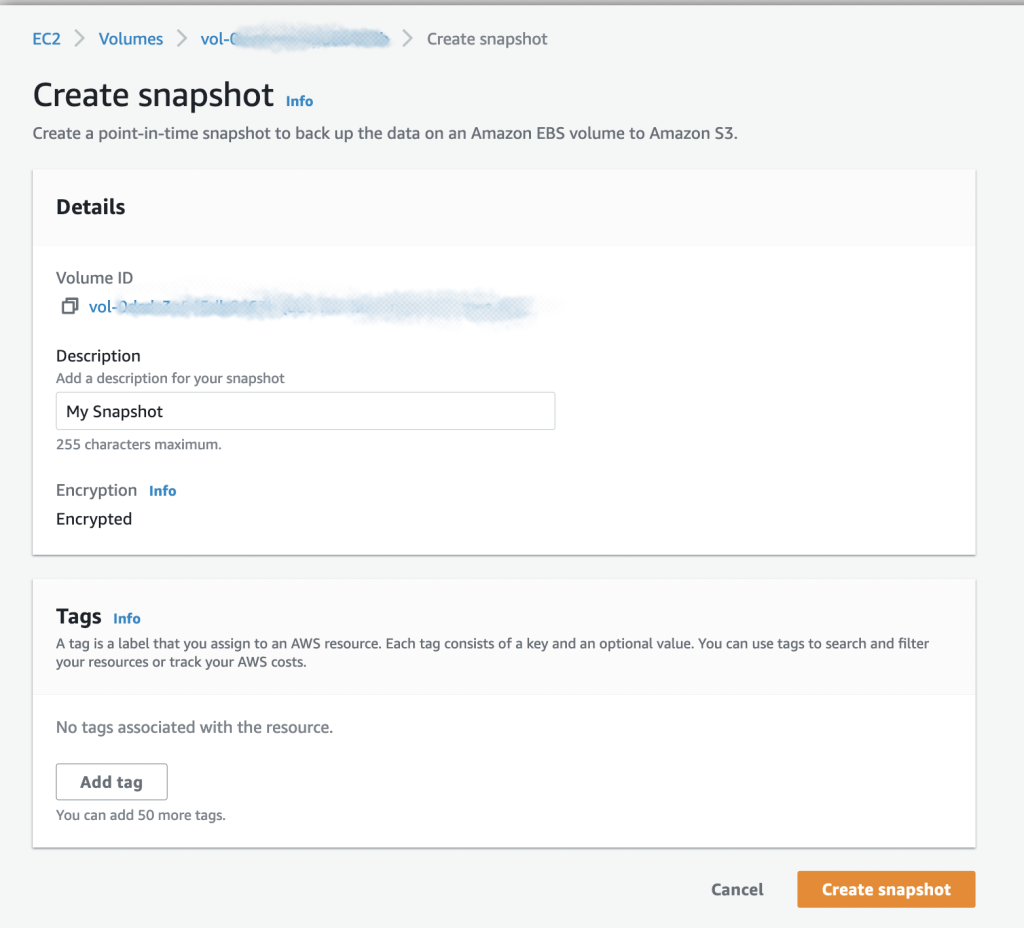
- Give AWS a few minutes to create the snapshot. Snapshots are quick, but bear in mind the bigger the volume, the longer the snapshot will take.
- Once completed, you can view your snapshot in EC2 > Snapshots
How to take an AWS Snapshot using Terraform and AWS CLI
Note: This guide includes the specific terraform resources; please be aware you will still need to declare your providers, state, and backend.
Use the aws_ebs_volume and aws_ebs_snapshot Terraform resources.
- Define the
aws_ebs_volumea resource that you want to create a snapshot of. This resource represents the EBS volume that you want to create a snapshot of. For example:
resource "aws_ebs_volume" "my_volume" {
  availability_zone = "us-west-2a"
  size              = 10
  type              = "gp3"
}
- Define the
aws_ebs_snapshotresource that creates a snapshot of the EBS volume. You can reference theaws_ebs_volumeresource in this resource. For example:
resource "aws_ebs_snapshot" "my_snapshot" {
  volume_id = aws_ebs_volume.my_volume.id
}
This will create a snapshot of the aws_ebs_volume with the ID aws_ebs_volume.my_volume.id.
- Run terraform apply to apply the changes.
When you run terraform apply, Terraform will create the aws_ebs_volume and aws_ebs_snapshot resources in your AWS account. The snapshot will be created immediately after the volume is created.
For example, using a Terraform provider and AWS S3 backend
resource "aws_ebs_volume" "app_data" {
  availability_zone = "us-east-1a"
  size              = 10
  type              = "gp3"

  tags = {
    Name = "AppDataVolume"
  }
}

resource "aws_ebs_snapshot" "app_data_snapshot" {
  volume_id = aws_ebs_volume.app_data.id

  tags = {
    Name = "Initial-Data-Load-Snapshot"
  }
}Pro Tip: In a production environment, don’t create snapshots individually in Terraform. Use the aws_dlm_lifecycle_policy resource to automate daily or hourly snapshots across your entire fleet.
How Do You Create an AWS Snapshot Using the AWS CLI?
Use the create-snapshot command, specifying the volume ID.
AWS CLI Example
# Create a snapshot of a specific volume
aws ec2 create-snapshot \
  --volume-id vol-0a1234567890abcdef \
--description "Production-DB-Backup-$(date +%Y-%m-%d)"To list snapshots:
# List your snapshots to verify creation
aws ec2 describe-snapshots --owner-ids selfFAQ – AWS Snapshots
Are AWS snapshots application-consistent?
Not automatically. Use database-aware tools (e.g., FS freeze, RDS snapshots, or SSM pre-freeze hooks) to ensure consistency for SQL Server, Oracle, and similar systems.
Are AWS snapshots incremental?
Yes. Only changed blocks since the last snapshot are stored, reducing storage cost and creation time.
How long does an AWS snapshot take?
Creation starts instantly, but completion time depends on volume size.
Tip: Instances remain usable while snapshots occur.
Where are AWS snapshots stored?
Snapshots are stored in Amazon S3. You don’t see the bucket because AWS manages it internally.
Can I use snapshots as my only backup solution?
No. Snapshots are excellent for short-term recovery and automation, but not a full replacement for off-site, cross-account, or long-term backups.
What are the benefits of using AWS Snapshots?
AWS Snapshots offer several benefits, including:
- Data Protection: Snapshots provide an automated, point-in-time backup of your AWS resources, helping you protect your data from accidental deletion, corruption, or outage.
- Cost Savings: Snapshots are incremental, meaning only the data that has changed since your last snapshot is backed up. This helps reduce the time it takes to create snapshots and the amount of storage space needed for backups.
- Convenience: Snapshots can be easily created and managed through your AWS console or the AWS CLI. They are securely stored in Amazon S3 and can be accessed anytime needed.
Are there any limitations to using AWS Snapshots?
Yes, there are a few limitations to using AWS Snapshots. For example, you cannot take a snapshot of an Amazon EC2 instance while it is running. You must first stop the instance before taking a snapshot. Snapshots are stored in S3, so you must have an S3 subscription before using Snapshots.
Additionally, creating an unencrypted snapshot of an AWS EBS volume is not possible if the volume is encrypted. To handle this, you can create a copy of the snapshot and enable encryption during the copy process.
Best Practices for AWS Snapshots
Use Tags to Organize Snapshots
Include tags such as:
Environment=ProductionApplication=WebServerBackupPolicy=Daily
Use Lifecycle Manager (DLM) for Automation
AWS DLM automatically:
- rotates snapshots
- enforces retention policies
- reduces manual admin work
Common Use Cases for Snapshots
Snapshots are valuable for:
Disaster Recovery
Quickly create a replacement volume or AMI.
Cloning Environments
Create a dev/test environment instantly.
Autoscaling Workflows
Use snapshots to replicate data into new volumes for scaling groups.
Conclusion
AWS snapshots provide fast, incremental, durable protection for EC2 and EBS volumes. Whether you use the Console, CLI, or Terraform, snapshots remain one of the most powerful automation and recovery tools in AWS. Use them consistently—alongside a full backup strategy—to maintain a reliable and scalable cloud environment.
Leave a Reply