
Master Active Directory with These Powerful PowerShell One-Liners
Key Takeaways
- PowerShell one-liners massively reduce admin time, especially for repetitive Active Directory tasks like user creation, password resets, and group management.
- All commands require the ActiveDirectory module, installed via AD DS role (servers) or RSAT (clients).
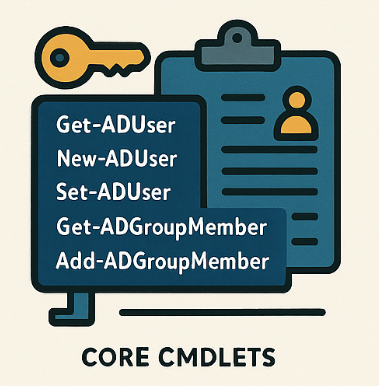
- Core cmdlets include Get-ADUser, Set-ADUser, New-ADUser, Get-ADGroupMember, Add-ADGroupMember, and Get-ADComputer.
- Ideal for bulk operations, from disabling inactive computers to resetting passwords across an entire OU.
- Always test destructive commands with
-WhatIfand validate in a lab before running in production.
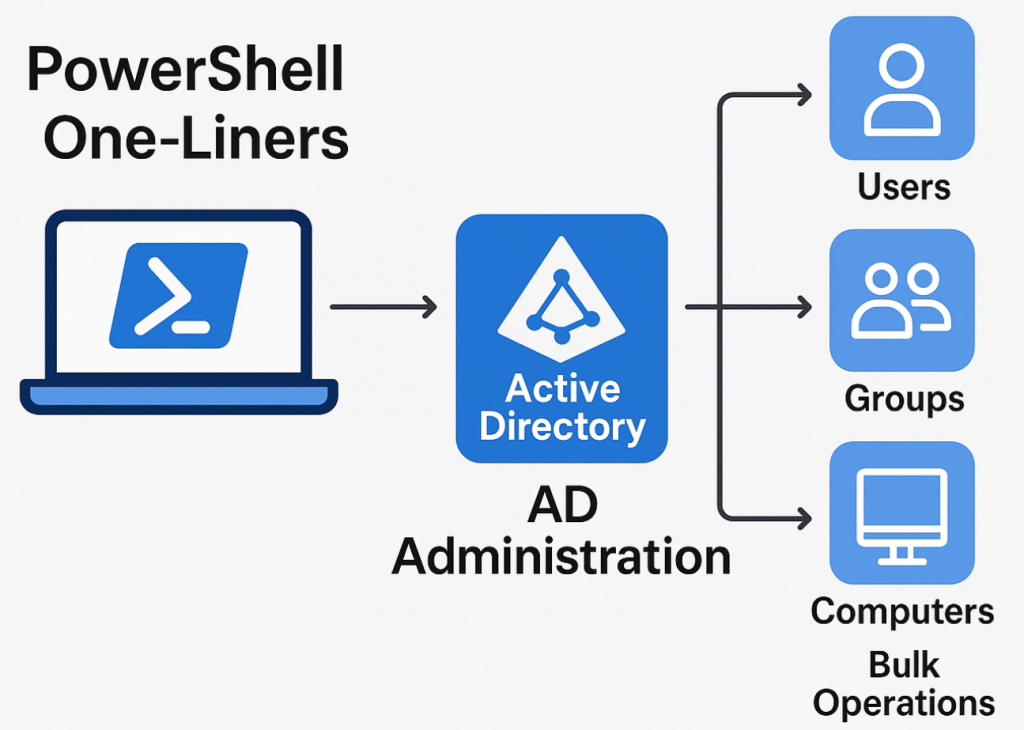
Introduction: Supercharge Your AD Management
Active Directory is the core of identity and access management in most Windows based enterprise networks. While the graphical user interface (GUI) is familiar, it can be slow and inefficient for repetitive or bulk tasks. This is where PowerShell one-liners come in.
By using single-line commands, you can instantly find, create, modify, and manage AD objects, helping you automate repetitive tasks and manage your environment with precision and speed.
How Do You Find Users in Active Directory with PowerShell?
The most common task in AD is retrieving user information. The Get-ADUser cmdlet is what’s needed, allowing you to find users based on almost any attribute.
Using the -Identity parameter finds a specific user, while -Filter allows you to search for users based on attributes like their department, name, or logon history.
Find a Specific User
To get the details for a single user by their username (SamAccountName):
Get-ADUser -Identity "jdoe"Find All Users
To retrieve a list of every user account in your domain:
Get-ADUser -Filter *Find Users in a Specific Department
Filter users based on their department attribute:
Get-ADUser -Filter 'Department -eq "Marketing"'Find All Disabled User Accounts
To get a list of all user accounts that are currently disabled:
Get-ADUser -Filter 'Enabled -eq $false' -Properties Name, SamAccountNameFind Inactive User Accounts
You can find users who have not logged on for a specific period. This command finds all enabled users who haven’t logged in for over 90 days and whose passwords are set to expire.
Get-ADUser -Filter {LastLogonTimeStamp -lt (Get-Date).AddDays(-90) -and Enabled -eq $true -and PasswordNeverExpires -eq $false} -Properties PasswordLastSet, LastLogonTimeStamp | Select-Object Name, SamAccountName, PasswordLastSetHow Can You Create and Modify AD Users with PowerShell?
Creating and updating users is a daily task for most administrators. The New-ADUser and Set-ADUser cmdlets make this process scriptable and instant, eliminating manual data entry.
For more complex onboarding, see our guide to advanced user provisioning scripts.
Create a Simple User Account
This command creates a new user, sets a password, and enables the account:
$Password = Read-Host -AsSecureString -Prompt "Enter password for new user"
New-ADUser -Name "John Doe" -SamAccountName "jdoe" -AccountPassword $Password -Enabled $trueCreate a User with Multiple Attributes
You can set multiple properties during creation, such as name, UPN, password, and the destination Organizational Unit (OU):
$Password = Read-Host -AsSecureString -Prompt "Enter password for Jane Smith"
New-ADUser -Name "Jane Smith" -GivenName "Jane" -Surname "Smith" -SamAccountName "jsmith" -UserPrincipalName "[email protected]" -Department "Marketing" -AccountPassword $Password -Enabled $true -Path "OU=Marketing,DC=contoso,DC=com"
Modify an Existing User’s Attributes
To change a property, like a user’s department or email address, use Set-ADUser:
# Change the department for user 'jdoe'
Set-ADUser -Identity "jdoe" -Department "Sales"

# Change the email address for user 'jdoe'
Set-ADUser -Identity "jdoe" -EmailAddress "[email protected]"
Enable a Disabled User Account
To quickly re-enable an account:
Enable-ADAccount -Identity "jdoe"How Do You Manage User Passwords and Accounts?
PowerShell provides powerful cmdlets for managing account security, from resetting a single password to setting expiration dates.

Reset a Single User’s Password
This command forces a password reset for a specific user:
$NewPassword = Read-Host -AsSecureString -Prompt "Enter new password for jdoe"
Set-ADAccountPassword -Identity "jdoe" -NewPassword $NewPassword -ResetSet an Account Expiration Date
To set an expiration date for temporary or contract accounts:
Set-ADUser -Identity "jdoe" -AccountExpirationDate "12/31/2025"How Do You Manage AD Groups and Memberships?
Managing group memberships is critical for controlling access to resources. PowerShell allows you to create groups, add or remove members in bulk, and query memberships efficiently.
Create a New Security Group
To create a new group, simply provide a name and scope:
# Create a simple group
New-ADGroup -Name "Marketing Team" -GroupScope Global

# Create a group with a description
New-ADGroup -Name "Sales Team" -Description "Security group for the sales department" -GroupScope GlobalAdd a User to a Group
Use Add-ADGroupMember to add one or more users to a group:
Add-ADGroupMember -Identity "Marketing Team" -Members "jdoe"List All Members of a Group
To see who belongs to a group, use Get-ADGroupMember:
Get-ADGroupMember -Identity "Marketing Team" | Select-Object NameRemove a User from a Group
To revoke access, remove a user from a group:
Remove-ADGroupMember -Identity "Marketing Team" -Members "jdoe"Find All Groups a User Belongs To
Quickly check a user’s group memberships:
Get-ADPrincipalGroupMembership -Identity "jdoe" | Select-Object NameHow Can You Manage Computer Accounts in Active Directory (AD)?
Managing computer objects is just as important as managing users. This includes finding, disabling, and organizing computer accounts to maintain a clean and secure directory. Properly managing these objects is a key part of maintaining Active Directory hygiene.
Use cmdlets like:
Get-ADComputerto find computers,Disable-ADAccountto disable them,Move-ADObjectto move them between OUs.
Find All Computers Running a Specific OS
To get a list of all computers running a version of Windows 10:
Get-ADComputer -Filter 'OperatingSystem -like "Windows 10*"' -Properties OperatingSystem | Select-Object Name, OperatingSystemFind and Disable Inactive Computer Accounts
This one-liner finds computer accounts that have been inactive for over 120 days and disables them:
Search-ADAccount -AccountInactive -ComputersOnly -TimeSpan "120.00:00:00" | Disable-ADAccount -WhatIfNote: The -WhatIf parameter shows what would happen without actually making changes. Remove it to perform the disable action.
Move a Computer to a Different OU
To reorganize your computers, you can move an object to a new OU:
Get-ADComputer "computer01" | Move-ADObject -TargetPath "OU=Workstations,DC=contoso,DC=com"What Are the Best Practices for Running AD PowerShell Commands Safely?
To avoid accidental changes or widespread outages:
- Always test in a non-production environment first.
- Use
-WhatIfand-Confirm:$falsecarefully. - Run bulk operations during maintenance windows.
- Document one-liners inside your change management system.
- Export before changing:
Get-ADUser -Filter * | Export-Csv ADBackup.csvHow to Automate AD Reports Using Scheduled Tasks
PowerShell can generate automated daily or weekly AD reports:
Example: Export All Disabled Users Daily
Get-ADUser -Filter 'Enabled -eq $false' |
Select Name, SamAccountName |
Export-Csv "C:\Reports\DisabledUsers.csv" -NoTypeInformation
Schedule the script via Task Scheduler for full automation.
Conclusion
These PowerShell one-liners are just the beginning. By mastering these fundamental commands, you can build more complex scripts to automate nearly any aspect of Active Directory management. This not only saves valuable time but also reduces the risk of human error, leading to a more secure and efficiently run environment.




Recent Comments