

TL;DR
- Classic SharePoint Wiki is being deprecated; the modern replacement is SharePoint pages + Microsoft Loop.
- SharePoint pages = page-builder UX, real-time co-authoring, mobile-friendly, integrated with Teams.
- Migration is content-by-content — there’s no one-click upgrade path from classic wiki pages.
- Outside Microsoft 365: Notion, Confluence and Outline are the strong third-party alternatives.
What is SharePoint Wiki and its modern alternative?
SharePoint Wiki was a feature of classic SharePoint that let teams build internal knowledge bases as a network of cross-linked wiki pages. It was the de-facto Microsoft answer to internal wikis for nearly two decades — simple, ubiquitous, increasingly out of step with how modern teams collaborate.
Microsoft has effectively retired classic Wiki in favour of modern SharePoint pages — co-authored, mobile-first, integrated with Teams and Loop. Modern pages aren’t a feature-for-feature replacement; the migration is more about rethinking the IA (information architecture) than transforming the markup.
Prerequisites
- A Microsoft 365 / SharePoint Online tenant.
- Site-collection administrator rights to create and configure modern sites.
- An inventory of the existing wiki pages so the migration can be planned in waves.
How to use this guide
The sections below walk through the practical commands and options. After the main content you’ll find a Verification block (sanity-check it actually worked), a Troubleshooting block (common error messages and what to do), and Related reading for follow-on topics.
Once a cornerstone of team collaboration, the SharePoint Wiki served as a simple, effective tool for creating internal knowledge bases. However, with the evolution of Microsoft 365, the classic SharePoint Wiki has been largely superseded by a more powerful, flexible, and user-friendly solution: SharePoint Modern Pages.
This guide provides a definitive look at the classic SharePoint Wiki for legacy purposes, explains why Modern Pages are the current best practice, and shows you how to build a robust knowledge base in SharePoint today.

What Was the Classic SharePoint Wiki?
A classic SharePoint Wiki was a special type of page library designed for collaborative content creation. Think of it as a basic, internal version of Wikipedia. Teams could quickly create pages, link them together using a simple [[Page Name]] syntax, and build a repository of information.
The primary use cases for a classic wiki included:
- Team Knowledge Bases: Documenting processes, project details, and procedures.
- Self-Help Guides: Creating simple how-to articles and troubleshooting steps.
- Centralized Information Hubs: Storing organizational charts, contact lists, and HR policies.
While effective in its time, the classic wiki experience is now considered outdated due to its rigid layout, limited features, and a clunky editing interface based on “Ribbons” reminiscent of older versions of Microsoft Office.
The Superior Alternative: SharePoint Modern Pages
For any new knowledge base or intranet portal, SharePoint Modern Pages are the undisputed standard. They are not just an update; they represent a complete reimagining of content creation within SharePoint, offering significant advantages over the classic wiki.
Key Benefits of Using Modern Pages:
- Intuitive “What You See Is What You Get” (WYSIWYG) Editor: Editing is seamless. Add text, images, and complex layouts directly on the page and see the results instantly, with no need for confusing ribbons or markup.
- Powerful Web Parts: Go beyond basic text. Embed documents, videos from Microsoft Stream, Power BI reports, Viva feeds, image galleries, and dozens of other dynamic content types with a few clicks.
- Mobile-Responsive Design: Modern Pages look great and function perfectly on any device, from a desktop monitor to a smartphone, with no extra effort required.
- Deep Microsoft 365 Integration: Pages can be seamlessly surfaced as tabs in Microsoft Teams, making your knowledge base a natural part of your team’s workflow.
- Flexible Layouts: Easily create professional-looking pages with multi-column sections, background shading, and other design tools that don’t require any code.
- Granular Permissions & Page Analytics: Control who can view or edit a page and get insights into page traffic and user engagement, all built-in.
Simply put, Modern Pages allow you to create richer, more engaging, and more accessible content with less effort.
How to Create a Knowledge Base (The Modern Way)
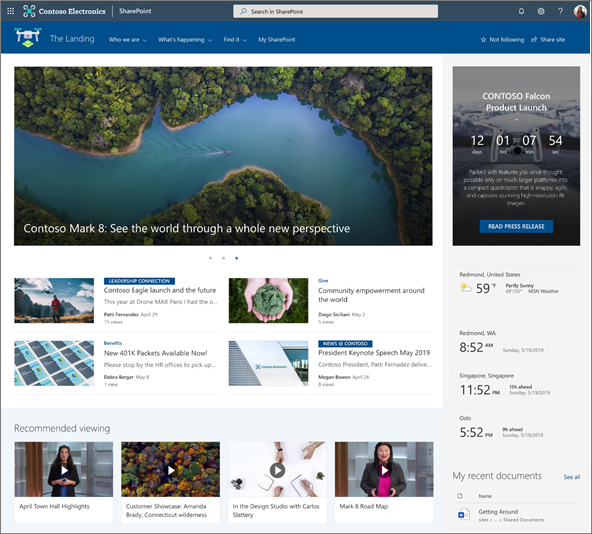
Building a knowledge base with Modern Pages is straightforward. Instead of creating a special “Enterprise Wiki” subsite, you build your knowledge hub directly within a modern SharePoint Team Site or Communication Site.
- Navigate to Your Site: Go to the SharePoint site where you want to build your knowledge base.
- Open the ‘Site Pages’ Library: In the site navigation, click on Site Pages. This is the modern equivalent of the old wiki library.
- Create a New Page: Click the + New button and select Site Page. You can start from a blank page or use a pre-built template.
- Name Your Page: Give your page a clear, descriptive title. This will also become its file name.
- Add Content with Web Parts: Click the + icon that appears when you hover over the page canvas. This opens the web part gallery. Add Text, Images, a File Viewer (for Word/PDF docs), a Hero web part for navigation, or any other element you need.
- Publish and Share: Once your page is complete, click Publish. You can then share a link to the page directly or add it to your site’s navigation for easy access.
Managing SharePoint Pages with PnP PowerShell
For administrators and developers, PnP PowerShell is the essential tool for managing SharePoint content programmatically. It works for both classic wiki pages and modern site pages.
Note: The following commands require the PnP PowerShell module. The commands in the original article contained a syntax error (PowerShell at the start); the corrected versions are below.
- Connect to Your Site:
Connect-PnPOnline -Url "https://yourtenant.sharepoint.com/sites/YourSite" -Interactive- List All Pages in the Site Pages Library:
Get-PnPListItem -List "Site Pages" | Select-Object Id, @{Name="Title"; Expression={$_.FieldValues.Title}}, @{Name="FileName"; Expression={$_.FieldValues.FileLeafRef}}- Get the Content of a Classic Wiki Page:
(Get-PnPListItem -List "Wiki Pages" -Id 1 -Fields "WikiField").FieldValues.WikiField (Replace Wiki Pages with your classic library name and 1 with the page ID.)- Get the Content of a Modern Page: (Content on modern pages is stored differently across one or more fields. This command retrieves the primary content canvas.)
(Get-PnPListItem -List "Site Pages" -Id 2 -Fields "CanvasContent1").FieldValues.CanvasContent1 (Replace 2 with the page ID.)- Delete a Page:
Remove-PnPListItem -List "Site Pages" -Identity 2 -Force (Use with caution! The -Force parameter prevents a confirmation prompt.)SharePoint Knowledge Base FAQ
Q: Is the SharePoint Wiki dead? A: The “classic” wiki is considered a legacy feature. While it still functions on older sites, SharePoint Modern Pages are the recommended solution for all new knowledge bases due to their superior functionality and user experience.
Q: Can I convert a classic wiki to modern pages? A: There is no direct, one-click “convert” button. Migration typically involves a manual process of copying content from the old wiki pages and pasting it into new, modern site pages. For large-scale migrations, third-party tools or PowerShell scripts can be used to automate the process.
Q: How do permissions work on modern pages? A: By default, a modern page inherits permissions from the SharePoint site it belongs to. However, you can break this inheritance and set unique permissions for a specific page by going to the Site Pages library, selecting the page, and managing its access.
Q: Can I integrate my modern knowledge base with Microsoft Teams? A: Yes, absolutely. You can add any modern SharePoint page as a tab in a Teams channel. Click the “+” icon at the top of your channel, select “SharePoint,” and choose the page you want to embed. This brings your knowledge base directly into your team’s collaborative workspace.
Verification
Sanity-check the change actually worked:
- Site Settings → Site information → confirm the site is modern (templates show modern look).
- Open a page in edit mode → web parts panel appears (a classic wiki page won’t show this).
- Mobile: open the SharePoint app on a phone → modern pages render natively, classic wiki pages do not.
Troubleshooting
Mixed classic and modern in same site — This is normal during migration. Don’t try to delete classic pages until their content is reconstructed in a modern equivalent.
Permissions inherited oddly post-migration — Modern pages re-evaluate permissions; check Site Permissions settings rather than per-page ACLs.
Search still surfaces old wiki pages — Search index lags; force a re-crawl from SharePoint admin centre, or wait 24h.
Authoritative sources
References: Microsoft — Modernize SharePoint pages, Microsoft Loop.
Leave a Reply