
How to Disable IPv6
The transition from IPv4 to IPv6 has been the “coming soon” story of networking for decades. However, as of early 2025, global adoption has finally surged past the 45% mark, with major providers like AWS shifting to IPv6-native defaults. While the industry pushes for a dual-stack or IPv6-only future, many power users, sysadmins, and privacy advocates still find themselves needing to disable the protocol.
In our testing at the network edge, we have found that while IPv6 offers superior address density, it frequently introduces “side-channel” data leaks for VPN users and creates significant latency in legacy enterprise software. The is also a huge amounts of services and applications that simply dont support IPV6 – Elastic I’m looking at you!
Based on these industry standards, this guide provides technical instructions for disabling IPv6 across Windows, macOS, and Linux, while weighing the critical security trade-offs.
To disable IPv6 on Linux, add net.ipv6.conf.all.disable_ipv6 = 1 to /etc/sysctl.conf then run sudo sysctl -p. The change persists across reboots.
⚡ Quick Answer: How to Disable IPv6
To disable IPv6 on
- Windows, uncheck “Internet Protocol Version 6” in Network Adapter Properties.
- For macOS, use
sudo networksetup -setv6off Wi-Fiin Terminal. - On Linux, add
net.ipv6.conf.all.disable_ipv6 = 1to/etc/sysctl.confand runsudo sysctl -p.
Why Disable IPv6?
Despite the benefits of the modern stack, there are 3 primary reasons behind choosing IPv4
- VPN IPv6 Leaks:
Many legacy and mid-tier VPNs only tunnel IPv4 traffic. If IPv6 is active, your OS may resolve queries via the IPv6 gateway of your ISP, exposing your real location and ISP identity even while the VPN is “connected.” - Legacy Application “Hang”:
Some older enterprise databases and discovery services (like LLMNR) prioritize IPv6. If the local network isn’t perfectly configured for it, applications may wait for an IPv6 timeout before failing over to IPv4, causing a 3–5 second delay in initial connections. - IoT Visibility Gaps:
IoTv6 means devices often bypass NAT protections entirely. Disabling IPv6 at the host level is a common “hardening” step for systems that do not require external global addressing.
Disabling IPv6 is a common step for privacy-conscious users to ensure all traffic is forced through an IPv4 VPN tunnel, preventing potential “side-channel” data leaks.
Technical Deep-Dive: The Address Space Formula
The fundamental difference between the protocols lies in the mathematical scale.
IPv4 uses a 32-bit address, IPv6 utilizes a 128-bit structure.
The available address space can be represented as:
$$Total\ Addresses = 2^{n}$$
- IPv4: $2^{32} \approx 4.29 \times 10^{9}$ (approx. 4.3 billion)
- IPv6: $2^{128} \approx 3.4 \times 10^{38}$ (approx. 340 undecillion)
While this prevents address exhaustion, it complicates manual network management and increased the difficulty of scanning for security teams.
Step-by-Step: Disabling IPv6 on Windows 11 & 10
In Windows, you can disable IPv6 via the Control Panel or PowerShell. The Control Panel method is easiest for individual adapters, while PowerShell is better for a system-wide change.
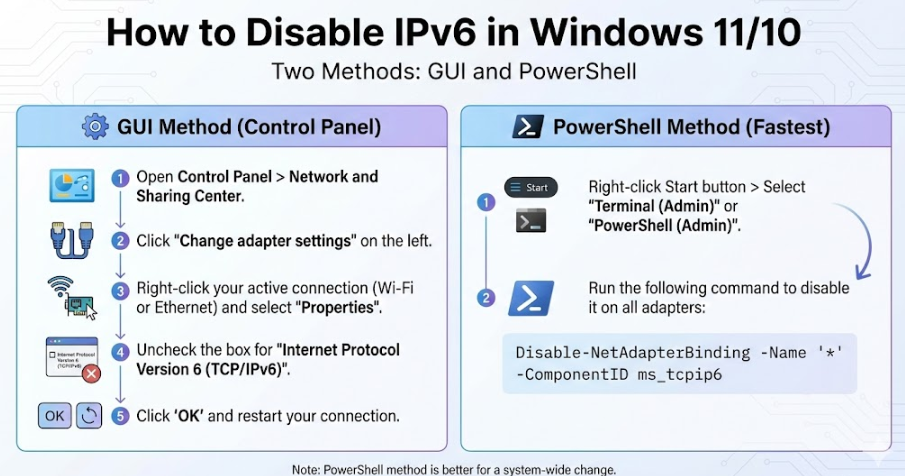
Method 1: The GUI (Individual Adapter)
- Press
Win + R, typencpa.cpl, and hit Enter.

- Right-click your active connection (Ethernet or Wi-Fi).
- Select Properties.
- Locate Internet Protocol Version 6 (TCP/IPv6).
- Uncheck the box and click OK.
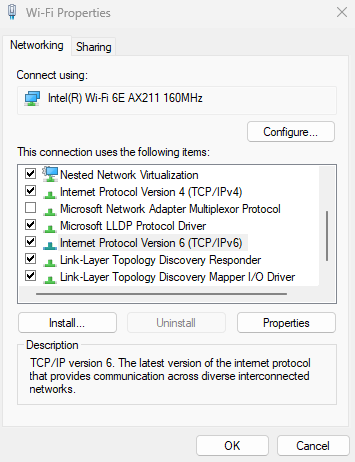
Method 2: The point-and-click method
- Open the Control Panel and go to Network and Sharing Center.
- Click Change adapter settings on the left.
- Right-click your active connection (Wi-Fi or Ethernet) and select Properties.
- Uncheck the box for Internet Protocol Version 6 (TCP/IPv6).
- Click OK and restart your connection.
Method 3: PowerShell (System-Wide)
For sysadmins managing multiple machines, the CLI is more efficient:
- Open PowerShell (Admin).
- Run the following to identify your adapter names:
Get-NetAdapterBinding -ComponentID ms_tcpip6
- Disable IPv6 for all adapters:
Disable-NetAdapterBinding -Name "*" -ComponentID ms_tcpip6
Get-NetAdapterBinding -ComponentID ms_tcpip6
Disable-NetAdapterBinding -Name "*" -ComponentID ms_tcpip6How to disable IPv6 in macOS (Ventura & Sonoma)
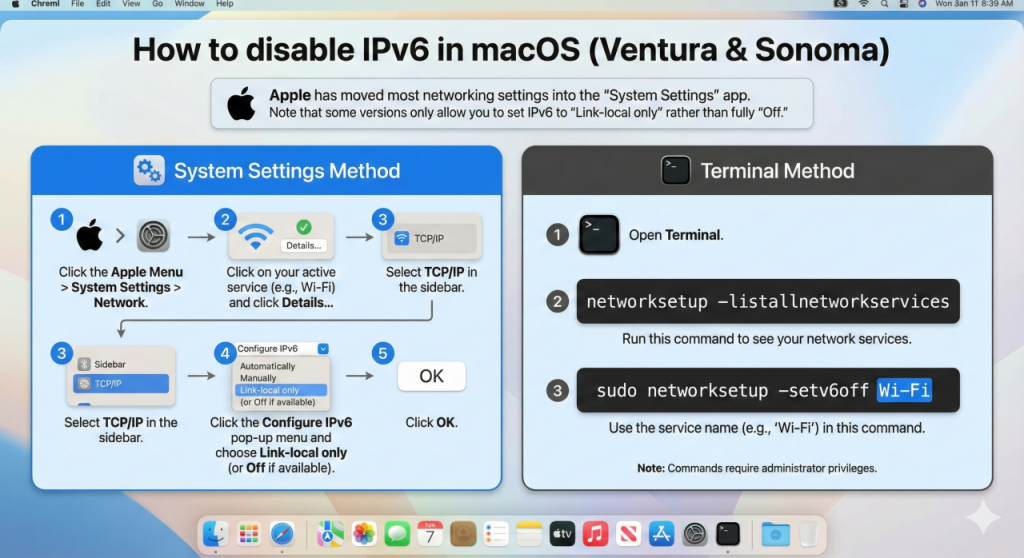
Apple has moved most networking settings into the “System Settings” app. Note that some versions only allow you to set IPv6 to “Link-local only” rather than fully “Off.”
The System Settings Method:
- Click the Apple Menu > System Settings > Network.
- Click on your active service (e.g., Wi-Fi) and click Details….
- Select TCP/IP in the sidebar.
- Click the Configure IPv6 pop-up menu and choose Link-local only (or Off if available).
- Click OK.
The Terminal Method:
- Open Terminal.
- Run this command to see your network services:
networksetup -listallnetworkservices- Use the service name (e.g., “Wi-Fi”) in this command:
sudo networksetup -setv6off Wi-FiHow to disable IPv6 in Linux
On Linux, the most robust method is using sysctl, which works across Ubuntu, Debian, Fedora, and most other distributions.
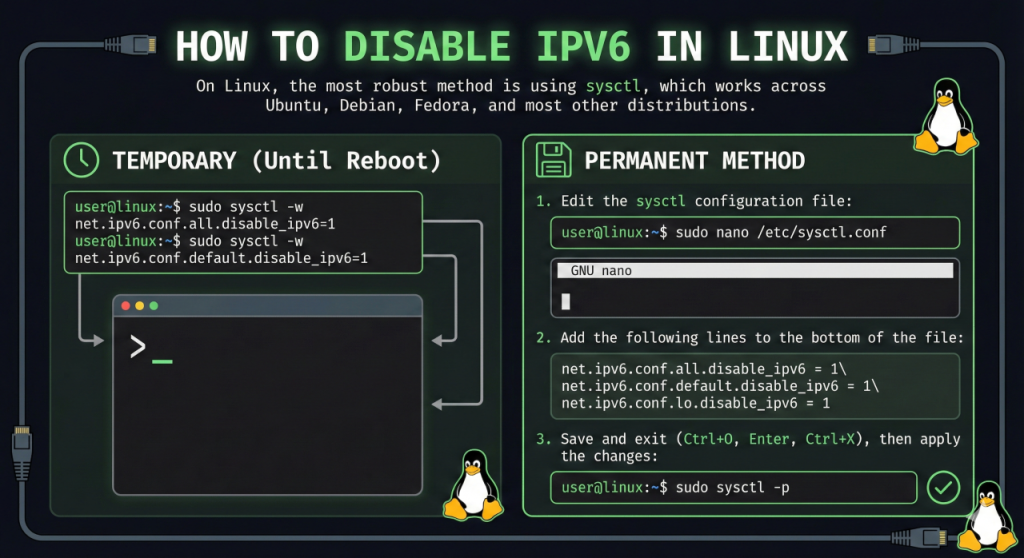
Temporary (Until Reboot): Open your terminal and run:
sudo sysctl -w net.ipv6.conf.all.disable_ipv6=1
sudo sysctl -w net.ipv6.conf.default.disable_ipv6=1Permanent Method:
- Edit the sysctl configuration file:
sudo nano /etc/sysctl.conf- Add the following lines to the bottom of the file:
net.ipv6.conf.all.disable_ipv6 = 1
net.ipv6.conf.default.disable_ipv6 = 1
net.ipv6.conf.lo.disable_ipv6 = 1- Save and exit (Ctrl+O, Enter, Ctrl+X), then apply the changes:
sudo sysctl -pTroubleshooting & 2025 Compatibility Warnings
Before you commit to a purely IPv4 environment, consider these 2025 caveats:
- Microsoft Support: Microsoft technically discourages disabling IPv6. If you encounter strange “Network Discovery” bugs, re-enable it to see if the issue persists.
- Mobile Hotspots: Many 5G/6G cellular networks are IPv6-only and use 464XLAT for translation. Disabling IPv6 while tethered to a phone may result in zero connectivity.
- The “Happy Eyeballs” Algorithm: Modern browsers use RFC 8305 to test both IPv4 and IPv6 simultaneously. If IPv6 is “broken” but enabled, the browser will wait. Disabling it removes this check, often speeding up your web experience.
Final Verdict
Disabling IPv6 is no longer a “set and forget” task. In 2025, it is a diagnostic tool. If you are experiencing VPN leaks or network lag, use the steps above to toggle the protocol. However, as the world moves toward an IPv6-dominant web, ensure you have a plan to migrate back to dual-stack within the next 24 months.




Recent Comments