
Linux boot repair, in short
- Match the exact message on screen before running commands.
- Before filesystem repair, identify the filesystem type and confirm the affected filesystem is unmounted. Use a live USB if necessary; e2fsck is for ext2, ext3 and ext4.
- If a disk clicks, disappears or reports I/O errors, stop repairing it and copy readable data first.
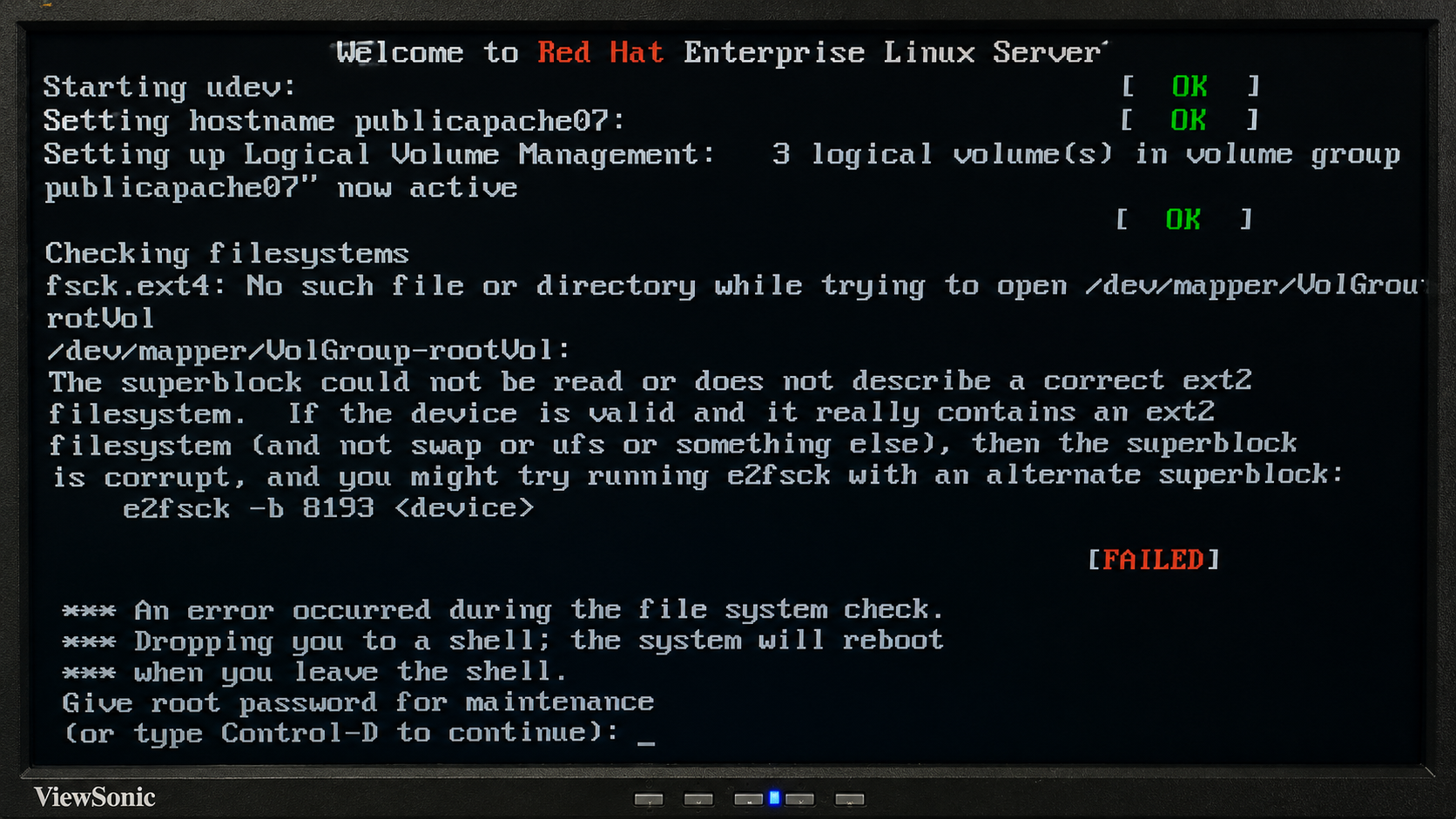
If Linux will not boot, do not reinstall it yet. Start with the error you can actually see: it helps narrow down whether the problem involves GRUB, the kernel, initramfs, a filesystem or systemd. Use the shortcuts below to go directly to the relevant checks and safest first fix.
Choose the Linux Boot Error You See
Not sure which route applies? Read the safety checks, then use the live USB recovery workflow. If you already know the fault, jump to the command cheat sheet.
Protect the data first: If the disk may be failing, pause repair attempts and follow the EXT4 recovery workflow. If the boot failed because the root filesystem is full, use the Linux disk cleanup guide.
The examples focus on Ubuntu and Debian, with separate commands where Fedora, RHEL, Rocky Linux, AlmaLinux or Arch differ. Device names are examples: confirm your own disks with lsblk -f and blkid before changing anything.
On this page Show section links
On this page
Universal Live USB Recovery Workflow
Many Linux boot repairs start the same way: boot from a live USB, mount the installed system, enter it with chroot, and then repair GRUB, initramfs, or configuration files.
Boot from a Linux live USB, open a terminal, and identify the installed system:
lsblk -f
sudo blkidLook for the root filesystem. It may be ext4, XFS, Btrfs, or another Linux filesystem. It is often mounted as / when the system is running normally.
For the examples below, replace:
/dev/sdXNwith your Linux root partition./dev/sdYNwith your separate/bootpartition, if you have one./dev/sdZNwith your EFI System Partition, if the system uses UEFI./dev/sdXwith the target disk, not a partition, when reinstalling GRUB on BIOS systems.
For NVMe disks, the names will look more like /dev/nvme0n1p2.
Mount the installed system:
sudo mount /dev/sdXN /mntIf /boot is on a separate partition, mount it:
sudo mount /dev/sdYN /mnt/bootIf the system uses UEFI, mount the EFI System Partition:
sudo mount /dev/sdZN /mnt/boot/efiBind the required virtual filesystems:
sudo mount --bind /dev /mnt/dev
sudo mount --bind /dev/pts /mnt/dev/pts
sudo mount --bind /proc /mnt/proc
sudo mount --bind /sys /mnt/sys
sudo mount --bind /run /mnt/run
if mountpoint -q /sys/firmware/efi/efivars; then
sudo mount --bind /sys/firmware/efi/efivars /mnt/sys/firmware/efi/efivars
fiEnter the installed system:
sudo chroot /mnt /bin/bashYou are now working inside the installed Linux system. From here, you can reinstall GRUB, rebuild initramfs, update boot configuration, or edit broken configuration files.
When finished, exit and unmount cleanly:
exit
sudo umount /mnt/run
sudo umount /mnt/sys/firmware/efi/efivars 2>/dev/null
sudo umount /mnt/sys
sudo umount /mnt/proc
sudo umount /mnt/dev/pts
sudo umount /mnt/dev
sudo umount /mnt/boot/efi 2>/dev/null
sudo umount /mnt/boot 2>/dev/null
sudo umount /mntVerify before rebooting: Read the repair command’s output and confirm that it created the expected files or configuration. Keep the live USB connected until the installed system boots successfully. If an unmount reports target is busy, stop and find the open process instead of forcing it.
Then reboot:
sudo rebootFix GRUB Rescue and Missing GRUB Menu Errors
GRUB is the bootloader used by many Linux systems. It loads the Linux kernel and initramfs. When GRUB cannot find its files, you may see errors such as:
grub rescueerror: no such partitionerror: file '/boot/grub/i386-pc/normal.mod' not foundunknown filesystemThese errors often occur after resizing partitions, deleting another operating system, changing the disk order, cloning a drive, installing Windows after Linux, or switching from BIOS to UEFI boot.
Try to Boot Manually from the GRUB Prompt
At the GRUB prompt, list available disks and partitions:
lsYou may see entries such as:
(hd0) (hd0,gpt1) (hd0,gpt2) (hd0,gpt3)Check each partition until you find the one containing /boot or /boot/grub:
ls (hd0,gpt1)/
ls (hd0,gpt2)/
ls (hd0,gpt2)/boot/
ls (hd0,gpt2)/boot/grub/When you find the correct partition, set the root and prefix:
set root=(hd0,gpt2)
set prefix=(hd0,gpt2)/boot/grub
insmod normal
normalIf this works, the normal GRUB menu should appear. Boot into Linux, then reinstall GRUB permanently using the commands in the next section.
If insmod normal fails, use a live USB and repair GRUB from a chroot.
Before reinstalling GRUB, preserve the current configuration and, on UEFI systems, the existing EFI files if they are readable and the installed root filesystem has enough free space:
install -d -m 700 /root/boot-repair-backup
cp -a /boot/grub/grub.cfg /root/boot-repair-backup/grub.cfg.pre-repair
cp -a /boot/efi/EFI /root/boot-repair-backup/EFI.pre-repair 2>/dev/nullThese copies preserve the previous files, but they do not undo rewritten boot sectors or firmware entries. Keep the live USB available until the repaired installation boots.
Reinstall GRUB on Ubuntu or Debian BIOS Systems
Use this method when the system uses legacy BIOS boot.
First, enter the installed system using the live USB and chroot workflow shown earlier.
Then reinstall GRUB to the disk.
Important: install GRUB to the disk, not a partition. For example, use /dev/sda, not /dev/sda1.
grub-install /dev/sdX
update-grubFor an NVMe disk, the target may look like this:
grub-install /dev/nvme0n1
update-grubWhichever BIOS disk name you used, check the generated configuration before leaving the chroot:
test -s /boot/grub/grub.cfg && echo "GRUB config exists"
grub-script-check /boot/grub/grub.cfgDo not reboot if grub-install, update-grub or grub-script-check reports an unexplained error.
Exit, unmount and reboot.
Reinstall GRUB on Ubuntu or Debian UEFI Systems
Use this method when the system uses UEFI and has an EFI System Partition mounted at /boot/efi.
From inside the chroot, run:
findmnt /boot/efi
grub-install --target=x86_64-efi --efi-directory=/boot/efi --bootloader-id=ubuntu --recheck
update-grub
test -s /boot/grub/grub.cfg && echo "GRUB config exists"
grub-script-check /boot/grub/grub.cfg
efibootmgr -vfindmnt should show the EFI System Partition at /boot/efi, and efibootmgr -v should show a Linux boot entry. If EFI variables are unavailable, confirm that the live USB itself was booted in UEFI mode.
Then check that the EFI boot files exist:
ls /boot/efi/EFI/Exit, unmount, and reboot.
If the machine still does not boot, check the boot order in the BIOS or UEFI settings. Make sure the Linux boot entry appears before other disks or operating systems.
Reinstall GRUB on Fedora, RHEL, Rocky Linux, or AlmaLinux
For BIOS systems, enter the installed system with chroot, then run:
grub2-install /dev/sdX
grub2-mkconfig -o /boot/grub2/grub.cfgFor many UEFI systems in the RHEL/Fedora family, regenerate the GRUB config with:
grub2-mkconfig -o /boot/grub2/grub.cfgVerify that the RHEL-family configuration exists and contains a boot-loading directive:
test -s /boot/grub2/grub.cfg && echo "GRUB2 config exists"
grep -n "menuentry\|blscfg" /boot/grub2/grub.cfg | headRHEL 9 UEFI warning: /boot/grub2/grub.cfg is the real configuration. Do not point grub2-mkconfig at the small EFI-side stub file, and do not use the BIOS-only grub2-install /dev/sdX command on a Secure Boot UEFI installation.
If the EFI boot entry is missing, check that the EFI System Partition is mounted and that the relevant files exist under /boot/efi/EFI/.
Back to boot-error diagnosis ↑
Fix Missing or Corrupt Initramfs Errors
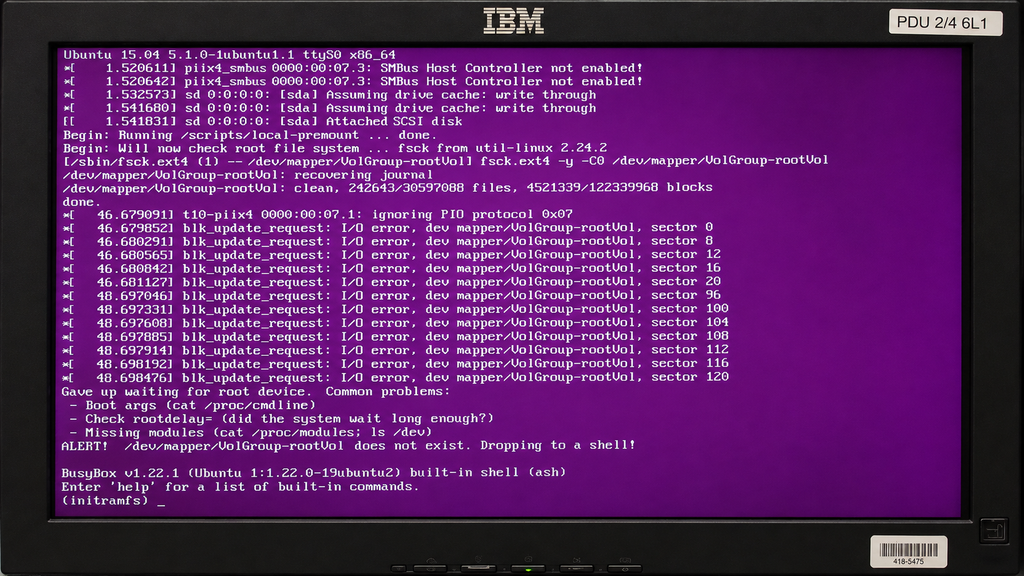
The initramfs is a temporary early boot environment. It contains the drivers and tools the kernel needs to mount the real root filesystem.
If initramfs is missing, corrupt, or missing required storage drivers, the system may fail before it can mount /.
Common symptoms include:
(initramfs)BusyBox built-in shellALERT! UUID=xxxx does not exist. Dropping to a shell!Gave up waiting for root file system deviceKernel panic - not syncing: VFS: Unable to mount root fsRebuild Initramfs on Ubuntu or Debian
Boot from a live USB, mount the installed system, enter the chroot, then run:
Rollback: Keep at least one previously working kernel and initramfs until the repaired kernel boots. Do not remove the older GRUB entry during this repair.
update-initramfs -u -k all
update-grubIf you only want to rebuild the current kernel’s initramfs, use:
ls -1 /lib/modules
update-initramfs -u -k <installed-kernel-version>
update-grubReplace <installed-kernel-version> with a version shown by ls /lib/modules. Do not use uname -r to choose it from a live-USB chroot because that reports the live environment’s running kernel.
ls -lh /boot/vmlinuz-* /boot/initrd.img-*
lsinitramfs /boot/initrd.img-<installed-kernel-version> | headIf the rebuilt image is missing, implausibly small or the command reports missing modules, do not reboot into it. Correct the error or select the older kernel in GRUB.
Using -k all is often better after a failed kernel update because it rebuilds initramfs images for all installed kernels.
Rebuild Initramfs on Fedora, RHEL, Rocky Linux or AlmaLinux
From inside the chroot, run:
dracut --regenerate-all --force
grub2-mkconfig -o /boot/grub2/grub.cfgConfirm that the rebuilt images exist before rebooting:
ls -lh /boot/vmlinuz-* /boot/initramfs-*.img
lsinitrd /boot/initramfs-<installed-kernel-version>.img | headThen reboot.
If the system uses LVM, RAID, encryption, or a special storage driver, rebuilding initramfs is especially important because the early boot environment must include the tools needed to activate those devices.
Rebuild Initramfs on Arch Linux
From inside the chroot, run:
mkinitcpio -P
grub-mkconfig -o /boot/grub/grub.cfgRead the mkinitcpio output for missing hooks, firmware or modules, then confirm that the expected initramfs files exist under /boot before rebooting.
Then reboot.
Back to boot-error diagnosis ↑
Fix Kernel Panic: VFS Unable to Mount Root FS
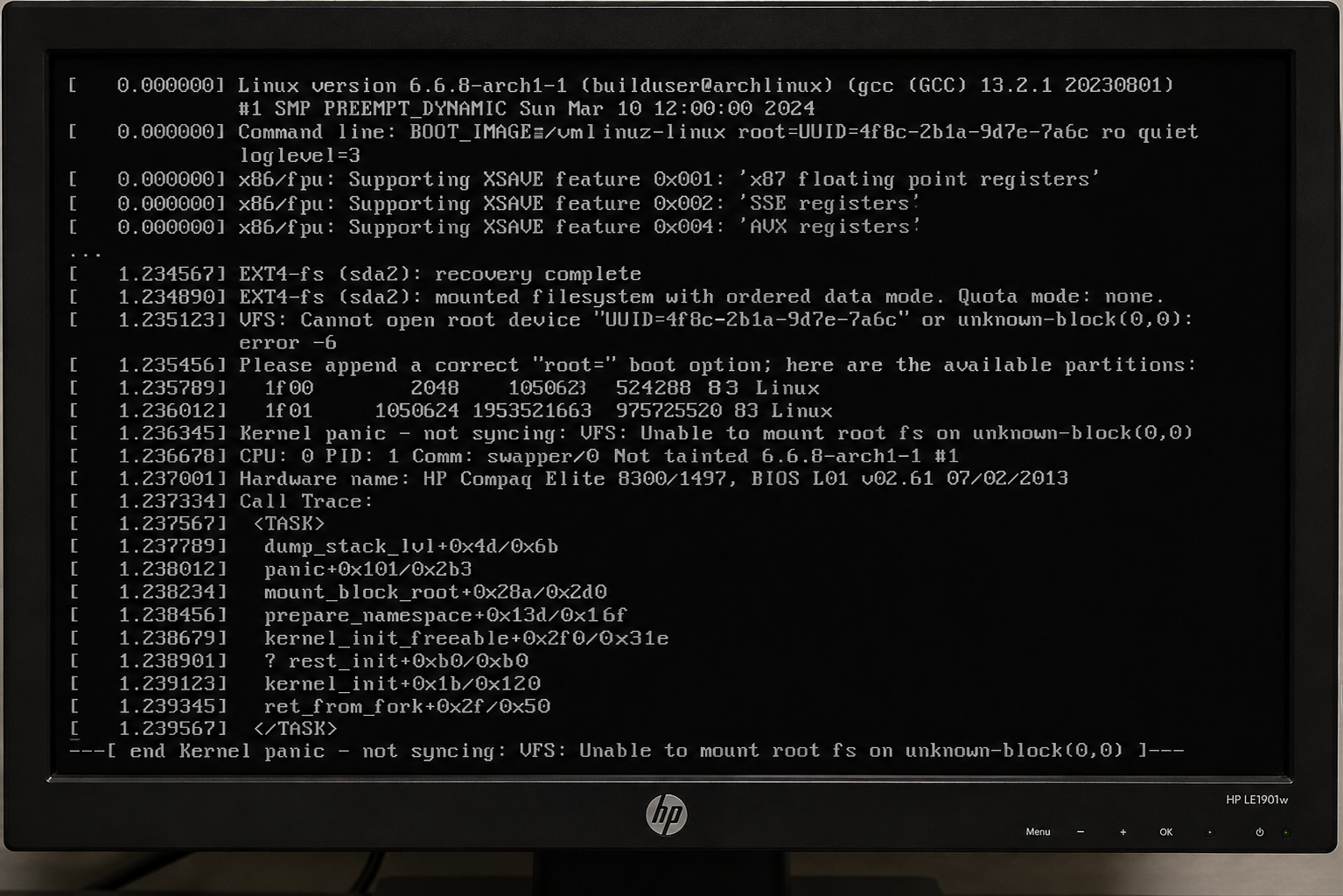
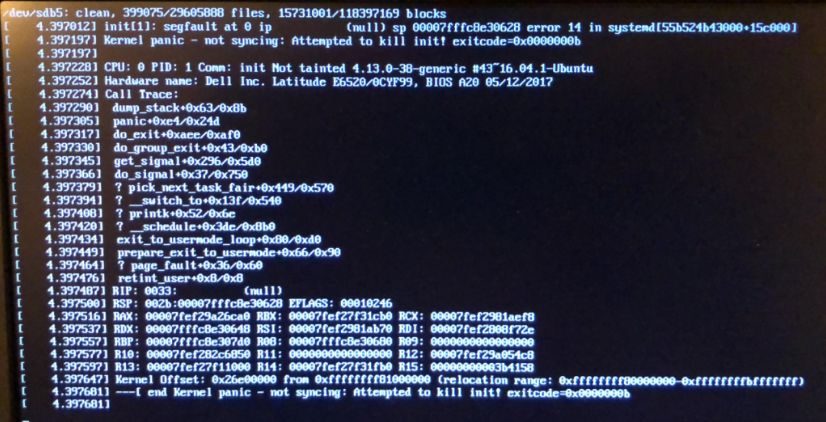
A kernel panic means the Linux kernel hit a problem it cannot recover from. One of the most common boot-related kernel panics is:
Kernel panic - not syncing: VFS: Unable to mount root fs on unknown-block(...)This usually means the kernel loaded, but it could not mount the root filesystem.
Common causes include:
- The initramfs is missing or corrupt.
- GRUB points to the wrong root device.
- The root filesystem UUID changed.
- A required storage driver is missing.
- A kernel update failed.
- The root filesystem is damaged.
- LVM, RAID, or disk encryption did not activate during early boot.
Boot an Older Kernel First
If the panic started after a kernel update, try an older kernel before changing files.
At the GRUB menu:
- Select Advanced options for Ubuntu or the equivalent menu for your distribution.
- Choose an older kernel.
- Boot the system.
If the older kernel works, rebuild initramfs and regenerate the GRUB config:
sudo update-initramfs -u -k all
sudo update-grubOn Fedora/RHEL-based systems:
sudo dracut --regenerate-all --force
sudo grub2-mkconfig -o /boot/grub2/grub.cfgCheck the Root Filesystem UUID
Boot from a live USB and check filesystem UUIDs:
lsblk -f
sudo blkidMount the installed root filesystem:
sudo mount /dev/sdXN /mntOpen /etc/fstab:
sudo nano /mnt/etc/fstabCompare the UUIDs in /etc/fstab with the UUIDs from blkid.
A broken line may look like this:
UUID=old-or-missing-uuid / ext4 defaults 0 1Update it to the correct UUID.
After correcting /etc/fstab, chroot into the system and regenerate GRUB:
sudo mount --bind /dev /mnt/dev
sudo mount --bind /proc /mnt/proc
sudo mount --bind /sys /mnt/sys
sudo mount --bind /run /mnt/run
sudo chroot /mnt /bin/bash
update-grub
exitThen unmount and reboot.
Check LVM, RAID or Encrypted Root Devices
Some systems need extra steps before the root filesystem appears.
For LVM:
sudo vgscan
sudo vgchange -ay
sudo lvsFor software RAID:
sudo mdadm --assemble --scan
cat /proc/mdstatFor LUKS encryption:
sudo cryptsetup luksOpen /dev/sdXN cryptroot
ls /dev/mapper/After activating the storage layer, mount the real root filesystem and continue with the chroot repair process.
Fix Initramfs BusyBox Shell Errors
When Linux drops to a BusyBox or initramfs shell, the kernel has started but cannot continue to the real root filesystem.
You may see a prompt like this:
(initramfs)Start with read-only checks:
blkid
cat /proc/cmdline
ls /dev/disk/by-uuid/Look for the root UUID in the kernel command line. It often appears as:
root=UUID=xxxxxxxx-xxxx-xxxx-xxxx-xxxxxxxxxxxxIf that UUID does not exist under /dev/disk/by-uuid/, GRUB or /etc/fstab may be pointing to the wrong device.
Reboot from a live USB, compare UUIDs using blkid, then correct /etc/fstab and regenerate GRUB.
If the filesystem itself is damaged, repair it from a live USB while unmounted.
Back to boot-error diagnosis ↑
Fix Filesystem and fsck Boot Errors
Filesystem problems can stop Linux from booting cleanly. You may see messages such as:
fsck failedfsck exited with status code 4UNEXPECTED INCONSISTENCY; RUN fsck MANUALLYGive root password for maintenanceThe safest repair method is to boot from a live USB and run filesystem checks while the target filesystem is unmounted.
Repair an ext4 filesystem
Identify the partition:
lsblk -fMake sure it is not mounted:
mount | grep sdXNIf it is mounted, unmount it:
sudo umount /dev/sdXNRun fsck:
findmnt --source /dev/sdXN
sudo e2fsck -f /dev/sdXNfindmnt must return no mounted target for the partition. A filesystem repair changes metadata and has no simple undo, so image or copy important data first if the disk is readable. After the repair, make a no-write verification pass:
sudo e2fsck -f -n /dev/sdXN
echo $?Exit status 0 means no filesystem errors were found on the verification pass. Recurring errors or new I/O errors are a reason to stop and investigate the disk.
If prompted to fix errors, read the prompts carefully. For many ext4 repairs, accepting the proposed fixes is normal, but if the filesystem is still readable, you should back up important data first.
After repair, reboot:
sudo rebootRepair an XFS Filesystem
XFS repair uses xfs_repair, not standard fsck.
Make sure the filesystem is unmounted, then run:
findmnt --source /dev/sdXN
sudo xfs_repair -n /dev/sdXNThe -n pass reports damage without modifying the filesystem. If it identifies repairable metadata damage, the filesystem is unmounted and recoverable data is protected, run the repair followed by another no-modify check:
sudo xfs_repair /dev/sdXN
sudo xfs_repair -n /dev/sdXNDo not jump to xfs_repair -L. It clears the filesystem log and can discard pending metadata updates. Treat it as a last-resort recovery choice after reviewing the exact error and protecting recoverable data.
Be Careful with Btrfs
Btrfs has its own repair tools, but aggressive repair can make data recovery harder.
Start by attempting a read-only mount and backing up data:
sudo mount -o ro /dev/sdXN /mntOnly use destructive Btrfs repair options after reading the documentation and confirming that you have a backup or no better recovery route.
Fix /etc/fstab Emergency Mode Errors
A bad /etc/fstab entry can stop Linux during boot. This often happens after removing a disk, changing a UUID, editing mount options, or moving filesystems.
Common symptoms include:
You are in emergency modeDependency failed for Local File SystemsTimed out waiting for deviceBoot from a live USB and mount the root filesystem:
sudo mount /dev/sdXN /mntCheck the fstab file:
sudo cp -a /mnt/etc/fstab /mnt/etc/fstab.pre-boot-repair
sudo nano /mnt/etc/fstabCompare the UUIDs with:
sudo blkidTo test whether an fstab entry is the cause, comment it out by adding # at the start of the line:
# UUID=example /mnt/data ext4 defaults 0 2Save the file and reboot.
If the system boots, the commented entry was part of the problem. Correct the UUID, device name, mount point or mount options before enabling it again.
For non-critical disks, consider adding nofail so the system can continue booting even if the disk is unavailable:
UUID=example /mnt/data ext4 defaults,nofail 0 2Use nofail carefully. It is useful for secondary disks, but you should not use it to hide problems with critical filesystems.
Validate the edited file from the installed system before rebooting:
sudo chroot /mnt findmnt --verify --verboseIf you are already at a systemd emergency shell instead of a live USB, remount the root filesystem read-write, save a backup, edit and reload systemd before testing all entries:
mount -o remount,rw /
cp -a /etc/fstab /etc/fstab.pre-boot-repair
nano /etc/fstab
systemctl daemon-reload
findmnt --verify --verbose
mount -avRead the mount -av output before rebooting. To roll back, copy fstab.pre-boot-repair back over fstab and run systemctl daemon-reload again.
Use Rescue and Emergency Mode
Sometimes the system can still boot far enough to give you a repair shell. You can ask systemd to start in a limited mode by editing the GRUB boot entry.
At the GRUB menu:
- Highlight the Linux entry.
- Press
e. - Find the line that starts with
linux. - Add one of the following options to the end of the line.
- Press
Ctrl + XorF10to boot.
For rescue mode:
systemd.unit=rescue.targetFor emergency mode:
systemd.unit=emergency.targetUse rescue mode when you need a single-user repair environment with more of the system available.
Use emergency mode when mounts or services are breaking boot, and you need the smallest possible environment.
After logging in, check failed services and boot logs:
systemctl --failed
journalctl -xbIf the previous boot failed, check the previous boot log:
journalctl -b -1Fix a Blank Screen After Linux Starts Booting
A blank screen after GRUB usually means the bootloader worked, but the kernel or graphics stack hit a problem.
This often happens after GPU driver updates, kernel updates, display mode issues, or unsupported graphics hardware.
Try booting once with nomodeset.
At the GRUB menu:
- Highlight the Linux boot entry.
- Press
e. - Find the line that starts with
linux. - Remove
quiet splashif present. - Add
nomodesetto the end of the line. - Press
Ctrl + XorF10to boot.
The edited line may look like this:
linux /boot/vmlinuz... root=UUID=... ro nomodesetIf the system boots, repair or reinstall the graphics driver.
On Ubuntu systems using NVIDIA drivers, you may need to reinstall the recommended driver:
sudo ubuntu-drivers devices
sudo ubuntu-drivers autoinstall
sudo rebootIf you need to make nomodeset persistent while troubleshooting, edit the GRUB defaults:
sudo cp -a /etc/default/grub /etc/default/grub.pre-nomodeset
sudo nano /etc/default/grubUpdate this line:
GRUB_CMDLINE_LINUX_DEFAULT="quiet splash nomodeset"Then regenerate GRUB:
sudo update-grubDo not leave nomodeset enabled permanently unless you need it. It can reduce graphics performance and disable normal kernel mode settings.
If the persistent change does not help, restore /etc/default/grub.pre-nomodeset and run sudo update-grub. After a successful boot, verify the active graphics driver and review boot warnings:
lspci -k | sed -n '/VGA\|3D\|Display/,+3p'
journalctl -b -p warningBack to boot-error diagnosis ↑
Useful Boot Log Commands
Once you can access a shell, logs will usually tell you what failed.
Show the current boot log:
journalctl -xbShow the previous boot log:
journalctl -b -1Show failed systemd units:
systemctl --failedShow kernel messages:
dmesg -TShow mounted filesystems:
findmntShow disks, filesystems and UUIDs:
lsblk -f
blkidShow available GRUB menu entries on Ubuntu/Debian:
grep menuentry /boot/grub/grub.cfgDo not edit /boot/grub/grub.cfg directly. Change /etc/default/grub or files under /etc/grub.d/, then regenerate the GRUB configuration.
Linux Boot Repair Command Cheat Sheet
| Task | Ubuntu/Debian | Fedora/RHEL/Rocky/Alma | Arch |
|---|---|---|---|
| Rebuild initramfs | update-initramfs -u -k all | dracut --regenerate-all --force | mkinitcpio -P |
| Regenerate GRUB config | update-grub | grub2-mkconfig -o /boot/grub2/grub.cfg | grub-mkconfig -o /boot/grub/grub.cfg |
| Install GRUB on BIOS disk | grub-install /dev/sdX | grub2-install /dev/sdX | grub-install /dev/sdX |
| Repair unmounted ext4 | e2fsck -f /dev/sdXN | e2fsck -f /dev/sdXN | e2fsck -f /dev/sdXN |
| Preflight unmounted XFS | xfs_repair -n /dev/sdXN | xfs_repair -n /dev/sdXN | xfs_repair -n /dev/sdXN |
| Check disks and UUIDs | lsblk -f && blkid | lsblk -f && blkid | lsblk -f && blkid |
| View boot logs | journalctl -xb | journalctl -xb | journalctl -xb |
Common Linux Boot Error Fixes by Scenario
After Resizing or Moving Partitions
Likely issue: GRUB or /etc/fstab points to old partition information.
Fix path:
lsblk -f
blkidThen check:
sudo nano /mnt/etc/fstabAfter correcting UUIDs, chroot and run:
update-grub
grub-install /dev/sdXAfter Installing Windows Beside Linux
Likely issue: Windows changed the boot order or replaced the default boot entry.
Fix path:
- Enter BIOS/UEFI settings.
- Move the Linux boot entry above Windows Boot Manager.
- If the Linux entry is missing, boot from a live USB and reinstall GRUB.
For Ubuntu UEFI systems:
grub-install --target=x86_64-efi --efi-directory=/boot/efi --bootloader-id=ubuntu --recheck
update-grubAfter a Failed Kernel Update
Likely issue: broken kernel package, missing module or bad initramfs.
Fix path:
- Boot an older kernel from GRUB Advanced Options.
- Rebuild initramfs.
- Regenerate GRUB.
Ubuntu/Debian:
sudo update-initramfs -u -k all
sudo update-grubFedora/RHEL/Rocky/Alma:
sudo dracut --regenerate-all --force
sudo grub2-mkconfig -o /boot/grub2/grub.cfgAfter Removing a Disk
Likely issue: /etc/fstab still references the removed disk.
Fix path:
sudo blkid
sudo nano /mnt/etc/fstabComment out the missing disk entry or update it to the correct UUID.
For non-critical disks, add nofail only after confirming that the mount is not required for boot.
After Disk or Filesystem Corruption
Likely issue: Filesystem requires repair or the disk is failing.
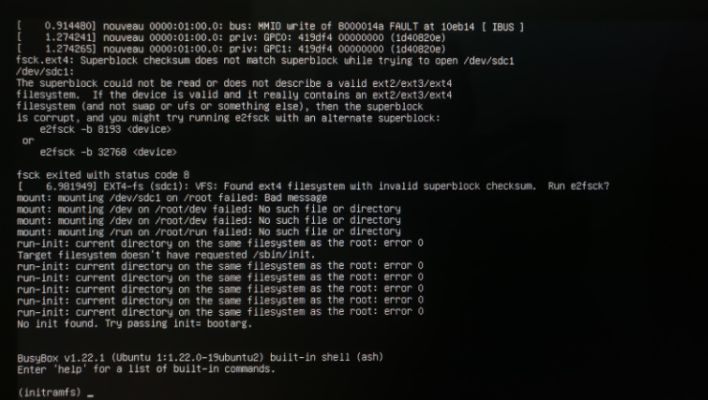
Fix path:
- Boot from a live USB.
- Back up readable data if possible.
- Check disk visibility with
lsblk -f. - Repair the unmounted filesystem.
For ext4:
findmnt --source /dev/sdXN
sudo e2fsck -f /dev/sdXNFor XFS:
findmnt --source /dev/sdXN
sudo xfs_repair -n /dev/sdXNFor XFS, -n is a no-modify preflight. Follow the full filesystem repair section before making changes.
If the disk repeatedly disappears, produces I/O errors, or makes unusual noises, treat it as a possible hardware failure and focus on data recovery first.
How to Prevent Linux Boot Problems
You cannot prevent every boot failure, but these habits reduce the risk.
Keep a Live USB Available
Keep a current Ubuntu, Debian, Fedora or rescue-focused live USB available. It gives you a safe recovery environment when the installed system cannot boot.
Record Your Partition Layout
After a clean install or major disk change, save the output of:
lsblk -f
blkid
findmntStore it somewhere outside the machine. This makes it easier to spot changed UUIDs, missing partitions, and incorrect mount points later.
Be Careful When Editing /etc/fstab
Before editing /etc/fstab, make a backup:
sudo cp /etc/fstab /etc/fstab.bakAfter editing, test the file before rebooting:
sudo mount -aIf mount -a returns errors, fix them before rebooting.
Keep Older Kernels Installed
Do not remove every older kernel immediately after an update. An older kernel can provide a working fallback if the newest kernel fails to boot.
Check Disk Health
For systems with SMART-capable drives, install SMART tools:
sudo apt install smartmontoolsThen check a disk:
sudo smartctl -a /dev/sdXFor NVMe drives:
sudo smartctl -a /dev/nvme0Disk errors, reallocated sectors, media errors or repeated I/O failures may indicate a hardware problem rather than a bootloader problem.
FAQ
How do I fix grub rescue> in Linux?
Start by using ls at the GRUB rescue prompt to find the partition containing /boot/grub. If you can load the normal GRUB module, boot the system and reinstall GRUB. If that fails, boot from a live USB, mount the installed system, chroot into it, reinstall GRUB, and regenerate the GRUB configuration.
How do I fix error: no such partition?
This usually means GRUB is pointing to a partition that no longer exists or has changed. Boot from a live USB, run lsblk -f and blkid, confirm the correct Linux root and boot partitions, then reinstall GRUB.
What does Kernel panic - not syncing: VFS: Unable to mount root fs mean?
It means the kernel started but could not mount the root filesystem. Common causes include a broken initramfs, the wrong root UUID, a missing storage driver, a damaged Filesystem, or a failed kernel update. Try booting an older kernel first. If that fails, use a live USB to rebuild initramfs and check /etc/fstab.
How do I rebuild initramfs on Ubuntu?
Boot into the installed system or use a live USB with chroot, then run:
update-initramfs -u -k all
update-grubReboot after the commands complete.
How do I rebuild initramfs on Fedora or RHEL?
From the installed system or a chroot, run:
dracut --regenerate-all --force
grub2-mkconfig -o /boot/grub2/grub.cfgThen reboot.
Can I run fsck on the root filesystem?
Do not run fsck on a mounted root filesystem from the running system. Boot from a live USB or recovery environment so the filesystem can be checked while unmounted.
Why does Linux boot into emergency mode?
Emergency mode usually means a critical mount, service, or device failed during boot. A bad /etc/fstab entry is a common cause. Run journalctl -xb, check failed units with systemctl --failed, and compare /etc/fstab with blkid.
What should I do if Linux shows a black screen after GRUB?
Edit the GRUB boot entry and add nomodeset to the kernel line. If the system boots, the issue is likely related to graphics drivers or display mode settings. Reinstall or repair the GPU driver after booting.
Should I reinstall Linux if GRUB breaks?
Usually, no. A broken GRUB installation can often be repaired from a live USB by mounting the installed system, entering it with chroot, reinstalling GRUB, and regenerating the GRUB configuration.
Linux boot errors can look dramatic, but the repair process becomes much easier when you first identify the failed boot stage.
A grub rescue> prompt usually means the bootloader cannot find its files. An initramfs shell usually means the system cannot find or mount the root filesystem. A VFS kernel panic usually points to a root filesystem, initramfs, or storage driver problem. Emergency mode often means a failed mount or bad /etc/fstab entry.
Start with safe checks. Confirm the disk layout—back up readable data. Avoid running filesystem repair against mounted filesystems. Then use the correct recovery path for the on-screen error.
Most Linux boot problems can be fixed without reinstalling the operating system.


Leave a Reply