
🔑 Key Takeaways
- The Error: The error “You do not have permission to create projects in this location” is almost always caused by missing IAM (Identity and Access Management) permissions.
- The Fix: Your user account or service account needs the
roles/resourcemanager.projectCreatorrole (Project Creator) at the Organization or Folder level. - How to Fix: You can add this role in the Google Cloud Console under “IAM & Admin” or by using a
gcloudcommand. - Security Warning: Do not assign broad roles like
OwnerorOrganizationAdminjust to fix this. This violates the principle of least privilege and creates a major security risk. TheProject Creatorrole is the correct and secure solution.
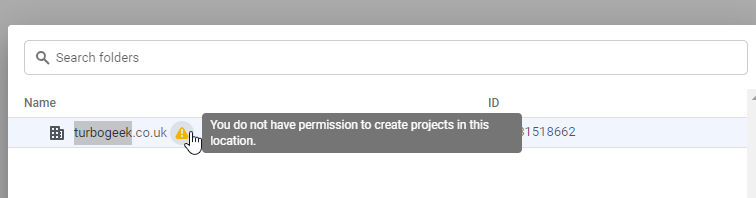
It’s an incredibly frustrating roadblock. You’re ready to spin up a new environment, test an application, or isolate resources, and you hit a wall: “You do not have permission to create projects in this location.”
From my own experience, this error feels like a bug, but it’s almost always a feature—a security feature, to be precise. It means Google Cloud’s IAM system is doing its job, but your account simply doesn’t have the right key.
Let’s walk through exactly how to diagnose and fix this, from the simplest console check to the more advanced gcloud commands.
Why Am I Seeing the “You do not have permission” Error?
You are seeing this error because the user account or service account you are using lacks the “Project Creator” IAM role (roles/resourcemanager.projectCreator).
In GCP, all resources are organized under a hierarchical structure (Organization > Folders > Projects). To create a project, you must have explicit permission to do so at the level where you’re trying to create it (either at the Organization level or within a specific Folder).
How to Fix the GCP Project Creation Error: 3 Methods
Here are the most common ways to solve this, starting with the simplest.
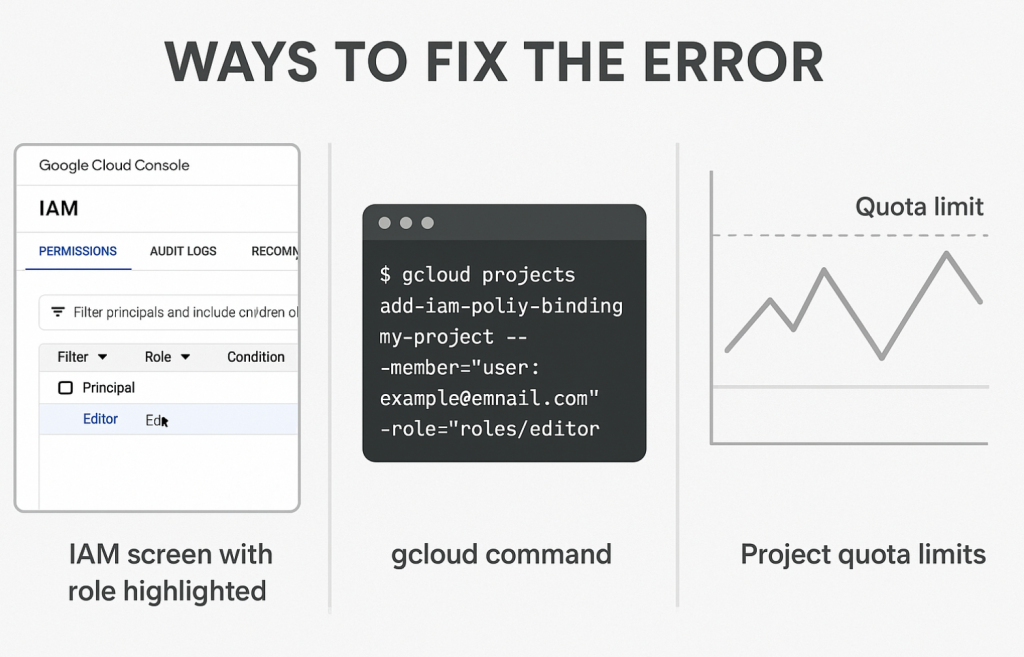
Method 1: Check Your IAM Role in the Google Cloud Console (The Quick Check)
This is the easiest way to verify and fix your permissions.
- Go to the Google Cloud Console.
- Navigate to IAM & Admin > IAM.
- In the “View by” filter, select “Organization” and choose your organization’s name.
- Find your user account (email address) in the “Principal” column.
- Check the “Role” column. If you do not see “Project Creator” or another role that contains it (like “Owner,” though this is not recommended), you have found the problem.
- To Fix: Ask your Organization Administrator to grant your account the “Project Creator” role on the organization.
Method 2: Using gcloud Commands (The Power User Fix)
If you’re comfortable with the command line, this is faster. First, ensure you have the correct account and organization ID.
The original article suggested running three separate commands. Let’s analyze this, because it’s a perfect example of a common security pitfall.
# This is the role you actually need:
gcloud organizations add-iam-policy-binding YOUR_ORG_ID \
    --member="user:[email protected]" \
    --role="roles/resourcemanager.projectCreator"

# --- DANGEROUS ROLES - AVOID THESE ---

# This role gives you full ownership of all projects, which is too permissive.
gcloud organizations add-iam-policy-binding YOUR_ORG_ID \
    --member="user:[email protected]" \
    --role="roles/owner"

# This role gives you complete control over the entire organization.
# NEVER use this just to create a project.
gcloud organizations add-iam-policy-binding YOUR_ORG_ID \
    --member="user:[email protected]" \
    --role="roles/resourcemanager.organizationAdmin"
The only command you should run (or have an admin run for you) is the first one, granting roles/resourcemanager.projectCreator. If you need more help with the CLI, check out our [beginner’s guide to gcloud commands].
Method 3: Check Project Quotas
This is a less common cause, but still possible. You may have hit your organization’s quota for the number of projects you can create.
- In the Google Cloud Console, go to IAM & Admin > Quotas.
- In the “Filter” box, search for “Projects”.
- This will show you your “Projects per organization” or “Projects per folder” quota and your current usage. If you are at your limit (e.g., “100 / 100”), you will need to either [delete old projects] or request a quota increase from Google Cloud support.
Expert Insight: The Principle of Least Privilege (A Critical Warning)
I want to pause and strongly emphasize a core security concept: the Principle of Least Privilege.
This principle states that a user should only be given the minimum set of permissions required to perform their specific task, and nothing more.
Granting yourself OrganizationAdmin or Owner just to create a project is like using a sledgehammer to hang a picture frame. It “works,” but it’s a terrible idea. It exposes your entire organization to massive risk if your account is ever compromised. An attacker with those permissions could delete your whole organization.
Always insist on the correct, minimal role. In this case, it is Project Creator. This demonstrates true expertise and protects your cloud environment. For a more detailed breakdown, see our [deep dive on GCP IAM best practices].
A Practical Deep Dive: What If It’s an Organization Policy Constraint?
What if you have the Project Creator role, but you still see the error?
This is an advanced-level problem, and the culprit is often the Organization Policy Service. Your organization’s administrator can set “constraints” that override IAM roles. For example, a policy might state:
- Projects can only be created inside a specific Folder (e.g., “Development”).
- Projects cannot be created at the root Organization level at all.
- Projects cannot be created in specific geographic locations.
If you try to create a project in a way that violates one of these policies, you will be blocked, even if you are a Project Creator.
How to Check (for Admins): You can list the policies enforced on your organization with gcloud:
gcloud resource-manager org-policies list --organization=YOUR_ORG_ID
Look for constraints like constraints/resourceManager.projectCreationAllowedLocations or constraints/resourceManager.folderlessProjectCreation. If these are set, you must create your project in a way that complies with them (e.g., by specifying an allowed folder during creation).
FAQ on GCP Projects
These foundational questions help put the error into context.
What is a GCP project?
A Google Cloud Platform (GCP) project is the primary container for all your resources. Think of it as a logical workspace. It holds your virtual machines, storage buckets, databases, and applications, and it’s the basis for managing billing, permissions, and other services.
How do I manage access to GCP projects?
You manage access using IAM (Identity and Access Management). You assign roles (like “Project Creator” or “Compute Engine Admin”) to principals (like users, groups, or service accounts). These roles define who can do what on which resource.
Can I delete a GCP project?
Yes, you can delete (or “shut down”) a GCP project. Be extremely careful: shutting down a project deletes all resources inside it. The project enters a 30-day recovery period, after which it is permanently deleted. Always back up critical data before deletion.
Conclusion
That “you do not have permission” error is a common rite of passage in GCP. By understanding that it’s a simple (but strict) permissions check, you can quickly identify the missing Project Creator role and get back to building. And by insisting on the right role, you’re not just fixing an error—you’re practicing good cloud security.
Leave a Reply