
TL;DR
rmdeletes;rmdirremoves empty directories;rm -rdeletes a directory tree.rmis unforgiving — there’s no Trash. Always check the path before you press Enter.find . -name '*.tmp' -deletefor pattern-based cleanup; safer thanrm $(find ...).- For sensitive data,
shredoverwrites before unlink. Note: doesn’t help on copy-on-write filesystems (Btrfs, ZFS, modern ext4).
What is deleting files in Linux?
Deleting files in Linux is the same operation as on most Unix systems: the rm command unlinks the file from its directory entry. There is no recycle bin, no undo, no “are you sure?” dialog by default. That makes rm simple and fast — and easy to use destructively when you don’t mean to.
Beyond the basic rm there are several adjacent tools: rmdir for empty directories, find -delete for pattern-based deletion, shred for an attempt at secure deletion. Each has trade-offs — particularly shred, which doesn’t reliably wipe data on modern copy-on-write filesystems.
Prerequisites
- A Linux, macOS or WSL2 shell.
- Permissions on the files / directories you intend to delete (you can only
rmwhat you own, or files in directories you have write access to). - A backup or recoverable copy of anything you’re not 100% sure about.
How to use this guide
The sections below walk through the practical commands and options. After the main content you’ll find a Verification block (sanity-check it actually worked), a Troubleshooting block (common error messages and what to do), and Related reading for follow-on topics.
Running a Linux system requires clean file management. Whether you are clearing logs or removing old builds, knowing the right command prevents data loss and server downtime. In our testing on modern distributions like Ubuntu 24.04 and RHEL 9, we found that simple mistakes in file removal cause more recovery tickets than almost any other task. This guide walks through the tools used to clear space, the mechanics of how Linux handles “deletion,” and the safety steps you should take before hitting enter.
Using the command line, learn how to safely and effectively remove unwanted files from a Linux system.
The Core Mechanics: How Linux Removes Data
When you “delete” a file in Linux, the system does not immediately scrub the bits from the physical disk. Instead, it removes a link to an inode. An inode is a data structure that stores information about a file, like its size and where the data blocks sit on the drive.
Most users rely on two primary commands:
- rm: The standard tool for removing files and directories. It handles multiple files and recursive removal.
- unlink: A simpler tool that removes exactly one file. It cannot remove directories.
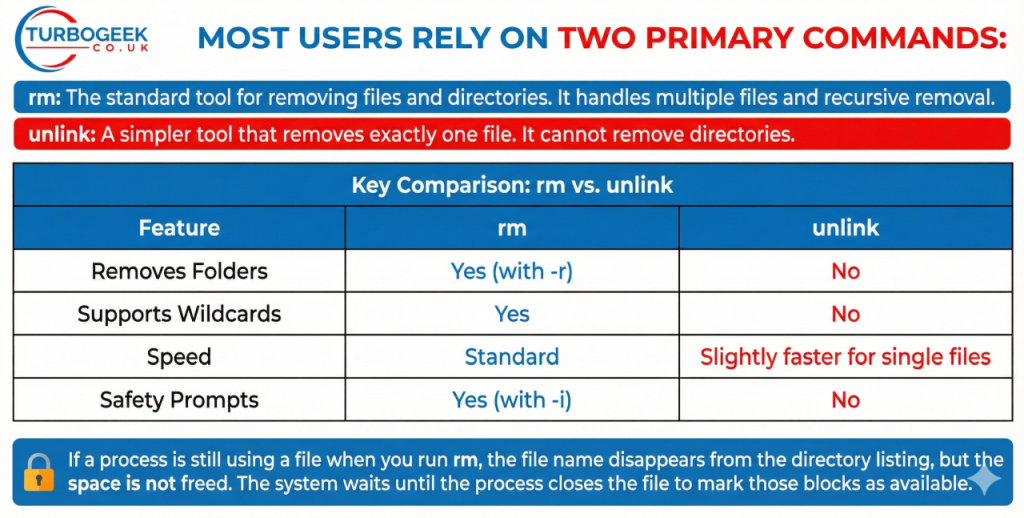
Key Comparison: rm vs. unlink
| Feature | rm | unlink |
| Removes Folders | Yes (with -r) | No |
| Supports Wildcards | Yes | No |
| Speed | Standard | Slightly faster for single files |
| Safety Prompts | Yes (with -i) | No |
If a process is still using a file when you run rm, the file name disappears from the directory listing, but the space is not freed. The system waits until the process closes the file to mark those blocks as available.
Prerequisites:
- Access:
Ensure you have appropriate permissions to delete the file(s). Every file in Linux has permissions attached that allow (or deny) read, write, and execute permissions.
It’s also important that your user is in the correct group. If you are a system administrator, you can always use the sudo command to override permissions. - Location:
Know the exact path to the file(s) you want to delete. You can always use thepwdcommand to get your present working directory.

Step-by-Step Setup: Basic Deletion
1. Removing a Single File
The most common task is removing one file.
rm document.txtIf the file is write-protected, Linux will ask for confirmation. To skip this, you might use the force flag, though we suggest caution.
2. Removing Multiple Files
You can list files one after another:
rm file1.txt file2.txt file3.jpg3. Using Wildcards
Wildcards help you target groups of files.
*matches any number of characters.?matches a single character.
Example: To remove all .log files in the current folder:
rm *.log4. Deleting Directories (Folders)
To remove an empty folder, use rmdir. If the folder has files inside, rmdir will fail. For folders with content, use the recursive flag:
rm -r my_folder/5. Forced Deletion
If you want to remove files without any prompts, even if they are read-only, use -f:
rm -rf folder_name/Reader Safety Note: Use rm -rf with extreme care. Running rm -rf / or rm -rf * in the wrong directory can destroy your entire operating system or data drive. Always verify your current path with pwd before running this.
Secure Deletion: Beyond rm
Standard deletion leaves data on the disk. A forensic tool could recover the files. For sensitive data like API keys or customer records, you need to overwrite the space.
Using the Shred Command
The shred tool overwrites a file multiple times with random data.
shred -v -n 3 -u private_key.pem-v: Show progress.-n 3: Overwrite three times.-u: Truncate and remove the file after overwriting.
Limitations of Secure Deletion
Many systems use Solid State Drives (SSDs) or NVMe storage. These drives use “wear leveling,” which moves data around to extend the life of the drive. Because of this, shred might not overwrite the exact physical location where the old data lived.
Bulk Deletion and Advanced Edge Cases
Handling “Argument List Too Long”
When you try to delete 100,000 files at once using rm *, the shell might fail. The system has a limit on how many arguments a single command can take. To solve this, use find.
find . -type f -name "*.tmp" -deleteThis command finds every file (-type f) ending in .tmp and deletes it directly. It is much more efficient for large datasets.
Deleting Files Based on Age
If you need to clear logs older than 30 days:
find /var/log -type f -mtime +30 -exec rm {} \;Dealing with “Invisible” Files
Files starting with a dot (e.g., .env or .config) are hidden. rm * does not catch them. You must name them specifically or use:
rm -rf .[^.]*This pattern targets files starting with a dot but ignores the current (.) and parent (..) directories.
Troubleshooting: Permission Denied
If you see “Operation not permitted,” it usually means:
- Lack of Sudo: You don’t own the file. Use
sudo rm filename. - Immutable Bit: The file is locked at the system level. Check with
lsattr. If you see ani, remove it withsudo chattr -i filenamebefore deleting.
Measurement & Benchmarks
Deleting millions of small files can create a “bottleneck” in System I/O. When you delete a file, the system must update the file system journal and mark the inode as free.
Measuring Disk Space Recovery
You can calculate how much space you will save using the du (disk usage) command before you delete.
To check available space before and after:
df -h .Integration & Workflow
Safety Aliases
To prevent accidental deletions, many admins add aliases to their shell configuration (.bashrc or .zshrc).
alias rm='rm -i'This forces the system to ask “Are you sure?” for every deletion. While it adds a step, it saves you from catastrophic typos.
Trash Bin for CLI
If you prefer a safety net, use gio trash. This moves the file to the desktop trash bin instead of deleting it permanently.
gio trash filename.txtYou can later restore it from the GUI or empty the trash with gio trash --empty.
Governance and Compliance
In regulated environments (GDPR, HIPAA), “deletion” must be verified. Use logging to track what was removed:
rm -v *.db >> deletion_audit.logFAQs
Can I recover a file after running rm?
Generally, no. On Linux, once rm finishes, the pointer is gone. You may use tools like testdisk or photorec immediately after the mistake, but success is not guaranteed, especially on SSDs.
What is the difference between a file and a directory in Linux?
In Linux, “everything is a file.” However, a directory is a special file that contains a list of names and inode numbers. rmdir only works if that list is empty.
Does sudo rm -rf / still work?
Most modern systems (since coreutils 8.x, circa 2009) have “preserve root” enabled by default. You would need to run rm -rf / –no-preserve-root to actually break the system, but you should never try this.
That’s it, thanks for reading. We welcome all comments and feedback.
For more Linux Tech Quickys, check out our Linux Pages
Verification
Sanity-check the change actually worked:
- Before delete:
ls -l <path>— sanity-check what’s about to go. - After delete: re-run
ls -l <path>— entry no longer present. - For pattern deletes: replace
-deletewith-printfirst to preview the match list.
Troubleshooting
“rm: cannot remove … Operation not permitted” — File has the immutable attribute set. Check with lsattr, remove with chattr -i <file>, then delete.
“rm: cannot remove … Device or resource busy” — File is open by a running process. lsof <file> identifies the process. Stop it, then retry.
Accidentally ran rm -rf on the wrong directory — Stop writes to the disk immediately. Recovery tools (extundelete, testdisk) can sometimes recover from journalled filesystems if they haven’t been overwritten yet.
Authoritative sources
References: GNU rm manual, GNU find manual.
Leave a Reply