
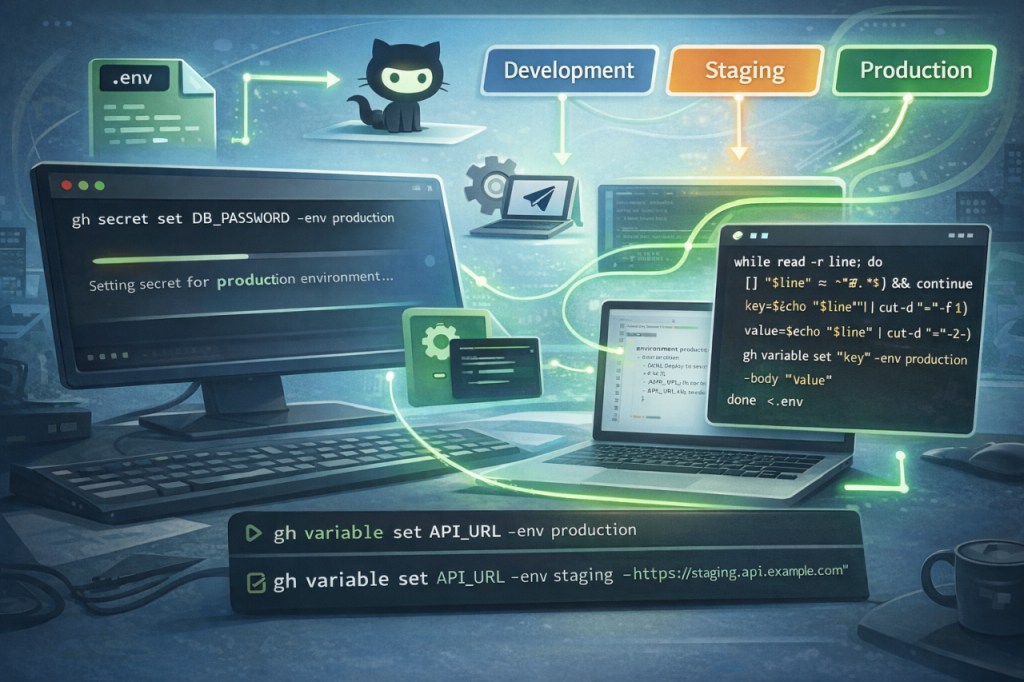
This guide explains how to use the GitHub CLI (gh) to manage configuration data for your environments. This is particularly useful for CI/CD pipelines where you need to toggle between “Production,” “Staging,” or “Development” settings.
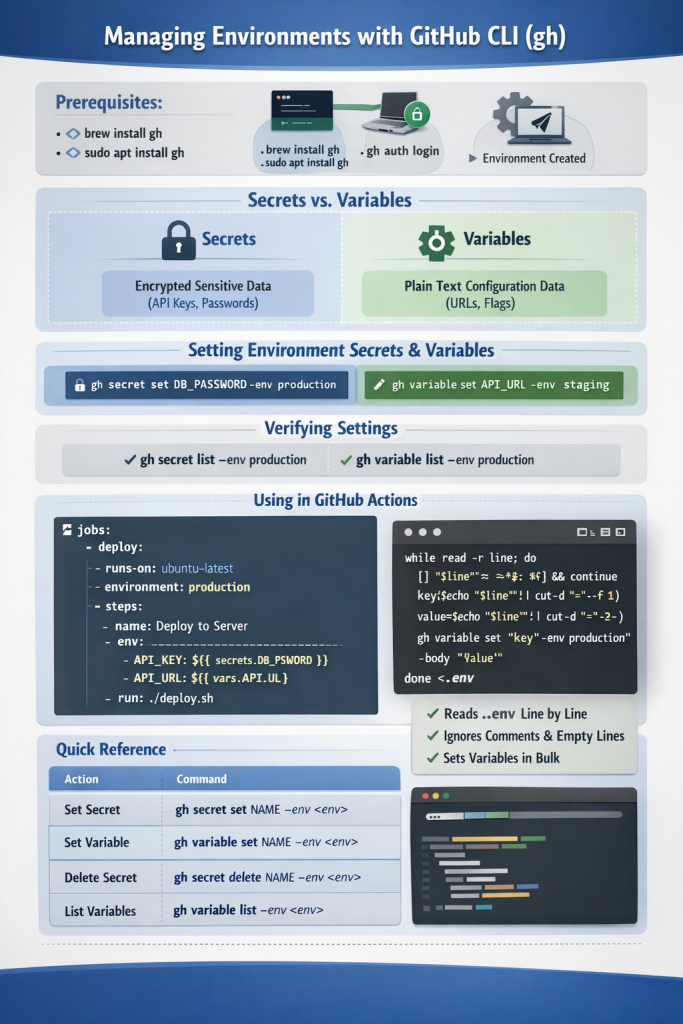
Prerequisites
- GitHub CLI Installed: Ensure you have the
ghtool installed (brew install ghon macOS orsudo apt install ghon Linux). - Authenticated: Run
gh auth loginto link your account. - Environment Created: Ensure the environment (e.g.,
production) already exists in your repository settings.
1. Understanding Secrets vs. Variables
- Secrets: Encrypted. Used for sensitive data like API keys, passwords, or SSH keys. They cannot be viewed once set.
- Variables: Plain text. Used for non-sensitive data like configuration flags, URLs, or environment names.
2. Setting Environment Secrets
To set a secret for a specific environment, use the secret set command with the --env flag.
Command Syntax:
gh secret set SECRET_NAME --env environment_nameExample: To set a database password for your “production” environment:
gh secret set DB_PASSWORD --env production --body "your_secure_password"Alternatively, if you omit --body, the CLI will open an interactive prompt for you to paste the secret securely.
3. Setting Environment Variables
Variables use a similar syntax but utilize the variable command.
Command Syntax:
gh variable set VARIABLE_NAME --env environment_nameExample: To set the API endpoint for your “staging” environment:
gh variable set API_URL --env staging --body "https://staging.api.turbogeek.co.uk"4. Verifying Your Settings
You can list all secrets or variables assigned to an environment to ensure they were created correctly.
- To list secrets:
gh secret list --env production - To list variables:
gh variable list --env production
5. Using them in GitHub Actions
Once set via the CLI, these are accessed in your .github/workflows/deploy.yml file by referencing the environment:
YAML
jobs:
  deploy:
    runs-on: ubuntu-latest
    environment: production  # This links the job to the environment
    steps:
      - name: Deploy to Server
        env:
          API_KEY: ${{ secrets.DB_PASSWORD }}
          API_URL: ${{ vars.API_URL }}
run: ./deploy.shQuick Reference Table
| Action | Command |
| Set Secret | gh secret set NAME --env <env> |
| Set Variable | gh variable set NAME --env <env> |
| Delete Secret | gh secret delete NAME --env <env> |
| List Variables | gh variable list --env <env> |
Pro Tip: Bulk-Uploading from a .env File
Manually typing out twenty different variables is error-prone and tedious. If you have a local .env file, you can use a small Bash loop to pipe those values directly into the GitHub CLI.
The Shell Script
Run this command from your terminal in the same directory as your .env file. Replace production with your target environment name.
while read -r line || [ -n "$line" ]; do
  # Skip comments and empty lines
  [[ "$line" =~ ^#.*$ ]] || [[ -z "$line" ]] && continue

  # Split into Name and Value
  key=$(echo "$line" | cut -d '=' -f 1)
  value=$(echo "$line" | cut -d '=' -f 2-)

  echo "Setting variable: $key"
  gh variable set "$key" --env production --body "$value"
done < .envHow it works:
while read -r line: Reads your.envfile line by line.[[ "$line" =~ ^#.*$ ]]: This logic ensures the script ignores any comments (lines starting with#) or blank lines in your file.cut -d '=': This splits the line at the first=sign to separate the variable name from the data.gh variable set: Feeds the parsed data directly into the CLI.
Handling Secrets vs. Variables
If your .env file contains sensitive data (like passwords), simply change the command inside the loop from gh variable set to gh secret set.
Warning: Be careful when bulk-uploading secrets. Ensure your terminal history doesn’t save the values by using a space before your command or clearing your history afterwards.
Comparison: Manual vs. Bulk Upload
| Method | Best For | Speed | Risk of Typos |
| Manual CLI | One-off updates | Slow | High |
| Interactive CLI | Sensitive Secrets | Medium | Low |
| Bulk Script | Initial Project Setup | Fast | Lowest |
Leave a Reply