

Docker and Docker Compose are two amazing tools that let you run containerized applications on Ubuntu (and every other flavor of Linux). Docker is super simple to use, and it’s fantastic for testing new programs. Although Docker is available on Windows, I find the entire experience much smoother on Linux-based systems. It’s stable and reliable, and there are some great tools you can install that make it very easy to manage. Lets learn how to Install Docker, and how to install WordPress using Docker Compose.
This procedure will show you how to install Docker and Docker Compose. I will also demonstrate some of my favorite Docker images from the Docker hub that you can play around with.
Step 1 – Update Server
First, update your Linux Server. This process will take a little while if you have just installed Ubuntu.
sudo apt update -yStep 2 – Install Docker
The following commands will install all the prerequisites for Docker and Docker Compose. It includes the GPG key for the Docker Repo. Bare in mind that occasionally, Docker will change this repo, so if you hit any errors, visit https://download.docker.com/linux/ubuntu/gpg to see if anything has changed.
# Install prerequisites
sudo apt install apt-transport-https ca-certificates curl software-properties-common gnupg lsb-release -y

# Add Docker's official GPG key:
curl -fsSL https://download.docker.com/linux/ubuntu/gpg | sudo gpg --dearmor -o /etc/apt/keyrings/docker.gpg

# Add Docker's repository:
echo "deb [arch=$(dpkg --print-architecture) signed-by=/etc/apt/keyrings/docker.gpg] https://download.docker.com/linux/ubuntu $(lsb_release -cs) stable" | sudo tee /etc/apt/sources.list.d/docker.list > /dev/null

# Update the package index again:
sudo apt update

# Install Docker Engine, containerd, and Docker CLI:
sudo apt install docker-ce docker-ce-cli containerd.io docker-buildx-plugin docker-compose-plugin docker-compose -y
Step 3 – Verify Docker Installation
Now, we need to quickly check everything was installed correctly. To do this, we simply run a hello-world test.
sudo docker run hello-worldYou should see the following output:
sudo docker run hello-world
Unable to find image 'hello-world:latest' locally
latest: Pulling from library/hello-world
c1ec31eb5944: Pull complete
Digest: sha256:266b191e926f65542fa8daaec01a192c4d292bff79426f47300a046e1bc576fd
Status: Downloaded newer image for hello-world:latest

Hello from Docker!
This message shows that your installation appears to be working correctly.

To generate this message, Docker took the following steps:
 1. The Docker client contacted the Docker daemon.
 2. The Docker daemon pulled the "hello-world" image from the Docker Hub.
    (amd64)
 3. The Docker daemon created a new container from that image which runs the
    executable that produces the output you are currently reading.
 4. The Docker daemon streamed that output to the Docker client, which sent it
    to your terminal.

To try something more ambitious, you can run an Ubuntu container with:
 $ docker run -it ubuntu bash

Share images, automate workflows, and more with a free Docker ID:
 https://hub.docker.com/

For more examples and ideas, visit:
 https://docs.docker.com/get-started/

root@AIML:~#
Step 4 – Deploy WordPress
Now, we will deploy WordPress using Docker Compose. First, we need to set the local host filesystem, then we can deploy the WordPress Container
Note: If you are following along at home, make sure you change the Password to something more secure.
nano docker-compose.ymlAdd the following code
version: '3.1'

services:
  db:
    image: mysql:5.7
    volumes:
      - db_data:/var/lib/mysql
    restart: always
    environment:
      MYSQL_ROOT_PASSWORD: yourpassword
      MYSQL_DATABASE: wordpress
      MYSQL_USER: wordpressuser
      MYSQL_PASSWORD: yourpassword

  wordpress:
    image: wordpress:latest
    ports:
      - "8080:80"
    restart: always
    environment:
      WORDPRESS_DB_HOST: db:3306
      WORDPRESS_DB_USER: wordpressuser
      WORDPRESS_DB_PASSWORD: yourpassword
      WORDPRESS_DB_NAME: wordpress
    depends_on:
      - db

volumes:
  db_data:
Save and quit
Now use the following command
docker compose up -dYou should see the following output:
docker-compose up -d
Creating network "root_default" with the default driver
Creating volume "root_db_data" with default driver
Pulling db (mysql:5.7)...
5.7: Pulling from library/mysql
20e4dcae4c69: Pull complete
1c56c3d4ce74: Pull complete
e9f03a1c24ce: Pull complete
68c3898c2015: Pull complete
6b95a940e7b6: Pull complete
90986bb8de6e: Pull complete
ae71319cb779: Pull complete
ffc89e9dfd88: Pull complete
43d05e938198: Pull complete
064b2d298fba: Pull complete
df9a4d85569b: Pull complete
Digest: sha256:4bc6bc963e6d8443453676cae56536f4b8156d78bae03c0145cbe47c2aad73bb
Status: Downloaded newer image for mysql:5.7
Pulling wordpress (wordpress:latest)...
latest: Pulling from library/wordpress
09f376ebb190: Pull complete
76afcdc86551: Pull complete
ceed4541c527: Pull complete
9ec84be954b0: Pull complete
ff0e278869f9: Pull complete
1693466e4cc6: Pull complete
57c8d94a4882: Pull complete
43af3fe8136a: Pull complete
ddef75e08a5d: Pull complete
a4ba0bdbbf0a: Pull complete
29e89bc69515: Pull complete
bdad27815722: Pull complete
dbbbc9a88332: Pull complete
ca4ce74a758b: Pull complete
b8447b6adfa2: Pull complete
6384f9388f98: Pull complete
ad26f7163064: Pull complete
4b2fddf63d23: Pull complete
5967a1599e89: Pull complete
cabecef25649: Pull complete
c9f0fbb308c3: Pull complete
Digest: sha256:f468bab53528df6f87dfe11a80de26eff57e0f515e243d9dec73a02c80c273a7
Status: Downloaded newer image for wordpress:latest
Creating root_db_1 ... done
Creating root_wordpress_1 ... done
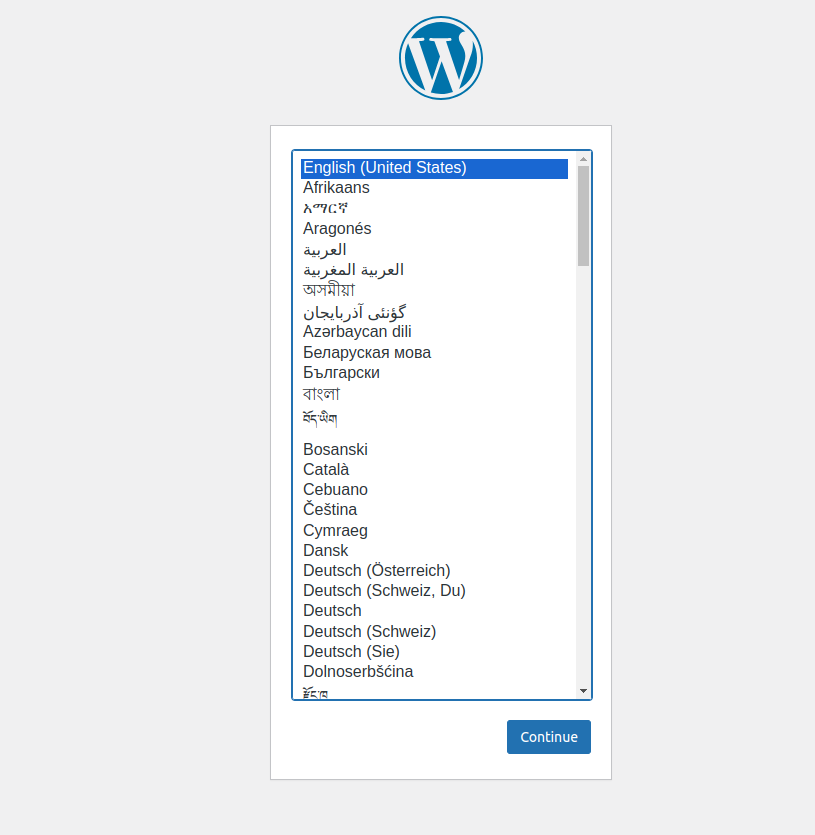
You can now browse to your Server IP on port 8080 to see the WordPress Installation page
Basic Docker Commands
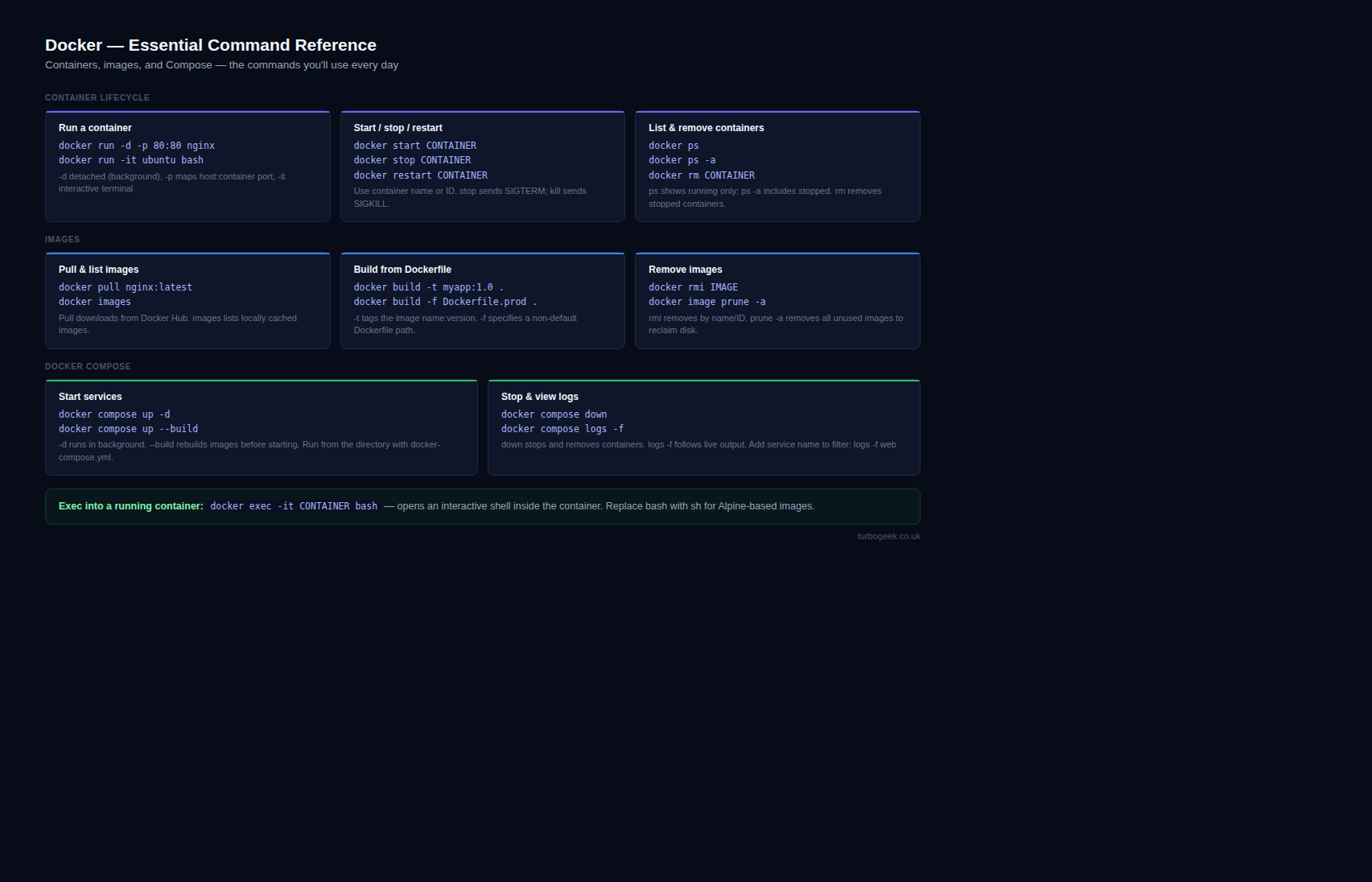
Image Management:
docker images: List all Docker images on your system.docker pull <image>: Download a Docker image from a registry (e.g., Docker Hub).docker search <term>: Search for images on Docker Hub.docker build -t <image_name> <path_to_Dockerfile>: Build a Docker image from a Dockerfile.docker rmi <image>: Remove an image from your local system.
Container Management:
docker run <image>: Create and start a new container from an image.docker ps: List running containers.docker ps -a: List all containers (running and stopped).docker start <container>: Start a stopped container.docker stop <container>: Stop a running container.docker restart <container>: Restart a container.docker rm <container>: Remove a stopped container.docker logs <container>: View the logs of a container.docker exec -it <container> <command>: Execute a command inside a running container.docker cp <container>:<path> <local_path>: Copy files between a container and your local machine.
Docker Compose:
docker compose up -d: Start all services defined in adocker-compose.ymlfile.docker compose down: Stop and remove all containers, networks, and volumes defined in adocker-compose.ymlfile.docker compose ps: List containers managed by Docker Compose.
Other Useful Commands:
docker version: Show the Docker version information.docker info: Display system-wide information about Docker.docker login: Log in to a Docker registry.docker system prune: Remove unused images, containers, networks, and build cache.
Thats it, you now know how to install Docker, and use Docker Compose to install WordPress with a MySQL backend. There are loads more things to install on the Docker Hub, you can also find out more Linux hints and tips on our website.
Thanks for taking the time to read this article. if you have any questions or feedback, please write in the comment section below.
Leave a Reply