
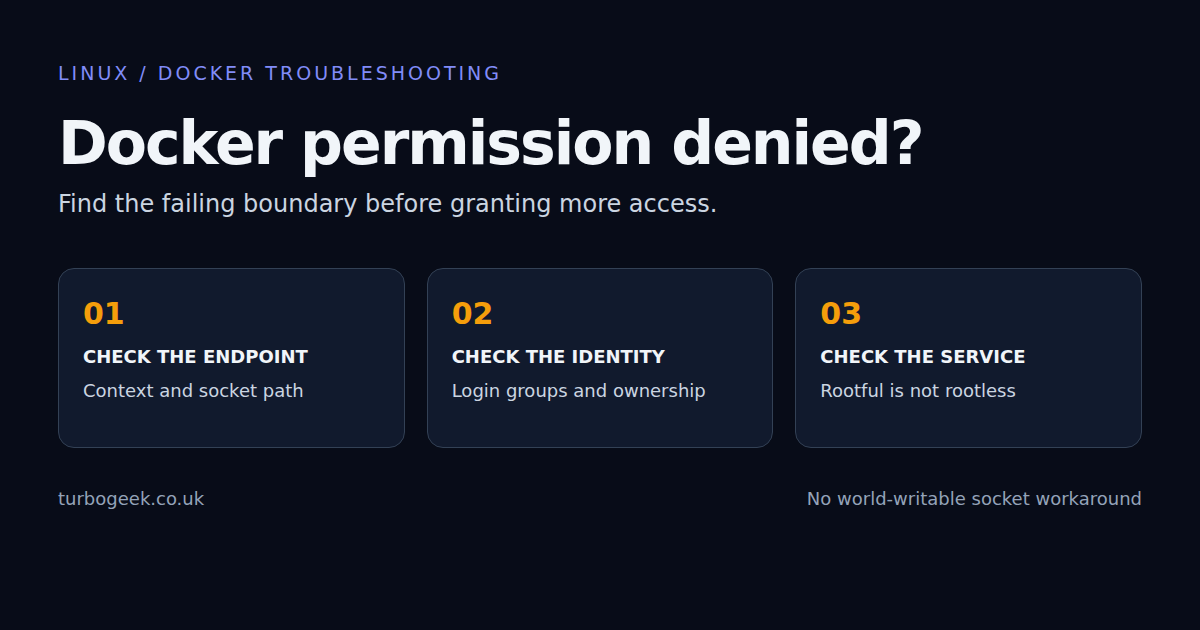
A Docker permission error is not always a missing group membership. First read the path in the error. A failure opening /var/run/docker.sock, a warning about ~/.docker/config.json, and a denied image pull describe three different permission checks.
For a normal rootful Docker Engine installation on Ubuntu, the socket is commonly owned by root:docker with mode 660. A user outside that group cannot open it. Adding a trusted administrator to the group can fix that case, but it grants root-equivalent control of the machine. It is not a harmless convenience switch.
TL;DR
- Identify the failing path before changing ownership or groups.
- Confirm the daemon and context: sudo can silently point at a different installation.
- Refresh the login session after an approved Docker group change.
- Keep rootless Docker on its own user socket and service.
- Never make the rootful socket world-writable.
Start here: run the read-only checks under Identify the endpoint. If Docker is not installed, start with the Ubuntu installation guide.
| Error or symptom | Likely boundary | First check |
|---|---|---|
| Permission denied on docker.sock | Unix socket access | id; stat /var/run/docker.sock |
| Cannot connect to daemon | Endpoint or daemon unavailable | docker context ls |
| Permission denied on config.json | CLI configuration ownership | ls -ld ~/.docker |
| Pull access denied | Registry identity or image name | Check registry and repository access |
| Works with sudo, wrong containers appear | Different context/configuration | Compare endpoints, not just success |
Identify the endpoint before fixing permissions
command -v docker
docker --version
docker context show
docker context ls
id
printenv DOCKER_HOST DOCKER_CONTEXT DOCKER_CONFIGAn unset environment variable produces no output. Review the output locally: endpoints can disclose internal hostnames. An explicit --context, a context environment variable or DOCKER_HOST can redirect the client. The selected context alone is not proof that every command uses that endpoint.
docker context inspect --format '{{json .Endpoints.docker.Host}}' default
stat -c '%A %a %U %G %n' /var/run/docker.sock
systemctl is-active dockerThese last checks apply to a local rootful Engine on a systemd-based Ubuntu host. Substitute the actual context name when inspecting a different context. A rootless installation or Docker Desktop may use another socket; do not create or change /var/run/docker.sock just because this example uses it.
A missing socket suggests a stopped service or wrong endpoint. An existing socket with a permission-denied error points towards access checks. A healthy local system service says nothing about a remote context. Keep those cases separate rather than restarting everything.
Fix rootful access only for a trusted administrator
On a machine you administer, and only when root-level Docker access is appropriate, inspect the configured group. Docker’s Linux post-installation guidance explicitly warns that Docker group membership grants root-level privileges.
getent group docker
id -nGIf the package created the group and you have approval to join it, append your current user. The -a matters: without append mode, changing supplementary groups can remove other memberships.
sudo usermod -aG docker "$USER"Save your work, log out completely and log back in. Existing shells retain their old supplementary groups. An editor terminal launched by an older editor process can retain them too. Check id -nG in the exact terminal that failed, then run docker ps without sudo.
newgrp docker opens a group-enabled subshell and can help test the change, but it does not update every process in your desktop session. A full new login is easier to verify. Do not automatically add CI accounts, web-service users or every developer on a shared host.
Do not run
chmod 666 /var/run/docker.sock. It allows any local user or process able to reach the socket to control a rootful daemon. A successful docker command after that change is not a secure fix.
To undo a membership you have just added, an administrator can remove that exact user from the Docker group with sudo gpasswd -d USERNAME docker. Replace USERNAME deliberately. Existing processes can retain access until their sessions end; removal is not an instant revocation of every running process.
Do not mix rootless Docker with the rootful socket
Rootless Docker runs the daemon as the user. Its socket is normally inside the user’s runtime directory, and its service belongs to the user service manager. Joining the rootful docker group is not the fix for a stopped rootless daemon. See Docker’s rootless prerequisites and setup before installing or migrating anything.
systemctl --user is-active docker
docker context ls
docker --context rootless infoThe last command assumes a context actually named rootless exists. Use the name your setup created. If it is absent, inspect the installation rather than manufacturing a context pointing at a guessed socket. A rootless service can also depend on the user’s login lifecycle; service persistence should be configured intentionally.
Switching contexts does not move containers or images. Rootful, rootless and Desktop daemons have separate object stores. “My containers disappeared” after a switch usually means you are looking at another daemon. Record the previous context before changing it, and use an explicit --context while diagnosing.
Repair CLI configuration ownership without widening access
If the error names config.json, inspect the CLI configuration directory. Previous sudo commands can leave root-owned files in a user-owned directory. A custom DOCKER_CONFIG changes which directory is relevant.
ls -ld "$HOME/.docker"
ls -l "$HOME/.docker/config.json"Only if these are your own normal configuration files, and you have confirmed that the path is not a shared directory or a symlink to another location, restore ownership of the affected files to your account. Keep authentication files private. Do not print config.json into a ticket: it may contain registry authentication data.
Avoid a recursive ownership change on a guessed path. Inspect the directory and fix the exact wrongly owned entries. If your organisation provisions shared Docker configuration, ask the owner before changing it. Ownership repair will not fix an expired registry token or grant access to a private image.
What the isolated lab reproduced
On 8 September 2026 I ran a fresh Docker-in-Docker lab, with no host socket, host bind mounts or published ports. The inner daemon used Docker 29.8.0 in Alpine userspace. This tested Linux socket behaviour; it was not a fresh Ubuntu installation or a rootless deployment test.
| Fixture | Observed result | Meaning |
|---|---|---|
| New user outside docker group | docker ps failed with permission denied | Daemon existed, socket access was denied |
| Same user, new session after group addition | docker ps returned successfully | Group access resolved this specific failure |
| Same user, nonexistent socket endpoint | docker ps failed to connect | Group access cannot repair a wrong endpoint |
The daemon stayed isolated throughout the test. The lab container and its anonymous volumes were removed afterwards. No existing workstation containers or data were changed. The contrast is the useful result: the same user can pass the group check and still fail because the client addresses the wrong socket.
Verify the fix and stop there
id -nG
docker context show
docker version
docker psConfirm the expected server identity and container list, not merely a zero exit code. Repeat the original operation from the original terminal or service account. If you changed a context, verify that deployment scripts still target the intended daemon.
If a plain docker ps works but a build or application still reports permission denied, read the new path. A bind-mounted directory, executable bit, registry or container UID has its own access rules. Do not keep adding host privileges after the daemon connection is already working.
Related: Docker command architecture and flags explains the client/daemon boundary; the Portainer home-lab guide builds on a working daemon connection.
Leave a Reply