
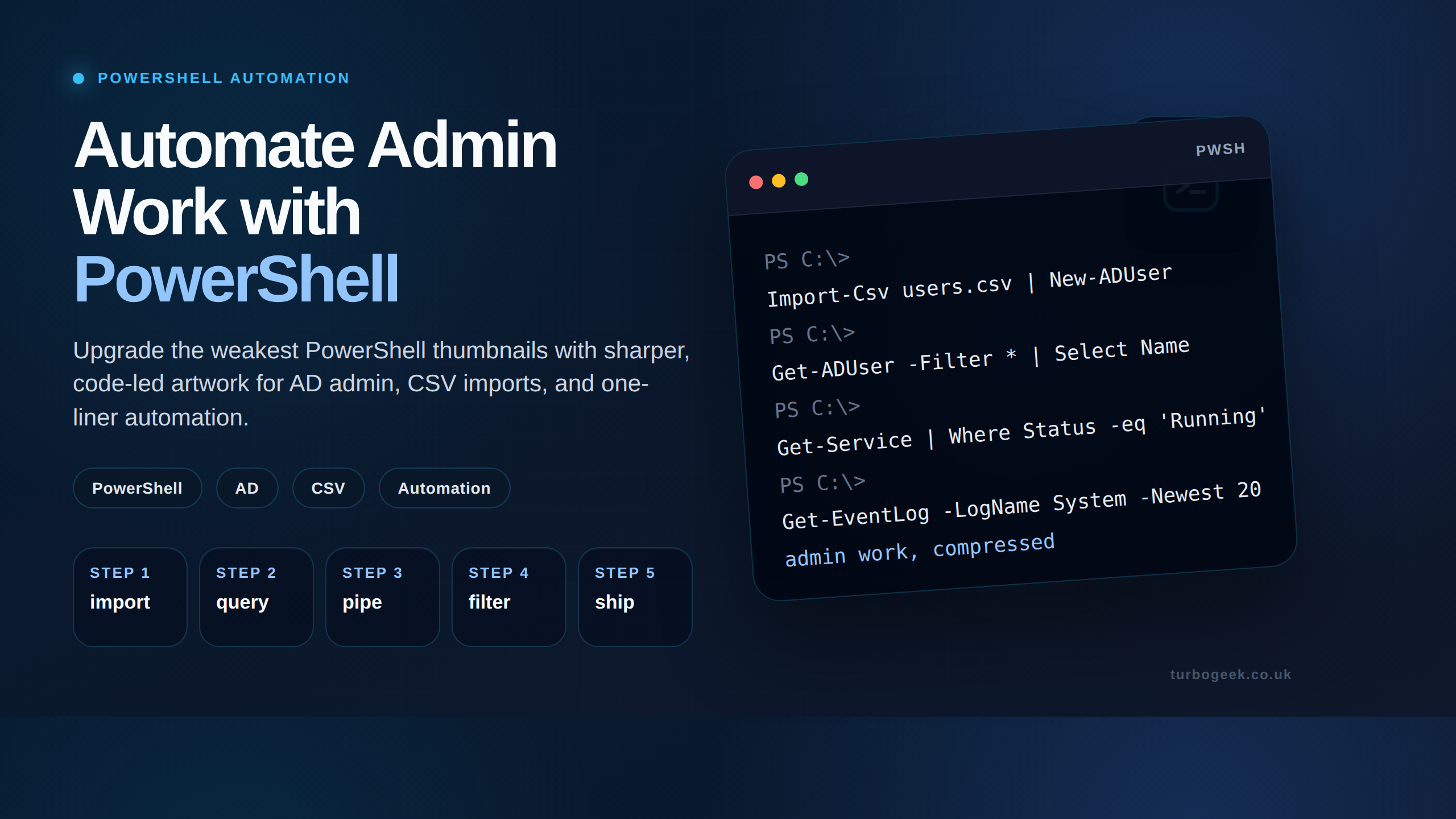
This page is a practical PowerShell reference for Windows administrators. It is designed for quick copy-and-paste use during everyday support, audit, and troubleshooting work.
The commands are grouped by job type so you do not have to scroll through a long unbroken list. Start with the command index, jump to the task you need, then read the short safety note before running anything on a production server.
TL;DR
- Use the first sections for read-only inventory and troubleshooting.
- Commands that export files, monitor folders, or send alerts should be tested in a lab first.
- Use
Get-CimInstanceand modern networking cmdlets where possible instead of older aliases. - For Active Directory-specific examples, use the dedicated Active Directory PowerShell one-liners guide.
Source check – 1 June 2026: Microsoft maintains the official PowerShell documentation. Microsoft also marks
Send-MailMessageas obsolete, so email alert examples should be treated as legacy patterns unless replaced with your organisation’s approved mail or notification method.
Command Index
Use this table as the fast route into the page. The safety column tells you whether the command only reads data or whether it writes files, starts a watcher, or depends on a specific platform.
| Task | Command family | Safety | Jump |
|---|---|---|---|
| List installed applications | Get-ItemProperty | Read-only | Go |
| List installed Windows updates | Get-HotFix | Read-only | Go |
| Find admin shares | Get-CimInstance | Read-only | Go |
| Find running scheduled tasks | Get-ScheduledTask | Read-only | Go |
| Find files and logs | Get-ChildItem | Read-only | Go |
| Check boot time | Get-CimInstance | Read-only | Go |
| Check disk space | Get-CimInstance | Read-only | Go |
| Calculate folder size | Measure-Object | Read-only but can be slow | Go |
| Find a process using a port | Get-NetTCPConnection | Read-only | Go |
| Extract IPs from a log | Select-String | Read-only | Go |
| Export mailbox sizes | Get-MailboxStatistics | Writes CSV | Go |
| Monitor a folder | FileSystemWatcher | Starts event watcher | Go |
| Monitor a website | Invoke-WebRequest | Network request | Go |
Before You Run These Commands
- Run discovery first: Start with read-only commands before changing anything.
- Check permissions: Some inventory commands work as a normal user, but system-wide registry, remote, Exchange, and admin-share queries may need elevated rights.
- Be careful with recursion:
Get-ChildItem -Recurseover large folders can be slow and noisy. Always scope the path tightly. - Do not paste credentials into scripts: Use approved secret stores, managed identities, or secure credential handling.
- Treat email examples as legacy:
Send-MailMessageis obsolete. Use your organisation’s approved SMTP relay, Microsoft Graph, webhook, or monitoring platform instead.
Inventory and Auditing
List Installed Applications
Safety: Read-only. Run as: Standard user usually works, but admin rights may reveal more software. Use when: Building a quick software inventory from the local registry.
Get-ItemProperty HKLM:\Software\Microsoft\Windows\CurrentVersion\Uninstall\*, HKLM:\Software\Wow6432Node\Microsoft\Windows\CurrentVersion\Uninstall\* |
    Where-Object DisplayName |
    Select-Object DisplayName, DisplayVersion, Publisher, InstallDate |
    Sort-Object DisplayName
How it works
This reads both the 64-bit and 32-bit uninstall registry paths, removes blank entries, and returns the useful inventory fields. Export it with Export-Csv if you need a report.
List Installed Windows Updates
Safety: Read-only. Run as: Standard user usually works. Use when: Checking hotfix and KB installation history.
Get-HotFix |
    Select-Object HotFixID, Description, InstalledOn |
    Sort-Object InstalledOn -Descending
How it works
Get-HotFix returns installed Windows hotfixes and update records. Sorting by InstalledOn puts the newest entries first.
Find Administrative Shares
Safety: Read-only. Run as: Local admin may be required. Use when: Confirming hidden administrative shares such as C$ and ADMIN$.
Get-CimInstance -ClassName Win32_Share -Filter 'Type=2147483648' |
    Select-Object PSComputerName, Name, Path
How it works
The WMI/CIM share type 2147483648 identifies administrative shares. This version returns computer name, share name, and local path without using older aliases.
Find Running Scheduled Tasks
Safety: Read-only. Run as: Standard user sees some tasks; admin sees more. Use when: Checking what scheduled tasks are active right now.
Get-ScheduledTask -State Running |
    Select-Object TaskName, TaskPath, State
How it works
Get-ScheduledTask -State Running filters at the cmdlet level, then Select-Object keeps the output readable.
Files, Folders, and Disk Usage
Find Files and Log Files
Safety: Read-only. Run as: Depends on folder permissions. Use when: Searching for a known file or collecting a list of logs.
Get-ChildItem -Path C:\Windows -Recurse -Filter 'hosts.bak' -ErrorAction SilentlyContinueGet-ChildItem -Path C:\Temp -Recurse -Filter '*.log' -ErrorAction SilentlyContinueHow it works
-Filter narrows the search before PowerShell processes the output. -ErrorAction SilentlyContinue hides access-denied noise, which is common when searching protected Windows folders.
Check Free Disk Space
Safety: Read-only. Run as: Standard user usually works. Use when: Checking local fixed disks before patching, backup, or troubleshooting.
Get-CimInstance Win32_LogicalDisk -Filter 'DriveType=3' |
    Select-Object DeviceID,
        @{Name='SizeGB';Expression={[math]::Round($_.Size / 1GB, 2)}},
        @{Name='FreeGB';Expression={[math]::Round($_.FreeSpace / 1GB, 2)}},
        @{Name='FreePercent';Expression={[math]::Round(($_.FreeSpace / $_.Size) * 100, 2)}}
How it works
DriveType=3 limits the result to local fixed disks. The calculated properties convert bytes into GB and percentage values.
Calculate Folder Size
Safety: Read-only, but can be slow. Run as: Depends on folder permissions. Use when: Estimating how large a folder tree is.
Get-ChildItem -Path C:\Scripts -File -Recurse -Force -ErrorAction SilentlyContinue |
    Measure-Object -Property Length -Sum |
    Select-Object Count, @{Name='SizeGB';Expression={[math]::Round($_.Sum / 1GB, 2)}}
How it works
The command walks the folder tree, measures file sizes, then returns a count and total size. Keep the path specific on large servers.
Server Health and Boot Diagnostics
Find the Last Boot Time
Safety: Read-only. Run as: Standard user locally; remote checks need permissions and connectivity. Use when: Confirming whether a server recently rebooted.
Get-CimInstance -ClassName Win32_OperatingSystem |
    Select-Object PSComputerName, LastBootUpTime
Get-CimInstance -ClassName Win32_OperatingSystem -ComputerName 'Server01', 'Server02' |
Select-Object PSComputerName, LastBootUpTimeHow it works
The local example checks the machine you are logged into. The remote example queries named computers and requires the appropriate firewall, remoting, and permission setup.
Networking and Log Analysis
Find Processes Using a Specific Port
Safety: Read-only. Run as: Admin may reveal more process detail. Use when: A service will not bind to a port, or you need to know what owns port 80, 443, 3389, or another listener.
Get-NetTCPConnection -LocalPort 80 |
    Select-Object LocalAddress, LocalPort, State, OwningProcess |
    Sort-Object OwningProcess -Unique
Get-Process -Id (Get-NetTCPConnection -LocalPort 80).OwningProcess -ErrorAction SilentlyContinueHow it works
The first command shows TCP connections for the chosen local port. The second resolves the owning process ID to process details.
Extract the Top IP Addresses from a Log File
Safety: Read-only. Run as: Depends on file permissions. Use when: Quickly spotting repeated IP addresses in a web, firewall, or application log.
Select-String -Path C:\Logs\app.log -Pattern '\b(?:\d{1,3}\.){3}\d{1,3}\b' -AllMatches |
    ForEach-Object { $_.Matches.Value } |
    Group-Object |
    Sort-Object Count -Descending |
    Select-Object -First 10 Count, Name
How it works
Select-String finds IPv4-looking text, Group-Object counts repeated values, and the final sort shows the most frequent addresses first.
Reports and Automation
Export Exchange Mailbox Sizes
Safety: Writes a CSV file. Run as: Requires Exchange permissions and the relevant Exchange PowerShell context. Use when: Creating a quick mailbox size report.
Get-MailboxStatistics -Server 'MyExchangeServer' |
    Select-Object DisplayName, TotalItemSize, ItemCount |
    Sort-Object TotalItemSize -Descending |
    Export-Csv -Path C:\MailboxReport.csv -NoTypeInformation
How it works
The command collects mailbox statistics from the chosen Exchange server, sorts the result, and writes it to a CSV file for review or reporting.
Monitor a Folder for New Files
Safety: Starts an event watcher in the current PowerShell session. Run as: Depends on folder permissions. Use when: Watching a drop folder during testing or troubleshooting.
$path = 'C:\MyFolder'
$watcher = New-Object System.IO.FileSystemWatcher $path
$watcher.Filter = '*.*'
$watcher.EnableRaisingEvents = $true

Register-ObjectEvent $watcher Created -Action {
    Write-Host ('New file: {0}' -f $Event.SourceEventArgs.FullPath)
}
How it works
FileSystemWatcher listens for new files and Register-ObjectEvent runs the action when a file is created. This is useful for testing, but production alerting should use a proper monitoring or notification platform.
Check Whether a Website Is Available
Safety: Makes an HTTP request. Run as: Standard user usually works. Use when: Testing simple availability from a server or admin workstation.
$url = 'https://www.example.com'

try {
    Invoke-WebRequest -Uri $url -TimeoutSec 30 -UseBasicParsing | Out-Null
    'UP: {0}' -f $url
}
catch {
    'DOWN: {0} - {1}' -f $url, $_.Exception.Message
}
How it works
The command attempts a web request and returns a simple up/down message. If you need recurring checks, alerts, retries, or escalation, use your monitoring system rather than a permanent PowerShell loop.
Active Directory Notes
The old version of this page included a longer Active Directory bulk-user script. That belongs in a focused AD guide rather than the middle of a one-liner cheat sheet. Use these instead:
- Active Directory PowerShell One-Liners for User, Group and Computer Admin
- Bulk Create Active Directory Users with PowerShell and CSV
- Install Active Directory on Windows Server 2022
Legacy Examples to Avoid
- Twitter/X API polling: The older tweet-fetching example does not belong in a server-management one-liner reference and depends on external API/auth behaviour that changes over time.
Send-MailMessagealerts: Microsoft marks this cmdlet as obsolete. For production alerting, use Microsoft Graph, your monitoring platform, a webhook, or an approved mail relay pattern.- Permanent loops: Avoid unattended
while ($true)loops on servers unless they run as a controlled service or scheduled task with logging and limits.
Related TurboGeek Guides
- PowerShell One-Liners: Useful Commands and Tips
- An In-Depth Guide to PowerShell
- Active Directory PowerShell One-Liners for User, Group and Computer Admin
- Bulk Create Active Directory Users with PowerShell and CSV
- How to Install and Configure Windows Server 2025
Final Notes
PowerShell one-liners are best used as starting points. Run them read-only first, inspect the output, then convert the useful ones into proper scripts with parameters, logging, error handling, and source control.


Leave a Reply