

TL;DR
grepis the Linux text-search tool — it scans files for lines matching a pattern.- Patterns can be plain strings or regular expressions (regex) — use regex when you need flexibility.
- Most-used flags:
-i(case-insensitive),-r(recursive),-n(line numbers),-v(invert),-E(extended regex). - Pipe it:
journalctl | grep -i error,ps aux | grep -v grep | grep nginx,grep -rn 'TODO' src/.
What is grep and regex?
grep (Globally search for Regular Expression and Print) is a command-line utility that searches plain-text data for lines matching a pattern. It’s been part of Unix and Linux for over 50 years and remains the fastest way to find a string in a file, a log, a config tree or a piped command output.
A regular expression (regex) is a pattern language for describing strings. error matches the literal word, but error|fail|fatal matches any of three, ^[A-Z]{3}-\d+ matches an issue key like MBR-1234, and \b(?:\d{1,3}\.){3}\d{1,3}\b matches an IPv4 address. grep is the most common place admins meet regex day-to-day.
Prerequisites
- Any Linux, macOS, or WSL2 shell —
grepis on every Unix-like system by default. - A text file or piped stream to search.
- No
sudoneeded unless searching files you don’t own.
How to use this guide
The sections below walk through the practical commands and options. After the main content you’ll find a Verification block (sanity-check it actually worked), a Troubleshooting block (common error messages and what to do), and Related reading for follow-on topics.
GREP (Global Regular Expression Print) is a command-line tool for searching and manipulating text files. It allows you to search for specific text patterns, called regular expressions, within a file or set of files and perform various operations on the matched text.
Regular expressions, or regex for short, are patterns used to match and manipulate text. They are a set of rules that define a specific search pattern, allowing you to search for and match text strings based on certain criteria.
Regular expressions are used by various programming languages, text editors, and command-line tools, including GREP. They are powerful tools that allow you to search for complex text patterns, such as email addresses, phone numbers, and URLs, and perform text manipulation tasks such as find-and-replace operations.
In summary, GREP is a command-line tool that uses regular expressions to search for and manipulate text in files. Regular expressions, or regex, are patterns used to match and manipulate text based on certain criteria.
Linux Grep and Regex
The grep command is a command-line utility for searching plain-text data sets for lines that match a regular expression.
To use the command, simply type grep. grep can be piped from and to other commands/operators to fine-tune the search.
Command Format: cat file.txt | grep word
grep regex example:
Example
cat ansible.cfg | grep plugins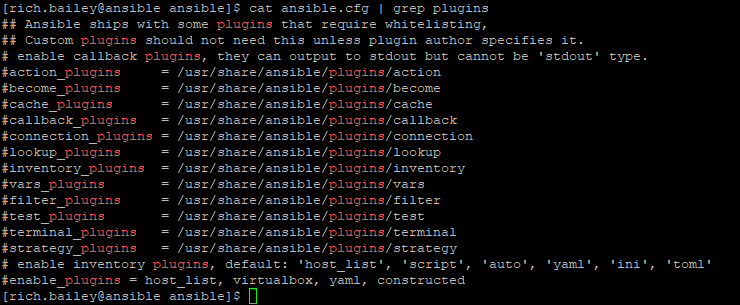
Grep common flags
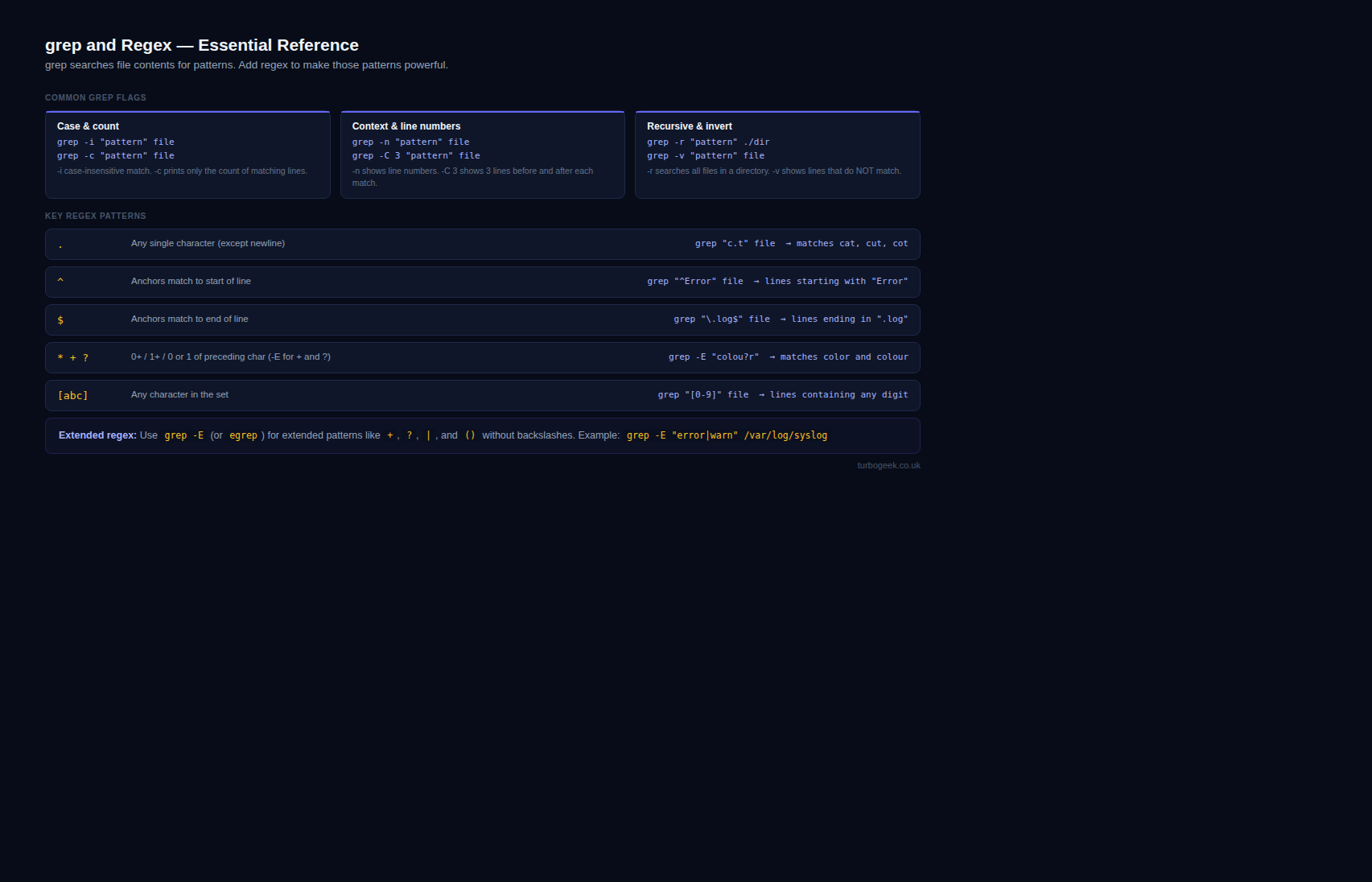
GREP has several command-line options or flags that can modify its behaviour. Some of the most commonly used flags are:
-i: Ignores case sensitivity when searching for patterns.
-r: Searches files recursively in directories and subdirectories.
-n: Displays line numbers of the matched patterns.
-v: Inverts the search results, displaying lines that do not match the pattern.
-w: Matches only whole words that exactly match the search pattern.
-c: Displays the count of the matched patterns.
-l: Displays only the names of the files that contain the matched patterns.
-e: Allows you to specify the pattern to match. This is useful when searching for patterns that start with a hyphen (-).
-f: Allows you to specify a file containing a list of patterns to match.
These are just a few of the most commonly used flags, but many more can be used with GREP. You can type “man grep” in your terminal or command prompt to see a full list of available options.
Regular expression
A “regular expression” is a text string that describes a particular search pattern. (Examples further down)
Regular expressions (regex) consist of various operators or metacharacters that help to match and manipulate text patterns. Some of the most common regex operators are:
. (dot): Matches any character except a new line.
* (asterisk): Matches zero or more occurrences of the preceding character or group.
(plus): Matches one or more occurrences of the preceding character or group.
? (question mark): Matches zero or one occurrence of the preceding character or group.
| (pipe or vertical bar): Matches either the expression before or after the operator.
[]{(square brackets): Matches any character within the brackets.
^ (caret): Matches the start of a line or string.
$ (dollar sign): Matches the end of a line or string.
() (parentheses): Groups multiple characters or expressions together to act as a single unit.
These are just a few of the most commonly used regex operators, but many more can be used to match and manipulate text patterns. You can refer to online resources or documentation for specific programming languages or text editors to learn more about regular expressions.
Grep regular expression examples
Search files for lines with the word Linux:
Command Format: grep linux files
With Linux at the start of a line:
Command Format: grep ‘^linux’ files
example
sudo grep '^May' /var/log/yum.log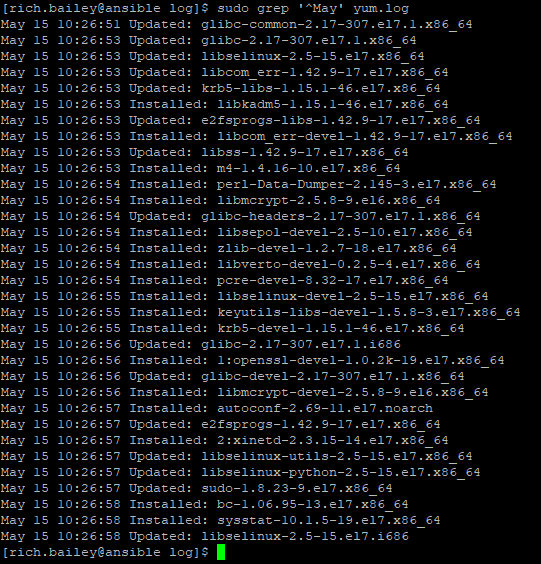
With Linux at the end of a line
Command Format: grep ‘linux$’ files
sudo grep 'root$' /var/log/secure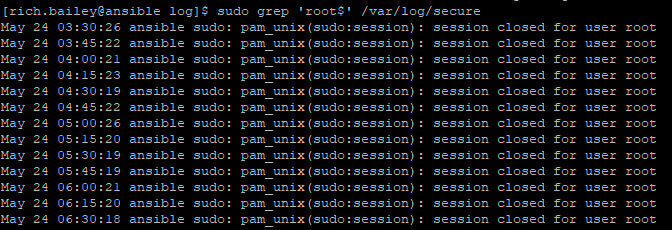
Show lines containing only linux:Command Format: grep ‘^linux$’ files To demonstrate this RegEx I created a testfile containing: turbogeek turbogeek.co.uk www.turbogeek.co.uk https://www.turbogeek.co.uk
grep '^turbogeek$' testfile
Lines starting with ‘^s’, \ escapes the ^:Command Format: grep ‘\^s’ files
grep '\^s' testfileNote: Output = null as grep ignores

Search for either case sensitive eg. Linux or linux:Command Format: grep ‘[Ll]inux’ files To demonstrate this I updated the testfile
turbogeek Turbogeek turbogeek.co.uk <strong>Turbogeek.co.uk</strong> www.turbogeek.co.uk https://www.turbogeek.co.ukgrep '[T]urbogeek' testfile
grep '[t]urbogeek' testfile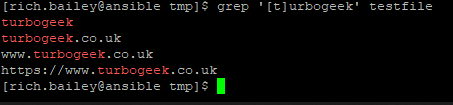
Search for BOB, Bob, BOb or BoB:
grep 'B[oO][bB]' filesSearch for blank lines:
grep '^$' filesSearch for pairs of numeric digits:
grep '[0-9][0-9]' filesearch for uat, replace with sit, globally
:%s/uat/sit/gQ&A: Mastering GREP and Regex for Text Manipulation
Q1: What exactly is GREP, and how does it use regular expressions for text manipulation?
GREP, which stands for Global Regular Expression Print, is a powerful command-line tool designed for searching and manipulating text files. It utilizes regular expressions, or regex, which are patterns defining specific search criteria. With GREP, you can efficiently search for and manipulate text based on these patterns within files.
Q2: How does the Linux ‘grep’ command complement regular expressions in text searching?
The ‘grep’ command in Linux is a versatile utility that searches plain-text datasets for lines matching a given regex. You can pipe ‘grep’ to other commands and use various flags to customize the search. It’s a valuable tool for refining searches and efficiently handling text data.
Q3: Can you share some common flags used with GREP for enhanced text searching?
Certainly! GREP offers several flags, including -i for case-insensitive searches, -r for recursive searches, -n for displaying line numbers, and more. These flags empower users to tailor their searches according to specific requirements.
Q4: What are regular expressions, and how do they play a crucial role in text manipulation?
Regular expressions, or regex, are patterns used to match and manipulate text based on predefined criteria. They consist of operators like ‘.’, ‘‘, ‘+’, ‘?’, and more, providing a flexible and powerful means to define complex search patterns for tasks such as find-and-replace operations.*
Q5: Could you provide some practical examples of using GREP and regex for text searching?
Certainly! Examples include searching for lines starting or ending with specific words, matching whole words, and even searching for patterns with variations in case. These examples showcase the versatility of GREP and regex in handling diverse text manipulation tasks.
Q6: Where can users find more information about GREP and regex options?
Users can explore the extensive options available by typing “man grep” in the terminal or command prompt. Additionally, online resources and language-specific documentation provide valuable insights into mastering GREP and regex for effective text manipulation.
Verification
Sanity-check the install / change actually worked:
- Run
grep --version— confirms which grep variant is installed (GNU, BSD, ripgrep aliased, etc.). - Run
echo 'hello world' | grep -o 'world'— should printworld. - Run
echo -e 'a\nb\nc' | grep -E 'a|c'— should printaandcon separate lines.
Troubleshooting
Pattern matches nothing but I’m sure it’s there — Check for non-printing characters with cat -A file. CRLF line endings, trailing spaces and tabs vs spaces are the usual suspects. Also try grep -i for case mismatch.
Special characters break the pattern — Either escape them (\., \$, \() or use grep -F for fixed-string mode.
grep matches its own process when piping ps — Use ps aux | grep -v grep | grep <name> or the bracket trick: ps aux | grep '[n]ginx'.
Authoritative sources
The canonical reference is the GNU grep manual. For deeper regex theory, regular-expressions.info is the long-standing tutorial site. Test patterns interactively at regex101.com (use the POSIX flavor for grep compatibility).
Leave a Reply