
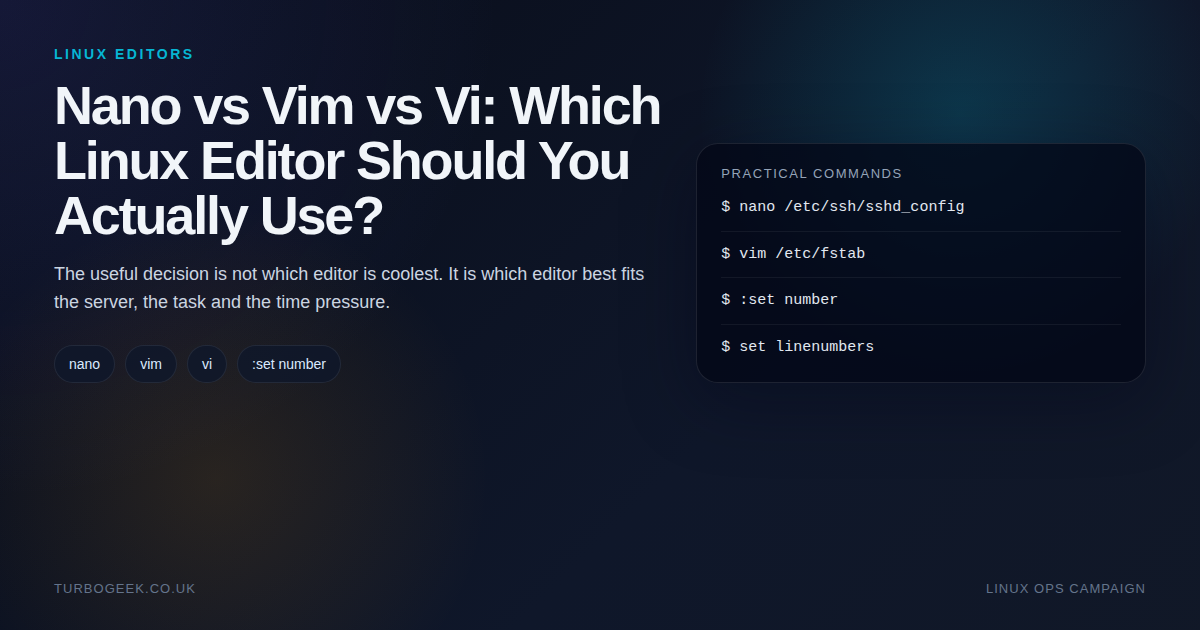
The short answer
For quick, safe edits on any Linux server, use Nano. For daily terminal editing where speed matters, use Vim. For rescue shells and minimal environments where only vi is available, learn the five core vi commands. This guide breaks down each choice with the commands you need.
TL;DR – choosing Nano, Vim or Vi
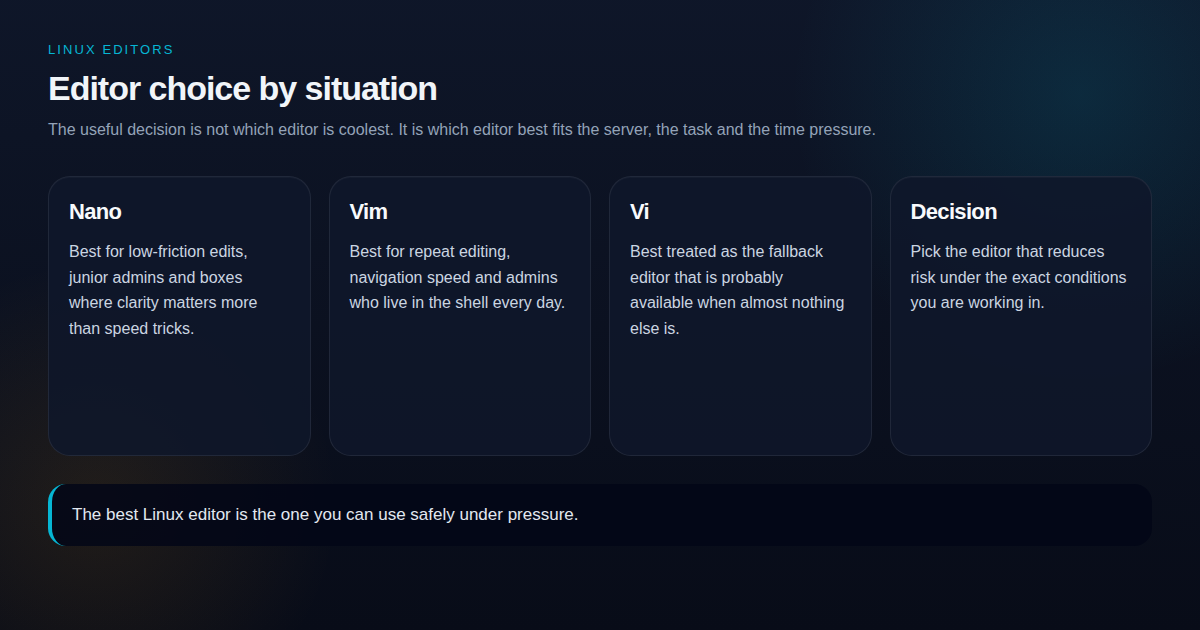
- Nano: Best when clarity beats cleverness and you just need to edit the file safely.
- Vim: Best when you edit constantly and want speed, navigation and repeatability.
- Vi: Treat it as the emergency fallback editor that may still be present when almost nothing else is.
- The context matters: The right answer changes if you are on a rescue shell, a production host or your own daily driver.
Start here: If you only need line numbers, go straight to How to display Line Numbers in Nano, Vi and VIM. If you want the bigger editor trade-off, this is the practical version.
| Editor | Best for | Command or setting |
|---|---|---|
| Nano | Quick safe edits | nano /etc/ssh/sshd_config |
| Vim | Frequent shell editing | vim /etc/fstab |
| Vi | Minimal systems and rescue mode | vi /etc/hosts |
| Line numbers | Debugging and config review | :set number or set linenumbers |
Linux editor debates usually focus on which tool is fastest, most powerful or most respectable. That misses the decision that matters during real administration work.
The best editor is the one that lets you make the required change accurately, review it properly and leave the system in a valid state.
Sometimes that is Nano. Sometimes it is Vim. Sometimes the machine gives you a command called vi, and your preference is no longer relevant.
My practical recommendation is straightforward:
- Use Nano when you need to make an occasional change and want the interface to explain itself.
- Use Vim when terminal editing is part of your normal work and you are prepared to learn its editing model.
- Learn the core vi commands even if it is not your preferred editor, because they can rescue you on unfamiliar systems.
- Do not confuse editor familiarity with change safety. Important configuration changes still need validation and a rollback plan.
Start here: for the line-number commands alone, see How to Display Line Numbers in Nano, Vi and Vim. The rest of this guide explains the operational differences.
First, understand what vi means on Linux
The command name vi does not necessarily identify one specific editor.
On a Debian or Ubuntu system, /usr/bin/vi may be managed through the alternatives system and point to Vim, Vim Tiny, nvi or another vi-compatible implementation. Vim itself includes almost all traditional Vi commands, but it also has documented behavioural differences and many additional features.
You can inspect what your shell resolves with:
type -a vi
type -a vim
type -a nanoOn Debian and Ubuntu, you can also inspect the configured alternative:
update-alternatives --display viThis matters because a command demonstrated in full Vim may not work in traditional vi or a reduced BusyBox implementation.
The opposite assumption is also dangerous: a minimal container or recovery environment may contain no editor at all. POSIX only mandates vi under specific portability and terminal conditions, while BusyBox includes vi as a configurable applet rather than an unavoidable component.
Treat vi knowledge as a valuable fallback skill, not a guarantee that every Linux environment will provide the same editor.
Nano wins when clarity matters more than editing power
Nano is the easiest of the three editors to approach without preparation.
Text entry works immediately. Common shortcuts remain visible at the bottom of the terminal. There is no separate command mode, so a new or tired operator is less likely to type text while the editor interprets it as a command.
Open a file with:
nano file.txtOpen it with line numbers displayed:
nano --linenumbers file.txtThe shorter equivalent is:
nano -l file.txtNano survival kit
In nano documentation, ^ means Ctrl and M- means Meta, which is normally the Alt key.
Ctrl+O          Write the current buffer to disk
Ctrl+X          Exit nano
Ctrl+F          Search forwards
Ctrl+W          Search forwards; the traditional “Where Is” binding
Ctrl+K          Cut the current line or selected region
Ctrl+U          Paste from nano’s cut buffer
Alt+N           Toggle line numbers
Ctrl+G Open nano’s built-in helpCurrent GNU nano supports both Ctrl+F and Ctrl+W for forward searching. The current line-number toggle is Alt+N; older instructions using Alt+# refer to previous nano releases.
To enable line numbers permanently, add this to your nano configuration:
# ~/.nanorc
set linenumbersGNU nano can read a user configuration from ~/.nanorc, $XDG_CONFIG_HOME/nano/nanorc or ~/.config/nano/nanorc, depending on which file exists.
Where Nano is strongest
Nano is an excellent choice for:
- occasional configuration changes;
- users who do not edit in terminals every day;
- walkthroughs intended for a broad technical audience;
- short files where advanced navigation provides little benefit;
- situations where visible commands reduce hesitation.
Its limitation appears when editing becomes repetitive. Nano can search, replace, select, cut and paste, but it does not provide the same composable editing language that makes Vim efficient across large or frequently edited files.
Nano reduces the initial learning cost. It does not remove the need to understand the file you are changing.
Vim wins when terminal editing becomes routine
Vim becomes valuable when editing is a regular activity rather than an interruption.
Its modal design separates inserting text from navigating and manipulating it. That feels unnatural at first, but it allows short commands to express larger editing operations.
Open a file with:
vim file.txtVim survival kit
i               Enter Insert mode
Esc             Return to Normal mode
:w              Write the current file
:q              Quit when there are no unsaved changes
:wq             Write and quit
:x              Write only if changed, then quit
ZZ              Normal-mode equivalent of :x
:q!             Quit and discard unsaved changes
/pattern        Search forwards for pattern
n               Repeat the search in the same direction
N               Repeat the search in the opposite direction
u               Undo
Ctrl+R          Redo
:set number Display absolute line numbersVim documents ZZ as equivalent to :x, while :wq explicitly performs a write before exiting.
The commands that explain Vim’s advantage
Vim starts paying back the learning effort when you combine commands with counts and motions:
dd              Delete the current line
5dd             Delete five lines
yy              Yank, or copy, the current line
p               Put the copied or deleted text after the cursor
gg              Jump to the first line
G               Jump to the final line
42G             Jump to line 42
. Repeat the previous changeA confirmed replacement across the current file looks like this:
:%s/old-value/new-value/gcThe c flag asks for confirmation before each replacement. That is a practical example of where Vim moves beyond simple text entry and becomes a repeatable editing tool.
Recommended Vim line-number configuration
For general Linux administration, start with absolute line numbers:
" ~/.vimrc
set numberRelative numbers are useful when you navigate with commands such as 5j, 8k or operator-and-motion combinations:
set relativenumberWhen number and relativenumber are both enabled, Vim shows the current line as an absolute number and surrounding lines relative to the cursor.
That can improve movement inside Vim, but absolute numbers are generally clearer for config reviews, error messages and discussions with other engineers. Treat relative numbering as a personal workflow enhancement rather than a universal default.
Vi matters because you do not always control the environment
Vi is worth learning for resilience rather than prestige.
A rescue system, appliance, embedded host or unfamiliar Unix machine may provide a vi-compatible editor without providing Nano or full Vim. BusyBox, for example, can expose a lightweight vi applet with fewer features than a standard Vim installation.
The important skill is not memorising every historical vi command. It is retaining a portable core that lets you open a file, make a controlled change and get out again.
Vi survival kit
i               Enter Insert mode
Esc             Return to command mode
:w              Write the file
:q              Quit
:wq             Write and quit
:q!             Quit and discard changes
/pattern        Search forwards
n               Repeat the search
dd              Delete the current line
yy              Yank the current line
p               Put copied or deleted text
:set number     Display line numbers
ZZ Write changes and quitThese commands also work in normal Vim usage, which is why learning the vi core has value even when Vim is your daily editor.
Do not assume every feature from a Vim tutorial exists in vi. Split windows, persistent undo, extensive configuration, plugins and many convenience commands belong to Vim rather than the portable vi baseline.
Vim is broadly vi-compatible. It is not identical to every historical or modern vi implementation. Vim’s own documentation records differences and describes it as including “almost all” Vi commands rather than claiming perfect equivalence.
The editor is not the safety control
The original command examples in many Linux tutorials look like this:
sudo nano /etc/ssh/sshd_config
sudo vim /etc/fstabThose commands work, but they run the complete editor with elevated privileges. Where the local sudo policy permits it, sudoedit provides a cleaner administrative workflow.
Choose Nano for the current command:
SUDO_EDITOR=nano sudoedit /etc/ssh/sshd_configChoose Vim instead:
SUDO_EDITOR=vim sudoedit /etc/fstabsudoedit creates temporary copies owned by the invoking user, runs the selected editor against those copies and installs the changed versions back into place after editing. The sudoers policy checks SUDO_EDITOR, VISUAL and EDITOR, in that order.
This reduces the amount of editor code running with elevated privileges. It does not validate the application configuration, detect a logically incorrect value or create an automatic rollback.
Validate the file after editing
The correct validation command depends on the file.
After changing the OpenSSH daemon configuration:
sudo sshd -tOpenSSH documents -t as a test mode that checks the configuration file and host-key sanity without starting the daemon.
After changing /etc/fstab:
sudo findmnt --verifyThe util-linux documentation recommends findmnt --verify rather than using mount -a merely as an fstab syntax check.
For /etc/sudoers or a file under /etc/sudoers.d, do not use a normal editor directly. Use:
sudo visudovisudo locks the sudoers file and checks its syntax before accepting the change.
For remote SSH work, keep a second authenticated session open until the new configuration has been validated and reloaded successfully. An editor cannot protect you from closing the only working administrative path into the machine.
The decision framework I use
Use Nano when:
- the edit is occasional;
- you do not have established Vim muscle memory;
- the file is short;
- visible shortcuts reduce uncertainty;
- you are writing instructions for a mixed-experience audience.
Use Vim when:
- you edit in the shell every day;
- navigation and search consume meaningful time;
- you repeatedly perform similar changes;
- you work with large configuration or source files;
- you are willing to learn Normal mode rather than using Vim like a difficult version of Nano.
Use vi when:
viis what the environment provides;- you are operating in rescue or maintenance conditions;
- installing another editor would be unnecessary or inappropriate;
- you need a small, portable command vocabulary.
For a high-risk change:
Use the editor you operate most reliably. Then add the controls that actually protect the system:
- Confirm that you are editing the intended host and file.
- Preserve a rollback route appropriate to the service.
- Use
sudoeditor a purpose-built tool such asvisudo. - Review the resulting change.
- Run the application’s configuration validator.
- Reload or restart only after validation succeeds.
- Confirm service health before closing your existing session.
So which Linux editor should you use?
Nano minimises the cost of starting.
Vim minimises the cost of repeated editing.
Vi minimises your dependency on one preferred interface, although it does not guarantee that every minimal environment contains the same implementation—or any editor at all.
For a new Linux administrator, I would recommend Nano as the immediate working editor and the vi survival commands as mandatory fallback knowledge.
For someone who spends a significant part of the week in terminals, Vim is worth learning properly. Its value comes from navigation, repeatability and composable commands rather than from being able to say that you use Vim.
On production systems, the editor is only one stage in the change. Familiarity, privilege control, validation and recovery matter more than whether the command began with nano, vim or vi.
Quick-reference table
| Task | Nano | Vim or vi |
| Open a file | nano file.txt | vim file.txt or vi file.txt |
| Save | Ctrl+O, then Enter | :w |
| Exit | Ctrl+X | :q |
| Save and exit | Ctrl+O, Enter, Ctrl+X | :wq or ZZ |
| Discard changes | Exit and answer No | :q! |
| Search forwards | Ctrl+F or Ctrl+W | /pattern |
| Next result | Alt+W | n |
| Toggle line numbers | Alt+N | :set number |
| Permanent line numbers | set linenumbers in ~/.nanorc | set number in ~/.vimrc |
| Edit a privileged file | SUDO_EDITOR=nano sudoedit file | SUDO_EDITOR=vim sudoedit file |
The decision framework I actually use
- Use Nano when the edit is rare, the stakes are high, or the operator is new.
- Use Vim when the box is familiar and speed genuinely matters.
- Use Vi when that is what the environment gives you and you need to adapt.
- Keep line numbers enabled whenever the job involves logs, stack traces or config review.
If you want the tactical line-number commands again, How to display Line Numbers in Nano, Vi and VIM covers them directly. If you want the older comparison page, Vi, Nano and Vim: Which Linux Text Editor Is Best? is still worth a read.
Frequently asked questions
Which editor should I use on a rescue shell?
Use vi. Rescue shells and minimal environments often ship nothing else, and even when vim is installed it may be a stripped-down build. Learn the five core vi commands — open, insert, escape, save, quit — and you can edit on any box you are dropped into.
Can I set line numbers permanently in Nano?
Yes. Add set linenumbers to ~/.nanorc and Nano will show line numbers in every session. To toggle them temporarily inside Nano, press Alt+N.
Is Vim always better than Nano?
No. Vim is faster once the commands are muscle memory, but Nano is the safer choice when the edit is rare, the stakes are high, or the person at the keyboard is new. The right editor is the one that gets the file changed correctly without surprises.
What is the difference between vi and Vim?
On most modern Linux distributions, the vi command is actually a minimal build of Vim. On older Unix systems, busybox-based systems and some rescue images, it is a genuinely minimal vi. That is why it pays to know the small command set that works in both.
How do I exit Vim if I am stuck?
Press Esc to leave insert mode, then type :q! and press Enter to quit without saving. If you want to keep your changes, use :wq instead.
Leave a Reply