
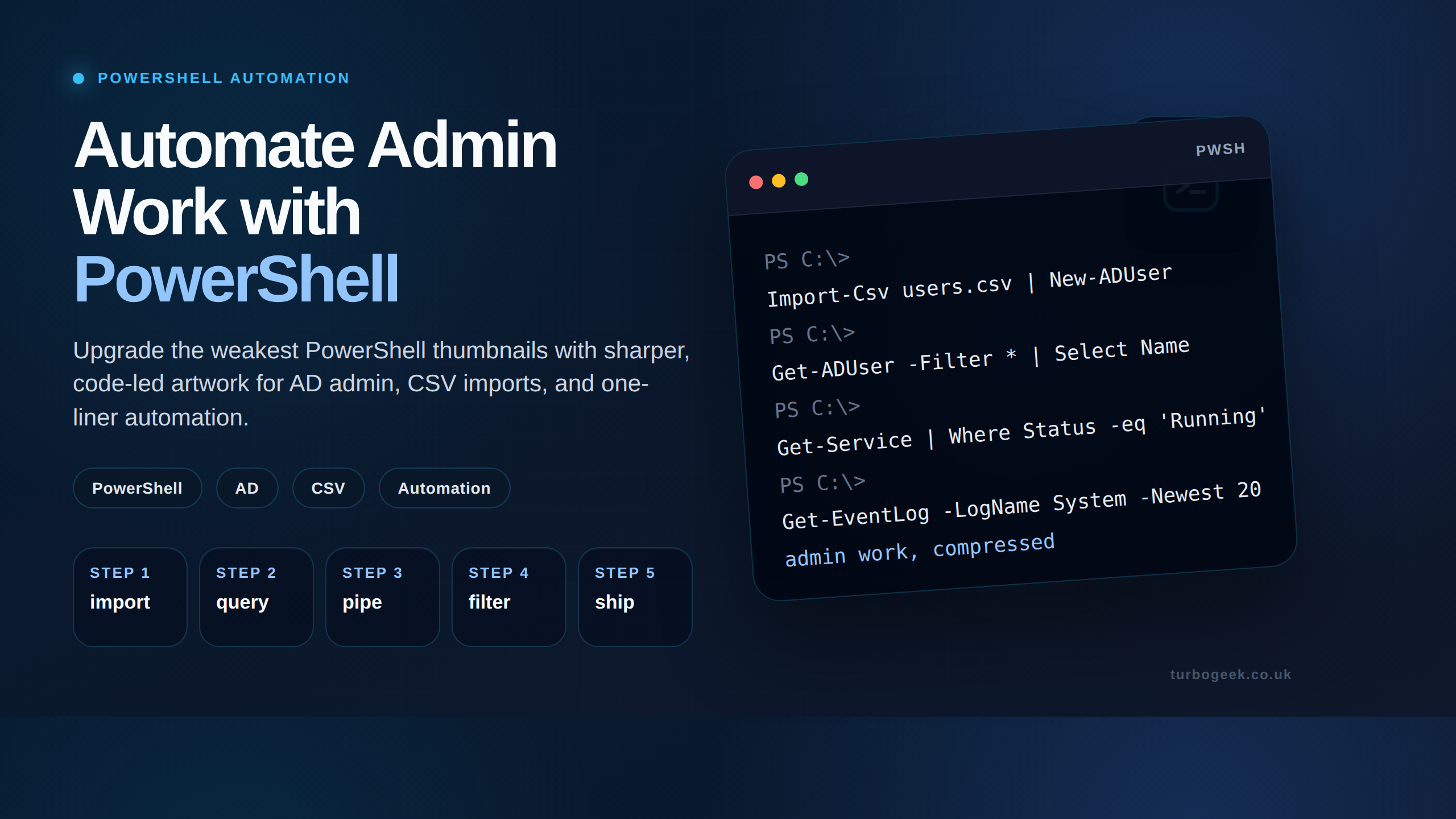
PowerShell one-liners are useful when you need a fast answer without writing a full script. The problem is that a long list of commands becomes hard to scan. This cheat sheet groups the common one-liners by task so you can jump to the right command quickly.
The first sections are safe read-only discovery commands. Commands that stop services, delete files, change execution policy, or create Active Directory users are clearly marked so you can test them first.
TL;DR
- Use
Get-*commands first; they are usually the safest way to inspect state. - Add
Select-Object,Sort-Object, andWhere-Objectto make output useful. - Use
-WhatIfwhere available before commands that change or delete things. - For deeper Windows server commands, use the PowerShell one-liners for Windows admins guide.
Source check – 1 June 2026: Microsoft maintains the official PowerShell documentation. Treat examples that modify services, files, execution policy, or Active Directory as change actions and test them in a lab or limited scope first.
Command Index
| Task | Command family | Safety | Jump |
|---|---|---|---|
| Check a service | Get-Service | Read-only | Go |
| Show top CPU processes | Get-Process | Read-only | Go |
| Show filesystem drives | Get-PSDrive | Read-only | Go |
| List local users | Get-LocalUser | Read-only | Go |
| Find large files | Get-ChildItem | Read-only but can be slow | Go |
| Copy, rename, or remove files | Copy-Item, Rename-Item, Remove-Item | Changes files | Go |
| Check network connectivity | Test-Connection, Test-NetConnection | Network request | Go |
| Inspect adapters and IP config | Get-NetAdapter, Get-NetIPConfiguration | Read-only | Go |
| Active Directory examples | Get-ADGroupMember, New-ADUser | AD permissions/change action | Go |
| Execution policy | Set-ExecutionPolicy | System policy change | Go |
How to Read These One-Liners
|sends the output of one command into the next command.Where-Objectfilters objects.Select-Objectchooses the fields you want to see.Sort-Objectsorts the output.-ErrorAction SilentlyContinuehides non-critical errors such as access-denied messages during broad searches.
Discovery and Inventory
Check a Service
Safety: Read-only. Use when: Checking whether a service is running and how it starts.
Get-Service -Name Spooler | Select-Object Name, Status, StartTypeShow the Top CPU Processes
Safety: Read-only. Use when: Looking for busy processes during a quick health check.
Get-Process |
    Sort-Object CPU -Descending |
    Select-Object -First 10 Name, Id, CPU
Show Filesystem Drives
Safety: Read-only. Use when: Checking drive names and free space quickly.
Get-PSDrive -PSProvider FileSystem |
    Select-Object Name, Used, Free
List Local Users
Safety: Read-only. Use when: Auditing local user accounts.
Get-LocalUser |
    Select-Object Name, Enabled, LastLogon
Files and Folders
Find Large Files
Safety: Read-only, but can be slow. Use when: Looking for large files consuming disk space.
Get-ChildItem -Path C:\ -Recurse -File -ErrorAction SilentlyContinue |
    Sort-Object Length -Descending |
    Select-Object -First 20 FullName, Length
Tip
Scope the path as tightly as possible. Running recursive searches against the root of a large server can take a long time.
Find Log Files
Safety: Read-only. Use when: Finding logs under a folder tree.
Get-ChildItem -Path C:\ -Filter *.log -Recurse -ErrorAction SilentlyContinueCopy, Rename, and Remove Files
Safety: Changes files. Use when: Performing simple file operations. Test paths carefully.
Copy-Item C:\Users\John\Documents\file.txt C:\Users\John\Desktop
Rename-Item C:\Users\John\Documents\file.txt newfile.txt
Remove-Item C:\Users\John\Documents\file.txt -WhatIf
Why -WhatIf matters
Remove-Item -WhatIf shows what would be deleted without actually deleting it. Remove -WhatIf only after checking the target path.
System Administration
List Installed Software
Safety: Read-only. Use when: Building a quick software inventory from the registry.
Get-ItemProperty HKLM:\Software\Microsoft\Windows\CurrentVersion\Uninstall\* |
    Where-Object DisplayName |
    Select-Object DisplayName, Publisher, InstallDate
Get Computer System Information
Safety: Read-only. Use when: Checking manufacturer, model, memory, and system type.
Get-CimInstance Win32_ComputerSystemStop a Service
Safety: Changes service state. Use when: You have confirmed it is safe to stop the service.
Stop-Service -Name Spooler -WhatIfBefore running it for real
Remove -WhatIf only after confirming the service name and impact. Stopping the wrong service can affect users or applications.
Check or Change Execution Policy
Safety: Policy change. Use when: Troubleshooting script execution policy in a controlled environment.
Get-ExecutionPolicy -List
Set-ExecutionPolicy -ExecutionPolicy RemoteSigned -Scope CurrentUser
Why not Unrestricted?
The old example used Unrestricted. RemoteSigned scoped to the current user is a safer default for many admin workstations, but follow your organisation’s policy.
Networking
Check Connectivity
Safety: Network request. Use when: Testing basic reachability.
Test-Connection -ComputerName google.com -Count 3
Test-NetConnection www.example.com
Inspect Network Adapters and IP Configuration
Safety: Read-only. Use when: Checking adapter state and IP configuration.
Get-NetAdapter
Get-NetIPConfiguration
Active Directory
These examples require the Active Directory PowerShell module and appropriate permissions. For a fuller AD-focused reference, see Active Directory PowerShell One-Liners for User, Group and Computer Admin.
List Group Members
Safety: Read-only. Use when: Auditing membership of a known AD group.
Get-ADGroupMember -Identity 'Group Name'Create an AD User
Safety: Creates an account. Use when: You are testing account creation in a lab or using an approved provisioning process.
New-ADUser -Name 'John Doe' -SamAccountName jdoe -AccountPassword (Read-Host -AsSecureString 'Password') -WhatIfSafer than the old example
The old command embedded a plaintext password. This version prompts for a secure string and includes -WhatIf for review.
Related TurboGeek Guides
- PowerShell One-Liners for Windows Admins
- An In-Depth Guide to PowerShell
- Active Directory PowerShell One-Liners for User, Group and Computer Admin
- WMI and CIM Commands for Windows Troubleshooting
Final Notes
Use one-liners to explore and prove an idea. If a command becomes part of a real admin workflow, turn it into a script with parameters, logging, error handling, and source control.
Leave a Reply