

If Ubuntu WSL is already installed and configured, the next useful step is a proper Windows shortcut. A shortcut lets you open Ubuntu from the Desktop, Start menu, taskbar, or a project folder without typing the launch command every time.
This procedure assumes WSL already works. It does not reinstall WSL, change the Linux distribution, or edit your Ubuntu configuration.
TL;DR
- Run
wsl --list --verbosefirst and copy the exact Ubuntu distro name. - For a plain desktop shortcut, use
wsl.exe -d Ubuntu ~as the shortcut target. - If your distro is named
Ubuntu-24.04, use that exact name instead ofUbuntu. - For Windows Terminal, use
wt.exe -p "Ubuntu"if the Ubuntu profile exists. - Copy the shortcut into
shell:programsif you want it in the Start menu and easier to pin.
Start here: if WSL is not installed yet, use the existing setup guide first: How to Configure WSL2 on Windows. This post is only about creating a launcher for an Ubuntu WSL installation that already works.
Quick Reference
| Topic | When | Shortcut target or path |
|---|---|---|
| Check distro name | Before creating the shortcut | wsl --list --verbose |
| Desktop shortcut | Fastest launcher | "C:\Windows\System32\wsl.exe" -d Ubuntu ~ |
| Versioned Ubuntu | Ubuntu has a versioned name | "C:\Windows\System32\wsl.exe" -d Ubuntu-24.04 ~ |
| Windows Terminal | You want tabs and profiles | wt.exe -p "Ubuntu" |
| Start menu folder | You want Start/taskbar pinning | shell:programs |
| Project launcher | Open into a working folder | wsl.exe -d Ubuntu -- bash -lc "cd ~/projects && exec bash" |
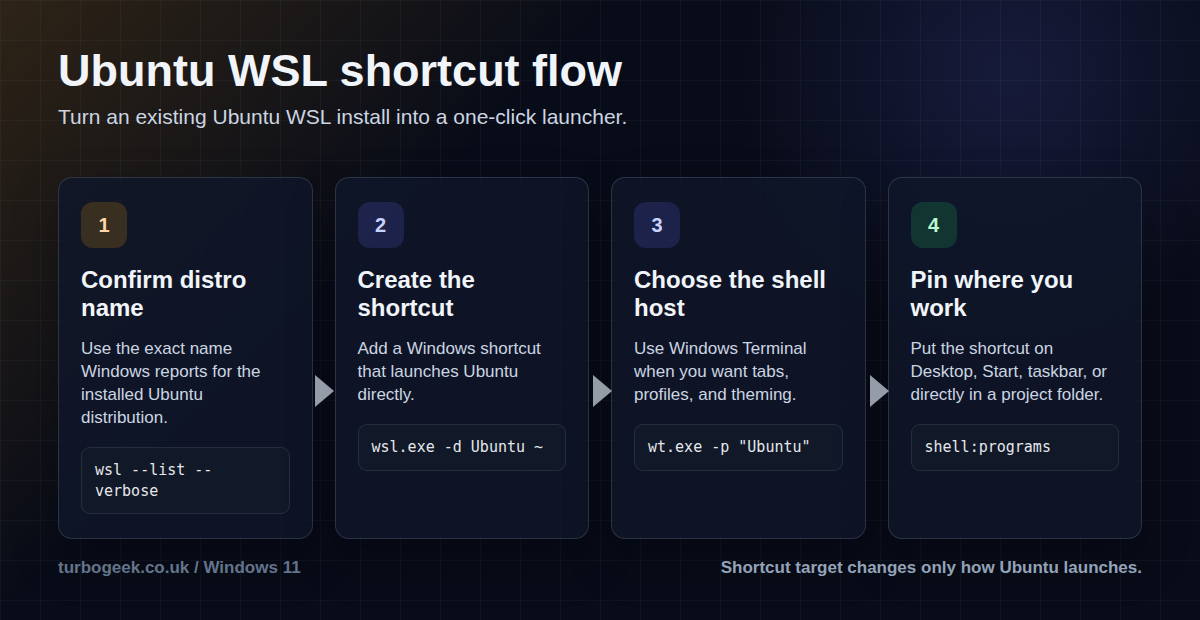
Step 1: Confirm the Exact Ubuntu WSL Name
Open PowerShell or Windows Terminal and list the installed WSL distributions. The shortcut must use the distro name exactly as Windows reports it.
wsl --list --verboseYou might see Ubuntu, Ubuntu-22.04, Ubuntu-24.04, or another imported distro name. Use that value in every shortcut target below.
Step 2: Create a Desktop Shortcut
- Right-click an empty area of the Desktop.
- Select New > Shortcut.
- Paste the target below into the location field.
- Select Next.
- Name it Ubuntu WSL.
- Select Finish.
"C:\Windows\System32\wsl.exe" -d Ubuntu ~The ~ at the end starts Ubuntu in your Linux home directory instead of dropping you into a mounted Windows path. Microsoft documents wsl ~ as the shortcut for starting WSL in the Linux user home directory.
Step 3: Use the Right Target for Versioned Ubuntu Distros
If your distro name is versioned, change only the distribution name. Do not guess. Copy the name from wsl --list --verbose.
"C:\Windows\System32\wsl.exe" -d Ubuntu-24.04 ~If the shortcut opens and immediately reports that there is no distribution with the supplied name, the target is almost always using the wrong distro name.
Step 4: Create a Windows Terminal Shortcut Instead
If you prefer Windows Terminal tabs, profiles, fonts, and themes, point the shortcut at wt.exe instead. Windows Terminal usually creates profiles for WSL distributions automatically.
wt.exe -p "Ubuntu"If the Windows Terminal profile name is different, use the profile name that appears in the Windows Terminal dropdown. If the profile does not exist, use this fallback target, which starts Windows Terminal and runs WSL directly:
wt.exe new-tab --title "Ubuntu WSL" wsl.exe -d Ubuntu ~Step 5: Add It to the Start Menu
A Desktop shortcut is useful, but a Start menu shortcut is easier to search and pin. Use the per-user Start menu Programs folder.
- Press Win + R.
- Enter
shell:programs. - Copy your Ubuntu WSL shortcut into that folder.
- Open Start and search for Ubuntu WSL.
- Right-click it and choose Pin to Start or Pin to taskbar where Windows offers it.
shell:programsStep 6: Optional Project Folder Shortcut
For development work, you may want a shortcut that opens Ubuntu and immediately changes into a project directory. Change ~/projects to the Linux path you use.
"C:\Windows\System32\wsl.exe" -d Ubuntu -- bash -lc "cd ~/projects && exec bash"The exec bash part keeps the shell open after changing directory. If you use another shell, such as zsh, replace it with your preferred shell command.
Step 7: Optional Shortcut Icon
- Right-click the shortcut and open Properties.
- Select Change Icon.
- Choose an icon from Windows, or browse to a custom Ubuntu
.icofile if you keep one locally. - Select OK, then Apply.
The icon does not change how WSL launches. Keep the shortcut target correct first; make it pretty afterwards.
Troubleshooting
The shortcut says the distribution name is invalid
Run wsl --list --verbose again and copy the exact name. Ubuntu and Ubuntu-24.04 are different names as far as WSL is concerned.
The shortcut opens in a Windows folder
Add ~ to the end of the WSL shortcut target so the shell starts in the Linux user home directory.
Windows Terminal says the profile was not found
Use the profile name shown in the Windows Terminal dropdown, or use the fallback wt.exe new-tab command that launches wsl.exe directly.
The shortcut opens and closes immediately
Check the target quotes. The executable path should be quoted, then the arguments should come after the closing quote.
Related Reading
Use this as the finishing step after How to Configure WSL2 on Windows. For a broader clean workstation setup, read Windows 11 Developer Setup.
Leave a Reply