
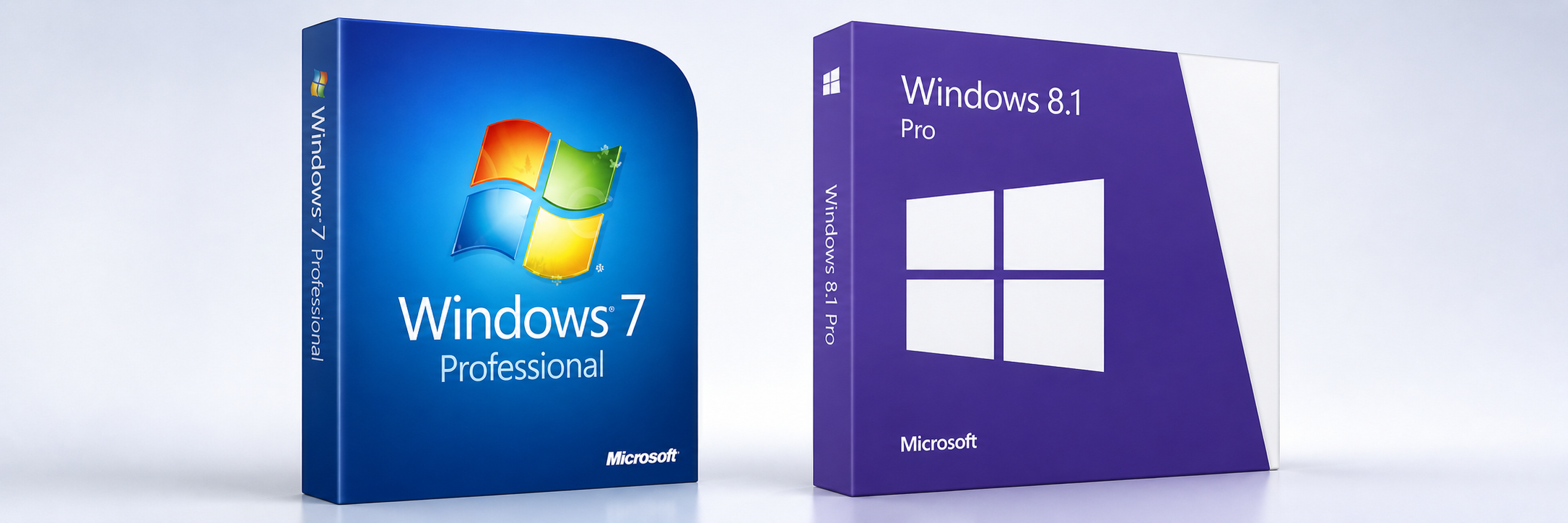
This page covers older Windows versions. If you need to boot Windows 10 or Windows 11 into Safe Mode, use “How to Boot Windows into Safe Mode (Windows 11/10 Guide)” instead.
Safe Mode starts Windows with a limited set of system files, drivers, and services. It is useful when Windows fails to start correctly during a normal startup but starts normally with third-party software and non-essential drivers disabled.
If the problem disappears in Safe Mode, that helps narrow the likely cause. It does not prove that a particular driver, service, application, or malware infection is responsible
TL;DR
- Use F8 for many Windows 7 machines before the Windows logo appears.
- Use Shift + Restart and Startup Settings for most Windows 8.1 machines.
- Use this page for legacy Windows 7/8.1 systems; use the newer Windows 10/11 Safe Mode guide for current PCs.
Source check – May 10, 2026: Microsoft lists Windows 7 as out of support, says Windows 8.1 support ended on January 10, 2023, and documents Startup Settings as the current Safe Mode recovery path for supported Windows releases. Treat Windows 7 and 8.1 as legacy recovery targets, not supported daily-use platforms.
| Topic | When | Command or path |
|---|---|---|
| Windows 7 | System still reaches early boot | Restart, then tap F8 before the Windows logo |
| Windows 8.1 | System reaches sign-in or desktop | Hold Shift, select Restart, then Startup Settings |
| Forced Safe Mode | You can log in and need one safe reboot | Run msconfig, Boot tab, Safe boot |
Quick Answer
- Windows 7: Restart the PC, repeatedly tap F8 before the Windows logo, then choose Safe Mode.
- Windows 8.1: Hold Shift, select Restart, open Troubleshoot, then use Startup Settings.
- Via msconfig: Run
msconfig, open the Boot tab, check Safe boot, then restart. - If Windows will not start: boot from Windows recovery media and use repair or startup settings from there.
Before you begin
Save open files before restarting.
If the computer uses BitLocker or another form of Windows drive encryption, locate the recovery key before using recovery media or changing advanced startup settings. Recovery tools may request it before they can access the Windows installation.
Back up important files before making major repairs. Safe Mode itself does not erase personal files, but later troubleshooting actions—such as uninstalling drivers, restoring the system, editing the boot configuration, or reinstalling Windows—can have wider consequences.
Safe Mode options explained
The available options normally include:
- Safe Mode: Starts the standard Windows desktop with a restricted collection of drivers and services.
- Safe Mode with Networking: Adds the network drivers and services required for basic network access.
- Safe Mode with Command Prompt: Opens a command-line environment instead of the standard Windows desktop.
On a Startup Settings screen, these are normally options 4, 5, and 6, and may also be selected using F4, F5, or F6.
Safe Mode with Networking does not guarantee that every wireless adapter, VPN client, security product, or third-party network component will operate. Only the limited drivers and services loaded by Safe Mode are available.
Boot Windows 7 into Safe Mode
On many Windows 7 systems, the classic approach still works:
- Restart the PC.
- Before the Windows logo appears, repeatedly tap F8.
- Open the Advanced Boot Options menu.
- Select Safe Mode, Safe Mode with Networking, or Safe Mode with Command Prompt.
- Press Enter.
If your keyboard timing is right, Windows 7 should load directly into the Safe Mode variant you selected.
Boot Windows 8.1 into Safe Mode
Windows 8.1 moved away from the old F8 workflow on many systems, so the recovery menu is more reliable:
- From the sign-in screen or desktop, hold Shift and click Restart.
- Select Troubleshoot > Advanced options > Startup Settings > Restart.
- After the restart, press 4 or F4 for Safe Mode.
- Press 5 or F5 for Safe Mode with Networking.
What if F8 does not work?
On some systems, fast-boot settings or firmware timing can make the old F8 method unreliable. If that happens, use the recovery-menu method instead, or boot from Windows recovery media if the system will not reach the sign-in screen.
For newer systems, the canonical article is How to Boot Windows into Safe Mode for Windows 10 and Windows 11. If the machine keeps returning to Safe Mode after repair, use the stuck-in-Safe-Mode exit guide.
What to do after you enter Safe Mode
Once the system loads, move to the guide that matches your next task:
- What to Do in Windows Safe Mode for Troubleshooting
- Windows Safe Mode Options Explained
- How to Exit Safe Mode in Windows 11/10
Troubleshooting
Windows keeps returning to Safe Mode
Open msconfig, select the Boot tab, clear Safe boot, and restart.
Safe Mode with Networking has no internet connection
Safe Mode loads only a restricted set of network drivers and services. A particular Wi-Fi adapter, VPN client, authentication component, or third-party driver may not load. Use Ethernet where available or download the required tools on another trusted computer.
Windows 8.1 asks for a recovery key
The system drive is probably protected by BitLocker or device encryption. Enter the correct BitLocker recovery key. Do not disable or format the encrypted drive merely to bypass the prompt. Microsoft advises locating the recovery key before using recovery and offline startup tools.
The keyboard does not work in the recovery menu
Try a built-in laptop keyboard or a basic wired USB keyboard. Some Bluetooth and specialist USB devices depend on drivers that are not available in the recovery environment.
Leave a Reply