
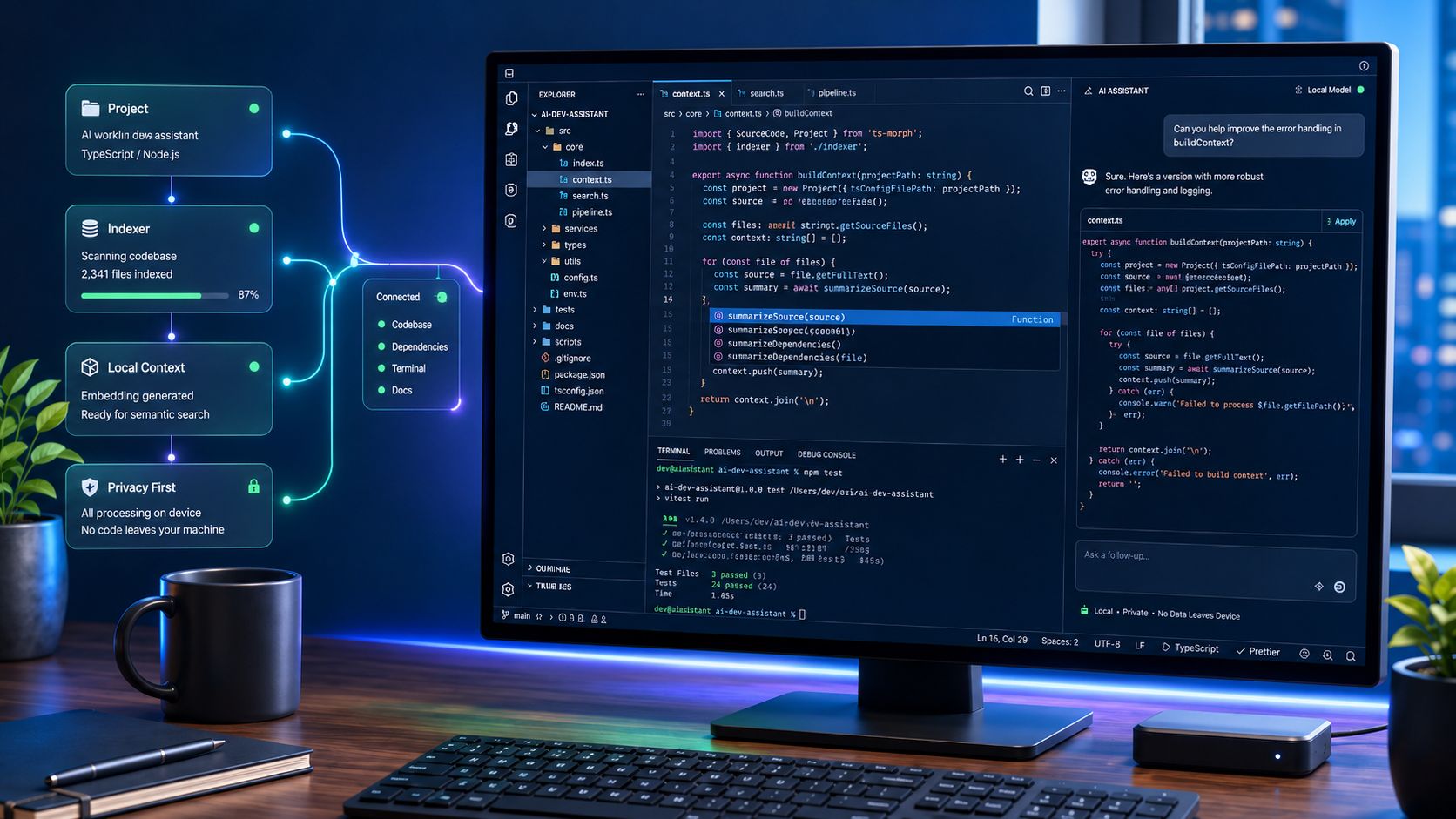
TL;DR
- AI tools for local development environments integrate directly into your IDE or code editor, helping with code completion, refactoring, debugging, test generation, documentation, and multi-file development tasks.
- GitHub Copilot and JetBrains AI Assistant are the lowest-friction options if you want AI inside your existing editor. Cursor and Windsurf make more sense if you are prepared to move into an AI-native coding environment.
- Codebase context is the biggest differentiator. Modern tools now go beyond open-file autocomplete, but the depth and accuracy of repository indexing varies heavily between products.
- “Local development” does not automatically mean “fully local AI.” Most tools run inside your local editor but still use cloud-hosted models for chat, code generation, agent tasks, and some indexing workflows.
- Privacy mode, local model support, retention policy, admin controls, and ignore-file support matter more than feature lists if you work with regulated, proprietary, or customer-sensitive code.
- The best tool depends on your current editor, team workflow, security requirements, and tolerance for switching costs.
What are AI tools for local development environments?
AI tools for local development environments are code assistants, IDE plugins, and AI-native editors that run directly inside your normal development workflow. Instead of opening a separate browser tab and pasting snippets into a chatbot, these tools sit inside VS Code, Visual Studio, JetBrains IDEs, Neovim, Eclipse, Xcode, or a dedicated AI editor.
Their job is to accelerate everyday development. A good local AI coding assistant can suggest code as you type, explain unfamiliar logic, generate unit tests, refactor functions, write documentation, propose bug fixes, and help you reason across multiple files.
The important word is “local,” but it needs a clear definition. In this context, “local” usually means the tool runs in your local IDE against your local working copy. It does not always mean the model runs locally on your machine. Many AI coding tools send prompts, snippets, metadata, or selected project context to cloud-hosted model providers. That does not make them unsuitable, but it does mean developers and engineering managers need to understand how each tool handles data before using it on sensitive repositories.
This category now includes two broad types of product:
- AI assistants for existing IDEs — tools such as GitHub Copilot and JetBrains AI Assistant, which add AI capabilities to the editor your team already uses.
- AI-native IDEs — tools such as Cursor and Windsurf, which make the AI assistant a central part of the development environment rather than an optional side panel.
Both approaches can work well. The right choice depends on how much you value workflow stability, codebase context, privacy controls, and agentic development features.
Which AI code assistants integrate best with your existing IDE?
The lowest-friction route is to add an AI assistant to the editor your team already uses.
For many teams, that means starting with GitHub Copilot. Copilot is widely supported across common developer environments and has moved beyond basic autocomplete. Depending on the IDE and plan, it can provide inline code completion, chat, code explanation, code review, agent mode, workspace indexing, pull request summaries, and model selection.
That makes Copilot a practical default for teams that already use GitHub heavily. It fits naturally into existing workflows because developers do not need to abandon their editor, reconfigure keybindings, or relearn the development environment from scratch. It is especially useful for boilerplate code, unit tests, documentation, small refactors, syntax help, and quick explanations.
JetBrains AI Assistant is the stronger low-friction option for teams already committed to IntelliJ IDEA, PyCharm, WebStorm, PhpStorm, GoLand, Rider, DataGrip, or the wider JetBrains ecosystem. Its advantage is not just autocomplete. It has access to the IDE’s project model, inspections, refactoring tools, navigation features, and code intelligence. That makes it particularly useful for developers who already rely on JetBrains IDEs for large Java, Kotlin, Python, PHP, Go, .NET, or database-heavy projects.
The main tradeoff with both products is that they are assistants added to an existing editor. You keep the development environment you already know, but the AI experience is still shaped by the host IDE. That is usually a good thing for established teams. For developers who want the entire coding workflow redesigned around AI agents, planning, multi-file edits, and repository-wide reasoning, an AI-native IDE may be a better fit.
What are AI-native IDEs and when do they make sense?
AI-native IDEs are editors built around AI-assisted development from the start. Instead of treating AI as an autocomplete plugin or a chat sidebar, they integrate it into the main coding workflow.
Cursor is one of the best-known examples. It began as a VS Code-based editor, which makes the transition easier for developers who already use VS Code. The familiar layout, extension compatibility, and keybinding model reduce the learning curve. The difference is that Cursor places AI agents, codebase context, inline edits, chat, and multi-file changes much closer to the center of the experience.
Cursor is useful when you want the assistant to do more than complete a function. It can help plan changes, reason about a repository, generate edits across multiple files, and support agent-style workflows where the AI investigates, modifies, and iterates on a task. That makes it attractive for solo developers, small engineering teams, prototype-heavy work, and codebases where repository-wide context matters.
Windsurf takes a similar AI-native approach, with its Cascade assistant and context engine built around understanding your project as you work. It indexes your codebase, retrieves relevant snippets, supports persistent context, and can reason across files rather than relying only on the file currently open in the editor. Windsurf is particularly interesting for developers who want an IDE that actively follows their workflow and uses repository context to support larger changes.
AI-native IDEs make sense when you are prepared to change how you work. That is the real cost. Moving from VS Code, JetBrains, or Neovim into a new editor means rebuilding habits, extensions, keyboard shortcuts, terminal workflows, debugging patterns, and team conventions. Cursor reduces that switching cost for VS Code users, but it is still a change. Windsurf also requires teams to assess editor fit, plugin compatibility, security controls, and the extent to which its agent model matches real development work.
The practical rule is simple: use an AI assistant first if you want incremental improvement. Test an AI-native IDE when you want to redesign the coding workflow around AI.
How do these tools compare in terms of codebase context and privacy?
Codebase context is the sharpest differentiator between basic autocomplete and a useful development assistant.
A weak assistant only sees the current file or the highlighted snippet. That works for small tasks, but it struggles with real application development where behavior is spread across routes, controllers, services, models, tests, configuration, CI workflows, and infrastructure files.
A stronger assistant can search, index, and retrieve relevant project context. That lets it understand how functions are called, where types are defined, which tests cover the logic, and how changes may affect surrounding files.
Privacy is the other major factor. Developers often assume that because the code lives on their laptop, the AI tool is not processing anything externally. That assumption is risky. In most cases, the editor is local, but model inference is remote. Some products also use server-side indexing, telemetry, prompt construction, or third-party model providers.
Before using any AI assistant on production, customer, regulated, or proprietary code, check the following:
- Does the tool use your code for model training?
- Does it offer a privacy mode or zero-data-retention option?
- Are prompts, completions, snippets, or repository indexes stored?
- Can you exclude files with
.gitignore,.aiignore,.cursorignore, or.codeiumignore? - Can admins enforce policies centrally?
- Does the tool support local models or bring-your-own-key routing?
- Are third-party model providers involved?
- Does the vendor’s policy match your compliance requirements?
Key differentiators across four leading local development AI tools
| Tool | Integration model | Codebase context | Privacy and cloud reality | Best fit |
|---|---|---|---|---|
| GitHub Copilot | Extension/native support across popular IDEs | Context varies by IDE and feature; supports chat, completion, agent mode, and workspace indexing in supported environments | Cloud-backed AI service; review plan, retention, model, and organization policy settings before regulated use | Teams that want AI inside existing GitHub and IDE workflows |
| JetBrains AI Assistant | Integrated into JetBrains IDEs | Uses IDE and project context; supports codebase mode, manual context, and IDE-aware actions | Cloud models by default, with support for third-party providers and locally hosted models; some features may depend on model compatibility | JetBrains-heavy teams that want AI without leaving their IDE |
| Cursor | AI-native editor with VS Code heritage | Repository indexing, AI agents, chat, and multi-file edits | Privacy Mode can prevent training use, but indexing and prompt construction may still involve Cursor infrastructure | Developers who want an AI-first workflow and are comfortable moving from VS Code |
| Windsurf | AI-native editor and AI coding environment | RAG-based codebase context, Cascade assistant, local indexes, pinned context, and multi-file reasoning | Uses model inference and context retrieval; enterprise controls and ignore files should be reviewed before sensitive use | Developers who want project-aware AI assistance with strong workflow context |
The safest position is to treat AI coding assistants as external processors unless you have verified otherwise. That does not mean you should avoid them. It means they need the same kind of security review you would apply to CI/CD tools, SaaS logging platforms, source-code scanners, or external observability services.
What are the most common misconceptions about AI development tools?
The biggest misconception is that AI code assistants remove the need to understand your own code. They do not. They can speed up development, but they also create confident-looking mistakes. You still need to review the output, run tests, check edge cases, validate security assumptions, and understand what was changed.
A second misconception is that all AI coding tools work the same way. They do not. GitHub Copilot is a broad, established assistant that works well across existing developer environments. JetBrains AI Assistant is strongest when used within JetBrains IDEs, where it can leverage the platform’s project intelligence. Cursor and Windsurf are AI-native environments designed for deeper, more agent-driven workflows.
Another misconception is that “local development AI” means “offline AI.” In most cases, it means the assistant runs inside your local editor, not that all processing happens locally. JetBrains offers local model configuration, and some tools provide privacy controls or enterprise deployment options, but fully local operation is not the default for most mainstream AI coding assistants.
There is also a workflow misconception. Some developers expect an AI IDE to replace engineering discipline. It will not. The best results come when you give the assistant focused tasks, small scopes, clear acceptance criteria, and good project context. Vague prompts such as “fix this app” usually produce poor results. Specific prompts such as “add validation to this endpoint, update the existing unit tests, and keep the response format unchanged” produce better, safer output.
Finally, there is a management misconception: that the best AI tool is simply the one with the longest feature list. In practice, adoption depends on editor fit, latency, suggestion quality, security controls, cost, developer trust, and how easily the tool fits into existing review and testing processes.
How do you choose the right tool for your team?
Start with your current editor standard.
If your team already uses VS Code, Visual Studio, JetBrains IDEs, or Neovim and wants minimal disruption, GitHub Copilot is usually the simplest option for a first trial. It adds AI assistance without requiring a full editor migration, and it fits naturally into teams already using GitHub for source control, pull requests, and code review.
If your team is already committed to JetBrains IDEs, start with JetBrains AI Assistant. The integration aligns more closely with the IDE’s existing model of projects, inspections, refactoring, and language intelligence. That matters in larger codebases, where the IDE already understands the application’s structure.
If you are open to moving to an AI-first editor, evaluate Cursor with a real development task. Do not judge it from a toy example. Use it on a contained feature, bug fix, or refactor in a real repository. Pay close attention to how well it finds relevant files, how safe its multi-file edits are, how easy it is to review changes, and whether it preserves your normal development rhythm.
If you want to test a context-heavy AI IDE with strong project awareness, evaluate Windsurf in the same way. Use Cascade on a task that requires understanding more than one file. Check whether the assistant retrieves the right context, whether its edits are easy to inspect, and whether the workflow feels faster or simply different.
For teams, the decision should also include governance:
- Can administrators control which models are available?
- Can sensitive files be excluded from indexing and prompts?
- Is there an audit trail for agent actions?
- Does the plan include privacy controls suitable for your codebase?
- Are developers allowed to use personal accounts, or must the team use managed accounts?
- Does the tool fit your secure development lifecycle?
- Can generated code be reviewed through the same pull request process as human-written code?
Run a short pilot before any rollout. One week with one or two developers on real tasks will reveal more than a feature comparison table. Track time saved, incorrect suggestions, review burden, privacy concerns, developer sentiment, and whether the tool improves work quality or merely increases output volume.
What features matter most in a local development AI tool?
Real-time code completion is now table stakes. Almost every mainstream AI coding assistant can suggest single-line and multi-line code. The more important features are context quality, edit safety, reviewability, model control, and governance.
Codebase indexing matters because real applications are not single files. A useful assistant needs to find related functions, imports, tests, configuration, and documentation. Cursor and Windsurf place a lot of emphasis on repository-level context. JetBrains AI Assistant benefits from the IDE’s project model. Copilot now supports broader context features in supported environments, but the available capabilities vary by IDE and configuration.
Context control matters because more context is not always better. Large prompts can become noisy, expensive, and inaccurate. The best tools let you explicitly specify files, folders, symbols, diffs, errors, terminal output, or project rules. Ignore-file support is also important, especially for secrets, environment files, generated code, customer data, and vendor directories.
Multi-file editing is one of the biggest productivity gains, but it also carries the most risk. An assistant that edits across several files should make changes easy to review. You need clear diffs, checkpoints, revert options, and a habit of running tests before accepting the output.
Agent mode is useful when the task involves investigation, planning, file edits, and verification. It is less useful when the task is ambiguous or when the repository lacks tests. Agentic coding works best when the assistant has a clear target and a way to validate its own changes.
Model control is becoming more important. Some tools let you choose different models for different tasks. A fast model may be enough for autocomplete or simple explanations. A stronger reasoning model may be better suited to debugging, architectural changes, or complex refactoring. Local model support may also matter for teams with strict privacy or network requirements.
Privacy and policy controls should be treated as core features, not optional extras. For business use, look for managed accounts, admin policy enforcement, model restrictions, no-training commitments, zero-data-retention options, single sign-on, auditability, and documented data handling.
Developer experience still matters. If the tool is slow, noisy, intrusive, or constantly wrong, developers will turn it off. The best coding assistant is not the one that generates the most code. It is the one that helps developers move faster without lowering code quality.
How do you get started with your first AI development tool?
Start with the least disruptive option.
If you use VS Code, Visual Studio, JetBrains, or Neovim, install GitHub Copilot and use it during normal development for one week. Do not change every part of your workflow immediately. Use it for code completion, small refactors, test generation, documentation, and explanations. Keep a note of where it saves time and where it produces noise.
If you use JetBrains IDEs, enable JetBrains AI Assistant and run the same experiment. Try it on code explanation, test generation, refactoring suggestions, commit messages, and project-aware questions. If privacy is a concern, review local model support and model provider settings before using it on sensitive repositories.
If you want to evaluate Cursor, start with a small but real project. Import a repository, let it index, and test it against a contained feature or bug. Ask it to explain the architecture, identify the files involved in a change, propose a plan, and then make a limited edit. Review every diff carefully.
If you want to evaluate Windsurf, test Cascade on a workflow that needs multi-file context. A good trial task might be adding a small API endpoint, updating tests, changing a component and its data model, or tracing a bug across several files. Watch how well it retrieves relevant context and whether its proposed changes align with the codebase’s actual structure.
Do not migrate an entire team on day one. Start with a pilot, define success criteria, and decide what good looks like. For example:
- Does it reduce time spent on boilerplate?
- Does it improve test coverage?
- Does it help new developers understand the codebase faster?
- Does it reduce repetitive documentation work?
- Does it introduce bugs or insecure patterns?
- Does it increase code review burden?
- Are developers confident using it?
Once you have evidence, write simple internal guidance. Include approved tools, prohibited repositories, ignore-file rules, prompt examples, review requirements, and security expectations. AI coding tools work best when they are part of a disciplined engineering workflow, not a shortcut around one.
Tip: Before committing to any AI development tool team-wide, run a one-week pilot with a single developer on a real task. This reveals integration friction, context quality, review burden, and security concerns faster than any vendor feature list.
FAQ
Can I use these AI tools offline?
Usually, no — at least not fully.
Most mainstream AI coding tools run in your local editor but use cloud-hosted models for code completion, chat, code generation, and agent workflows. JetBrains AI Assistant is the strongest option in this group if local model support is a hard requirement, as it can be configured to use locally hosted models via providers such as Ollama or LM Studio. Even then, some features may depend on model compatibility or a JetBrains AI subscription.
GitHub Copilot should be treated as an online AI service. Cursor and Windsurf provide local editor experiences and privacy controls, but you should not assume fully offline operation unless your specific plan and configuration explicitly support it.
Do these tools send my code to external servers?
They can.
The exact behavior depends on the tool, feature, model, settings, and plan. Inline suggestions, chat prompts, refactoring requests, codebase indexing, and agent tasks may send selected code, file metadata, prompts, completions, or retrieved snippets to cloud services.
This does not automatically mean your code is used for training. Many business and enterprise plans provide no-training commitments, privacy modes, zero-data-retention arrangements, or admin controls. However, “not used for training” is not the same as “never leaves your machine.”
For sensitive codebases, check the vendor’s data-processing policy, enable privacy controls, configure ignore files, and avoid using personal accounts for company repositories.
Which tool is best for large codebases?
Cursor and Windsurf are strong options for large codebases because they are designed around repository-level context and multi-file reasoning. They are particularly useful when tasks require understanding imports, dependencies, tests, project structure, and related files.
JetBrains AI Assistant is also a strong choice for large codebases if your team already uses JetBrains IDEs. The IDE already understands a lot about project structure, language semantics, refactoring rules, and inspections.
GitHub Copilot can also support larger projects, especially in environments where workspace indexing and agent features are available. The right choice depends on your IDE, repository size, security requirements, and the extent to which you rely on multi-file agent workflows.
What is the learning curve for switching to an AI-native IDE?
Cursor is generally the easiest transition for VS Code users because it keeps much of the VS Code-style experience. Extensions, layout, and keyboard habits are more familiar than moving to a completely different editor.
Windsurf also offers a modern editor experience, but any move to an AI-native IDE will require adjustment. Developers need to learn how to prompt the assistant, scope context, review multi-file changes, manage checkpoints, and decide when to use AI versus writing the code manually.
The learning curve is not only about the editor. It is about changing the development workflow. Teams should expect a short productivity dip before the benefits become consistent.
Is GitHub Copilot better than Cursor?
It depends on what you need.
GitHub Copilot is usually better if you want a low-friction AI assistant inside your existing IDE, especially if your team already uses GitHub. It is a sensible first choice for organizations that value stability, broad IDE support, admin controls, and minimal workflow disruption.
Cursor is usually better if you want an AI-native environment built around agents, repository context, and multi-file development tasks. It makes more sense for developers comfortable with changing editor workflows to pursue deeper AI integration.
For many teams, the best approach is to trial Copilot first, then evaluate Cursor if the team wants more advanced AI-native workflows.
Is JetBrains AI Assistant only useful for Java developers?
No. JetBrains AI Assistant works across the JetBrains IDE family, including IntelliJ IDEA, PyCharm, WebStorm, PhpStorm, GoLand, Rider, RubyMine, CLion, DataGrip, and others.
It is especially useful if your team already uses JetBrains tools, as it can integrate with project context, IDE actions, inspections, refactoring workflows, and language-aware features. Java and Kotlin developers may see significant benefits from IntelliJ IDEA’s maturity, but Python, PHP, JavaScript, TypeScript, Go, .NET, SQL, and database-focused developers can also benefit.
Should junior developers use AI coding assistants?
Yes, but with guardrails.
AI assistants can help junior developers understand unfamiliar code, generate tests, explain errors, and learn syntax faster. The risk is that they may accept generated code without fully understanding it.
Junior developers should use AI as a learning and acceleration tool, not as a replacement for engineering judgment. Code reviews, tests, pairing, and clear standards become even more important when AI-generated code enters the workflow.
Are AI-generated code suggestions safe for production?
Not automatically.
AI-generated code should be treated like code from a new team member: useful, but requiring review. It can contain bugs, insecure patterns, missing edge-case handling, incorrect assumptions, dependency issues, or licensing concerns.
Before production use, review the diff, run tests, scan for secrets and vulnerabilities, assess performance implications, and ensure the code adheres to your team’s standards.
What is the best AI tool for regulated environments?
There is no universal answer. The best tool is the one whose data handling, admin controls, deployment model, retention policy, and vendor terms match your compliance requirements.
For regulated environments, pay close attention to:
- Local model support
- Privacy mode or zero-data-retention settings
- No-training commitments
- Admin policy enforcement
- SSO and managed accounts
- Auditability
- Ignore-file support
- Data residency and subprocessors
- Whether prompts or code snippets are sent to third-party model providers
Do not approve a tool for regulated code solely because it works inside a local IDE. Review it as you would any other SaaS platform with access to source code.
Final thoughts
AI tools for local development environments are now practical enough for everyday engineering work, but the best choice depends on your workflow.
Use GitHub Copilot for the simplest route into AI-assisted coding across existing editors and GitHub workflows. Use JetBrains AI Assistant if your team already relies on JetBrains IDEs and wants AI integrated into that ecosystem. Trial Cursor if you want an AI-native editor with strong agent and repository-context workflows. Evaluate Windsurf if you want a project-aware coding environment built around Cascade and context-driven development.
The most important decision is not which tool looks most impressive in a demo. It is which tool helps your developers ship better code with less friction, clear review paths, and data controls your organization can actually support.
Leave a Reply