
If Claude Code feels slow on WSL2, first establish what is slow: searching files, drawing the terminal, running a build, or waiting for the model. Those are different operations, and changing your WSL memory allocation will not fix all of them.
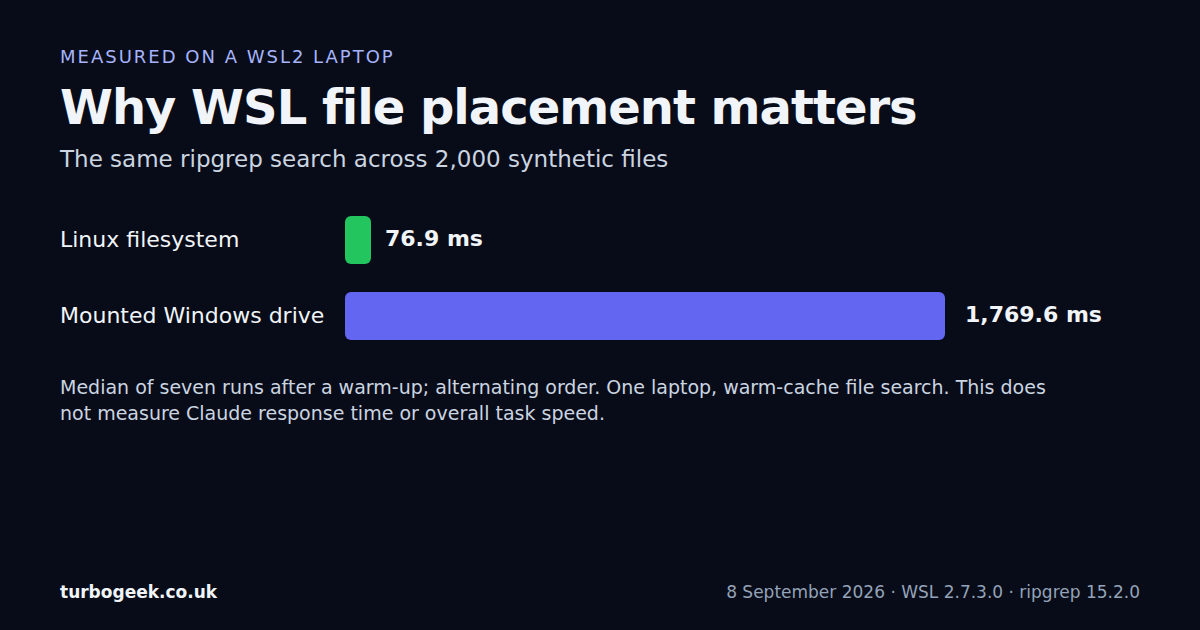
Start with the project location. A Linux command-line tool reading a repository under /mnt/c crosses the Windows/WSL filesystem boundary. In a small test on my WSL2 laptop, the same search across 2,000 synthetic files took a median of 76.9 ms on the Linux filesystem and 1769.6 ms on the mounted Windows drive. This is an actual file-search measurement; it does not mean that Claude becomes 23 times faster.
Test record: 8 September 2026; Windows build 26200.9168; WSL 2.7.3.0; kernel 6.6.114.1-microsoft-standard-WSL2; Intel Core i5-1235U; ripgrep 15.2.0; Node 24.16.0. Claude Code 2.1.261 was installed. The timed workload ran ripgrep directly and made no model requests.
TL;DR
- Find the slow operation before changing settings.
- Run Linux tools against a project on the Linux filesystem where practical.
- Measure a repeatable search, then repeat it after one change.
- Check long-session and terminal behaviour separately from filesystem work.
- Keep the original project until the replacement builds and its work is accounted for.
Start here: choose your symptom in the table. If the workstation is not configured yet, use the Windows 11 AI setup guide first.
| Symptom | First check | What it separates |
|---|---|---|
| Searching the repository is slow | pwd -P and a timed rg search | File access from model response time |
| Typing or scrolling stutters | Compare another terminal tab with Claude closed | Terminal rendering from agent work |
| A fresh session is quick; a long one is slow | /context inside Claude | Accumulated context from project location |
| Builds are slow outside Claude too | Run the same build directly in WSL | Toolchain/resources from the agent |
| Local commands finish quickly, but responses stall | Service status and the reported error | Remote latency from local disk speed |
Confirm which installation and filesystem you are using
Open the WSL terminal in the affected repository and run these read-only checks. They identify the command on your PATH, the installed version and the real project path. They do not change your configuration.
uname -r
command -v claude
claude --version
pwd -P
findmnt -T . -o TARGET,FSTYPEA project under /home/your-user/code usually lives on the Linux filesystem. A path beginning /mnt/c/Users usually points into Windows storage. Check the mount output as well: a directory name alone is not proof of the underlying filesystem. Symlinks can also conceal the real location.
Microsoft recommends keeping projects on the filesystem used by their command-line tools, making WSL storage the sensible starting point for a Linux development workflow. A Windows-native project may instead belong on Windows with Windows-native tools. See Microsoft’s filesystem guidance.
Run claude doctor for installation and settings diagnostics. Do not publish its output without reviewing paths, server addresses and other environment details. A healthy installation check does not measure the speed of your repository.
Measure file searches before moving anything
Choose a search that you can repeat. The example below searches unignored JavaScript and TypeScript files, including untracked files, for a literal string, printing only a count. Replace the string with something present in your project. Exit status 1 from ripgrep means no match; it does not by itself mean the search failed.
time rg --files-with-matches --fixed-strings 'export' \
-g '*.js' -g '*.ts' -g '*.tsx' . | wc -lRun it once to warm the cache, then several more times without editing files. Keep the search pattern and file set unchanged. A faster run that examined fewer files is not a useful comparison. Record the match count as well as the elapsed time.
What the synthetic WSL test showed
I created identical trees in temporary Linux storage and on the mounted Windows C: drive: 20 directories containing 100 files each. Each file had ordinary filler text and one matching line. The search used rg --files-with-matches --fixed-strings benchmark-needle. Every run found all 2,000 files.
After one uncounted warm-up at each location, I measured seven searches per location, alternating which ran first. The timer included launching the ripgrep process. Only the generated fixtures were removed afterwards; the test never searched or moved a working repository.
| Location | Median elapsed time | Files matched |
|---|---|---|
| Linux filesystem temporary directory | 76.9 ms | 2,000 |
| Mounted Windows drive temporary directory | 1769.6 ms | 2,000 |
The mounted-drive search was about 23.0 times slower in this run. Treat that as evidence to test your own file placement, not a universal multiplier. This was a warm-cache synthetic workload on one laptop. Antivirus activity, concurrent work, file counts, storage and caching can change the result. It did not measure Claude’s own search implementation, answer quality, network time or total task duration.
Try a Linux-side copy without losing your work
For a clean, pushed repository, a fresh clone into a new directory under ~/code is usually easier to reason about than moving an active tree. First check for local work:
git status --short
git log --oneline --branches --not --remotesStop if either command shows work that is not safely accounted for. A clone will not include uncommitted changes, untracked files or local-only commits. Back up those separately before continuing. Also inventory ignored local configuration; do not upload secrets just to make a clone complete.
Clone from your existing remote into a new, unused Linux-side directory. Install dependencies using the project’s lockfile and documented package manager, then run its normal checks. Do not copy Windows-built dependency folders into Linux and assume native modules will work. Keep the original tree available until the new copy has passed those checks.
Repeat the same search in both locations, checking that the match counts agree. Open the editor against the Linux-side project and confirm that its terminal points there too. Opening a new tab in the old Windows directory would put you back on the original path.
Related: Create an Ubuntu WSL shortcut if you want a predictable entry point into the Linux environment.
Separate long-session delays from terminal stutter
If a short session works well and a long one does not, inspect /context inside Claude. Save a brief handover of the task, decisions and outstanding work before changing sessions. /compact summarises context; /clear starts a fresh conversation. A new conversation will not automatically contain every decision from the old one. See the context and usage guidance.
A separate terminal tab is a useful control. If ordinary typing, scrolling or commands also stutter there, investigate the terminal and host load. If only Claude’s long transcript is affected, record the CLI and terminal versions and compare a short fresh session. Do not describe this as a confirmed model or WSL defect without a reproduction.
free -h
vmstat 1 5
ps -eo pid,comm,%cpu,%mem --sort=-%cpu | head -12These checks help identify resource pressure while avoiding full command lines in the process listing. Samples still need interpretation: a CPU spike during a build is expected. Compare the same operation while the machine is otherwise quiet before changing resource limits.
Know when the bottleneck is elsewhere
A quick local search followed by a long wait for a response points to a different part of the workflow. Check the exact error and the provider’s service status. A slow MCP operation should be timed independently of a repository search. Broad searches over generated assets can also be expensive even when the filesystem is healthy; ask for the relevant directory and file types.
Anthropic documents WSL filesystem search penalties and recommends narrowing searches or changing project placement. Its troubleshooting guide also separates performance problems from installation, authentication and configuration failures.
Avoid using wsl --shutdown as the first experiment. It stops running WSL distributions and can interrupt local services and work. Save changes and stop dependent tasks deliberately before any restart. A restart that temporarily helps is a clue, not an explanation.
Verify the result
- The CLI and project are running in the intended environment.
- Before-and-after searches use the same file set and return the same match count.
- The project still builds and its tests behave as expected.
- Uncommitted files and local-only commits remain available.
- Any claimed improvement names the operation measured, rather than implying every AI task got faster.
Change one thing at a time and keep the result. If project placement makes no material difference, you have still ruled out a cause and can move on to the terminal, session, build or remote service with better evidence.
Related: Windows 11 developer setup covers the workstation baseline; the AI setup guide covers installation and verification.
Leave a Reply