

TL;DR
- Most Wi-Fi problems are placement, not power — central, elevated router beats the most expensive antenna upgrade.
- Switch to 5 GHz (or 6 GHz on Wi-Fi 6E) for short-range speed; keep 2.4 GHz for long-range coverage.
- Mesh networks beat range extenders for whole-home coverage.
- Test before / after with a tool like
iperf3or a phone app — gut feel doesn’t measure improvement.
What is boosting Wi-Fi signal at home?
Wi-Fi signal strength at home is a function of three things you can control: where the router sits, which radio band you’re on, and what’s between the router and your device. Vendors love selling antenna upgrades, but in the typical home most of the gain comes from fixing placement first.
Modern Wi-Fi (Wi-Fi 6/6E/7) trades range for raw throughput — 5 GHz and 6 GHz bands are faster but attenuate more through walls. Coverage problems are best fixed with mesh nodes (which form a single SSID and roam transparently) rather than range extenders (which often halve throughput because they share airtime).
Prerequisites
- Access to your router admin interface (printed on the device, or
192.168.x.1usually). - A speed-test tool —
iperf3on a laptop, or a smartphone app — for before / after measurements. - Permission to move the router (a logistics challenge, not a technical one).
How to use this guide
The sections below walk through the practical commands and options. After the main content you’ll find a Verification block (sanity-check it actually worked), a Troubleshooting block (common error messages and what to do), and Related reading for follow-on topics.
Everyone loves faster internet, but slow Wi-Fi can be frustrating. Luckily, there are many simple fixes you can do to get the most out of your wireless network and boost your Wi-Fi signal.
There are many simple fixes you can do to get the most out of your WiFi connection. WiFi is engrained in our everyday lives, and people often forget that signals can be impacted and distorted, resulting in slow connections and dropouts that impact connected devices.
Guide to Improve Your Boost Wi-Fi Signal
Step 1 – Improve Your Router Placement
The location where you put your internet router is often the number one cause of a bad Wi-Fi signal. Don’t chuck the router behind the couch; it may look unsightly, but it needs to be out in the open, preferably on a hard surface like a side table or shelf.
- Central Location:
Place your router in a central location in your home, ideally on a higher surface like a shelf or table. Avoid placing it in enclosed spaces or near thick walls and metal objects. If you place the router on the far side of your house, there is a good chance the signal won’t reach the whole house. - Obstacles:
Remove any physical obstructions between the router and your devices. Even small objects like books or vases can weaken the signal. Avoid placing near metal equipment, such as exercise equipment or fish tanks. - Interference:
Keep the router away from other electronic devices, such as microwaves, cordless phones, and baby monitors, as they can cause interference. Bookcases are also quite bad at causing interference.
Step 2 – Tweak Your Router Settings:
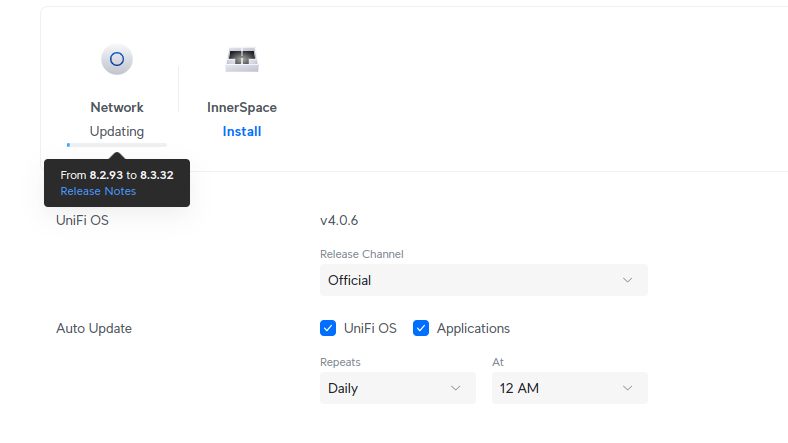
- Firmware Update:
Make sure your router’s firmware is up to date. Manufacturers often release updates that improve performance and fix bugs.
- Channel Selection:
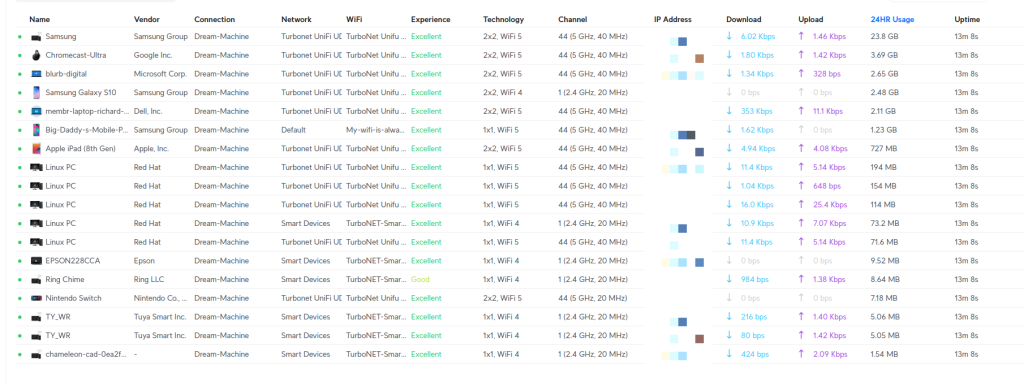
If you live in a crowded area with many WiFi networks, try changing your router’s channel to a less congested one. You can usually do this through the router’s settings page.
Antenna Placement:
If your router has external antennas, adjust them to optimize the signal. For multi-story homes, try positioning one antenna vertically and the other horizontally.
Step 3 – Upgrade Your Wifi Hardware
As a general rule, you can pretty much guarantee that the router your internet service provider has given you is cheap and underwhelming. I have upgraded my router and bought a DrayTek Modem and an Unfi DreamMachine Router. Although these are not top-of-the-range, they are much better than the garbage you get from Sky, EE, and Talk Talk.
- WiFi Extenders/Repeaters:
These devices can amplify your WiFi signal and extend its range to areas with weak coverage, helping to boost your Wi-Fi signal throughout your home. - Mesh WiFi Systems:
These systems use multiple nodes to create a seamless WiFi network throughout your home, eliminating dead zones and ensuring a strong Wi-Fi connection everywhere. - Powerline Adapters:
These devices use your home’s electrical wiring to create a wired network connection, which can be a more reliable solution in some cases where the Wi-Fi signal struggles to reach.
WiFi Troubleshooting
If you are experiencing further issues, consider these common fixes.
What are some common Wi-Fi problems and how do I troubleshoot them?
Common Wi-Fi problems include slow speeds, dropped connections, and limited range. To troubleshoot, you can:
- Restart your router: This simple step can often resolve temporary glitches.
- Check for interference: Move your router away from other electronic devices and appliances.
- Update device drivers: Ensure your computer or device’s Wi-Fi drivers are current.
- Check for network congestion: If too many devices are connected, consider upgrading your internet plan or limiting bandwidth-heavy activities.
- Reset your router to factory settings: If all else fails, resetting your router can sometimes fix persistent problems.
How does the type of internet connection affect my Wi-Fi speed?
The type of internet connection you have directly impacts your maximum potential Wi-Fi speed. Fiber optic connections generally offer the fastest speeds, followed by cable, DSL, and satellite.
Can I use a VPN with my Wi-Fi?
Yes, you can use a VPN (Virtual Private Network) with your Wi-Fi. A VPN encrypts your internet traffic, providing additional security and privacy. However, using a VPN can sometimes slightly reduce your Wi-Fi speed due to the encryption overhead.
What is the latest Wi-Fi standard, and should I upgrade?
The latest Wi-Fi standard is Wi-Fi 6E. It offers faster speeds, lower latency, and improved capacity compared to previous generations. If you have a lot of devices connected to your Wi-Fi or need the fastest possible speeds, upgrading to a Wi-Fi 6E router and compatible devices could be beneficial.
How can I improve my Wi-Fi signal for gaming?
You’ll want a fast and stable Wi-Fi connection for optimal gaming performance. Consider these tips:
- Prioritize a wired connection: If possible, connect your gaming console or PC directly to your router with an Ethernet cable for the most reliable connection.
- Use Quality of Service (QoS) settings: Many routers have QoS settings that allow you to prioritize gaming traffic over other types of traffic.
- Reduce network congestion: Limit other bandwidth-intensive activities on your network while gaming.
What are some tips for improving the Wi-Fi signal in a multi-story home?
To improve Wi-Fi in a multi-story home:
- Place your router on the main floor: Ideally, your router should be centrally located on the floor where you use Wi-Fi the most.
- Use a mesh Wi-Fi system: Mesh systems are ideal for multi-story homes, as they create a seamless network with multiple access points throughout your house.
- Consider powerline adapters: Powerline adapters can use your home’s electrical wiring to extend your network to areas where Wi-Fi signals struggle to reach.
Learn how to improve your Wi-Fi in 3 minutes! Check out our other Tech Quickys!
Verification
Sanity-check the change actually worked:
- Run
iperf3 -c <server>from the device — record throughput before and after each change. - Walk through the house with a Wi-Fi analyser app — record the dBm reading at each room before / after.
- Apparent improvement on real workloads (streaming, video calls) — the ultimate test.
Troubleshooting
Speed test on the router itself shows full speed but devices are slow — ISP link is fine; problem is the wireless. Check for 2.4 GHz interference (microwaves, baby monitors) or co-channel congestion (apartment buildings).
Mesh node repeatedly drops out — Backhaul is congested. If the mesh uses Wi-Fi for backhaul, consider running an Ethernet cable to the node — “wired backhaul” is the upgrade.
New Wi-Fi 6 router, old devices still stuck at slow speeds — Old devices can’t negotiate Wi-Fi 6 features. They drag the channel down. Some routers can be configured to put legacy devices on a separate SSID.
Authoritative sources
References: Wi-Fi Alliance — Wi-Fi 6 / 6E, FCC — RF safety FAQ.
Leave a Reply