
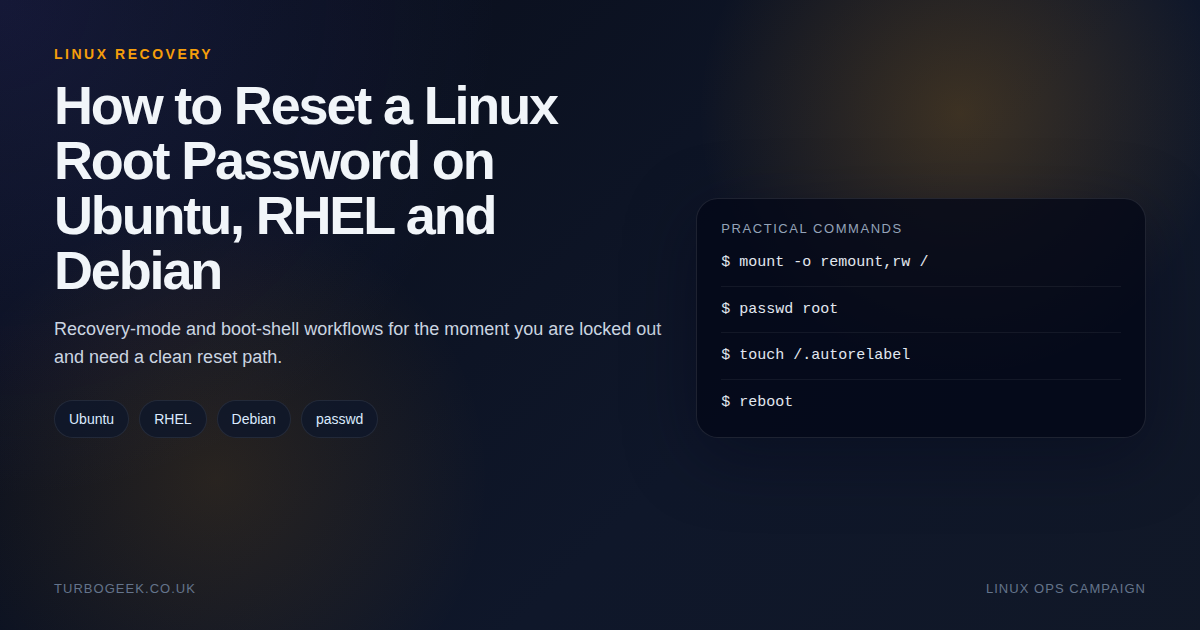
TL;DR – Linux root password recovery
- You need console access: Password recovery is easy once you can reach the bootloader, impossible if you cannot.
- Ubuntu, RHEL and Debian differ: The reset path changes at the boot stage, not at the
passwdstage. - RHEL usually needs extra care: If SELinux is enforcing, relabel after the reset if you used the
rd.breakpath. - Cloud boxes are their own case: Provider console or rescue access often matters more than distro knowledge.
Start here: If you only need the older distro-specific walkthroughs, start with How to Reset a Lost Root Password in Linux or How to Change the Ubuntu Root Password. This page puts the Ubuntu, RHEL and Debian approaches side by side.
| Distro | When | Recovery path |
|---|---|---|
| Ubuntu | Local VM or console access | Recovery mode -> root shell -> mount -o remount,rw / -> passwd |
| RHEL | GRUB available at boot | rd.break -> mount -o remount,rw /sysroot -> chroot /sysroot -> passwd |
| Debian | GRUB edit or recovery shell | single-user shell -> passwd -> reboot |
| Cloud VM | Lost SSH only | Use provider console or rescue workflow first |
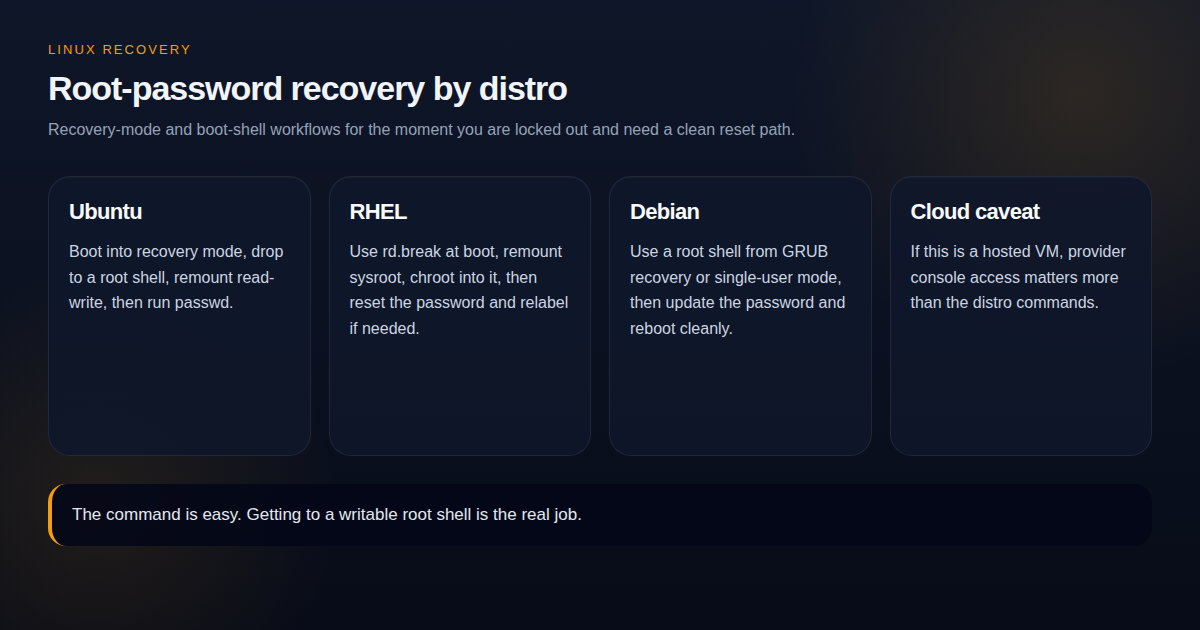
At a command level, password recovery is not complicated. The complication is getting a writable root shell on the right system in the right state. That is why so many root-password guides feel longer than the command they are built around.
Step-by-step: reset the password on Ubuntu, RHEL, and Debian
The password change itself is short. The real job is getting a writable root shell on the right distribution. Use the distro-specific path below instead of mixing commands from different guides.
Ubuntu
- Reboot and open the GRUB menu. On many systems that means holding
Shiftor tappingEscduring boot. - Choose Advanced options for Ubuntu, then a recovery-mode entry, then root to drop into a recovery shell.
- Remount the root filesystem read-write.
- Run
passwd root. If the Ubuntu root account is intentionally locked, reset a sudo-capable user instead withpasswd your-admin-user. - Reboot normally and test the new credentials.
mount -o remount,rw /
passwd root
# or, on many Ubuntu systems, reset the admin user instead
passwd your-admin-user
rebootRHEL and compatible systems
- At the GRUB screen, highlight the kernel entry and press
eto edit it. - Append
rd.breakto the kernel command line, then boot withCtrl+xorF10. - Remount
/sysrootread-write andchrootinto it. - Run
passwd root. - Create
/.autorelabelbefore rebooting so SELinux labels are repaired on the next boot.
mount -o remount,rw /sysroot
chroot /sysroot
passwd root
touch /.autorelabel
exit
exitDebian
- Open the GRUB menu at boot and press
eon the Debian entry. - Find the line that starts with
linuxand appendinit=/bin/bashto the end of that line. - Boot with
Ctrl+xorF10to land in a root shell. - Remount the root filesystem read-write and run
passwd root. - Sync the filesystem and force a reboot.
mount -o remount,rw /
passwd root
sync
reboot -fWhat this guide actually covers
This guide is for situations where you own the machine or VM, can reach GRUB or a recovery console, and need to reset a lost or unknown root password. It is not a bypass trick for managed hosting. If you only lost SSH access but still have another privileged user, that is a simpler problem.
Ubuntu: recovery mode is the clean path
# From the recovery root shell
mount -o remount,rw /
passwd root
rebootOn Ubuntu, the recovery menu is usually the least dramatic option. Drop to the root shell, remount the root filesystem read-write, reset the password, then reboot. If you normally administer the box with sudo rather than root, consider whether you really need to enable direct root login afterwards.
RHEL: use rd.break and remember SELinux
# After booting with rd.break
mount -o remount,rw /sysroot
chroot /sysroot
passwd root
touch /.autorelabel
exit
rebootRHEL is the one that catches people because the reset often happens from an initramfs shell rather than a friendly recovery menu. If SELinux is enforcing and you skip the relabel step after changing the password from that environment, you can create a second login problem.
Debian: same goal, simpler boot semantics
# From a Debian root shell
mount -o remount,rw /
passwd root
sync
reboot -fDebian recovery tends to be conceptually closer to Ubuntu than to RHEL. The pattern is still the same: get a root shell, remount read-write if necessary, reset the password, reboot cleanly.
The caveats that matter in real environments
- Encrypted disks: Recovery still depends on being able to unlock the volume at boot.
- Cloud VMs: You may need hypervisor console access, not just SSH.
- Modern admin habits: Many teams should reset a privileged sudo-capable user instead of leaning on the root account.
- Change windows: If the machine is critical, capture the steps before you reboot into recovery.
Once access is restored, the next job should usually be hardening, not celebration. Pair this with Linux SSH Hardening Checklist for Small Servers and Home Labs if the box is remotely accessible.
Leave a Reply