
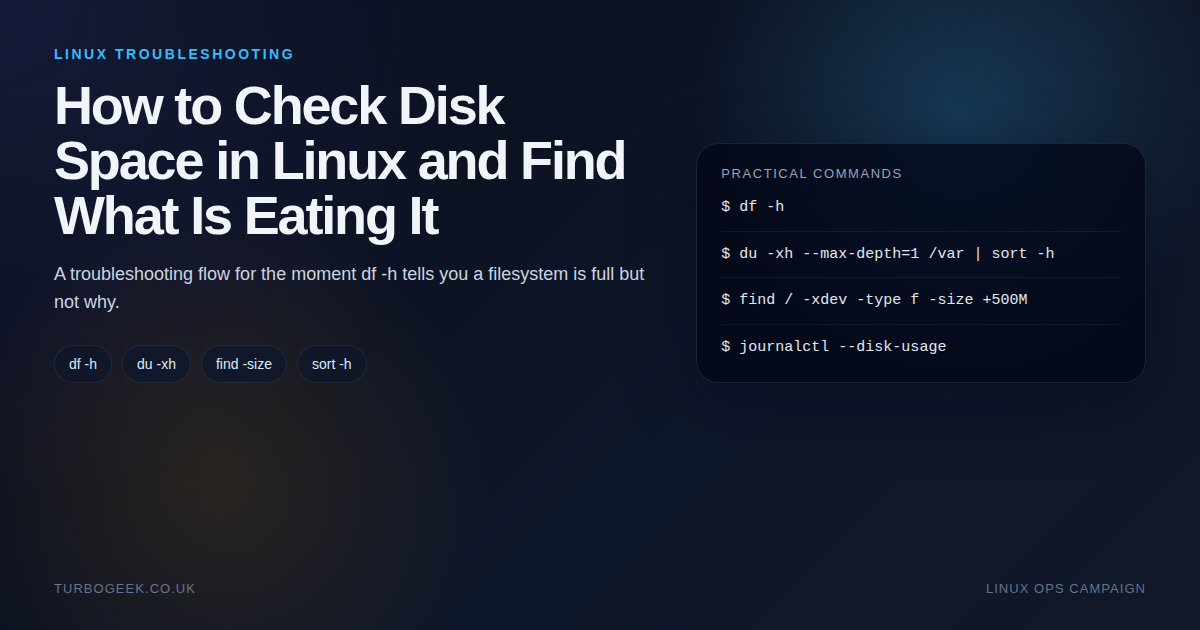
TL;DR – finding Linux disk hogs
- Start with
df -h: It tells you which filesystem is actually full. - Then use
du: Work down the problem mount point, one level at a time, instead of scanning everything. - Use
findfor the last mile: Once one directory is suspicious, large-file searches become fast and useful. - Do not clean blindly: Logs, Docker data, package caches and backups all need different cleanup decisions.
Start here: If you only need the classic quick check, How to Check Disk Space in Linux is still the fast answer. This guide is for the next question: what is actually eating the space?
| Topic | When | Command |
|---|---|---|
| Filesystem usage | Find the full mount point | df -h |
| Largest directories | Investigate one mount point | du -xh --max-depth=1 /path | sort -h |
| Large files | Pinpoint the real culprits | find /path -xdev -type f -size +500M |
| Journal size | Systemd logs look suspicious | journalctl --disk-usage |
A full Linux filesystem rarely stays mysterious for long if you work in the right order. The problem is that many people jump straight from `df -h` to deleting things at random, which is how you create a second problem while trying to solve the first one.
The reliable flow is simple: identify the full mount point, identify the biggest directories on that mount point, identify the biggest files in those directories, then decide what is safe to clear. That sequence saves time and stops you from deleting the wrong data.
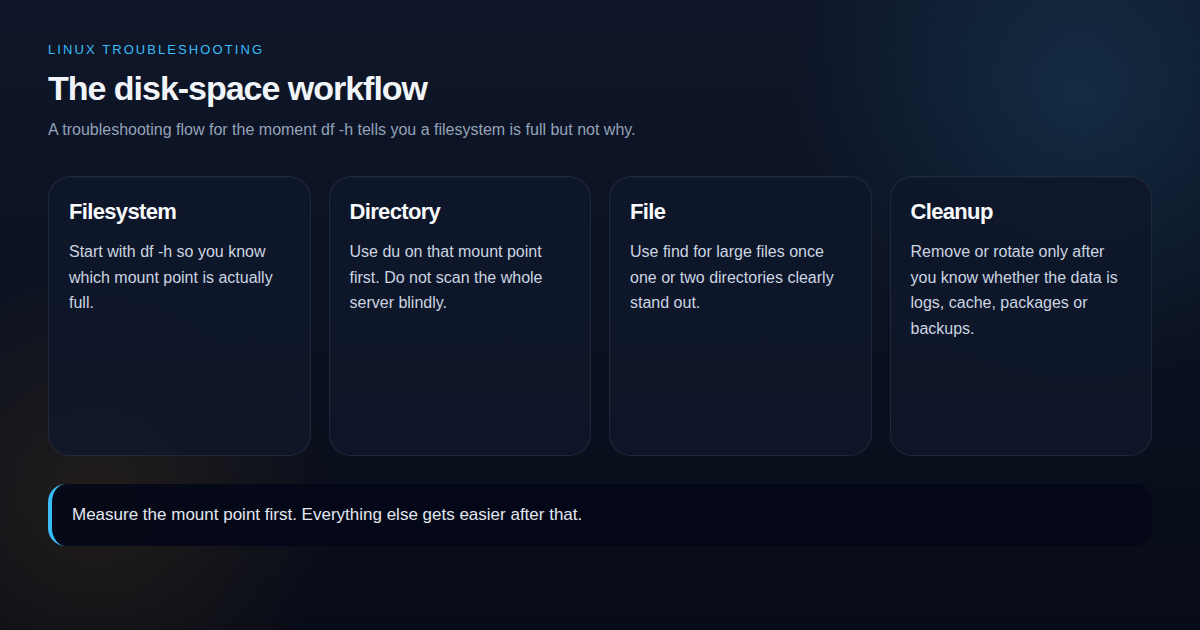
Five-minute disk-space triage sequence
This is the copy-paste flow when a Linux box reports “No space left on device” and you want answers fast. The key is to stay on the full filesystem and move from mount point to directory to file in that order.
- Start with
df -handdf -ihso you know whether the problem is space, inodes, or both. - Pick the full mount point and replace
/varin the commands below with the path that is actually full. - Use
du -xhd1to find the heaviest directories without crossing into other mounted filesystems. - Use
findto list the largest individual files inside the hot directory. - Check safe cleanup targets such as package caches and old journals before you touch application data.
df -h
df -ih
sudo du -xhd1 /var | sort -h
sudo du -xhd1 /var/lib | sort -h
sudo find /var -xdev -type f -size +500M -printf '%12s %p\n' | sort -nr | head -20
journalctl --disk-usage
sudo apt cleanIf you prefer an interactive view after the first pass, install ncdu and run sudo ncdu -x /var against the full mount point.
Step 1: confirm which filesystem is full
df -h
df -ih
lsblk
df -h answers the first question: which filesystem is in trouble? If the problem is `/var`, you do not need to scan `/home`. If the problem is a small separate boot volume, clearing package caches under `/var` will not help.
It is also worth checking inode pressure with df -ih. A filesystem can report free space while still refusing writes because it ran out of inodes, usually due to huge counts of small files.
Step 2: walk down the directory tree with du
du -xh --max-depth=1 /var | sort -h
du -xh --max-depth=1 /var/log | sort -h
du -xh --max-depth=1 /home | sort -hThis is the step that turns a vague capacity problem into a real investigation. Use du on the affected mount point, then keep drilling into the biggest branch. In practice, you usually find the answer after one or two passes.
Step 3: find the biggest files, not just the biggest folders
find /var -xdev -type f -size +500M -printf '%s %p\n' | sort -n
find /home -xdev -type f -size +1G -printf '%s %p\n' | sort -nLarge files are often the real answer: a runaway log, an old database dump, a core file, a forgotten ISO, or a container artifact that nobody noticed. Once you know the exact file paths, cleanup becomes a judgement call instead of guesswork.
The usual suspects on Linux boxes
- Logs: `journalctl`, application logs under
/var/log, or one log file that stopped rotating. - Package cache: Especially on long-lived Ubuntu systems where apt cache has never been reviewed.
- Containers: Docker images, layers, volumes and old stopped containers.
- Backups and dumps: SQL exports, tarballs, copied directories and ad-hoc safety backups.
If you know the space needs reclaiming rather than diagnosing, Free Up Disk Space on Linux Quickly is the cleanup-focused companion to this post.
A safe cleanup sequence
Delete or rotate only after you know what the data is. If the culprit is logs, clean logs. If it is package cache, clean package cache. If it is backup data, move it or archive it. The wrong cleanup path can buy you five minutes and cost you a recovery plan.
# Example cleanup checks
journalctl --disk-usage
sudo apt clean
sudo du -sh /var/log/* | sort -h
sudo find /var/log -type f -name '*.gz' | wc -lRelated next steps if this is a brand-new server: Ubuntu Server First 30 Minutes. If you are reshuffling data after cleanup, pair this with Linux File Management Cheat Sheet
Leave a Reply