
Most AI assistants send everything to a server you don’t control. Your prompts, your documents, your half-formed thoughts at 11pm — all of it lands in a data centre somewhere. OpenClaw does something different: it runs on your machine, uses the chat apps you already have open, and lets you pick your own AI model — including local ones that never phone home.
I’ve been running it for a few weeks now and it’s become one of those tools I didn’t know I needed until I had it. Here’s an honest look at what it is, how to set it up, and whether it’s worth your time.
TL;DR
- What it is: A local AI agent you control via Telegram, WhatsApp, Discord, Slack, or iMessage — no cloud middleman.
- Setup: Install from openclaw.ai, point at your preferred AI model (Anthropic, OpenAI, or local Ollama), connect your chat app of choice.
- What it can do: Summarise your inbox, run shell commands, browse the web, manage files, automate calendar tasks — all via chat.
- vs cloud AI: OpenClaw wins on privacy and extensibility; loses on zero-friction startup compared to ChatGPT or Claude.ai.
- Verdict: Worth it for privacy-conscious developers who want an always-on local agent. Not for people who want 2-minute setup.
| Feature | Detail | Notes |
|---|---|---|
| Runs on | Mac, Windows, Linux | Local, not cloud |
| Chat via | WhatsApp, Telegram, Discord, Slack, iMessage | Your choice |
| AI models | Claude, GPT-4, local (Ollama) | Bring your own key |
| Memory | Persistent, on-device | Learns your preferences |
| Cost | Free + open source | API costs apply |
New to OpenClaw? Start with What OpenClaw Actually Is below — it clears up exactly what kind of tool this is before the setup steps.
What OpenClaw Actually Is
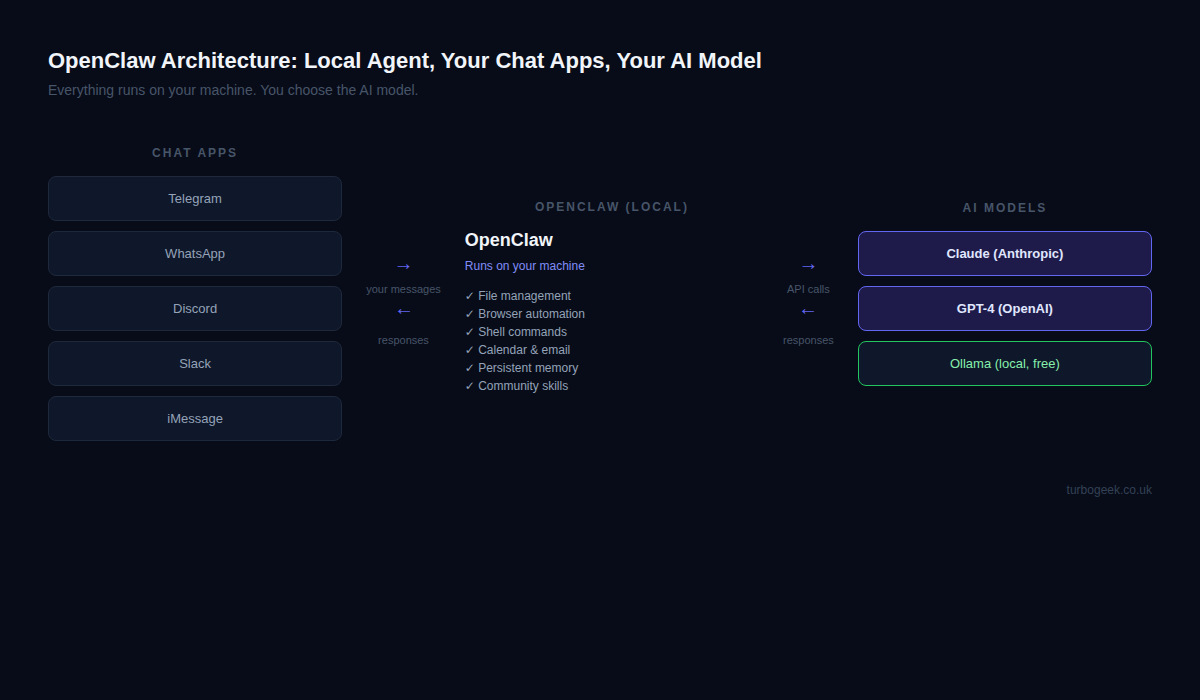
OpenClaw isn’t a chatbot UI. There’s no web interface to open, no browser tab to keep pinned. It’s a local AI agent that runs as a background process on your machine — think of it as a daemon that’s always listening for your messages through whichever chat app you’ve connected.
Created by Peter Steinberger (of PSPDFKit fame), OpenClaw is open source on GitHub. The core idea is elegant: instead of building yet another interface, it plugs into the messaging apps you’re already using all day. Send it a message on Telegram, get a response. Ask it to do something on Discord, it does it. The agent handles the rest.
What the agent can actually do is where it gets interesting. Out of the box, you get:
- File management — read, write, organise files on your local system
- Browser automation — open pages, extract content, fill forms
- Shell commands — run terminal commands by asking in plain English
- Calendar and email — schedule meetings, draft messages, check your diary
- Persistent memory — it remembers your preferences across sessions, stored on-device
- Community skills marketplace — extend the agent with skills built by others
That last point matters more than it might seem. OpenClaw has a growing ecosystem of community-built skills — essentially plugins that add new capabilities. If you want it to integrate with your note-taking app, monitor a server, or pull data from a custom API, there’s probably a skill for it or you can build one.
Setting It Up
Installation is straightforward — download from openclaw.ai, run the installer for your platform (Mac, Windows, or Linux), and it drops a config file you edit before first run.
The config is a single JSON file. Here’s a minimal setup using Claude as the AI model with Telegram as the chat interface:
A few notes on the config:
- model — use any Claude model slug (claude-opus-4-6, claude-sonnet-4-6) or an OpenAI model name (gpt-4o). For Ollama, point at your local endpoint instead.
- chatApp — Telegram is the easiest first setup. WhatsApp requires an additional bridge step. iMessage works on Mac only.
- memory: true — enables persistent on-device memory so the agent learns your preferences over time. All stored locally.
- skills — the array of skills to load. Start with these three and add more from the community marketplace as you need them.
Once configured, start the agent and follow the Telegram bot setup — it walks you through creating a bot token and linking it. From first download to first message took me about 15 minutes.
What You Can Do With It
Explaining what an AI agent can do is always a bit abstract. Concrete examples help. Here are five things I’ve actually used it for:
1. Inbox triage at the start of the day
I send it: “Summarise my unread emails from the last 24 hours, flag anything urgent.” It connects to my email, reads the headers and bodies, and sends back a bulleted summary with priority flags. Takes about 30 seconds. Zero context switching.
2. Schedule a meeting via chat
“Book a 30-minute call with James next Tuesday afternoon and send him a calendar invite.” It checks my calendar for availability, creates the event, and sends the invite. The conversational interface means I can add constraints naturally: “not before 2pm” or “avoid the slot before my 4pm”.
3. Terminal commands by request
“List all Docker containers that have been stopped for more than a week and give me the commands to remove them.” It runs the shell commands, interprets the output, and returns both the analysis and the cleanup commands for me to confirm before running. This is genuinely useful when I’m on my phone and want to check something on my home server.
4. Web research with a summary
“What are the main differences between Tailwind CSS v3 and v4? Just the breaking changes.” It searches the web, reads the relevant docs pages, and returns a clean summary. No browser required, no tab management. The answer lands in my Telegram chat.
5. Recurring file automation
“Every Friday at 5pm, move any files in my Downloads folder older than 7 days into an archive folder with a date-stamped subfolder.” OpenClaw schedules this as a recurring task. It runs without me thinking about it again. This kind of lightweight automation would normally require a cron job and a shell script — now it’s a single sentence.
OpenClaw vs Cloud AI Assistants
OpenClaw doesn’t replace cloud AI tools — it occupies a different space. Here’s how I think about the comparison:
| Tool | Best for | Privacy | Setup |
|---|---|---|---|
| OpenClaw | Always-on local agent, automation, file/shell access | Excellent — data stays on device | 15–30 mins |
| ChatGPT | General Q&A, instant answers, image generation | Data sent to OpenAI | Instant |
| Claude.ai | Long documents, nuanced writing, reasoning | Data sent to Anthropic | Instant |
| Claude Code | Developer terminal tool, code tasks, repo work | Code sent to Anthropic | npm install |
OpenClaw’s clearest advantages are privacy and extensibility. Your prompts, your files, your memory — none of it leaves your machine (assuming you use a local model via Ollama; if you use Anthropic or OpenAI APIs, your prompts go to their servers, but your files and memory don’t).
It’s also the only option here that can actually do things — run commands, move files, schedule tasks — rather than just talk about them. Claude Code comes close for development work, but it’s terminal-only and scoped to code. OpenClaw is a general-purpose agent that happens to use a chat interface.
The trade-off is setup friction. ChatGPT and Claude.ai are instant. OpenClaw needs 15 minutes on day one and ongoing configuration investment as you add skills and teach it your preferences. It’s a tool that rewards patience.
Is It Worth Your Time?
Honest answer: it depends on what you value.
Yes, if you:
- Care about keeping your data local and off third-party servers
- Want an AI assistant that can actually take actions, not just give answers
- Are comfortable with a bit of configuration and tinkering
- Already live in Telegram, WhatsApp, Discord, or Slack all day
- Want to run local models (Ollama) with zero API costs
No, if you:
- Want something working in under 2 minutes
- Don’t need the agent to take actions (just chat and get answers)
- Aren’t comfortable editing JSON config files
OpenClaw rewards investment. The more you configure it, the more useful it becomes. After a few weeks of use, mine knows my file structure, my calendar habits, my preferred response format. It’s a personal AI that feels genuinely personal — because it runs on my machine, not someone else’s.
For developers who value privacy and want an always-available local agent that can actually do things rather than just suggest them, OpenClaw is one of the most interesting open-source projects in this space right now.
Frequently Asked Questions
Is OpenClaw free?
Yes — OpenClaw itself is free and open source. You pay for the AI model API if you use Anthropic (Claude) or OpenAI (GPT-4). If you connect it to a local Ollama model, there are zero ongoing costs beyond your hardware.
Does OpenClaw work offline?
The core agent runs locally and always will. AI inference depends on where your model lives: if you’re using Anthropic or OpenAI APIs, those calls require internet. If you’re using a local Ollama model, the entire stack runs offline — no internet required after initial setup.
Can OpenClaw use Claude?
Yes. Point it at your Anthropic API key in the config and choose any Claude model — claude-opus-4-6, claude-sonnet-4-6, or whatever the current release is. The model field accepts any valid Anthropic model slug, so you can switch between models without reinstalling anything.
Wondering which AI subscription is worth paying for once you’re running OpenClaw? This breakdown of Claude Max covers whether the plan makes sense depending on how heavily you’re using the API.
Leave a Reply