
TL;DR
df -hgives a one-screen view of every mounted filesystem and how full it is.du -sh /pathtells you how much one specific directory is using.du -h --max-depth=1 / | sort -hfinds the heaviest top-level directories — start there when /’s nearly full.- Schedule it via cron + a notification when usage crosses 80%, before the box runs out at 3am.
What is disk-space checking on Linux?
Disk-space management is one of the few admin tasks that doesn’t fail gracefully — when a Linux filesystem fills up, services stop accepting writes, logs cease, and applications crash in ways that cascade. Knowing how to check disk usage quickly, on a machine you may not have logged into before, is fundamental sysadmin literacy.
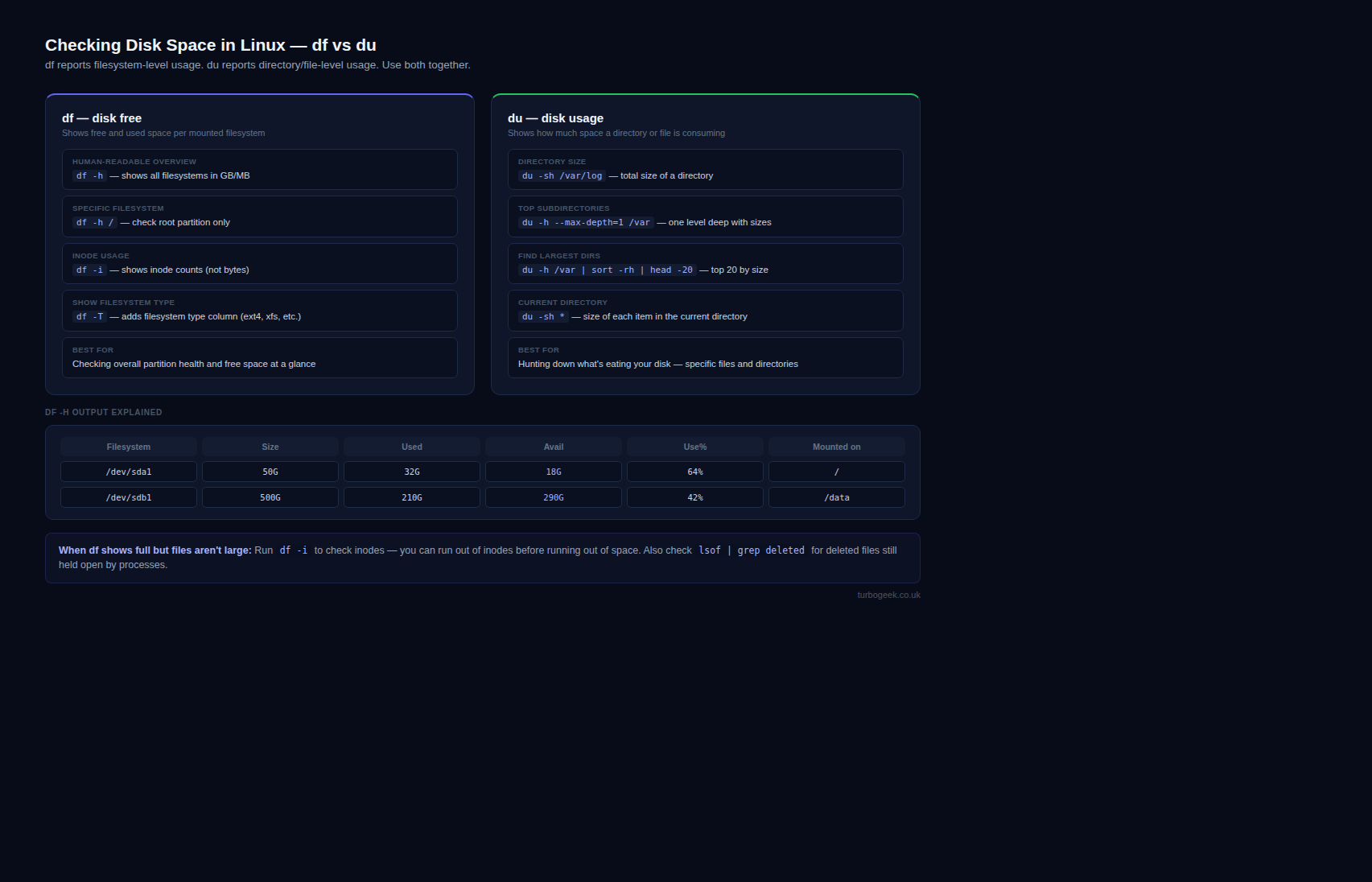
Linux ships two complementary tools. df (disk free) reports per-filesystem usage as the kernel sees it. du (disk usage) recursively walks a directory and totals the file sizes under it. They sometimes disagree — usually because du doesn’t count files held open by deleted processes, while df does. That gap is itself a useful diagnostic signal.
Prerequisites
- Any Linux server or desktop with
dfandduon the path (default everywhere). - Read access to the directories you want to inspect — root for full system surveys.
- Optional:
ncdu(sudo apt install ncdu) for an interactive view; helpful when surveying unfamiliar systems.
How to use this guide
The sections below walk through the practical commands and options. After the main content you’ll find a Verification block (sanity-check it actually worked), a Troubleshooting block (common error messages and what to do), and Related reading for follow-on topics.
If you’ve been using Linux for a while, you probably know that disk space management is essential for system performance and stability. However, checking disk space in Linux is not as complicated as you might think. This article will explore different ways to check disk space in Linux, ranging from simple command-line tools to advanced graphical utilities.
Using the df command to check disk space in Linux
The df command is a built-in Linux utility that displays information about the filesystems currently mounted in the system. Here’s an example:
$ df -h
Filesystem      Size  Used Avail Use% Mounted on
/dev/sda1        20G  4.1G   15G  22% /
tmpfs           3.9G     0  3.9G   0% /dev/shm
/dev/sdb1        50G   12G   38G  24% /mnt/data
The output shows each filesystem’s total size, used space, available space, and usage percentage. In addition, the -h option displays the measures in a human-readable format.
Using the du command to check disk space usage in Linux
The du command is another built-in Linux utility that displays the disk space used by files and directories. Here’s an example:
$ du -h /var/log
  10M   /var/log/cups
  15M   /var/log/apt
  4.0K  /var/log/sysstat
  64M   /var/log
In the output, you can see the size of each file and directory within /var/log. The -h option displays the sizes in a human-readable format.
Checking disk space with graphical tools in Linux
Several utilities allow you to check disk space usage if you prefer a graphical user interface (GUI). For example, GNOME Disks and KDE Partition Manager are popular options. Here’s an example of using GNOME Disks:
- First, open the Disks application from your application menu.
- Next, click on the disk you want to check in the left pane.
- The right pane will display information about the disk, including the amount of free space.
Checking disk space remotely in Linux with SSH
If you need to check disk space on a remote Linux system, you can use SSH to connect to the system and run commands. Here’s an example:
$ ssh user@remote-host "df -h /"
Filesystem      Size  Used Avail Use% Mounted on
/dev/sda1        20G  4.1G   15G  22% /
In the output, you can see the disk space usage of the root filesystem on the remote-host system.
Automating disk space monitoring with cron and shell scripts
If you want to automate checking disk space, you can use cron and shell scripts. Here’s an example of a shell script that checks the disk space usage of the /var directory:
#!/bin/bash

THRESHOLD=90
PARTITION=/dev/sda1

df -h $PARTITION | tail -n 1 | awk '{print $5}' | sed 's/%//g' | while read usage; do
  if [ $usage -ge $THRESHOLD ]; then
    echo "Disk space usage is above threshold: $usage%"
  fi
done
In the script, the THRESHOLD variable specifies the usage threshold at which an alert should be triggered. The PARTITION variable specifies the partition.
FAQ on How to Check Disk Space in Linux
Question 1: What is disk space?
Disk space is the storage capacity available on your computer’s hard drive. It is where your operating system, applications, and personal files are stored.
Question 2: Why should I check disk space in Linux?
Checking disk space in Linux is important because if your hard drive runs out of space, your system may slow down or even crash. It is also important to monitor disk space to ensure you have enough space for new files and software installations.
Question 3: How do I check disk space in Linux?
You can check your disk space using the “df” command in the Linux terminal. Simply open the terminal and type “df -h” to see a list of available drives and their disk space usage.
Question 4: What does the “df” command output mean?
The “df” command output shows the total size of the disk, the amount of disk space used, the amount of disk space available, and the percentage of disk space used. It also shows the mount point or the location where the drive is mounted in the file system.
Question 5: How often should I check disk space in Linux?
It is a good practice to periodically check disk space in Linux, especially if you frequently install new software or download large files. You can set up automated disk space monitoring using tools like Nagios, Munin, or Zabbix to receive alerts when your disk space usage reaches a certain threshold.
Want to learn more Linux facts? Check out the rest of our Tech Quicky content!!
Verification
Sanity-check the install / change actually worked:
- Run
df -h /— should show the root filesystem with Used and Avail in human-readable form. - Run
du -sh /tmp— should report a size for /tmp. - If the two disagree dramatically, check for deleted-but-open files:
sudo lsof +L1.
Troubleshooting
df shows full but du shows little — Deleted files held open by a running process. sudo lsof +L1 lists them; restarting the offending process releases the space.
du is painfully slow on large trees — Use du -h --max-depth=1 instead of unbounded recursion. For really big trees, run it overnight or use ncdu incrementally.
Disk full, but you can’t even list files — tmpfs-style tricks: clear /tmp, rotate /var/log, drop journal logs (journalctl --vacuum-size=100M). For systemd boxes, journalctl alone often reclaims gigabytes.
Authoritative sources
Reference manpages: GNU df and GNU du from the GNU Coreutils manual.
Leave a Reply