
If you’re still opening cmd.exe to run commands, still downloading .exe installers from websites, and still getting mysterious line-ending errors — your Windows dev environment needs work. Not a rebuild. Just six specific fixes, each taking under 15 minutes. Here’s what they are and how to do them.
TL;DR — Six Fixes for a Messy Windows Dev Setup
- Warning Signs — Quick checklist: do you have these six problems?
- Windows Terminal — Replace cmd and PowerShell ISE; takes 10 minutes
- winget — Stop downloading installers; one command to upgrade everything
- WSL2 — Check your version, upgrade from WSL1 if needed, or install fresh
- Git credentials — The most-broken thing on messy setups; fix authentication properly
- VS Code + WSL2 — One extension that eliminates most path and performance issues
| Problem | Symptom | Fix |
|---|---|---|
| Old terminal | Using cmd.exe or PowerShell ISE | winget install Microsoft.WindowsTerminal |
| No package manager | Downloading .exe installers manually | winget -v to check; update App Installer if missing |
| WSL1 or no WSL | Slow file I/O, Linux tools missing | wsl --set-default-version 2 or wsl --install |
| Broken Git auth | Credential prompts on every push | Reconfigure with SSH keys inside WSL2 |
| VS Code outside WSL2 | Path errors, slow on Linux files | Install Remote WSL extension, run code . from WSL2 |
| Stale Git config | Wrong name/email on commits | git config --global user.name / user.email |
Not sure if this applies to you? Start with The Warning Signs — it’s a 2-minute checklist that tells you exactly which fixes you need.
Step-by-step: fix a messy Windows dev machine in the right order
Fix the platform in dependency order. Do not spend an hour debugging Git or Node inside WSL if the machine still lacks a clean terminal, a working package manager, or a sane Linux environment.
- Open PowerShell as Administrator and run
winget -v. If that fails, re-register App Installer before you do anything else. - Install Windows Terminal and make it your default terminal so every shell opens in the same place.
- Install WSL 2 with Ubuntu, then reboot when Windows asks you to.
- Open Ubuntu inside WSL and install your basic developer packages there. That is where your Linux tooling should live.
- Configure Git identity and SSH inside WSL, not half in Windows and half in Linux.
- Install VS Code, add the Remote WSL extension, and open Linux projects from the WSL terminal with
code ..
# PowerShell (Admin)
winget -v
Add-AppxPackage -RegisterByFamilyName -MainPackage Microsoft.DesktopAppInstaller_8wekyb3d8bbwe
winget install --id Microsoft.WindowsTerminal -e
winget install --id Microsoft.VisualStudioCode -e
wsl --install -d UbuntuOnce Ubuntu is running, finish the setup inside WSL itself:
sudo apt update
sudo apt install -y git build-essential openssh-client ripgrep
git config --global user.name "Your Name"
git config --global user.email "[email protected]"
ssh-keygen -t ed25519 -C "[email protected]"
code .
The Warning Signs
Run through this list honestly. If any of these are true, keep reading — the relevant fix is in the section below.
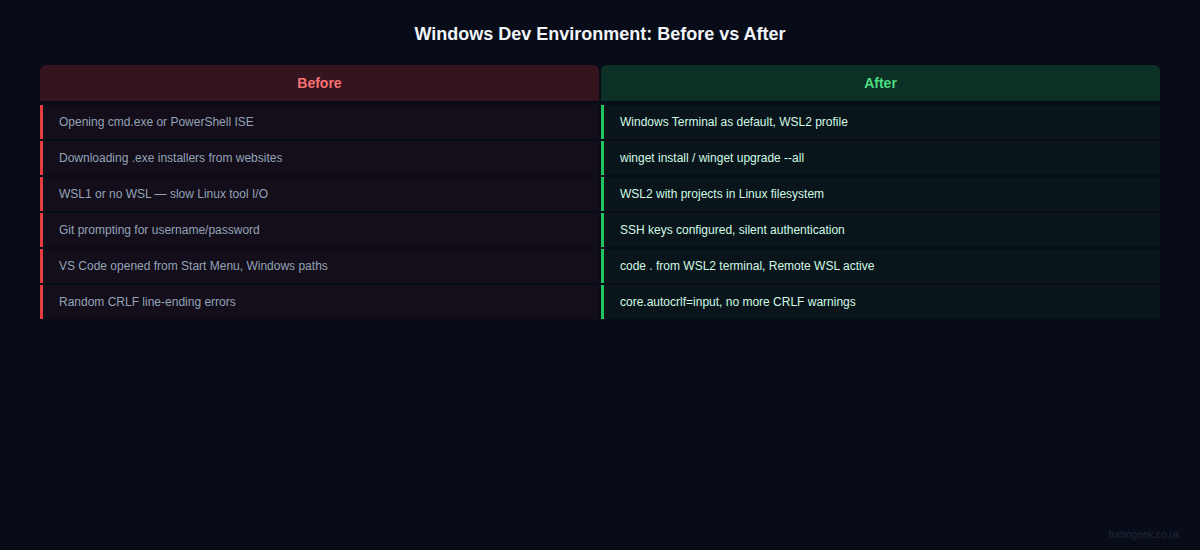
- You open cmd.exe or PowerShell ISE (not Windows Terminal) to run commands
- You install software by downloading .exe files from websites
- You have never run
winget upgrade --all - Running
wsl -l -vshows VERSION 1 next to your distro, or no output at all - Your last
git pushasked for a username and password - You open VS Code from the Start menu and navigate to your project from there, rather than running
code .from the terminal - You’ve had CRLF line-ending warnings or shell scripts that work locally but break on the server
Switch to Windows Terminal
Windows Terminal is probably already installed on Windows 11 — search for it in the Start menu. If it’s not there, one command fixes that. Then set it as your default so the next time you open a terminal from anywhere, you get Windows Terminal instead of the old console.
# Install if not present
winget install Microsoft.WindowsTerminal

# Set as default: Settings > System > For Developers > Terminal > Windows TerminalOnce installed, open Settings (Ctrl+,) and set Ubuntu (WSL2) as your default profile if you have WSL installed — it will appear automatically. Change the starting directory for your WSL2 profile to //wsl$/Ubuntu/home/YOUR_USERNAME so Terminal opens in your Linux home directory rather than C:\Users\.... This single change makes every subsequent step easier.
Get winget Working
winget is built into Windows 11 but may not be up to date. Check it, then immediately run an upgrade to see what’s out of date on your machine.
# Check winget is present
winget -v

# If not found: open Microsoft Store > search 'App Installer' > Update

# See everything that needs updating
winget upgrade --all

# Export your installed apps (useful for backing up or new machine setup)
winget export -o packages.json

# Import on a new machine
winget import -i packages.jsonGoing forward: when you need to install something, reach for winget install before going to a website. Most major developer tools are in the winget registry. The export/import workflow is also worth doing now — it gives you a packages.json you can commit to a dotfiles repo and use to rebuild your machine in minutes.
Upgrade to WSL2
WSL2 is significantly faster than WSL1 for file I/O, runs a real Linux kernel, and supports Docker properly. Check which version you have and upgrade if needed.
# Check current WSL version(s)
wsl -l -v

# If you see VERSION 1, upgrade:
wsl --set-default-version 2
wsl --set-version Ubuntu 2

# If no output (WSL not installed):
wsl --install

# Update the WSL2 kernel
wsl --update

# Verify
wsl --statusAfter upgrading, move your project files from /mnt/c/Users/.../projects into ~/projects inside WSL2. The performance difference on file-heavy operations (node_modules installs, test runs, git operations) is dramatic — often 5–10× faster on the Linux filesystem.
Fix Your Git Credentials
If Git is prompting for a username and password on push, your authentication is broken. The fix is SSH keys inside WSL2 — set them up once and you’ll never be prompted again. Also check your global config for the common mistakes: wrong email on commits, missing default branch, CRLF line endings.
# Check current global config
git config --global --list

# Fix name and email if wrong
git config --global user.name "Your Name"
git config --global user.email "[email protected]"

# Fix line endings
git config --global core.autocrlf input

# Set up SSH authentication (run inside WSL2)
ssh-keygen -t ed25519 -C "[email protected]"
cat ~/.ssh/id_ed25519.pub
# Add this key to GitHub: Settings > SSH and GPG keys > New SSH key

# Test
ssh -T [email protected]

# Update an existing repo to use SSH instead of HTTPS
git remote set-url origin [email protected]:USERNAME/REPO.git
Connect VS Code to WSL2
If you’re opening VS Code from the Start menu and navigating to your project, you’re working against yourself. VS Code’s Remote WSL extension connects the editor to your Linux environment — your terminal, linters, formatters, and language servers all run in WSL2 context. Install it and start opening projects with code . from the WSL2 terminal instead.
# Install the Remote WSL extension
code --install-extension ms-vscode-remote.remote-wsl

# Navigate to your project inside WSL2 and open VS Code
cd ~/projects/my-app
code .What changes immediately: the VS Code integrated terminal is now your WSL2 bash or zsh session. Linters and formatters use your Linux toolchain. File paths match what your CI/CD server expects. If you’ve been fighting mysterious “module not found” or “permission denied” errors, this is often the root cause.
The 30-Minute Audit
Run these six checks in order. Each one is independent — fix whichever apply to you and skip the ones that don’t. Start to finish should take under 30 minutes for a typical messy setup, less if you only have two or three of the issues.
- Terminal: Is Windows Terminal your default? If not, install it and set it.
- winget: Does
winget -vreturn a version? Runwinget upgrade --all. - WSL version: Does
wsl -l -vshow VERSION 2? Upgrade if not. - Git config: Does
git config --global --listshow your correct name, email, andcore.autocrlf=input? - Git auth: Does
ssh -T [email protected]greet you by name? Set up SSH keys if not. - VS Code: Does running
code .from your WSL2 terminal open VS Code connected to Linux? Install Remote WSL if not.
Related: Windows 11 Developer Setup: The Complete Guide From a Fresh Install — if you’d rather start clean than fix an existing setup.
Related: Switching to Windows as a Developer: Make It Feel Like Home — if you’re coming from Mac or Linux.
Frequently Asked Questions
How do I know if I’m on WSL1 or WSL2?
Run wsl -l -v in Windows Terminal. The VERSION column shows 1 or 2 for each installed distro. If you see 1, run wsl --set-version Ubuntu 2 to upgrade. If you get no output at all, WSL is not installed — run wsl --install.
Will switching to WSL2 break my existing setup?
Unlikely. WSL2 is backwards-compatible with WSL1 for almost all workloads. Your installed packages, config files, and home directory all carry over. The main practical change is that your project files should live in the Linux filesystem (~/) rather than the Windows filesystem (/mnt/c/) for best performance.
Do I need to reinstall VS Code to get it working with WSL2?
No. Install the Remote WSL extension (one click in the Extensions panel or via code --install-extension ms-vscode-remote.remote-wsl), then open projects with code . from your WSL2 terminal. Your existing VS Code installation, settings, themes, and keybindings all carry over — nothing needs to be reinstalled.
Leave a Reply