
Ubuntu is the developer default. Whether you’re building web apps, wrangling containers, or working in data science, there’s a very good reason most tutorials default to Ubuntu — it just works, it’s everywhere, and its ecosystem is second to none. I’ve been running Ubuntu as my daily driver for development for years, and 24.04 LTS (Noble Numbat) is the best release yet.
If you’re setting up a new machine, picking up WSL2 on Windows, or just want to tighten your workflow, this post covers everything from first boot to a fully-armed dev environment — fast.
TL;DR
- Ubuntu 24.04 LTS (Noble Numbat) is supported until 2029 — it’s the right base for any dev machine in 2026.
- Run
apt update && upgrade, then grab build-essential, git, curl, and ca-certificates before anything else. - Learn the terminal commands that actually matter: apt, grep, find, rsync, systemctl, and tmux.
- Switch to zsh + oh-my-zsh, add smart aliases, and manage dotfiles with GNU Stow or chezmoi.
- Go from a fresh install to a fully running dev environment in under 30 minutes with the right order of operations.
| Command | What it does | When to use |
|---|---|---|
sudo apt update && sudo apt upgrade -y | Sync and upgrade all system packages | First thing after install; weekly habit |
sudo apt install build-essential git curl | Install core compiler toolchain + essentials | Right after first update |
curl -o- https://raw.githubusercontent.com/nvm-sh/nvm/v0.40.3/install.sh | bash | Install Node Version Manager | Before any Node.js work |
curl https://pyenv.run | bash | Install pyenv for Python version management | Before any Python work |
sh -c "$(curl -fsSL https://raw.github.com/ohmyzsh/ohmyzsh/master/tools/install.sh)" | Install oh-my-zsh framework | After installing zsh |
sudo apt install tmux neovim fzf ripgrep | Power-user terminal stack | Shell setup phase |
sudo apt install docker-ce docker-ce-cli containerd.io | Install Docker Engine | After adding Docker apt repo |
stow zsh git nvim | Symlink dotfiles from a stow-managed repo | When restoring config on a new machine |
New to Ubuntu? Start with Essential First Steps.
Why Ubuntu Is Still the Developer Default in 2026
Every few years someone declares the year of some other Linux distro, and yet here we are — Ubuntu is still what the docs point to, still what cloud images default to, and still what developers install when they want something that Just Works. Ubuntu 24.04 LTS (Noble Numbat) was released in April 2024 and carries support until 2029. Five years of security updates and guaranteed package stability is exactly what a professional development environment needs.
The three-tier package ecosystem — apt (native Debian packages), snap (containerised apps from Canonical), and flatpak (cross-distro sandboxed apps) — means you can install almost anything without hunting for PPAs or building from source. For developer tooling, apt remains the fastest and most predictable; snap and flatpak fill the gap for GUI applications and self-contained tools.
WSL2 has also changed the game. Windows Subsystem for Linux 2 gives you a full Ubuntu kernel inside Windows — and with WSLg for graphical apps, the line between Linux and Windows development environments has blurred considerably. Whether you’re on bare metal, a VM, a cloud VPS, or WSL2, the Ubuntu workflow is identical. That portability is enormously valuable.
Ubuntu also benefits from Canonical’s investment in developer experience: snappy boot times, excellent hardware support, and first-class integration with cloud platforms from AWS to GCP to Azure. The default shell remains bash, which is what every CI pipeline and server script expects — though switching to zsh for interactive work is firmly the right call.
Essential First Steps After a Fresh Install
The first ten minutes after a fresh Ubuntu install set the tone for everything that follows. Do this in order and you’ll avoid most of the friction I’ve run into over the years.
Start with a full system refresh. Everything else depends on this being done first:
The build-essential package pulls in gcc, g++, make, and the development headers — you’ll need these for compiling native Node modules, Python extensions, and pretty much anything that links against system libraries. ca-certificates and gnupg are needed when adding third-party apt repositories (like Docker’s). Do not skip these.
One thing I always do immediately is switch the default editor to something sane. On Ubuntu 24.04 you can run sudo update-alternatives --config editor and pick neovim or nano depending on your persuasion.
Terminal Commands Every Developer Should Know
The terminal is where Ubuntu development happens. You don’t need to memorise everything, but fluency with these commands separates developers who can fix their environment from those who can’t.
Beyond the basics (ls, cd, mkdir), these are the commands I use every single day:
Tmux deserves special attention. It keeps sessions alive across SSH disconnections, lets you split your terminal into multiple panes, and once you’re used to it, working without it feels primitive. Install it now and keep a session called dev permanently attached to your project.
A word on systemctl: Ubuntu 24.04 uses systemd for everything. Understanding how to start, stop, enable, and inspect services with systemctl — and how to read logs via journalctl — will save you hours of debugging when a service behaves oddly.
Power-User Setup: dotfiles, aliases, and productivity tools
This is where Ubuntu development goes from functional to genuinely fast. The combination of zsh, oh-my-zsh, smart shell aliases, and a managed dotfiles repo means you can be back to full productivity on a new machine within minutes of logging in.
For dotfiles, the question isn’t whether to manage them — it’s which tool to use. My preference is GNU Stow for its simplicity: you create a directory structure that mirrors your home folder, put your configs inside, and Stow creates symlinks. Zero dependencies, pure shell tools. The alternative is chezmoi, which adds templating and encrypted secrets — worth it if your dotfiles contain tokens or private keys that need to travel between machines.
Either way, the pattern is the same: init a git repo, push it to GitHub or a private GitLab instance, and on any new machine you clone and apply in under two minutes. I keep mine public (with any secrets handled separately) so I can clone it with a single curl command on a fresh server.
Real-World Workflow: From Zero to Dev-Ready in 30 Minutes
Here’s the exact sequence I run on a new Ubuntu 24.04 machine. This gets me from a bare install to a fully functioning environment — with Docker, Node, Python, and all my shell config — in about half an hour.
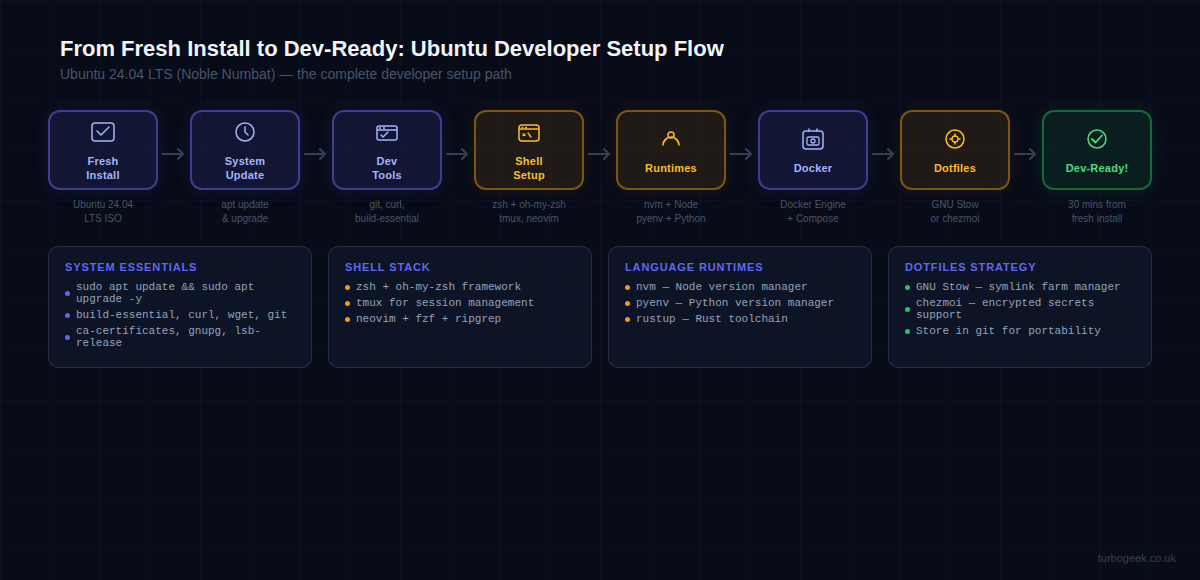
After system update and essentials (covered above), here’s the language runtimes and Docker setup:
The Docker group step is important — running Docker commands without sudo is not just convenience, it’s required for certain tooling (VS Code’s Dev Containers, for instance) to work correctly. The newgrp docker command applies the group change immediately without requiring a logout.
At this point you have a complete development environment: version-managed Node and Python, Docker with Compose, a modern shell with productivity plugins, and dotfiles ready to apply. This is the same base I use for everything from Next.js projects to Python data pipelines to homelab Kubernetes clusters.
Frequently Asked Questions
Is Ubuntu still good for developers in 2026?
Absolutely. Ubuntu 24.04 LTS is supported until 2029, and its ecosystem — tooling, documentation, cloud images, and community support — remains the largest of any Linux distribution. For web development, DevOps, data science, and systems programming, Ubuntu is still the safest default choice. The only real alternative worth considering is Fedora if you want a more cutting-edge GNOME experience and slightly newer kernel versions out of the box, but Ubuntu’s stability and package availability make it hard to beat for day-to-day development work.
What is the best Ubuntu setup for Python development?
Use pyenv to manage Python versions — it keeps system Python untouched and lets you switch between 3.10, 3.11, 3.12, and beyond per-project. Pair it with python -m venv .venv for project-level virtual environments (or use uv, the new Rust-based package manager, for blazing-fast installs). For an IDE, VS Code with the Python and Pylance extensions is the most productive choice on Ubuntu. Keep Jupyter notebooks in a Docker container rather than installed system-wide to avoid dependency conflicts.
How do I make Ubuntu terminal faster and more productive?
Three changes will have the biggest impact. First, switch to zsh with oh-my-zsh and add zsh-autosuggestions and zsh-syntax-highlighting — these alone make the terminal feel dramatically more responsive. Second, install fzf and configure it for both history search (Ctrl+R) and file finding (Ctrl+T); once you use fuzzy search for command history you cannot go back. Third, set up tmux with a sensible config and keep a persistent dev session running. Add aliases for your most-typed commands and you’ll cut your daily keystrokes by a meaningful amount.
If you want to take this further and level up your broader DevOps workflow, check out my post on essential DevOps hacks every developer should know — it builds directly on this Ubuntu foundation.
Leave a Reply