
How do I get the default password for Raspberry Pi? Well, it’s not on the box, and it is not immediately obvious when you burn your Raspberry Pi OS (formerly Raspbian) image.
Heads up — Raspberry Pi OS Bookworm (2023 and later): The default
pi/raspberrycredentials no longer exist on fresh installs. Since Bookworm, the Raspberry Pi Imager requires you to set a username and password before flashing the card. If you are running an older image (Bullseye or earlier), the credentials below still apply.
To Save you a lot of time, the default password for Raspberry Pi (using Raspberry Pi OS Bullseye or earlier) is:
Username: pi
Password: raspberry
It goes without saying that it is highly recommended that you update your default passwords, especially if you are taking your Raspberry Pi online,
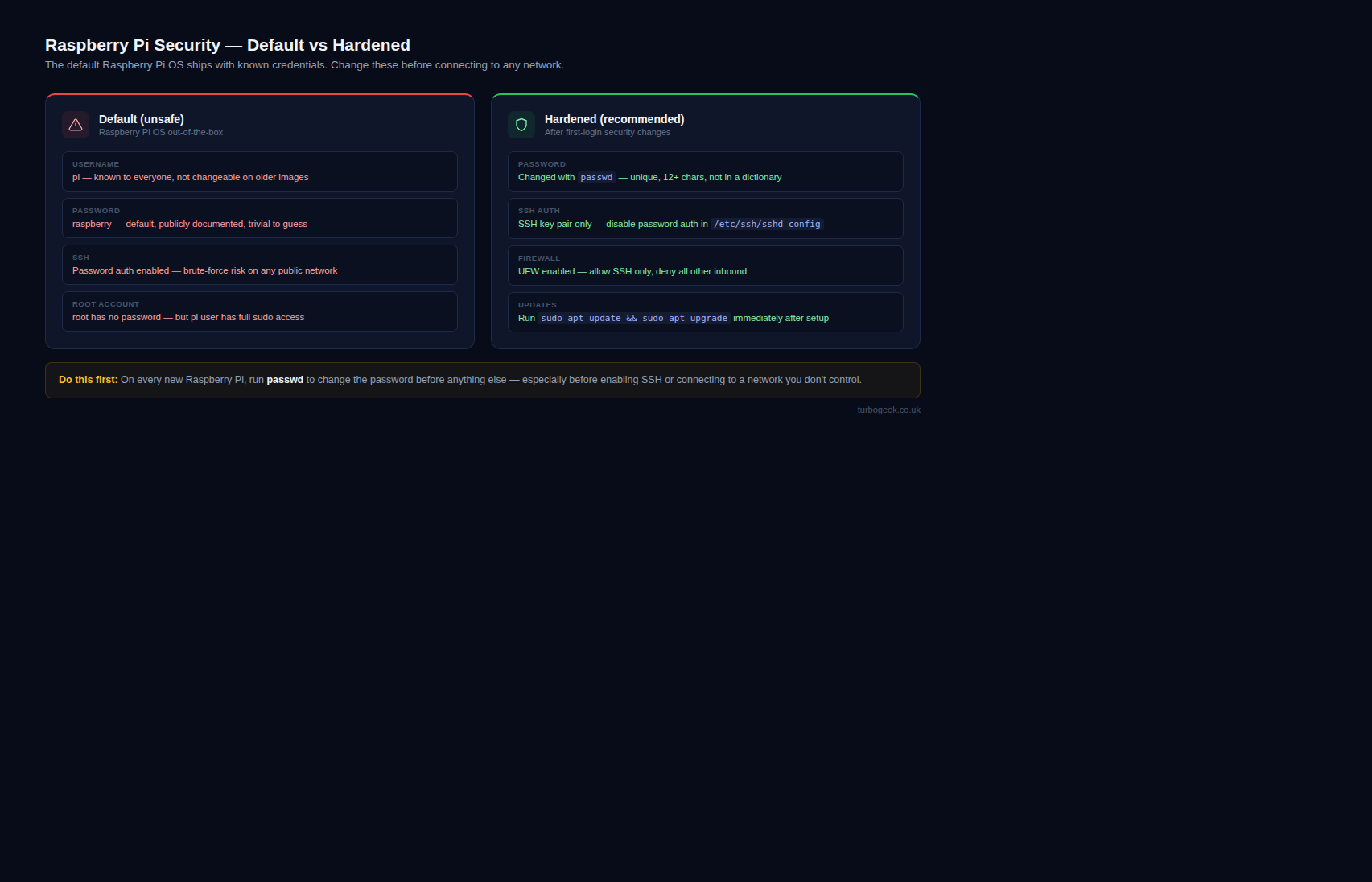
How to Secure Raspberry Pi Defaults
Did you know you can significantly enhance the security of your Raspberry Pi with a simple password change? Protecting your Raspberry Pi from unauthorized access is crucial, especially if it’s connected to your network or the internet.
Follow this step-by-step guide to change the default password and safeguard your Raspberry Pi OS device:
Step 1 – Log On To the Raspberry Pi
Accessing Raspberry Pi OS is simple. You have two options:
- SSH (Secure Shell): If you’re familiar with command-line interfaces, you can SSH into your Raspberry Pi using its default credentials.
- Direct Access (Monitor, Keyboard, Mouse): If you prefer a graphical interface, connect your Raspberry Pi to a monitor, keyboard, and mouse.
ssh [email protected]Username: pi
Password: raspberry Step 2 – Change the Password
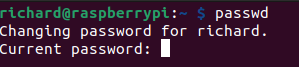
Once logged in, type the following command in the terminal and press Enter
passwdFollow the prompts to create a new, strong password.
Confirming Changes:
Re-enter the new password when prompted.
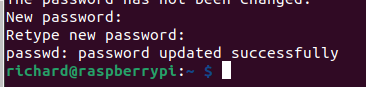
You’ll be asked to enter your current (default) password and then type a new password twice for confirmation. Be sure to choose a strong password that’s difficult to guess. Avoid common passwords or using personal information.
Best Practices for Strong Passwords:
- Use a combination of uppercase and lowercase letters, numbers, and symbols.
- Aim for at least 12 characters.
- Avoid using dictionary words, common phrases, or sequential characters (e.g., “123456”).
- Consider using a passphrase, which is easier to remember but still secure (e.g., “correct horse battery staple”).
Confirming Your Changes
Once you’ve successfully changed the password, log out and try logging back in with your new credentials to ensure everything is working correctly.
Congratulations! Your Raspberry Pi is now more secure with a personalized password. Regularly update your credentials to ensure a safe and worry-free experience. Stay protected!
Leave a Reply