
OneDrive is deeply integrated into Windows 11, which is useful if you want Microsoft cloud backup, and irritating if you want a clean local workstation. The safest way to disable OneDrive is to decide what you actually want to stop: syncing, startup, the account link, or the installed app.
This guide shows the least destructive route first, then the full uninstall path. It also covers the policy option for managed machines, where OneDrive keeps returning after updates or sign-in.
TL;DR
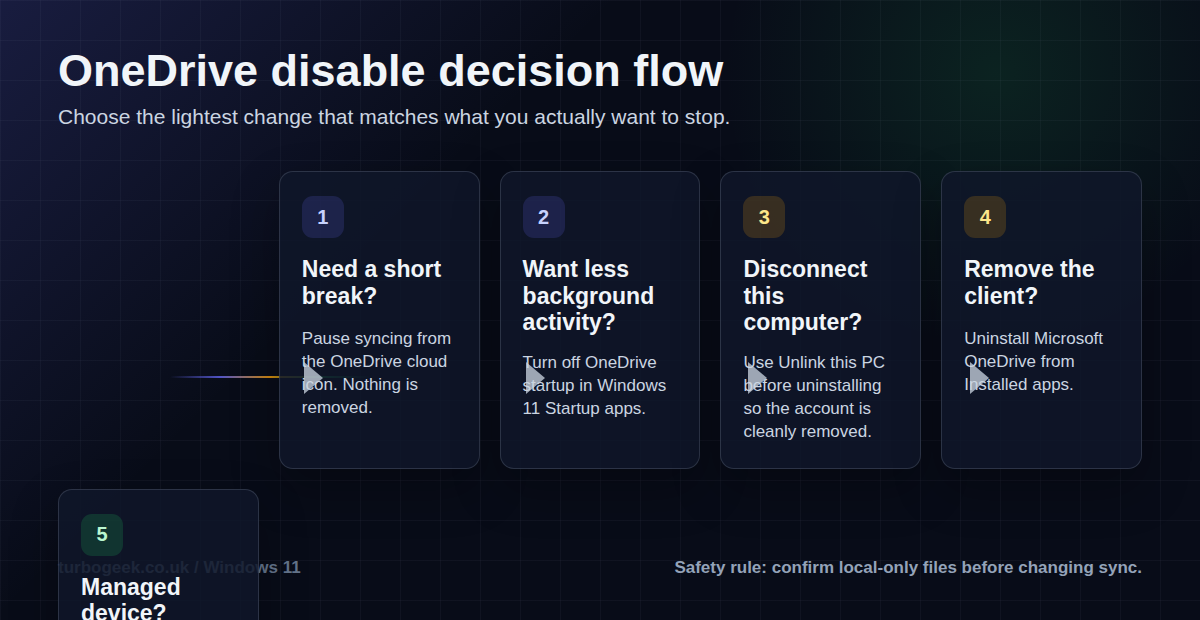
- For a short break, pause OneDrive sync from the cloud icon in the notification area.
- To prevent background startup, disable Microsoft OneDrive in Windows 11 Startup apps.
- Before uninstalling, unlink the PC from OneDrive so the account disconnects cleanly.
- Uninstall from Settings > Apps > Installed apps > Microsoft OneDrive.
- On managed devices, use policy rather than relying on a one-time uninstall.
Start here: if you only want OneDrive to stop taking over Desktop, Documents, or Pictures, start with turning off folder backup and unlinking this PC. Jump to uninstall only when you are sure the local sync client is no longer needed.
Quick Reference
| Topic | When | Path / Command |
|---|---|---|
| Pause sync | You need a temporary stop | OneDrive cloud icon > Help & Settings > Pause syncing |
| Disable startup | You want OneDrive installed but quiet | Settings > Apps > Startup > Microsoft OneDrive > Off |
| Unlink this PC | You want this computer disconnected | OneDrive cloud icon > Settings > Account > Unlink this PC |
| Uninstall OneDrive | You want the sync client removed | Settings > Apps > Installed apps > Microsoft OneDrive > Uninstall |
| Check from Terminal | You want confirmation | tasklist / winget checks below |
| Managed block | Company or lab machines | Policy: DisableOneDriveFileSync / DisableFileSyncNGSC |
Before You Disable OneDrive
Do these checks before changing anything. OneDrive can show files in File Explorer that are cloud-only, locally available, or always kept on the device. If you remove the sync client while assuming every file is local, you can confuse yourself later.
- Open your OneDrive folder and look at the sync status icons before making changes.
- Right-click important folders and ensure critical files are available locally for offline access.
- Check whether Desktop, Documents, or Pictures are being backed up to OneDrive.
- Do not manually delete the OneDrive cloud folder when uninstalling the app.
- Sign in to OneDrive.com to confirm that cloud files are still present.
Microsoft’s own uninstall guidance is clear on the important safety point: unlinking or uninstalling OneDrive does not delete files from OneDrive cloud storage. The risk is usually confusion about where a file lives, not the uninstall action itself.
Option 1: Pause OneDrive Sync Temporarily
Use this when OneDrive is busy syncing, using bandwidth, or interrupting a task, but you do not want to change the account setup.
- Right-click the OneDrive taskbar icon → Pause syncing → choose 2, 8, or 24 hours.
- Pick the pause duration offered by the OneDrive client.
This is the lightest option. It does not unlink the account, remove the app, or permanently change startup behavior.
Option 2: Stop OneDrive Starting with Windows 11
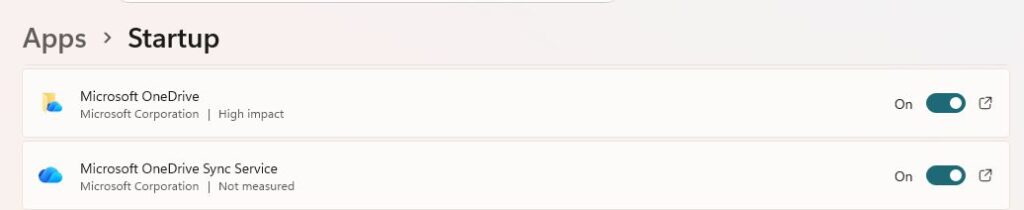
If you do not mind OneDrive being installed but do not want it running every time you sign in, disable it in Startup apps.
- Open Settings.
- Go to Apps > Startup.
- Find Microsoft OneDrive.
- Switch it off.
- Restart or sign out and back in to confirm the change.
You can still open OneDrive manually later. This is a good middle ground for developer machines where you occasionally need cloud files but do not want sync traffic during every login.
Option 3: Turn Off Folder Backup
Folder backup is the bit that often surprises people, because Desktop, Documents, and Pictures can move under OneDrive management.
Turn off the toggle for each folder. OneDrive will ask whether to keep the files only in OneDrive or only on the PC. Read this prompt carefully: one option removes the local copies, while the other removes the OneDrive copies. If OneDrive reports cloud-only files, mark them Always keep on this device and let them download before choosing the local-only option.
- Select the OneDrive cloud icon.
- Open Help & Settings > Settings.
- Go to Sync and backup.
- Open Manage backup.
- Turn off backup for Desktop, Documents, and Pictures if you do not want those folders synced.
The exact label can shift slightly between OneDrive client versions, but the key idea is the same: stop backing up known Windows folders before removing the sync client.
Option 4: Unlink OneDrive from This PC
Unlinking is the safest way to disconnect the current Microsoft account from this Windows installation. Microsoft recommends this as the easiest route if you simply do not want to use OneDrive on a computer.
- Select the OneDrive cloud icon in the notification area.
- Select Help & Settings, then Settings.
- Open the Account tab.
- Select Unlink this PC.
- Confirm Unlink account.
After unlinking, local files that were already downloaded remain on the PC. Cloud files remain available through OneDrive.com or another signed-in device.
Option 5: Uninstall OneDrive on Windows 11
Once folder backup is stopped and the PC is unlinked, uninstall OneDrive like any other Windows 11 app.
- Open Settings.
- Go to Apps > Installed apps.
- Search for Microsoft OneDrive.
- Select the three-dot menu next to Microsoft OneDrive.
- Select Uninstall and confirm the prompt.
If the uninstall button asks for administrator approval, use an administrator account or provide the administrator password. If the device is managed by work or school policy, the uninstall button may be blocked or the app may be reinstalled later.
Optional Terminal Check
If you use Windows Terminal, these commands can help confirm whether OneDrive is running or still registered with Windows Package Manager. The winget package ID is useful only when winget recognises the installed OneDrive package on that PC.
tasklist | findstr /i OneDrive
winget list --name OneDrive
winget uninstall --id Microsoft.OneDrive --exactOption 6: Disable OneDrive with Policy
For shared PCs, lab machines, or managed business devices, policy is more reliable than uninstalling the app by hand. Microsoft documents the DisableOneDriveFileSync policy setting for Windows 11, mapped to the OneDrive policy that prevents OneDrive file sync.
Use Group Policy on Windows 11 Pro, Enterprise, or Education when available:
- Open the Local Group Policy Editor.
- Go to Computer Configuration > Administrative Templates > Windows Components > OneDrive.
- Open Prevent the usage of OneDrive for file storage.
- Set it to Enabled.
- Restart Windows or sign out and back in.
On machines where you intentionally manage this by registry, use an elevated Windows Terminal. This should be treated as an admin policy change, not a casual home-user tweak.
reg add "HKLM\SOFTWARE\Policies\Microsoft\Windows\OneDrive" /v DisableFileSyncNGSC /t REG_DWORD /d 1 /fTo reverse that registry policy later, remove the value or set the policy back to Not configured in Group Policy.
reg delete "HKLM\SOFTWARE\Policies\Microsoft\Windows\OneDrive" /v DisableFileSyncNGSC /fHow to Verify OneDrive Is Disabled or Removed
- Restart Windows 11.
- Check Settings > Apps > Startup and confirm Microsoft OneDrive is not enabled.
- Check the notification area for the OneDrive cloud icon.
- Open Task Manager and search for OneDrive.
- Run the Terminal checks if you used the command-line path.
If OneDrive appears again after a feature update, Office update, or work/school sign-in, check whether Microsoft 365, Intune, or Group Policy is installing or enforcing it.
Troubleshooting
OneDrive comes back after I uninstall it
If OneDrive is installed again, check Microsoft 365 Apps deployment settings, Intune or Configuration Manager assignments, provisioning scripts, and other device management tools.
My Desktop or Documents still point to OneDrive
That is folder backup, not just the app install. Turn off backup for Desktop, Documents, and Pictures first, then move any folders back to the local profile path if needed.
Files look missing after uninstalling
Sign in to OneDrive.com and check whether the files are in cloud storage. If they were online-only Files On-Demand placeholders, they were never fully downloaded to the PC.
The uninstall button is greyed out
Use an administrator account, check whether the PC is connected to work or school management, and check whether OneDrive is being enforced by policy.
FAQ
Will uninstalling OneDrive delete my files?
No. Uninstalling OneDrive removes the sync app from the PC. It does not delete files from OneDrive cloud storage. Locally downloaded files normally remain on the device.
Should I unlink before uninstalling?
Yes. Unlinking first is cleaner because it disconnects the account from the PC before you remove the client.
Is Files On-Demand a better option than uninstalling?
Sometimes. If your real problem is disk space, Files On-Demand can keep cloud files visible without downloading everything. If your problem is privacy, policy, or unwanted sync behavior, unlinking or uninstalling may be more appropriate.
Can I reinstall OneDrive later?
Yes. Windows 11 and Microsoft’s OneDrive installer can add it back later. You can also reinstall it through Microsoft’s OneDrive download path or Windows Package Manager, where available.
Related Reading
If this is part of a clean workstation build, read Windows 11 Developer Setup next. If your main issue is storage pressure, the better companion guide is How to Free Up Disk Space on Microsoft Windows.
Authoritative Sources
- Microsoft Support: Turn off, disable, or uninstall OneDrive
- Microsoft Support: Save disk space with OneDrive Files On-Demand for Windows
- Microsoft Learn: Policy CSP – System / DisableOneDriveFileSync
- Microsoft Learn: Use OneDrive policies to control sync settings
- Microsoft winget-pkgs manifest repository
Leave a Reply