
The GCP console interface is very useful, but sometimes, you may need to SSH directly from your on-premise infrastructure.
This is particularly common after you migrate a Linux server from your own premises to GCP, as the Google Daemon, which provides Google Cloud console access, typically will not be installed.
If you are interested in the Google Daemon, you can check here.
How to SSH into a Google Cloud Platform (GCP) Linux Instance: A Step-by-Step Guide (2024 Update)
While the GCP console is handy, sometimes you need to SSH directly from your computer. This guide makes it easy, even if you’ve migrated a server from your own premises and it doesn’t have the Google Daemon installed.
Prerequisites:
- A GCP account with a Linux VM instance
- PuTTY installed on your Windows machine (Download from: https://www.chiark.greenend.org.uk/~sgtatham/putty/)
Step 1 – Generate an SSH Key Pair
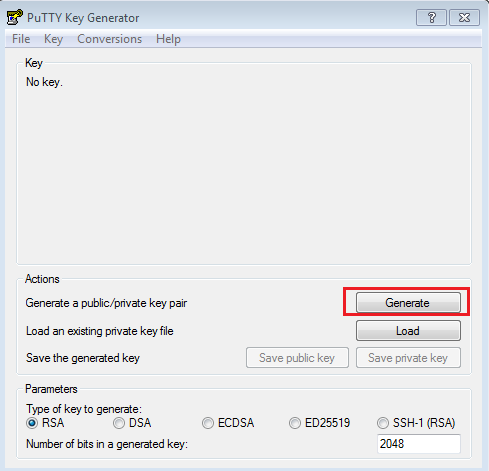
- Open PuTTYgen (from the PuTTY folder in your Start menu).
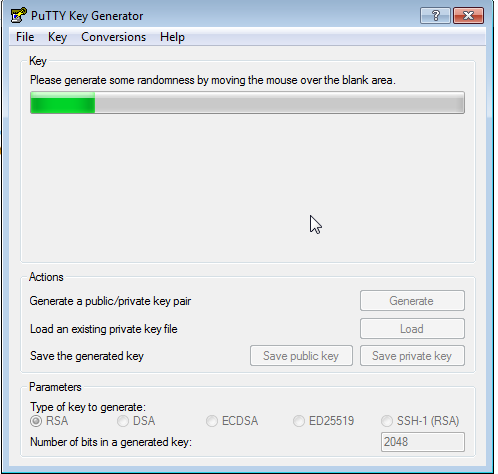
- Click “Generate” and move your mouse around to create randomness.
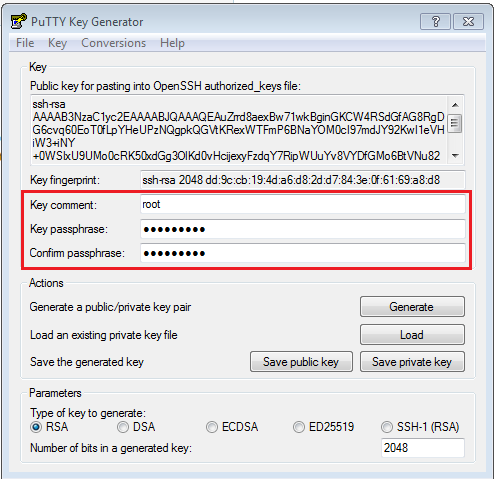
- Enter a username (e.g., “root”) and a secure passphrase.
- Copy the entire public key from the box (you’ll need it later).
- Then click “Save private key” and choose a secure location.
Step 2 – Copy your SSH key to your Cloud Provider
- Log in to the GCP Console and go to “Compute Engine”.
- Click on the VM instance you want to access.
- Click “Edit”.Scroll down to “SSH Keys” and click “Add item”.
- Paste your public key and the associated username.
- Click “Save”.
Step 3 – SSH to Instance
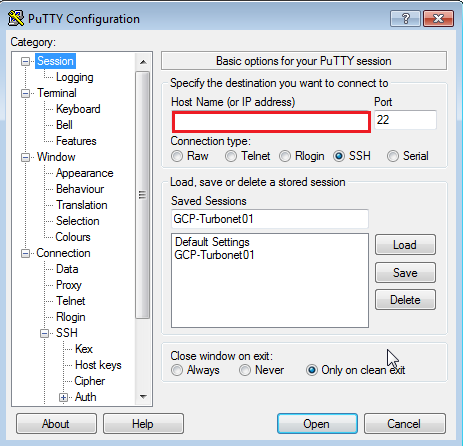
- Open PuTTY.
- In the “Host Name (or IP address)” field, enter the External IP of your GCP instance (found on the VM details page).
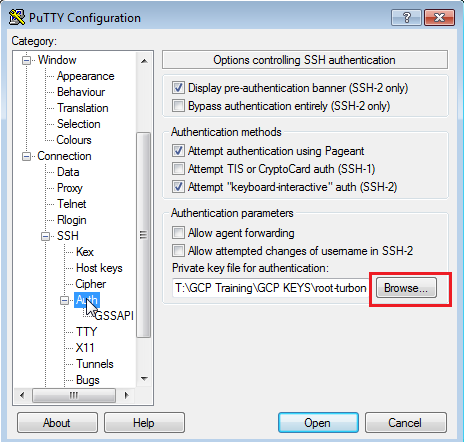
- In the left pane, go to “Connection” > “SSH” > “Auth”.
- Click “Browse” and select your saved private key file.
- Click “Open” to initiate the SSH connection.
- You may be asked to confirm the host’s fingerprint (it’s okay if it’s your first time).
- Enter your passphrase when prompted.7
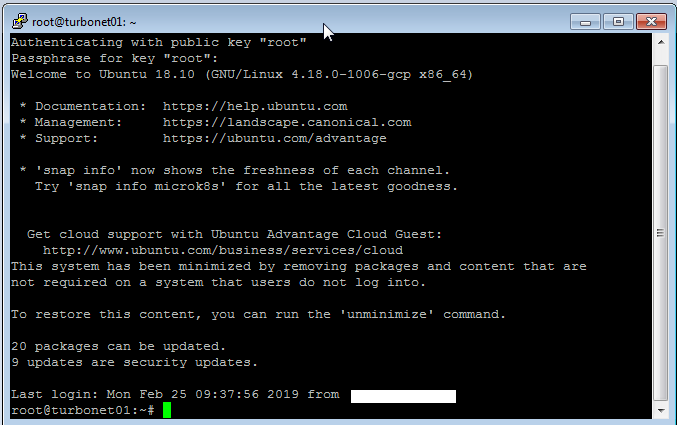
Congratulations! You should now be logged into your GCP Linux instance via SSH.
Leave a Reply