

Cursor is not a plugin. It’s a full VS Code fork rebuilt from the ground up for AI-assisted development. If you’ve been using Copilot and wondering why it still feels bolted-on, Cursor is the answer.
I’ve been running Cursor as my primary IDE for several months now, and the difference isn’t subtle. This isn’t autocomplete with a chat panel grafted on. The entire editor is designed around AI-native workflows — from the keyboard shortcuts to the way it indexes your codebase to the agent that can go read six files and make coordinated changes across all of them.
TL;DR — Cursor: The AI IDE That Writes Code Alongside You
- Cursor is a VS Code fork with AI baked in at every level — not a plugin
- Cmd/Ctrl+K rewrites selected code inline; Ctrl+L opens a chat panel with full repo context
- Agent mode (Cmd/Ctrl+Shift+I) executes multi-file tasks autonomously
.cursorruleslets you encode project-level AI instructions that persist across every session- $20/month Pro; free tier is generous enough to evaluate properly
- Best used alongside Claude Code — Cursor for daily IDE work, Claude Code for large autonomous tasks
| Feature | What it does | Shortcut / Setting |
|---|---|---|
| Inline edit | AI rewrites selected code | Cmd/Ctrl+K |
| Chat panel | Ask questions about your codebase | Ctrl+L |
| Agent mode | Multi-file autonomous task execution | Cmd/Ctrl+Shift+I |
| Codebase index | Entire repo in context | Automatic |
| Rules | Custom AI instructions per project | .cursorrules file |
New to Cursor? Start with The Features That Actually Matter — it skips the marketing and shows you what changes day-to-day.
What Cursor Is (and Why It’s Not Just Copilot)
Cursor started as a fork of VS Code. That means you bring everything with you: extensions, themes, keybindings, settings sync. If you use Prettier, ESLint, GitLens, or any other extension from the VS Code marketplace, it works in Cursor. The migration cost is essentially zero.
The difference is what happens when you open a project. Cursor immediately indexes your entire repository — not just the open file, not just recent files. The whole thing. When you ask it a question or request an edit, it has the full picture of your codebase as context.
GitHub Copilot is autocomplete with a chat tab bolted on. It’s useful. It’s not in the same category as Cursor. Copilot sees the file you’re editing and a handful of related files it guesses might be relevant. Cursor sees everything and lets the AI reason about your entire project architecture before it touches a single line.
The real differentiator is agent mode. When you activate it, Cursor doesn’t just suggest code — it reads files, understands dependencies, makes changes across multiple files, runs the changes, and checks the output. That is a fundamentally different product from autocomplete.
The Features That Actually Matter
There are three features that changed how I write code every day. Not the headline features from the marketing page — the ones you actually reach for dozens of times per session.
Cmd/Ctrl+K — Inline Edit
Select any block of code, press Cmd+K (Mac) or Ctrl+K (Windows/Linux), and describe what you want. The AI rewrites it inline. No chat panel, no copy-paste. The change appears in the editor as a diff you can accept or reject.
I use this constantly. Refactor this function to be async. Add error handling. Convert this to use the repository pattern. Extract this logic into a utility. The turnaround is fast enough that it’s become the first thing I reach for instead of the last.
Agent Mode — Multi-File Autonomous Tasks
Open agent mode with Cmd/Ctrl+Shift+I and type a task. Not a question — a task. “Add input validation to all form components.” “Refactor the authentication middleware to use the new token format.” “Update all API calls to use the v2 endpoints.”
Cursor reads the relevant files, plans the changes, makes them, and shows you the result. For complex tasks in large codebases, this is where the $20/month pays for itself in the first hour.
.cursorrules — Project-Level AI Instructions
Create a .cursorrules file in your project root. Every AI interaction in that project inherits the instructions. TypeScript conventions, testing requirements, import patterns, error handling style — encode it once and every Cmd+K and agent session respects it.
Here’s what a typical .cursorrules file looks like for a Next.js TypeScript project:
Without .cursorrules, every session starts fresh and you’re nudging the AI back toward your conventions every time. With it, the AI already knows what “good code” means in your project before you type the first character.
Getting Started in 10 Minutes
Download Cursor from cursor.com. Install it, open it, and sign in with GitHub. If you’ve been using VS Code settings sync, your extensions and settings appear immediately. The migration is genuinely painless — I was surprised.
Once you’re in:
- Open your existing project or clone a repo
- Wait for the codebase index to build (a minute or two on first open)
- Create a
.cursorrulesfile in the project root with your team’s conventions - Select any function, press Cmd/Ctrl+K, and ask it to refactor it
- Open Ctrl+L and ask a question about your codebase — “where is user authentication handled?”
That first Cmd+K will tell you everything you need to know about whether this is worth switching to. For most developers, it is.
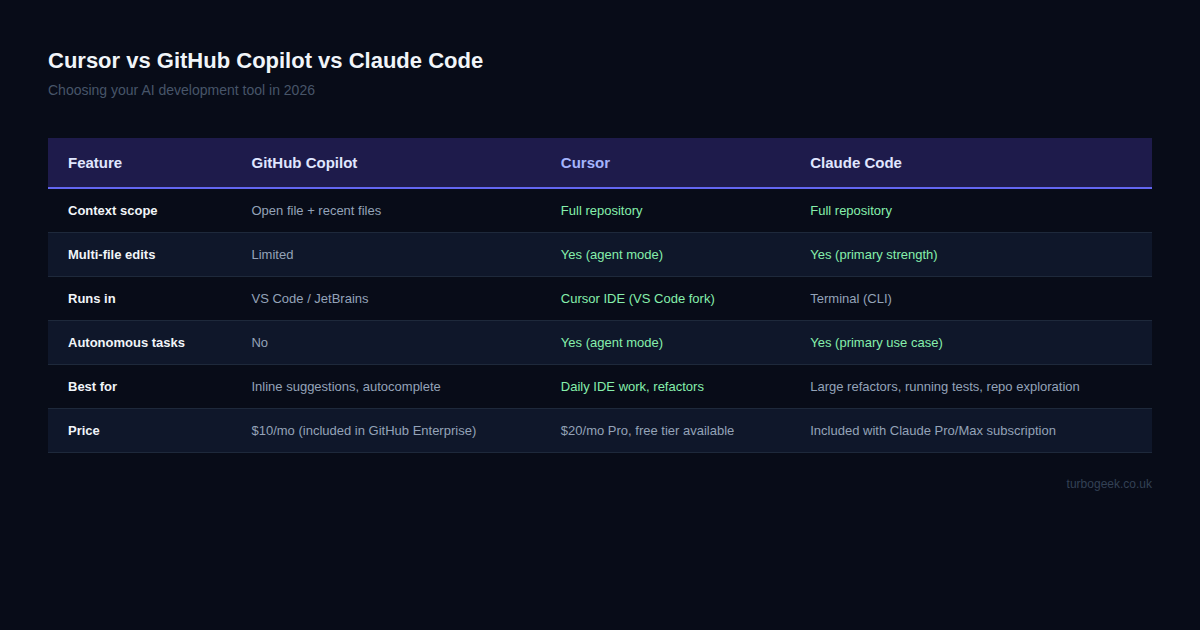
Cursor vs GitHub Copilot vs Claude Code
I use all three. They’re not competing for the same slot in my workflow — they do different things best.
GitHub Copilot is still the king of raw inline suggestion speed. If you’re in the flow and want the AI to predict the next few lines without interrupting you, Copilot’s autocomplete is marginally faster and less intrusive. Its chat panel is functional but limited to the current file context. For pure autocomplete, it’s hard to beat.
Cursor wins on the overall IDE experience. Better codebase context. More capable agent mode. The Cmd+K inline edit feels more deliberate and accurate than Copilot’s suggestions. If you’re going to use one AI IDE, Cursor is the answer for most developers.
Claude Code is a different category entirely. It runs in the terminal, not the IDE. It’s designed for large autonomous tasks: repo-wide refactors, running and fixing tests, exploring unfamiliar codebases, executing multi-step plans. When I need to “migrate all API routes to the new auth pattern and verify the tests pass,” that’s Claude Code. When I’m in the editor writing new features, that’s Cursor.
My recommendation: use Cursor as your primary IDE. Add Claude Code for the heavy lifting — large refactors, test runs, anything that requires the AI to work across the whole repo for an extended period without you babysitting it.
The Verdict
Cursor Pro at $20/month is worth it for any developer writing code as a significant part of their daily work. The free tier is generous — you get meaningful agent mode access and real inline edits before you’re asked to pay. Evaluate on the free tier first. Most developers I know converted within a week.
The agent mode alone justifies the cost for anyone working on a complex codebase. The amount of time I’ve saved on cross-cutting changes — the kind that used to mean opening eight files and carefully making the same structural edit in each one — is measurable in hours per month, not minutes.
If you’re still treating AI as an autocomplete enhancement, Cursor is the upgrade that changes that mental model entirely. It’s not autocomplete. It’s a collaborator that can read your whole project and act on it.
Frequently Asked Questions
Is Cursor worth paying for?
Yes, for developers coding daily. The $20/month Pro plan removes rate limits and enables full agent mode without restrictions. The free tier is enough to evaluate it properly — I’d recommend spending a week on the free tier before deciding. If you’re reaching for Cmd+K and agent mode regularly (and you will be), the Pro plan pays for itself quickly.
Does Cursor work with TypeScript?
Fully. TypeScript is first-class in Cursor — the codebase indexing handles TypeScript projects cleanly, type information feeds into AI suggestions, and .cursorrules lets you encode your project’s specific TypeScript conventions (no any, strict null checks, path aliases, etc.) so every AI interaction respects them automatically.
Is Cursor better than Copilot?
For most developers, yes. The deeper codebase context, more capable agent mode, and better multi-file editing put Cursor ahead for the majority of use cases. Copilot has a slight edge on raw inline suggestion speed — if you want the fastest autocomplete that gets out of your way, Copilot still has an argument. But for deliberate, project-aware AI assistance, Cursor wins.
Figuring out your full AI tooling spend? This honest breakdown of whether Claude Max makes sense alongside Cursor covers the subscription math and which plan fits which workflow.
Leave a Reply