
Claude Code has a built-in command system. You can add your own — called skills — that load a full set of instructions, templates, and checklists the moment you type /skill-name. One command, full context. No re-explaining your conventions, no copy-pasting prompts, no hoping Claude remembers what you told it last session.
I’ve been using skills for a few months now and they’ve quietly become one of the most valuable parts of my workflow. Here’s everything you need to know to build your own.
TL;DR — Claude Code Skills at a Glance
- Skills are Markdown files in
~/.claude/skills/(global) or.claude/skills/(project) - Type
/skill-namein the Claude Code prompt to invoke one - Claude reads the file and uses its contents as instructions for that session
- Skills can contain instructions, templates, checklists, and code examples
- Skills can reference other skills — they compose
- Part of the broader Superpowers ecosystem for Claude Code
| Element | What it does | Example |
|---|---|---|
| Skill file | Markdown file Claude reads on invoke | ~/.claude/skills/deploy.md |
| Invocation | Type /skill-name in prompt | /deploy |
| Instructions | Tell Claude exactly how to behave | “Always run tests first” |
| Templates | Reusable code/content patterns | Commit message format |
| Checklists | Step-by-step task guides | Post-deploy checklist |
New to skills? Start with How to Create Your First Skill below — it’s five minutes to a working command.
What Claude Code Skills Are
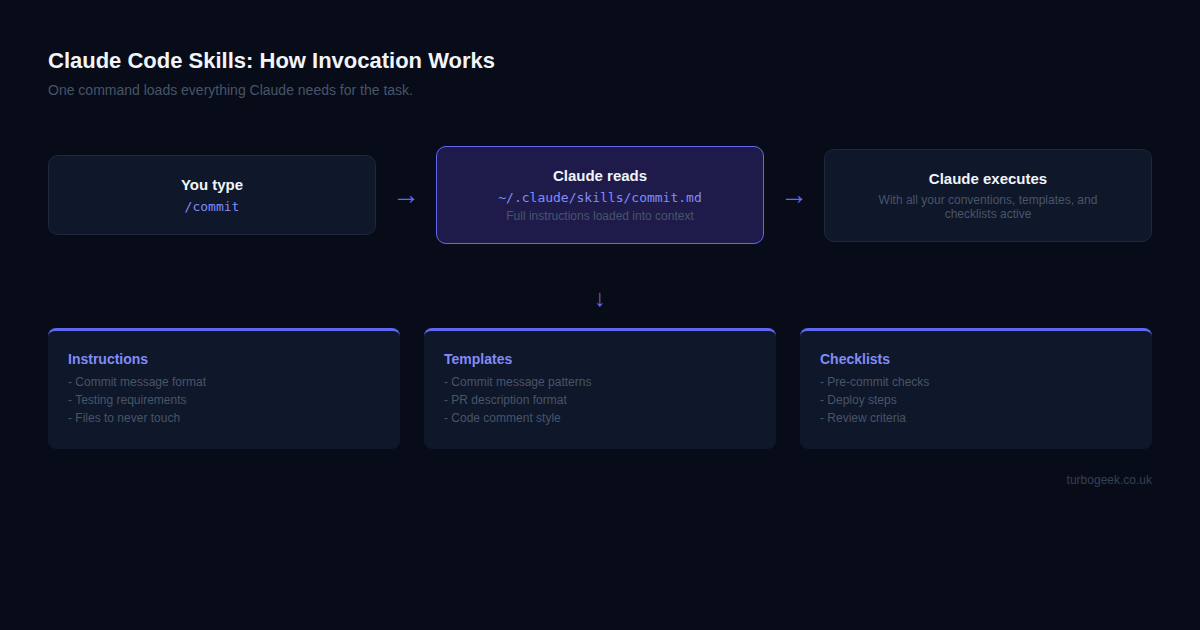
A skill is a Markdown file. That’s it. You save it to ~/.claude/skills/ (for global use across all projects) or .claude/skills/ inside a specific project directory (for project-only skills). When you type /skill-name in the Claude Code prompt, Claude reads that file and uses its contents as instructions for the entire session.
Think of it as a detailed brief. You wouldn’t brief a contractor every single time they showed up on site — you’d write it once, keep it on file, and hand it over at the start of each engagement. Skills do the same thing for Claude. Write the instructions once, invoke them instantly, get consistent results without re-explaining your conventions every time.
This is different from just typing instructions in the chat. A skill is persistent, versioned, and shareable. Your team can use the same skill files. You can commit them to your repo. You can evolve them over time as your conventions change.
How to Create Your First Skill
Let’s build a commit skill. The problem it solves: every time I want Claude to write a commit message, I find myself typing the same thing — “use conventional commits, imperative mood, include Co-Authored-By, run tests first.” Tedious. Error-prone. Boring.
Instead, I create ~/.claude/skills/commit.md with exactly that brief:
Now I type /commit in the Claude Code prompt. Claude reads the file, applies every rule, and writes commit messages that match my project conventions — every single time.
Before skills: “Use conventional commits, format type(scope): description, imperative mood, max 72 chars, include Co-Authored-By, run tests first, check for console.log…”
After skills: /commit
That’s the whole pitch. The difference is obvious when you’re doing it twenty times a day.
The Anatomy of a Good Skill
Not all skills are equally effective. Here are the five elements that separate a skill Claude actually follows from one it only partially applies:
- Clear purpose statement at the top. The first line should tell Claude exactly what this skill is for. “Write a conventional commit” is better than “Commit helper”.
- Exact instructions, not vague guidance. “Use imperative mood, max 72 characters, no trailing period” beats “write good commit messages”. Specificity is what gets consistent results.
- Examples of good and bad output. Claude responds extremely well to concrete examples. Show it what you want and what you don’t want. The commit skill above does this: “Good: feat(auth)… Bad: updated auth stuff”.
- Checklists for multi-step tasks. Checkboxes in Markdown (
- [ ] item) work as literal checklists Claude works through. Use them for anything that has a required sequence of steps. - References to project files and patterns. Skills can point to specific files: “See CONTRIBUTING.md for the style guide” or “Check src/types/index.ts for existing type patterns”. Claude will read those files as part of the skill execution.
A poorly structured skill is just a wall of text. A well-structured skill is a brief that Claude can execute against reliably.
Real Skill Examples
Here are four skills I use daily. I’ll show you the /review skill in full detail — the others follow the same pattern.
- /review — Code review checklist: check for edge cases, test coverage, naming clarity, potential performance issues, security concerns. Outputs a structured review with pass/fail for each criterion.
- /test — TDD cycle: write failing test first, implement minimal code to pass, refactor. Enforces the red-green-refactor loop and prevents Claude from jumping ahead to implementation before tests exist.
- /deploy — Pre-deployment checklist: run full test suite, check environment variables, verify migrations, confirm feature flags, test rollback procedure, notify team. Claude won’t skip a step.
- /post — Blog post workflow: full Gutenberg block format, TL;DR box, quick-reference table, Code Block Pro for all code, featured image upload via curl. The skill that powers this very post.
The /review skill in full, so you can see the structure:
Type /review, paste the diff, and Claude walks through every criterion and outputs a structured result. Consistent every time.
Going Further with Superpowers
Skills become even more powerful when you treat them as composable building blocks rather than isolated commands.
A skill can reference another skill. Your /deploy skill can say “First invoke /test to confirm all tests pass” — Claude will read and apply both skills in sequence. Build a library of small, focused skills and compose them into larger workflows.
Skills are part of the Superpowers ecosystem for Claude Code — a broader system of skills, hooks, and CLAUDE.md context files that work together to give Claude persistent, project-aware knowledge. Skills handle the what to do. Hooks (covered in yesterday’s post) handle the when to do it automatically. Combine them and you get fully automated workflows that don’t need you to type anything at all.
The practical path: start with one skill for the task you do most often. Get it working, refine it over a week or two, then expand. Don’t try to skill-ify everything at once — you’ll end up with a pile of files nobody uses. Build what you actually invoke.
Frequently Asked Questions
What are Claude Code skills?
Skills are Markdown files that load a set of instructions into Claude Code when invoked with a /skill-name slash command. They let you encode project conventions, templates, and checklists so Claude follows them consistently across every session — without you re-explaining the context each time.
Where do I save skill files?
Globally in ~/.claude/skills/ — these are available in all your projects. Or inside a project directory at .claude/skills/ — these only activate when you’re working in that project. Project-level skills take precedence over global ones if there’s a name collision.
Can skills call other skills?
Yes. A skill can reference another skill file by name and Claude will read both. This lets you build composable instruction libraries — a /release skill that invokes /test, then /deploy, then /changelog in sequence. The composability is what turns a collection of individual commands into a real workflow system.
Skills pair naturally with hooks — see the hooks post for how to combine them into fully automated workflows that run without any manual invocation at all.