
Most teams use SharePoint as a file dump. That’s a waste. SharePoint in 2026 has deep Power Automate integration, AI-driven document processing, Copilot search, and a set of features that most IT teams have enabled but few know about. I’ve spent the past year working with organizations that have hundreds of thousands of documents sitting in SharePoint libraries with zero automation, no metadata, and folders nested six levels deep. It doesn’t have to be that way.
TL;DR
- What’s new: SharePoint Premium brings AI document classification; Copilot integrates directly into SharePoint search.
- Power user tips: Column formatting with JSON, metadata views instead of folders, and audience targeting are underused by most teams.
- Power Automate: “When a file is created” triggers unlock approval workflows, archiving, and digest emails without writing code.
- Copilot honest take: Useful for knowledge teams with good metadata; limited value for teams using SharePoint as a file dump.
- Priority order: Power Automate integration → metadata views → SharePoint Premium AI → Copilot pilot.
| Feature | What it does | Where to find it |
|---|---|---|
| Power Automate | Automate document workflows | SharePoint → Automate menu |
| SharePoint Premium | AI content processing | Microsoft 365 admin |
| Copilot in SharePoint | AI search and summarise | Sites → Copilot chat |
| SharePoint Embedded | Embed SP into custom apps | Azure / M365 dev |
| Version history | Track all document changes | Document → Version History |
New to SharePoint admin? Start with What’s New in SharePoint in 2026 — it covers the changes that matter before the power user tips below.
What’s New in SharePoint in 2026
The headline feature is SharePoint Premium (formerly Microsoft Syntex). It now includes AI-powered document classification, content extraction, and automatic tagging — without any custom development. Upload an invoice, and SharePoint Premium can classify it as an invoice, extract the vendor name and total, and automatically apply metadata tags. For organizations processing large volumes of documents, this is genuinely transformative.
Copilot is now integrated into SharePoint search. Instead of typing keywords and browsing results, you can ask SharePoint natural language questions: “Show me all contracts from last quarter” or “What’s our current leave policy?” Copilot searches across your site content, summarises the relevant documents, and surfaces them in a conversational interface. The quality depends heavily on how well your documents are labeled and structured — more on that in the Copilot section.
SharePoint Embedded is the most developer-focused addition. It lets you build SharePoint document storage and management into custom applications — without exposing the SharePoint UI to your end users. If you’re building a custom HR portal or a client-facing document repository, SharePoint Embedded gives you the storage, permissions, versioning, and compliance infrastructure of SharePoint, wrapped in whatever interface you want to build in Azure or Microsoft 365.
Power User Tips Most Teams Miss
These five capabilities have been in SharePoint for years. Most teams have never touched them.
(a) Column formatting with JSON. SharePoint list columns can be conditionally formatted using JSON rules — change background color, text color, and icons based on column values. A status column that turns red for “Overdue”, amber for “In Review”, and green for “Complete” takes about 20 minutes to configure and makes dashboards dramatically more usable. You don’t need Power Apps or a developer — just paste JSON into the column formatting panel.
Example JSON for a color-coded status column:
{
  "$schema": "https://developer.microsoft.com/json-schemas/sp/v2/column-formatting.schema.json",
  "elmType": "div",
  "style": {
    "background-color": "=if([$Status] == 'Complete', '#16a34a', if([$Status] == 'In Review', '#d97706', '#dc2626'))",
    "color": "white",
    "padding": "4px 10px",
    "border-radius": "4px",
    "font-weight": "600"
  },
  "txtContent": "[$Status]"
}(b) Metadata views instead of folder structures. Folders in SharePoint are a legacy pattern. Once you have metadata columns — Department, Document Type, Project, Status — you can create filtered views that show exactly the documents a user needs without them ever navigating a folder tree. A Finance team sees their documents. A Project Manager sees theirs. Same library, different views. Zero folder chaos.
(c) Document templates pre-populated with metadata. When a user creates a new document from a SharePoint template, you can pre-populate metadata columns automatically — Document Type, Author, Department — based on the template selected. This gets metadata populated at creation time rather than retroactively, which is where most metadata initiatives fail.
(d) Audience targeting in navigation and news. SharePoint’s audience targeting feature lets you show different navigation links and news articles to different groups. Your IT department sees IT news. Sales sees pipeline updates. It’s configured in the SharePoint admin panel and requires no code — just group membership and a toggle in the web part settings.
(e) Site scripts and site designs to automate provisioning. If you provision SharePoint sites regularly — for new projects, new clients, new departments — site scripts let you define a standard structure in JSON and apply it automatically. Every new project site gets the same document libraries, the same columns, and the same permission groups. This saves hours per site and eliminates configuration drift.
Automating SharePoint with Power Automate
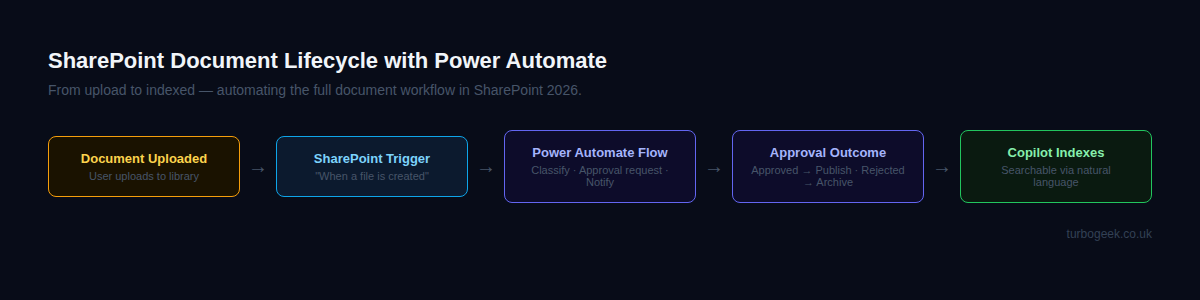
Power Automate integrates directly with SharePoint through a dedicated connector. The most useful trigger is “When a file is created or modified” — it fires every time a document lands in a library, giving you a hook to run any workflow logic without writing code.
Here are three practical automations worth building:
1. Document approval on upload. When a document is uploaded to a SharePoint library, start an approval request and notify the relevant team member. If approved, apply a metadata tag and move the document to the published folder. If rejected, notify the author with comments.
2. Archive on status change. When a list item’s Status column changes to “Complete”, Power Automate moves the associated file to an archive library and updates the item with a completion timestamp. No manual filing, no forgotten documents sitting in active libraries.
3. Weekly document digest. Every Monday morning, Power Automate queries the SharePoint library for all documents modified in the past 7 days and sends a formatted digest email to the team. No manual checking, no missed updates.
Here’s the trigger configuration for the approval flow:
{
  "trigger": "When a file is created or modified",
  "conditions": [
    {"column": "DocumentType", "value": "Invoice"}
  ],
  "actions": [
    {"type": "Start an approval", "assignTo": "[email protected]"},
    {"type": "Send email", "to": "trigger.author", "subject": "Document under review"}
  ]
}
SharePoint + Copilot: What Works and What Doesn’t
I’ll be direct: Copilot in SharePoint is genuinely useful for some teams and close to useless for others. The difference is almost entirely down to your metadata and document quality.
Works well for:
- Summarising long documents — feed Copilot a 40-page policy document and ask for a 5-bullet summary. It handles this reliably.
- Finding content across a large site — “Find all documents related to GDPR compliance” works well when documents have sensible titles and metadata.
- Answering questions about policies — “What’s the process for requesting annual leave?” If the HR policy document is well-written and indexed, Copilot can surface the relevant section accurately.
Works poorly for:
- Real-time data — Copilot indexes documents, not live data. If you need current stock levels or live project status, Copilot isn’t the tool.
- Documents with poor metadata — if your SharePoint library has 50,000 files named “Document1.docx”, “Final_v3.pdf”, and “New folder (2)”, Copilot will produce unreliable results.
- Large binary files — PDFs, PowerPoints, and scanned images without OCR are poorly indexed. Copilot works best with well-structured text documents.
My honest assessment: Copilot in SharePoint is worth a pilot for knowledge-heavy teams — legal, HR, compliance, research — where staff spend significant time searching for policies and precedents. For teams using SharePoint primarily for file storage with minimal structure, the investment won’t pay off until you fix the underlying data quality problem first.
The Features Worth Learning This Year
If I had to prioritize where to invest time in SharePoint in 2026, here’s my ranking:
- Power Automate integration — highest ROI, available to every Microsoft 365 subscriber, no additional licensing. Start here. Even a single approval workflow can save hours per week for a busy team.
- Metadata-driven views — stop folder chaos, make Copilot more effective, and pay dividends on every other feature you add. This is the foundation.
- SharePoint Premium AI processing — worth evaluating if your team processes large volumes of incoming documents (invoices, contracts, forms). The ROI depends on document volume and classification complexity.
- Copilot — worth a pilot for knowledge teams once your metadata is in good shape. Don’t skip steps 1 and 2 first.
Frequently Asked Questions
What’s new in SharePoint 2026?
SharePoint Premium now includes AI-powered document classification and extraction—previously available only through custom Syntex models — making it more accessible across Microsoft 365 tiers. Copilot is integrated into SharePoint search, enabling natural-language queries across site content. SharePoint Embedded allows developers to build custom applications with SharePoint document storage as the backend, without requiring users to interact with the SharePoint interface directly.
How do I automate SharePoint with Power Automate?
Connect Power Automate to your SharePoint library using the “When a file is created or modified” trigger. From there, you can chain approval flows, notifications, archiving, and metadata updates without writing code. Start in the SharePoint library’s Automate menu — it surfaces pre-built flow templates for the most common scenarios, including approval requests and email notifications. For more complex flows, build them directly in Power Automate’s designer using the SharePoint connector.
Is SharePoint Copilot worth it?
For knowledge-heavy teams that need to search across large document libraries — legal, HR, compliance, research — yes, it’s worth piloting. For teams using SharePoint primarily for file storage with minimal metadata, the value is limited, and you’ll spend more time troubleshooting Copilot’s inconsistent results than you’ll save. Fix your metadata and document structure first, then evaluate Copilot on a small pilot group before rolling it out broadly.
SharePoint automation is just one piece of the 2026 automation picture. The AI workflows start page — from no-code tools to AI agents — is a better jumping-off point if you want the broader picture of automation tooling and workflows in 2026.
Leave a Reply