
AWS-Vault on macOS is most useful when you want to keep AWS access keys in Keychain, assume roles with MFA, and open short-lived CLI or console sessions without having to export secrets all day.
This page is the macOS-specific child guide in the TurboGeek AWS-Vault family. For the broader overview and the Windows and Linux variants, start with AWS-Vault Guide: Install, Configure, and Use It Securely.
Important: the original 99designs repository is marked abandoned. If you plan to standardise on AWS-Vault, review the maintenance status and compare it with IAM Identity Center before rolling it out widely.
Quick Answer
- Install via Homebrew:
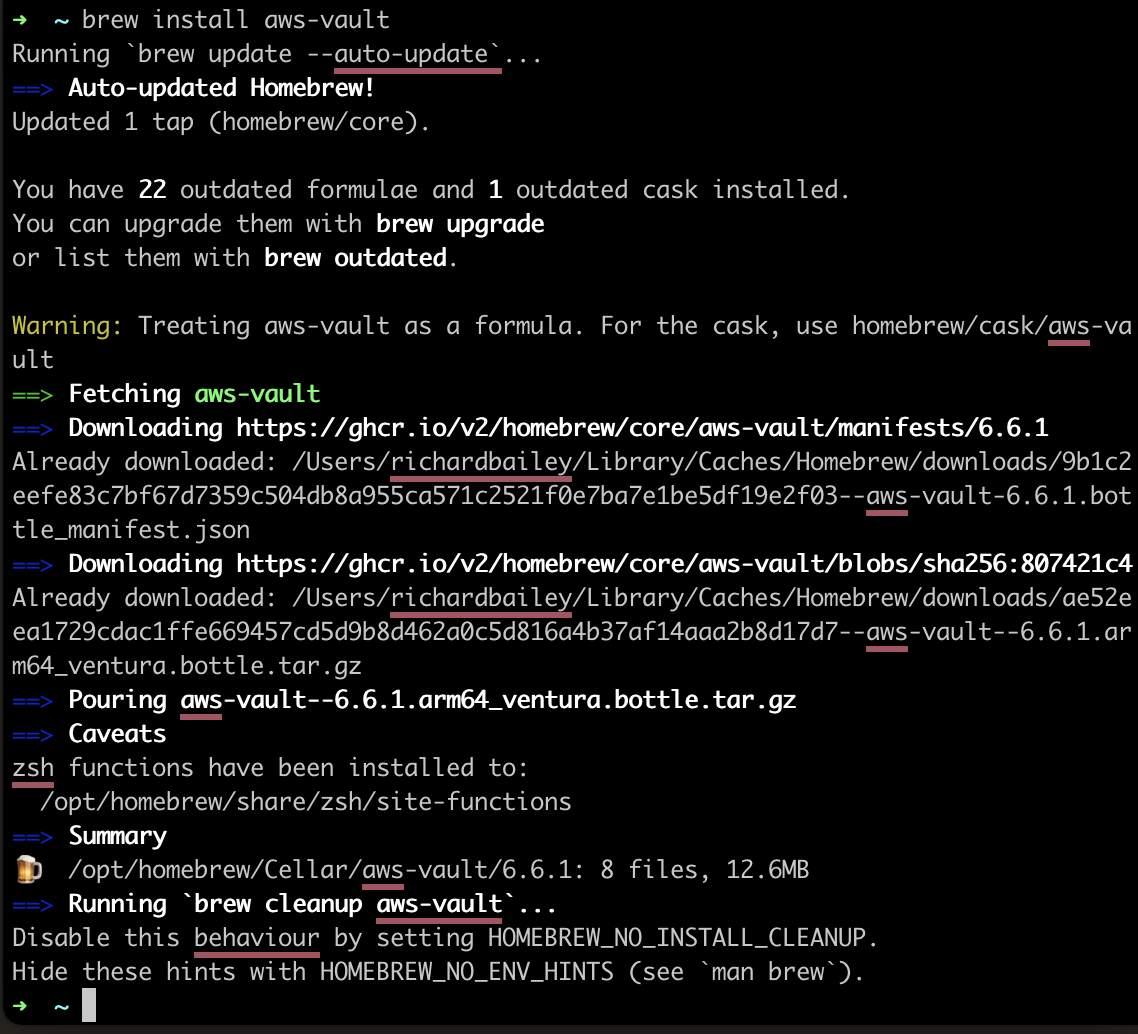
brew install aws-vault - Verify:
aws-vault --version - Add a profile:
aws-vault add my-profile(enter IAM access key and secret when prompted) - Test:
aws-vault exec my-profile -- aws sts get-caller-identity - To assume a role, add
role_arnto the profile in~/.aws/config
Prerequisites
- A Mac with Homebrew installed.
- AWS CLI v2 is installed and available on your path.
- An AWS IAM user or bootstrap profile that can assume the role you want to use.
- MFA is enabled if your organisation requires it.
Install AWS-Vault with Homebrew
The most common macOS install method is Homebrew:
brew install aws-vaultOpen a new terminal window and verify the install:
aws-vault --versionAdd a base profile
Store your Bootstrap IAM-user credentials in macOS Keychain:
aws-vault add devYou will be prompted for the access key ID and secret access key for that bootstrap profile.
Configure a role profile
Edit ~/.aws/config and define the role you want to use day to day:
[profile dev-admin]
source_profile = dev
role_arn = arn:aws:iam::123456789012:role/DeveloperAccess
mfa_serial = arn:aws:iam::123456789012:mfa/your.name
region = eu-west-2Test CLI access
aws-vault exec dev-admin -- aws sts get-caller-identityIf the role and MFA are configured correctly, AWS-Vault will prompt for the token and then return the caller identity for the assumed role.
Open the AWS Management Console
aws-vault login dev-adminThis opens a short-lived browser session for the selected profile.
macOS-specific tips
- AWS-Vault uses Keychain on macOS, so your macOS account password and local disk encryption matter.
- If you are using Apple Silicon, make sure Homebrew is available in your shell profile before testing the install.
- Use
aws-vault listto review stored profiles andaws-vault remove devto delete one you no longer need.
Leave a Reply