
TL;DR — Getting Started with Cursor
- It’s a VS Code fork — your extensions, keybindings, and settings import automatically; setup takes five minutes
- Three features matter on day one — Tab autocomplete, Chat (Cmd+L), and Composer (Cmd+I) cover 90% of daily AI-assisted work
- Add a .cursorrules file immediately — it tells Cursor how your project works and dramatically improves suggestion quality from the start
- The learning curve is shallow — the main shift is describing tasks instead of executing them manually; most developers are productive within a day
In this series
- Claude Code vs Cursor — which AI coding tool is right for you?
- Getting Started with Cursor — setup and the three features that matter
- GitHub Copilot vs Claude Code — an honest comparison
- 10 Things Each Tool Does That the Other Can’t
- Using Claude Code and Cursor Together — the parallel workflow
- Is GitHub Copilot Still Worth It? — an honest reassessment in 2026
- The AI Coding Tools Cheat Sheet — all three tools at a glance
If you are still writing code in VS Code with GitHub Copilot — or worse, with no AI tooling at all — I want to make a direct case: switching to Cursor is the single highest-return change you can make to your development workflow right now. Not eventually. Now.
This is not a feature comparison article. It is not a list of everything Cursor can do. It is the guide I wish I had on day one: what actually matters, what to set up first, and what a real working session looks like. If you give it a week, you will not go back.
Installation and Setup
Cursor is a fork of VS Code. That single fact removes most of the friction that stops developers from trying new editors. Head to cursor.sh, download the installer for your platform, and run it. The whole process takes less than five minutes.
On first launch, Cursor asks whether you want to import your VS Code settings. Say yes. Your themes, keybindings, and extensions carry over. The editor will feel familiar immediately — because it is, structurally, the same editor. The difference is what Cursor adds on top of that foundation.
Sign in with a GitHub account or email, choose a plan (the free tier is generous enough to evaluate it properly), and you are done. There is no complex configuration required before you get value from it. Open a project and start working.
The Three Features That Matter
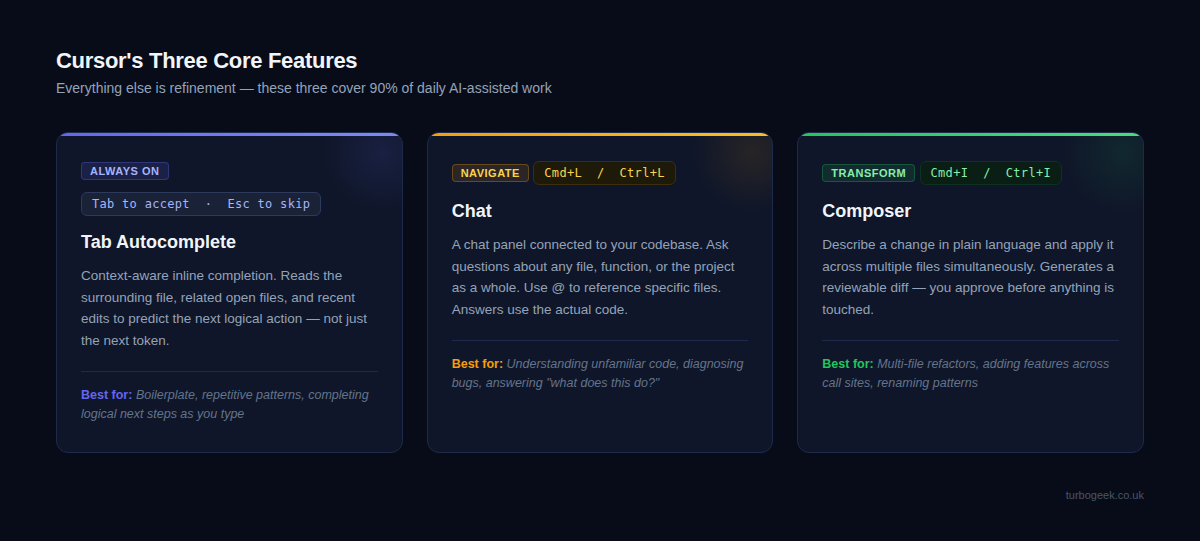
Tab autocomplete. Cursor’s inline completion is context-aware in a way that Copilot is not. It reads the surrounding file, related files you have open, and recent edits to predict not just the next token but the next logical action. You will notice it completing entire blocks of code, suggesting the obvious refactor before you reach for it, and adapting its suggestions to the patterns already present in your codebase. The practical result is that you spend less time typing boilerplate and more time thinking. Accept suggestions with Tab, skip them with Escape — the same muscle memory as Copilot, but the suggestions are better.
Chat (Cmd+L on Mac, Ctrl+L on Windows/Linux). This opens a chat panel connected to your codebase. You can ask questions about any file, any function, or the project as a whole. “What does this module do?” “Where is this value being set?” “Why is this test failing?” Cursor answers using the actual code, not a hallucinated approximation. You can reference specific files with @ mentions, which is the habit worth building early. The chat is not a toy — it is a navigational tool for understanding unfamiliar code fast.
Composer (Cmd+I on Mac, Ctrl+I on Windows/Linux). This is where Cursor separates from every other AI coding tool. Composer lets you describe a change in plain language and have it applied across multiple files simultaneously. “Add error handling to every API call in the services directory.” “Extract this logic into a shared utility and update all the call sites.” Cursor generates a diff, shows you exactly what will change, and waits for your review before touching anything. You stay in control. The diffs are reviewable, reversible, and — once you learn to write good prompts — surprisingly accurate.
Your First Real Session
Theory is fine. Here is what an actual working session looks like.
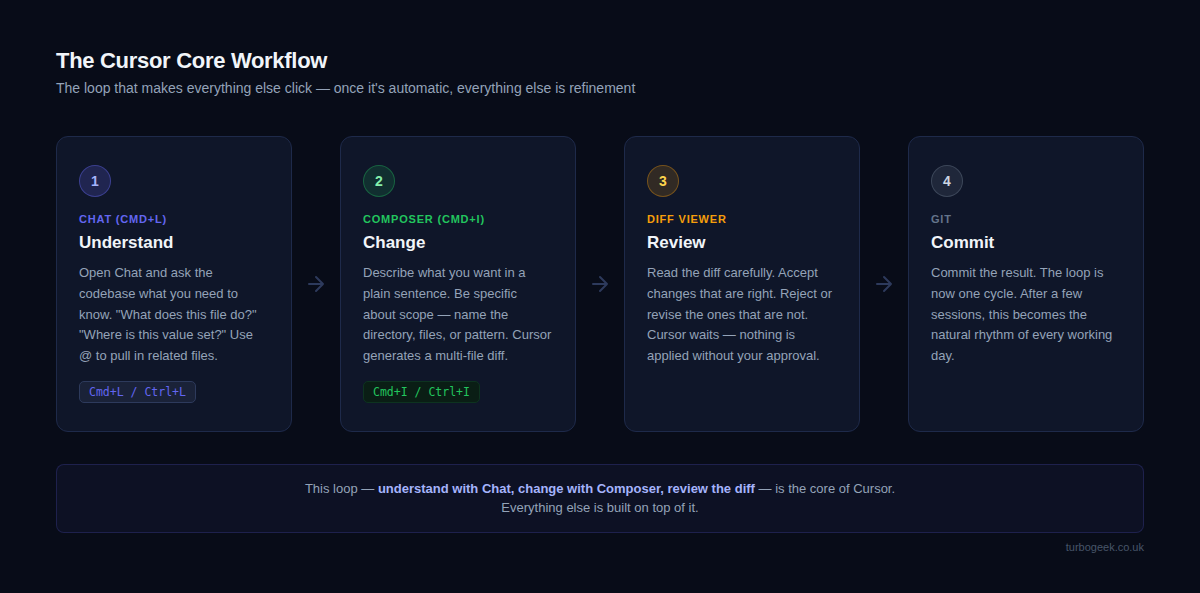
Open a real project — ideally one you know reasonably well. Navigate to a file that has some complexity: a service class, an API handler, a module with a few hundred lines. Press Cmd+L to open Chat and ask: “Walk me through what this file does and flag anything that looks fragile.” Read the response. It will surface things you forgot were there and give you a faster orientation than reading the code top to bottom. Use @ mentions to pull in related files if the answer references dependencies you want to understand.
Now pick a real task — something you were going to do anyway. A small refactor, adding validation to a function, renaming a concept across several files. Press Cmd+I to open Composer and describe what you want in a plain sentence. Be specific about scope: mention the directory, the files, or the pattern you want changed. Cursor will generate a multi-file diff. Review it carefully. Accept the changes that are right, reject the ones that are not. Commit the result.
That loop — understand with Chat, change with Composer, review the diff — is the core workflow. Everything else is refinement. After a few sessions it becomes automatic.
The Setting Worth Changing Immediately
Before you do anything else in a new project, create a .cursorrules file in the root of your repository (or use the newer .cursor/rules/ directory with .mdc files, introduced in Cursor v0.45+). This file tells Cursor how your project works — the conventions it should follow, the patterns it should prefer, and the constraints it should respect. Without it, Cursor makes reasonable guesses. With it, the suggestions become noticeably more accurate from the first interaction.
The file is plain text. It does not need to be long. A focused set of rules that reflect your actual project is worth far more than an exhaustive list copied from somewhere else. Here is the kind of thing a useful .cursorrules file looks like for a TypeScript backend project:
Adjust every line to match your actual project. The value comes from accuracy, not length. Cursor reads this file on every request and uses it to constrain its suggestions. Treat it as a living document — update it when you establish a new convention or when you notice Cursor making the same wrong assumption repeatedly.
What to Expect After a Week
The learning curve with Cursor is genuinely shallow. The editor works the same way VS Code does. The keyboard shortcuts are identical. The extensions you rely on are already installed. You are not learning a new environment — you are learning a new way of working within a familiar one.
The main adjustment is cognitive, not technical. You are shifting from executing tasks manually to describing them. That sounds trivial but it takes a few days to internalise. The instinct, especially for experienced developers, is to just write the code yourself because it feels faster in the moment. It is not. Writing a clear description of what you want, reviewing the diff, and correcting the edge cases is almost always faster than writing it from scratch — and it forces you to think about what you actually want before you start typing, which catches a surprising number of design mistakes early.
By the end of the first week you will have a sense of which tasks Cursor handles well on the first attempt and which ones need more precise prompting. Multi-file refactors with clear scope: excellent. Open-ended architectural decisions: needs more guidance from you. That calibration is the real skill, and it comes quickly with practice.
The goal is not to use AI for everything. It is to use it for the right things — and Cursor makes it easy to find out which is which.
Cursor is the right tool for the kind of work most developers do most of the time: editing files, navigating a codebase, making focused changes. For larger, more autonomous tasks — running commands, managing multiple agents, working across a whole repository without a GUI — it pairs extremely well with Claude Code. I have written about exactly that combination, and where the boundaries between them sit, in Claude Code vs Cursor. If you are deciding which tool to reach for on a given task, that post will give you a clear framework.
Start with Cursor. Get comfortable with the three features that matter. Add your .cursorrules file on day one. The rest follows naturally.
Leave a Reply